
White Shark GH-2044 Wolf
White Shark GH-2044 Wolf Gaming Headset User Manual
Introduction
This manual provides essential instructions for the proper setup, operation, and maintenance of your White Shark GH-2044 Wolf Gaming Headset. Please read this guide thoroughly before using the product to ensure optimal performance and longevity. Keep this manual for future reference.
Product Overview
The White Shark GH-2044 Wolf is a wired over-ear gaming headset designed for immersive audio experiences. It features a built-in microphone for communication and a USB connection for compatibility with multiple devices.
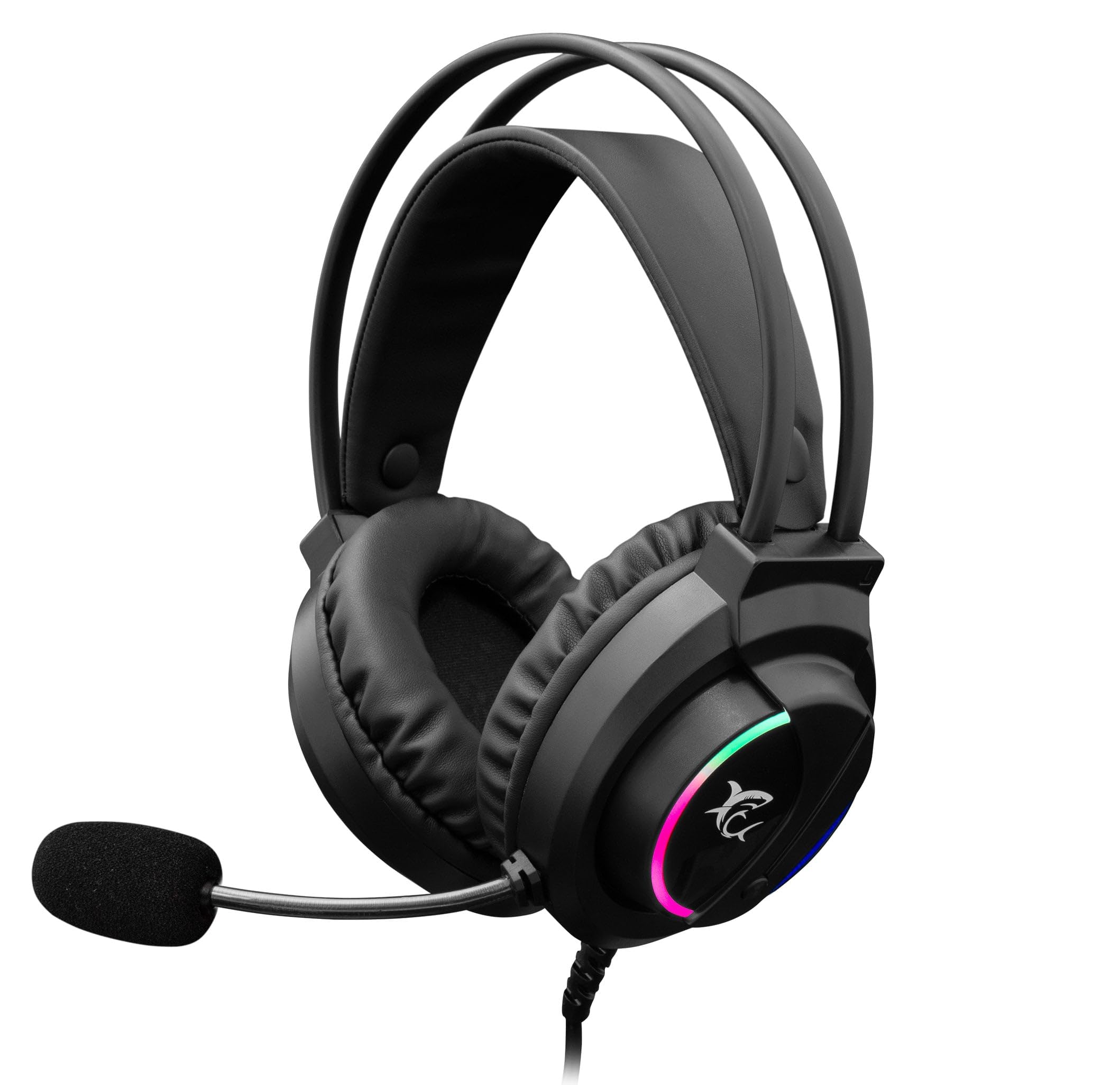
Image: The White Shark GH-2044 Wolf Gaming Headset packaging box, displaying the headset and key features.

Image: The White Shark GH-2044 Wolf Gaming Headset, showcasing its illuminated earcups and flexible microphone.

Image: A close-up view of the earcup on the White Shark GH-2044 Wolf Gaming Headset, highlighting the integrated volume control wheel.

Image: A detailed close-up of the flexible microphone, showing its foam cover for clear voice capture.
Setup Instructions
- Connect the Headset: Plug the USB connector of the GH-2044 Wolf Gaming Headset into an available USB port on your computer, gaming console, or other compatible device.
- Driver Installation (if necessary): For most operating systems, the headset will be recognized automatically, and standard drivers will be installed. If prompted, follow the on-screen instructions to complete any driver installation.
- Audio Output/Input Selection: Navigate to your device's sound settings. Select the White Shark GH-2044 Wolf as your primary audio output device (for sound) and as your primary audio input device (for the microphone).
- Adjust Volume: Use the volume control wheel located on the headset's earcup to adjust the audio level to your preference.
Operating Instructions
- Volume Control: The headset features an integrated volume control wheel on the left earcup. Rotate the wheel up to increase volume and down to decrease volume.
- Microphone Usage: The flexible microphone can be adjusted to your desired position for optimal voice pickup. Ensure the microphone is positioned close to your mouth for clear communication.
- Microphone Mute: (Information not explicitly provided in product data, assume software control or inline control if present.) If an inline mute button is present on the cable, press it to mute/unmute the microphone. Otherwise, use your device's software settings to control microphone mute.
- LED Lighting: The earcups feature spectrum LED lighting. This lighting is typically powered by the USB connection and operates automatically.
Maintenance
- Cleaning: Use a soft, dry cloth to clean the headset. Do not use liquid cleaners or abrasive materials, as these can damage the finish and internal components.
- Storage: Store the headset in a cool, dry place away from direct sunlight and extreme temperatures. Avoid placing heavy objects on the headset.
- Cable Care: Avoid sharp bends or excessive pulling on the USB cable to prevent internal damage.
- Ear Cushions: Periodically check ear cushions for wear and tear. Replacement cushions may be available from the manufacturer or authorized retailers.
Troubleshooting
- No Sound:
- Ensure the USB connector is fully inserted into the port.
- Check your device's sound settings to confirm the White Shark GH-2044 Wolf is selected as the output device.
- Verify the volume control wheel on the headset is turned up.
- Test the headset on another device to rule out a device-specific issue.
- Microphone Not Working:
- Ensure the microphone is not muted (check inline control or software settings).
- Confirm the White Shark GH-2044 Wolf is selected as the input device in your device's sound settings.
- Adjust microphone sensitivity in your device's sound settings.
- Test the microphone with another application or device.
- Distorted Audio:
- Lower the volume on both the headset and your device.
- Ensure the audio source is not distorted.
- Try connecting to a different USB port.
Specifications
| Feature | Specification |
|---|---|
| Brand | White Shark |
| Model Number | GH-2044 Wolf |
| Connectivity Technology | Wired USB |
| Headset Type | Over-Ear |
| Microphone Included | Yes |
| Noise Control | None |
| Compatible Devices | Multiple |
| Control Type | Volume Control |
| Material | Leather (ear cushions) |
| Recommended Uses | Gaming |
| Product Dimensions | 20 x 10 x 24.5 cm |
| Weight | 300 grams |
| Color | Black |
| Included Components | Headband, Ear Cushions |
Warranty and Support
For warranty information and technical support, please refer to the documentation provided with your purchase or contact your retailer. Specific warranty terms may vary by region and retailer.
Related documentsGH-2044 Wolf


Ask a question about this manual
Ask about setup, troubleshooting, compatibility, parts, safety, or missing instructions. Manuals+ will review the question and use this page’s manual context to help answer it.