
1. Introduction
This manual provides detailed instructions for the Tyler 16-inch Portable LCD TV Monitor, Model T709. Please read this manual thoroughly before using the product to ensure proper operation and to maximize its lifespan. Keep this manual for future reference.
2. Safety Information
- Do not expose the unit to rain or moisture to prevent fire or electric shock.
- Do not open the casing. Refer all servicing to qualified personnel.
- Ensure proper ventilation. Do not block ventilation openings.
- Use only the power adapter and car charger provided by the manufacturer.
- Avoid extreme temperatures and direct sunlight.
- Handle the screen with care to prevent damage.
3. Package Contents
Verify that all items listed below are included in your package:
- Tyler 16-inch Portable LCD TV Monitor (Model T709)
- Remote Control
- Batteries for Remote Control
- AC/DC Power Adapter
- Car Charger Adapter (12V)
- Antenna Set (for digital TV and FM receivers)
- RCA Cable (for analogue video input)

Image: All components included with the Tyler 16-inch Portable TV Monitor, including the TV, remote control, batteries, AC/DC adapter, car charger, antenna, and RCA cable.
4. Product Overview
The Tyler 16-inch Portable LCD TV Monitor (Model T709) is designed for versatile entertainment on the go. It features a 16-inch widescreen LED display, built-in rechargeable battery, and multiple connectivity options.
Front View

Image: Front view of the Tyler 16-inch Portable TV Monitor, showcasing the screen, integrated stand, and the included remote control and antenna.
Side and Rear Connections
The unit provides various ports for connecting external devices:

Image: Detailed view of the side panel connections, including the USB port, Analogue Video port, HDMI digital video and audio port, and FM radio antenna input.
- USB Port: For external audio/video playback.
- Analogue Video Port: For connecting older devices.
- HDMI Port: For high-definition digital video and audio input.
- FM Radio Antenna Input: For FM radio reception.
- DC 12V Input: For power adapter or car charger.
- AV In/Out: Dual AV inputs for DVD players or game systems.
- Headphone Jack: For private listening.
5. Setup
5.1 Initial Charging
Before first use, fully charge the built-in battery. Connect the AC/DC power adapter to the DC 12V input on the TV and plug it into a wall outlet. The charging indicator will illuminate. A full charge typically takes several hours.
5.2 Antenna Connection
For receiving digital TV or FM radio signals, connect the included antenna to the appropriate antenna input port on the TV. Extend the antenna fully for optimal reception.
5.3 Powering On/Off
Press the POWER button on the TV or the remote control to turn the unit on or off.
5.4 Connecting External Devices
- HDMI: Connect an HDMI cable from your device (e.g., Roku, Firestick, game console) to the HDMI port on the TV.
- USB: Insert a USB drive into the USB port for media playback.
- RCA (AV In): Use the provided RCA cable to connect devices like DVD players to the AV In ports.
5.5 Adjusting the Stand
The TV features a built-in steel stand that can be adjusted for optimal viewing angles. Simply pull out the stand from the back of the unit and position it as desired. The stand allows for a wide range of rotation.

Image: The rear of the TV demonstrating the adjustable, rotating stand for flexible positioning.
6. Operating Instructions
6.1 Remote Control Functions
The included remote control provides full functionality for the TV. Ensure batteries are correctly inserted.

Image: The Tyler multimedia remote control, showing various buttons for power, channel, volume, menu navigation, and input selection.
- POWER: Turns the TV on/off.
- MENU: Accesses the main menu for settings.
- CH +/-: Changes channels.
- VOL +/-: Adjusts volume.
- INPUT/SOURCE: Selects input source (HDMI, AV, USB, TV).
- OK/ENTER: Confirms selections.
- MUTE: Mutes/unmutes audio.
- INFO: Displays channel information.
6.2 Channel Scan (First Time Setup)
- Ensure the antenna is connected.
- Turn on the TV.
- Press the MENU button on the remote.
- Navigate to the "Channel" or "Setup" menu.
- Select "Auto Scan" or "Auto Tune" and confirm. The TV will search for available digital channels. This process may take several minutes.
6.3 Media Playback via USB
Insert a USB flash drive containing compatible media files (AVI, MOV, MPEG, MP4, MP3, JPEG, etc.) into the USB port. Select "USB" as the input source using the INPUT button. Navigate through your files using the remote control.
6.4 FM Radio Operation
Select "FM Radio" as the input source. Use the channel buttons to tune to different radio stations. Perform an auto-scan in the FM radio menu for the first time to find available stations.
6.5 Headphone Use
Connect standard 3.5mm headphones to the headphone jack for private listening. The built-in speakers will automatically mute when headphones are connected.
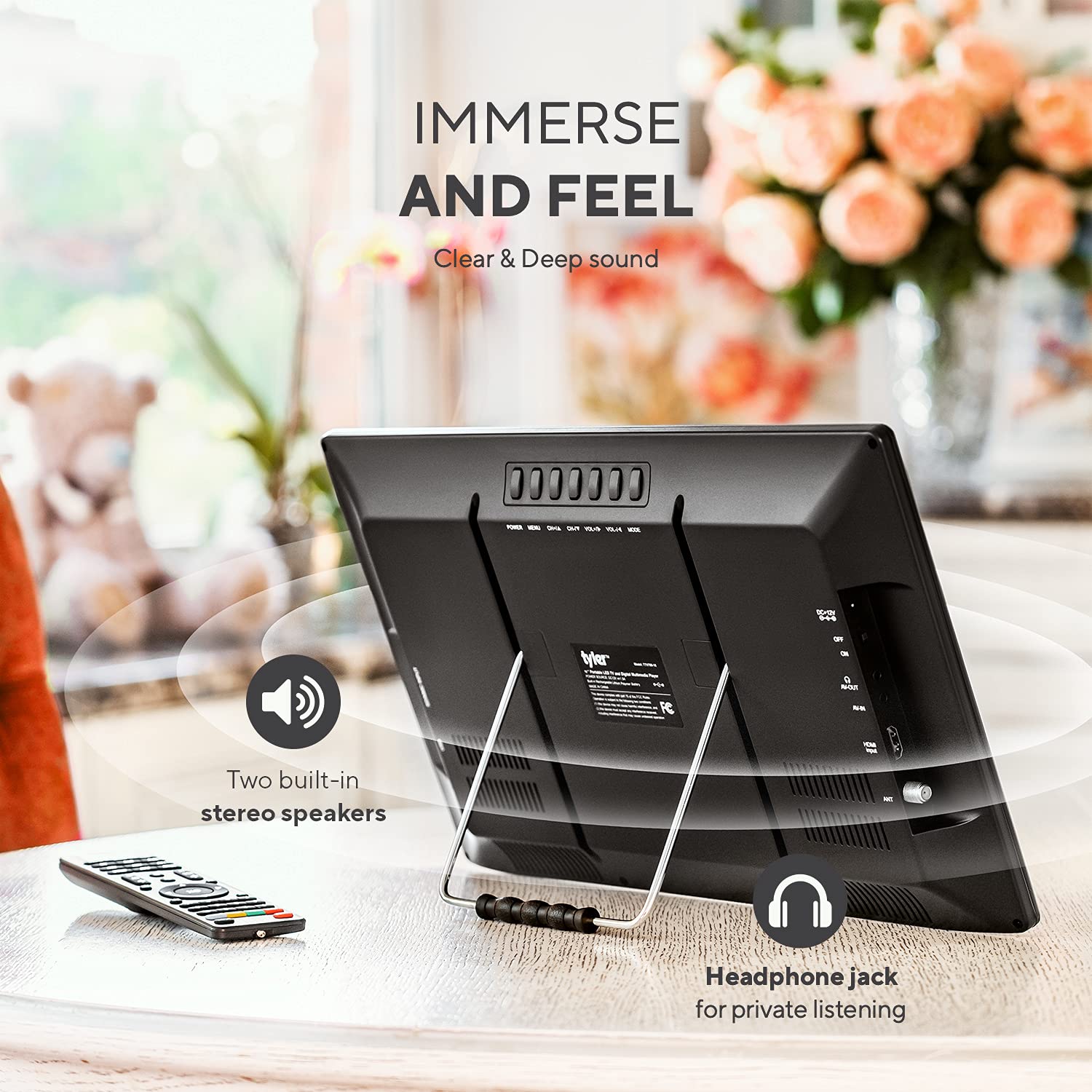
Image: The rear of the TV, indicating the location of the headphone jack for private listening and the two built-in stereo speakers.
7. Maintenance
7.1 Cleaning the Unit
Wipe the screen and casing with a soft, dry, lint-free cloth. For stubborn marks, slightly dampen the cloth with water. Do not use abrasive cleaners, waxes, or solvents.
7.2 Battery Care
- To prolong battery life, avoid fully discharging the battery frequently.
- If storing the unit for an extended period, charge the battery to approximately 50% every 3-6 months.
- Do not expose the battery to extreme heat or cold.
8. Troubleshooting
| Problem | Possible Cause | Solution |
|---|---|---|
| No power | Battery discharged; Power adapter not connected; Remote control batteries dead. | Charge the battery; Connect the power adapter; Replace remote control batteries. |
| No signal/Poor picture quality | Antenna not connected or positioned correctly; No channel scan performed; Weak broadcast signal. | Connect/adjust antenna; Perform auto channel scan; Try repositioning the TV or antenna. |
| No sound or low volume | Volume too low; Mute activated; External speakers/headphones not connected properly. | Increase volume; Deactivate mute; Check external audio connections. Note: Built-in speakers are designed for portability and may not offer high fidelity. |
| HDMI input not working | Incorrect input source selected; Faulty HDMI cable; External device not powered on. | Select correct HDMI input; Try a different HDMI cable; Ensure external device is on. |
| Dead pixels or lines on screen | Manufacturing defect or physical damage. | Contact customer support for assistance. |
| Remote control not responding | Batteries are dead or inserted incorrectly; Obstruction between remote and TV. | Replace batteries; Ensure clear line of sight to the TV's IR receiver. |
9. Specifications
| Feature | Detail |
|---|---|
| Model Number | T709 |
| Screen Size | 16 Inches |
| Display Technology | LCD, LED |
| Resolution | 1080p |
| Refresh Rate | 60 Hz |
| Aspect Ratio | 16:9 |
| Connectivity | HDMI, USB, VGA, RCA (AV In/Out), Headphone Jack, FM Antenna |
| Power Source | AC/DC Adapter, 12V Car Charger, Built-in Lithium Ion Battery |
| Battery Life | Approximately 4+ hours (TV playback), 25 minutes (HDMI with DVD player) |
| Product Dimensions | 1"D x 1"W x 2"H (Note: These dimensions are as provided in product data and may refer to packaging or a specific component.) |
| Weight | 4.35 Pounds |
| Manufacturer | Tyler |
10. Warranty and Support
10.1 Warranty Information
This product is covered by a manufacturer's warranty. Please refer to the warranty card included in your package or visit the official Tyler website for detailed warranty terms and conditions. Keep your proof of purchase for warranty claims.
10.2 Customer Support
For technical assistance, troubleshooting not covered in this manual, or warranty inquiries, please contact Tyler customer support. Contact details can typically be found on the manufacturer's website or on the product packaging.
Note: Specific contact information is not provided in this manual. Please refer to the product packaging or manufacturer's website for the most current support details.