
Introduction
This manual provides detailed instructions for the setup, operation, and maintenance of your Inandon Capacitive Touch Screen Karaoke Machine (Model B0991VZR89). This system features a 22-inch capacitive touch screen, a dual operating system (Android and KTV), wireless microphones, and access to a vast cloud-based song library. Please read this manual thoroughly to ensure proper use and to maximize your karaoke experience.
Package Contents
Upon unboxing, please verify that all components are present:
- Inandon Karaoke Machine (Main Unit with 22" Touch Screen)
- Wireless Microphones (Quantity: 2)
- Power Adapter
- User Manual (this document)
- Other accessories (e.g., cables, remote control - if included, check packaging)

Image: The Inandon Karaoke Machine main unit with its 22-inch touch screen and two wireless microphones.
Setup Instructions
1. Placement
Place the karaoke machine on a stable, flat surface. Ensure adequate ventilation around the unit. Avoid placing it near heat sources or in direct sunlight.
2. Connecting to Power
Connect the power adapter to the DC input port on the back of the karaoke machine, then plug the adapter into a standard electrical outlet.
3. Audio Connections
The Inandon Karaoke Machine requires an external amplifier and speakers for audio output.
- RCA Output: Connect the RCA stereo audio output from the karaoke machine to the audio input of your amplifier.
- HDMI Output: For video and audio, connect an HDMI cable from the karaoke machine's HDMI output to your TV or display.
- Microphone Input: The unit has two 1/4" input jacks for microphones. The included wireless microphones connect wirelessly to the receiver unit, which then connects to the karaoke machine.
4. Network Connection
The machine supports both wired and wireless network connections for cloud song downloads and online features.
- Wi-Fi: Navigate to the system settings on the touch screen, select "Wi-Fi," and connect to your preferred wireless network.
- Ethernet: Connect an Ethernet cable from your router to the RJ45 port on the back of the karaoke machine.
Operating Instructions
1. Power On/Off
Press the power button located on the unit to turn the machine on or off. The touch screen will illuminate upon startup.
2. System Overview (Dual System)
The Inandon Karaoke Machine operates on a dual system: a dedicated KTV system for karaoke functions and an Android system for general entertainment. You can switch between these systems from the main interface.

Image: The panoramic home entertainment mode, displaying the Android system interface with various applications like YouTube, music apps, and live TV.
3. Song Selection Methods
The machine offers multiple convenient ways to select songs:
- Touch Screen: Directly browse and select songs using the 22-inch capacitive touch screen.
- Mobile App: Download the dedicated Inandon mobile application to control the machine from your smartphone.
- WeChat Scan Code: Use WeChat to scan a QR code displayed on the screen for song ordering. (Troubleshooting WeChat connection)
- Intelligent Voice Assistant: Utilize the built-in voice assistant to order songs by speaking commands. This feature supports Mandarin and Cantonese languages.
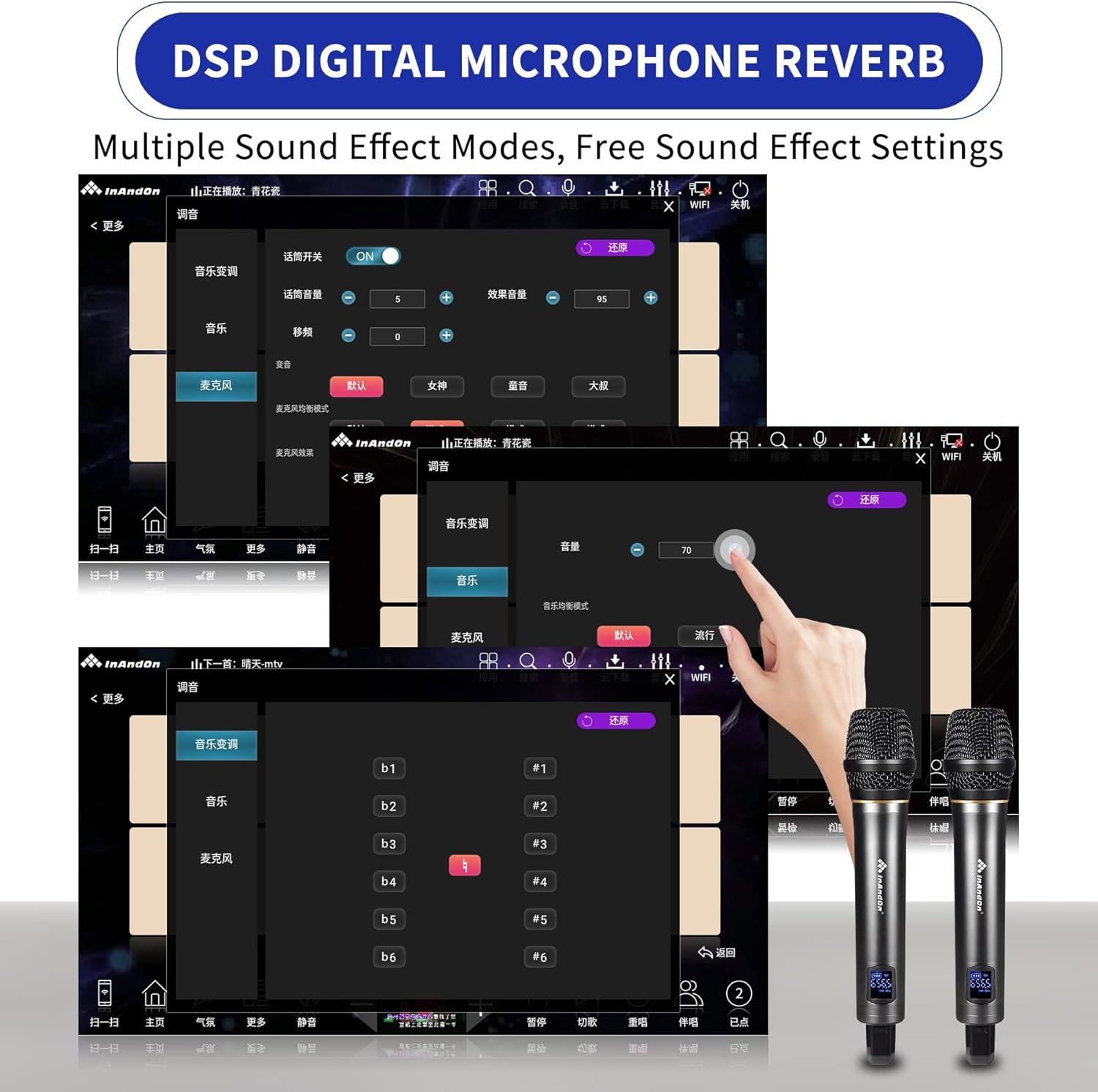
Image: Illustration of the four song ordering methods: touch screen, mobile app, WeChat scan code, and intelligent voice assistant.
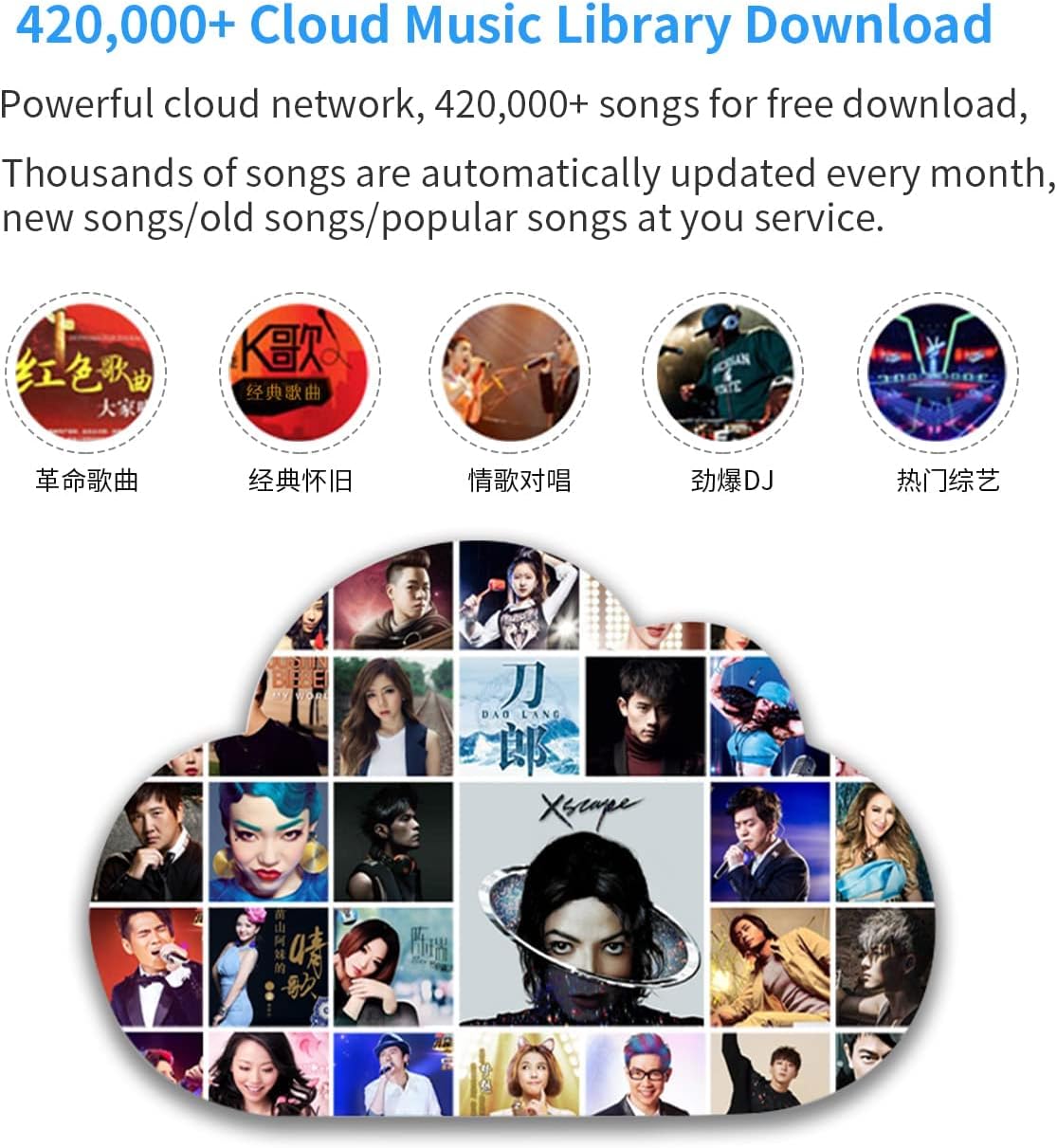
Image: A visual representation of the intelligent AI voice assistant feature, demonstrating song ordering by voice commands in Mandarin and Cantonese.
4. Cloud Music Library
Access a vast library of over 420,000 songs available for free download. The cloud library is updated weekly with new songs. Once downloaded, songs can be played offline.

Image: Visual representation of the extensive cloud music library, highlighting the availability of over 420,000 songs for download.
5. Real-time Scoring System
Engage with the KTV intelligent scoring system that provides real-time feedback on your singing performance. This feature helps you improve your rhythm and vocal accuracy.

Image: A visual of the KTV intelligent scoring system displaying real-time performance feedback during a song.
6. Microphone Settings (DSP Digital Reverb)
Adjust microphone settings, including tone (high and low key), singing mode, and various DSP digital reverb effects, to customize your vocal output.

Image: The user interface for adjusting DSP digital microphone reverb and other sound effect settings.
7. General Entertainment Features
Beyond karaoke, the Android system allows for:
- Online video streaming (e.g., YouTube).
- Live broadcast viewing.
- Access to various apps from the app market (e.g., office, games).
- Online movie watching.
Maintenance
1. Cleaning
Regularly clean the touch screen with a soft, lint-free cloth. For stubborn marks, use a screen-safe cleaning solution. Do not use abrasive cleaners or solvents. Wipe the exterior of the machine with a dry or slightly damp cloth.
2. Software Updates
Ensure your system software is up-to-date to benefit from the latest features and performance improvements. Check for updates periodically through the system settings menu. Cloud song updates occur automatically every two weeks.
3. Hard Drive Management
The system features intelligent song deletion to maintain hard drive capacity. It automatically removes long-term unclicked songs based on the configured storage limit. You can also manually manage downloaded songs.
Image: The intelligent song deletion interface, illustrating how the system manages hard drive capacity by removing infrequently played songs.
Troubleshooting
| Problem | Possible Cause | Solution |
|---|---|---|
| No power | Power cable disconnected; Power outlet fault | Ensure power cable is securely connected. Test the outlet with another device. |
| No sound output | Amplifier/speakers off or disconnected; Volume too low; Incorrect audio output settings | Check amplifier and speaker connections and power. Increase volume. Verify audio output settings on the karaoke machine. |
| Microphones not working | Microphone batteries low; Wireless receiver off; Microphone volume low | Replace microphone batteries. Ensure wireless receiver is powered on and connected. Adjust microphone volume on the machine. |
| Cannot connect to Wi-Fi | Incorrect password; Router issue; Out of range | Double-check Wi-Fi password. Restart your router. Move the machine closer to the router or use an Ethernet cable. |
| Songs not downloading | No internet connection; Cloud server issues; Insufficient storage | Verify internet connection. Try again later. Check hard drive space and enable intelligent song deletion. |
Specifications
| Feature | Detail |
|---|---|
| Brand | Inandon |
| Model | B0991VZR89 |
| Special Feature | Wireless Microphones |
| Color | Black |
| Included Components | Karaoke Machine, Microphones |
| Power Source | Battery Powered (Microphones), AC Adapter (Main Unit) |
| Number of Speakers | 1 (Internal, for system sounds; external speakers required for karaoke) |
| Connector Type | USB, RCA, 3.5mm Jack, HDMI, RJ45 (Ethernet) |
| Connectivity Technology | Wi-Fi, Bluetooth |
| Media Type | Wi-Fi, Bluetooth |
| Compatible Devices | Amplifier, External Speakers, TV/Display |
| Built-In Media | Microphone (receiver) |
| Item Weight | 31.4 Pounds |
| Operating System | Dual system (Android and KTV) |
| Screen Size | 22 inches (Capacitive Touch Screen) |
| Song Library | 420,000+ cloud songs, weekly updates |
| Hard Drive | 3TB (holds approx. 70,000 songs) |
| Supported Languages | Chinese, English, Cantonese, Japanese, Korean, and others (16 national languages) |
Warranty Information
Please refer to the warranty card included in your product packaging for specific warranty terms and conditions. Typically, Inandon products come with a limited manufacturer's warranty covering defects in materials and workmanship for a specified period from the date of purchase. Keep your proof of purchase for warranty claims.
Extended protection plans may be available for purchase separately. For details on these plans, please consult your retailer or the plan provider.
Customer Support
If you encounter any issues not covered in the troubleshooting section or require further assistance, please contact Inandon customer support.
- Online Support: Visit the official Inandon website for FAQs, support resources, and contact forms.
- Email Support: Refer to your product documentation for the customer support email address.
- Phone Support: Refer to your product documentation for customer service phone numbers.
When contacting support, please have your product model number (B0991VZR89) and purchase information ready.


