
XPLORA XMove Activity Band
XPLORA XMOVE Activity and Fitness Tracker User Manual
Model: XMove Activity Band
Introduction
The XPLORA XMOVE is an advanced activity and fitness tracker designed to help you monitor your health and activity levels. It features a heart rate monitor, sleep tracking, various sports modes, and smart notifications, all integrated with the unique Goplay Platform to encourage an active lifestyle.
This manual provides essential information on setting up, operating, maintaining, and troubleshooting your XMOVE device.
Product Overview

The XPLORA XMOVE Activity Tracker, shown from an angled front view, displaying the current time, weekly step count, and various daily metrics such as heart rate, calories burned, and total steps.

A side profile view of the XPLORA XMOVE Activity Tracker, illustrating its sleek and slim design, along with the single physical button located on the side of the device.
Key Features:
- Heart Rate Monitor: Real-time heart rate detection to help optimize exercise intensity.
- Sleep Monitoring: Measures duration and quality of sleep, viewable in the Xplora app.
- Sports Monitoring Modes: Dedicated modes for running, walking, cycling, and climbing.
- Movement Reminders: Built-in sensor prompts you to move after periods of inactivity.
- GOPLAY Platform: Earn Xplora coins for physical activity, balancing screen time with active play.
- Notification Sync: Displays call alerts, messages, and reminders from your connected smartphone via Bluetooth.
- Long Battery Life: Up to 3 days of working time and up to 8 days of standby time.
Setup
1. Charging the Device
Before first use, fully charge your XPLORA XMOVE. Connect the included charging cable to the charging port on the back of the device and plug the USB end into a compatible power source (e.g., computer USB port or wall adapter). A full charge typically takes approximately 2 hours.
The XPLORA XMOVE display showing the time and a full battery indicator, typical when the device is fully charged or actively charging.
2. Installing the XPLORA App
The XPLORA XMOVE requires the XPLORA app for full functionality and data synchronization. The app is compatible with Android smartphones.
- Search for "XPLORA" in your smartphone's app store (Google Play Store for Android).
- Download and install the official XPLORA app.
- Follow the on-screen instructions to create an account or log in.
3. Pairing with Your Smartphone
Once the app is installed and you have an account, pair your XMOVE with your smartphone via Bluetooth:
- Ensure Bluetooth is enabled on your smartphone.
- Open the XPLORA app and navigate to the device pairing section.
- Turn on your XMOVE by pressing and holding the side button.
- The app will search for nearby XMOVE devices. Select your device from the list.
- Confirm the pairing request on both your smartphone and the XMOVE if prompted.
Operating
Navigating the Display
The XMOVE features a 1.3-inch digital display. You can navigate through different screens and functions by swiping horizontally and vertically on the touchscreen, or by using the side button for specific actions like waking the screen or returning to the home screen.

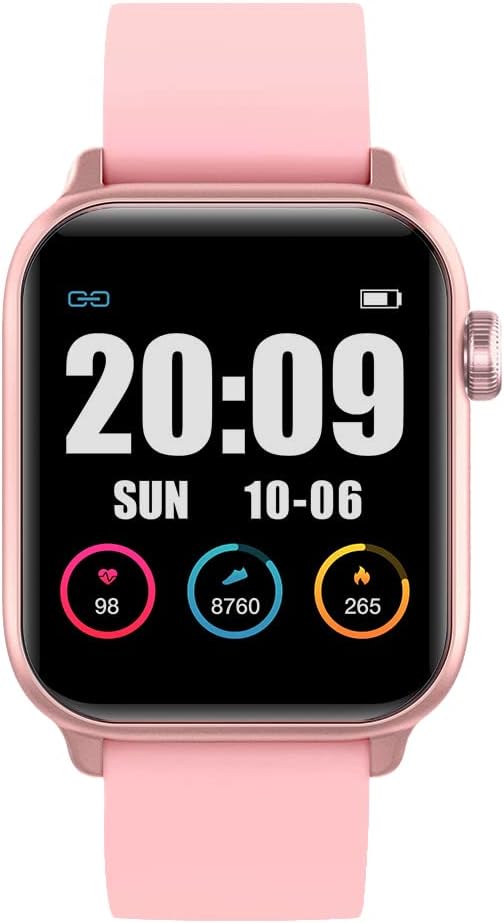
The XPLORA XMOVE display showing current heart rate, daily steps, and calories burned, each represented with a circular progress indicator.
Activity Monitoring
- Steps: The pedometer automatically tracks your daily step count. View your progress on the device or in the app.
- Heart Rate: Access the heart rate monitor function on the device to take a real-time reading. For continuous monitoring, refer to app settings.
- Sleep: Wear the XMOVE to bed for automatic sleep tracking. Data on sleep duration and quality will be available in the XPLORA app.
- Sports Modes: Select a specific sports mode (e.g., running, cycling) before starting an activity to track relevant metrics like distance, duration, and calories more accurately.

Two users interacting with their XPLORA XMOVE trackers, demonstrating the ease of use and touch screen responsiveness during active wear.
Smart Functions
- Notifications: Once paired, the XMOVE can display incoming call alerts, messages, and reminders from your smartphone. Manage notification settings within the XPLORA app.
- Movement Reminders: The device will vibrate to remind you to move if it detects prolonged inactivity. This feature can be configured in the app.
- GOPLAY Platform: Synchronize your activity data with the XPLORA app to earn Xplora coins through the Goplay platform, which can be redeemed for various rewards.
Maintenance
Cleaning Your Device
Regular cleaning helps maintain the device's appearance and functionality:
- Wipe the screen and strap with a soft, damp, lint-free cloth.
- Do not use abrasive cleaners, solvents, or harsh chemicals.
- Ensure the charging contacts are clean and dry before charging.
Water Resistance
The XPLORA XMOVE is IP68 waterproof, meaning it is resistant to dust and can withstand immersion in water up to 1.5 meters for up to 30 minutes. It is suitable for daily use, including hand washing and light rain. However, it is not recommended for swimming, showering with hot water, or diving, as steam and high-pressure water jets can compromise the seal.
Battery Care
- Charge the device regularly, even if not in constant use, to prolong battery life.
- Avoid extreme temperatures, which can degrade battery performance.
- Use only the provided charging cable.
Storage
When not in use for extended periods, store the XMOVE in a cool, dry place away from direct sunlight and extreme temperatures.
Troubleshooting
Common Issues and Solutions:
- Device not turning on: Ensure the device is fully charged. Connect it to the charger for at least 30 minutes.
- Cannot pair with smartphone:
- Ensure Bluetooth is enabled on your phone and the XMOVE is discoverable.
- Restart both the XMOVE and your smartphone.
- Make sure the XMOVE app is updated to the latest version.
- If previously paired, try unpairing and re-pairing the device from your phone's Bluetooth settings.
- Inaccurate readings (steps, heart rate):
- Ensure the device is worn snugly on your wrist, about one finger's width above the wrist bone.
- Clean the sensor on the back of the device.
- For heart rate, remain still during measurement.
- Notifications not appearing:
- Check notification settings in the XPLORA app and your phone's system settings to ensure permissions are granted.
- Ensure the device is connected via Bluetooth.
- Short battery life:
- Reduce screen brightness.
- Limit the number of apps sending notifications to the device.
- Ensure background app refresh is not excessively draining battery.
If you encounter persistent issues, refer to the XPLORA app's help section or contact customer support.
Specifications
| Feature | Detail |
|---|---|
| Model Number | XMove Activity Band |
| Product Dimensions | 13.34 x 0.79 x 4.22 cm |
| Item Weight | 110 g |
| Display Size | 1.3 Inches |
| Display Type | Digital |
| Battery Type | 1 Lithium Ion battery (included) |
| Connectivity Technology | Bluetooth |
| Water Resistance | IP68 (Dust and water resistant up to 1.5m for 30 mins) |
| Compatible Operating System | Android |
| Special Features | Sleep Monitor, Pedometer, Notifications, Heart Rate Monitor |
Warranty and Support
Warranty Information
The XPLORA XMOVE Activity and Fitness Tracker includes a 2-year warranty from the date of purchase, covering manufacturing defects. Please retain your proof of purchase for warranty claims.
Customer Support
For technical assistance, warranty claims, or further inquiries, please contact XPLORA customer support:
- Email: support@xplora.com
- Address: Xplora Technologies AS - HQ Nedre Slottsgate 8 0157 Oslo, Norway
Please visit the official XPLORA website for the most up-to-date support information and FAQs.
Related documentsXMove Activity Band


Ask a question about this manual
Ask about setup, troubleshooting, compatibility, parts, safety, or missing instructions. Manuals+ will review the question and use this page’s manual context to help answer it.