
1. Introduction
The D-Link DGS-105GL is a 5-Port Gigabit Unmanaged Desktop Switch designed to provide a simple and efficient solution for expanding network connectivity in small office/home office (SOHO) and small to medium-sized business (SMB) environments. This device offers plug-and-play functionality, requiring no complex configuration. Its fanless design ensures silent operation, and the metal housing provides durability. The DGS-105GL incorporates energy-efficient features, including IEEE 802.3az Energy-Efficient Ethernet, to reduce power consumption without compromising performance.
2. Package Contents
Verify that your package contains the following items:
- D-Link DGS-105GL 5-Port Gigabit Unmanaged Desktop Switch
- Power Adapter
If any items are missing or damaged, please contact your local D-Link reseller.
3. Product Overview
The DGS-105GL switch features a compact, low-profile design with a durable metal housing. It is equipped with five Gigabit Ethernet ports for high-speed network connections.
3.1 Front Panel

Image: Front view of the D-Link DGS-105GL switch, showing the D-Link logo, model number DGS-105GL, a power LED, five port status LEDs (1-5), and five RJ45 Gigabit Ethernet ports (1-5).
The front panel includes the following indicators and ports:
- Power LED: Indicates the power status of the switch.
- Port LEDs (1-5): Each port has an LED that indicates link status and activity. A solid light indicates a successful connection, and a blinking light indicates data transmission.
- RJ45 Gigabit Ethernet Ports (1-5): These ports are used to connect network devices such as computers, servers, and other switches.
3.2 Rear Panel

Image: Rear view of the D-Link DGS-105GL switch, showing the power input port labeled '5V --- 1A'.
The rear panel contains the power input port, where the included power adapter is connected.
4. Setup
The DGS-105GL is a plug-and-play device, making installation straightforward. Follow these steps to set up your switch:
- Connect the Power Adapter: Plug the included power adapter into the power input port on the rear panel of the DGS-105GL switch. Then, plug the other end of the adapter into a standard electrical outlet. The Power LED on the front panel should illuminate.
- Connect Network Devices: Connect your network devices (e.g., computers, network-attached storage, routers) to any of the five RJ45 Gigabit Ethernet ports on the front panel using standard Ethernet cables.
- Verify Connections: Once a device is connected and powered on, the corresponding Port LED on the switch's front panel should light up, indicating a successful link. If there is network activity, the LED will blink.

Image: The D-Link DGS-105GL switch placed on a desk in an office setting, connected to a laptop and other peripherals, demonstrating a typical setup.
5. Operating the Switch
The DGS-105GL operates automatically once connected. It supports auto-negotiation for speed and duplex mode, and auto-MDI/MDIX, eliminating the need for crossover cables. The switch automatically detects the speed of the connected device (10/100/1000 Mbps) and adjusts accordingly.
5.1 LED Indicators
The LEDs provide visual feedback on the switch's status:
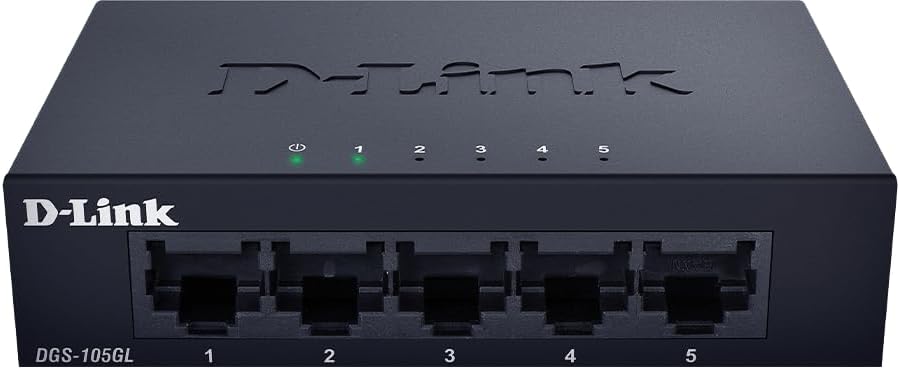
Image: Front view of the D-Link DGS-105GL switch with the green power LED and green port LEDs 1-5 illuminated, indicating active connections.
| LED | Status | Description |
|---|---|---|
| Power | Solid Green | The switch is powered on. |
| Power | Off | The switch is not receiving power. |
| Port (1-5) | Solid Green | A device is successfully connected to the port. |
| Port (1-5) | Blinking Green | Data is being transmitted or received through the port. |
| Port (1-5) | Off | No device is connected to the port, or the connected device is powered off. |
6. Maintenance
To ensure optimal performance and longevity of your DGS-105GL switch, consider the following maintenance guidelines:
- Cleaning: Periodically clean the exterior of the switch with a soft, dry cloth. Avoid using liquid or aerosol cleaners directly on the device.
- Environmental Conditions: Ensure the switch is placed in a well-ventilated area, away from direct sunlight, heat sources, and excessive moisture. Maintain operating temperatures within the specified range (refer to specifications).
- Cable Management: Keep network cables neatly organized to prevent strain on ports and improve airflow around the device.
- Power Cycling: If you experience network issues, a simple power cycle (unplugging the power adapter, waiting 10 seconds, and plugging it back in) can often resolve minor problems.
7. Troubleshooting
If you encounter issues with your DGS-105GL switch, refer to the following common troubleshooting steps:
- No Power LED:
- Ensure the power adapter is securely connected to both the switch and a working electrical outlet.
- Verify that the electrical outlet is functional by plugging in another device.
- No Link LED for a Connected Device:
- Check that the Ethernet cable is securely plugged into both the switch port and the network device.
- Ensure the connected network device is powered on and functioning correctly.
- Try a different Ethernet cable to rule out a faulty cable.
- Try connecting the device to a different port on the switch.
- Slow Network Speed:
- Ensure all connected devices and cables support Gigabit Ethernet (Cat5e or higher).
- Check for excessive network traffic or bandwidth-intensive applications running on connected devices.
- Perform a power cycle on the switch and connected devices.
8. Specifications
Key technical specifications for the D-Link DGS-105GL switch:
| Feature | Specification |
|---|---|
| Model Number | DGS-105GL |
| Number of Ports | 5 x Gigabit Ethernet (RJ45) |
| Data Transfer Rate | 1 Gbps per port |
| Interface Type | RJ45 |
| Case Material | Metal |
| Fanless Design | Yes |
| Energy Efficiency | IEEE 802.3az Energy-Efficient Ethernet (EEE) |
| Power Input | 5 Volts (DC), 1 Amps |
| Item Weight | 160 Grams (5.6 ounces) |
| Product Dimensions | 39.37"L x 25.2"W x 0.94"H (Approximate) |
| UPC | 790069458606 |
9. Warranty and Technical Support
D-Link products are backed by a limited warranty. For specific warranty terms and conditions, please refer to the warranty information included with your product or visit the official D-Link website.
For technical assistance, product documentation, or to download the latest software and firmware updates, please visit the D-Link support portal or contact D-Link technical support directly. Contact information can typically be found on the D-Link website for your region.


