
MSI Modern 15 A11MU-653
MSI Modern 15A A11MU-653 Laptop User Manual
Model: Modern 15 A11MU-653
1. Introduction
This manual provides essential information for the proper setup, operation, and maintenance of your MSI Modern 15A A11MU-653 laptop. Please read this manual thoroughly before using your device to ensure optimal performance and longevity.
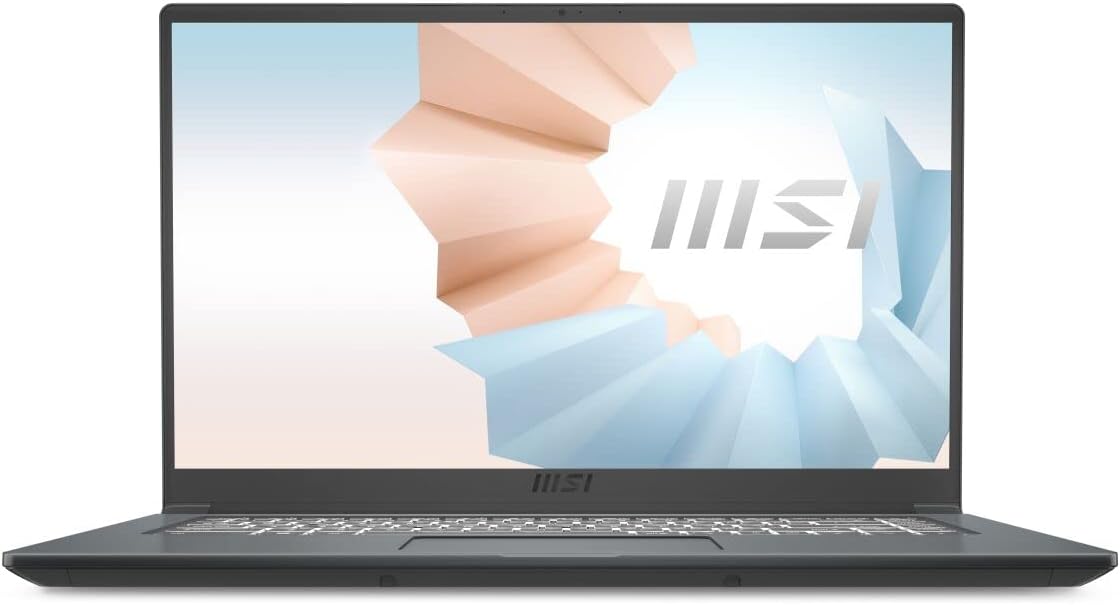
Image 1.1: Front view of the MSI Modern 15A laptop with its display open, showcasing the screen and keyboard.
2. What's in the Box
Upon unpacking your MSI Modern 15A A11MU-653 laptop, verify that all items listed below are present and in good condition:
- MSI Modern 15A Laptop
- Power Adapter
3. Initial Setup
3.1 Unpacking and Placement
- Carefully remove the laptop and all accessories from the packaging.
- Place the laptop on a stable, flat surface with adequate ventilation around it. Avoid blocking the ventilation openings.
3.2 Connecting the Power Adapter
- Connect the power adapter cable to the DC-in port on the side of the laptop.
- Plug the power adapter into a grounded electrical outlet.
- Allow the battery to charge fully before initial use, though you can begin using the laptop while it charges.

Image 3.1: Left side view of the MSI Modern 15A laptop, showing the power input port, HDMI port, and USB-A port.
3.3 Initial Boot and Windows Setup
- Open the laptop lid and press the power button, typically located above the keyboard or on the side.
- Follow the on-screen instructions to complete the Windows 10 Home operating system setup, including language selection, network connection, and user account creation.
4. Operating Your Laptop
4.1 Power On/Off and Sleep Mode
- Power On: Press the power button.
- Power Off: Click the Windows Start button, then select Power > Shut down.
- Sleep Mode: Close the lid or select Power > Sleep from the Start menu.
4.2 Keyboard and Touchpad
The laptop features a full-size keyboard and a multi-touch touchpad for navigation.
- Keyboard: Utilize the backlit keyboard for typing. Function keys (Fn) combined with F-keys provide quick access to system settings like volume, brightness, and Wi-Fi.
- Touchpad: Supports standard gestures such as tap-to-click, two-finger scroll, and pinch-to-zoom.
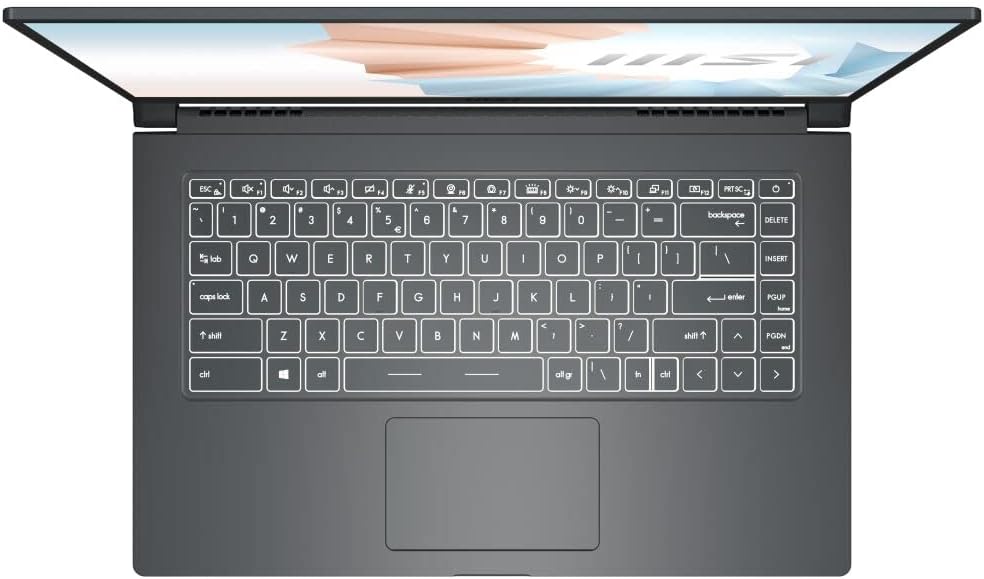
Image 4.1: Top-down view of the MSI Modern 15A laptop's keyboard and touchpad, highlighting the layout and backlit keys.
4.3 Connecting Peripherals
Your laptop is equipped with various ports for connecting external devices:
- USB Ports: Connect USB devices such as external drives, mice, or keyboards. The laptop includes 3 USB 3.0 ports.
- Bluetooth: Enable Bluetooth in Windows settings to pair with wireless headphones, speakers, or other Bluetooth-enabled devices.
- HDMI: Connect an external monitor or projector using the HDMI port.

Image 4.2: Right side view of the MSI Modern 15A laptop, showing two USB-A ports.
4.4 Display and Audio Features
- Thin Bezel Display: The 15.6-inch Full HD display offers an expansive screen area for productivity and entertainment.
- Hi-Res Audio: Experience enhanced audio quality with support for up to 24bit / 192kHz sampling.
4.5 MSI Center
The MSI Center software allows for system optimization, including adjustable system modes and resource management, to suit various usage scenarios and needs.
5. Maintenance and Care
5.1 Cleaning Your Laptop
- Screen: Use a soft, lint-free cloth lightly dampened with water or a screen cleaner. Do not spray liquid directly onto the screen.
- Chassis and Keyboard: Use a soft, dry cloth. For stubborn dirt, a slightly damp cloth can be used. Avoid harsh chemicals.
- Ventilation: Periodically check and clean the ventilation openings to prevent dust buildup, which can affect cooling performance.
5.2 Battery Care
- Avoid fully discharging the battery frequently.
- Store the laptop in a cool, dry place if not used for extended periods.
- For optimal battery health, avoid exposing the laptop to extreme temperatures.
5.3 Software Updates
Regularly update your Windows operating system and MSI drivers to ensure system stability, security, and optimal performance.
6. Troubleshooting
This section addresses common issues you might encounter with your MSI Modern 15A laptop.
- Laptop does not power on: Ensure the power adapter is securely connected to both the laptop and a working electrical outlet. Check if the power adapter's indicator light is on.
- Display issues (no image, flickering): Try connecting an external monitor to determine if the issue is with the laptop's display or the graphics output. Restart the laptop.
- No sound: Check the volume settings in Windows and ensure no headphones are plugged in. Verify that audio drivers are up to date.
- Wi-Fi or Bluetooth connectivity problems: Ensure Wi-Fi/Bluetooth is enabled in Windows settings. Restart your router/modem if Wi-Fi is the issue. Update wireless drivers.
- System performance is slow: Close unnecessary applications. Check for malware. Ensure sufficient free storage space. Consider running system diagnostics via MSI Center.
If you encounter persistent issues not resolved by these steps, please refer to the MSI support website for further assistance.
7. Specifications
The following table outlines the key technical specifications for the MSI Modern 15A A11MU-653 laptop:
| Feature | Specification |
|---|---|
| Model Name | Modern 15 A11MU-653 |
| Screen Size | 15.6 Inches |
| Screen Resolution | 1920 x 1080 pixels (FHD) |
| Processor | Intel Core i7-1195G7 (2.9 GHz) |
| RAM | 8 GB DDR4 (3200 MHz) |
| Hard Drive | 512 GB SSD (NVMe) |
| Graphics Coprocessor | Intel Iris Xe Graphics |
| Operating System | Windows 10 Home |
| Wireless Type | Bluetooth |
| USB 3.0 Ports | 3 |
| Item Weight | 3.52 pounds |
| Product Dimensions | 0.67 x 14.05 x 9.2 inches |
| Color | Carbon Gray |
8. Warranty and Support
For detailed warranty information, including terms, conditions, and registration, please refer to the official MSI website or the warranty card included with your product. For technical support, driver downloads, and service inquiries, visit the MSI support portal:
MSI Official Website: www.msi.com
Please have your product model (Modern 15 A11MU-653) and serial number ready when contacting support.
Related documentsModern 15 A11MU-653


Ask a question about this manual
Ask about setup, troubleshooting, compatibility, parts, safety, or missing instructions. Manuals+ will review the question and use this page’s manual context to help answer it.