
Introduction
This manual provides detailed instructions for the GLIDiC SB-WS91-MRTW/BK TW-9000 Fully Wireless Earphones. Please read this guide thoroughly before using your device to ensure proper operation and to maximize its lifespan. Keep this manual for future reference.

Image: The GLIDiC SB-WS91-MRTW/BK TW-9000 fully wireless earphones, shown with their charging case. The earphones are black and feature the GLIDiC logo. The charging case is also black and has an open lid, revealing the earbud compartments.
Setup
Package Contents
Ensure all items are present in the package:
- GLIDiC SB-WS91-MRTW/BK TW-9000 Earphones (Left and Right)
- Wireless Charging Case
- USB Charging Cable
- User Manual (this document)
Charging the Earphones and Case
Before first use, fully charge the earphones and the charging case. The case can be charged via the included USB cable or wirelessly.
- Place the earphones into the charging case, ensuring they are correctly seated.
- Wired Charging: Connect the USB charging cable to the charging port on the case and to a USB power adapter (not included) or a computer's USB port.
- Wireless Charging: Place the charging case on a compatible Qi-certified wireless charging pad.
- The indicator lights on the case will show the charging status. Refer to the LED indicator section for details.

Image: The GLIDiC SB-WS91-MRTW/BK TW-9000 charging case with earphones inside, placed on a wireless charging pad. A USB cable is connected to the pad. The setup is on a table with breakfast items in the background, illustrating everyday use.
Initial Bluetooth Pairing
Follow these steps to pair your earphones with a new device for the first time:
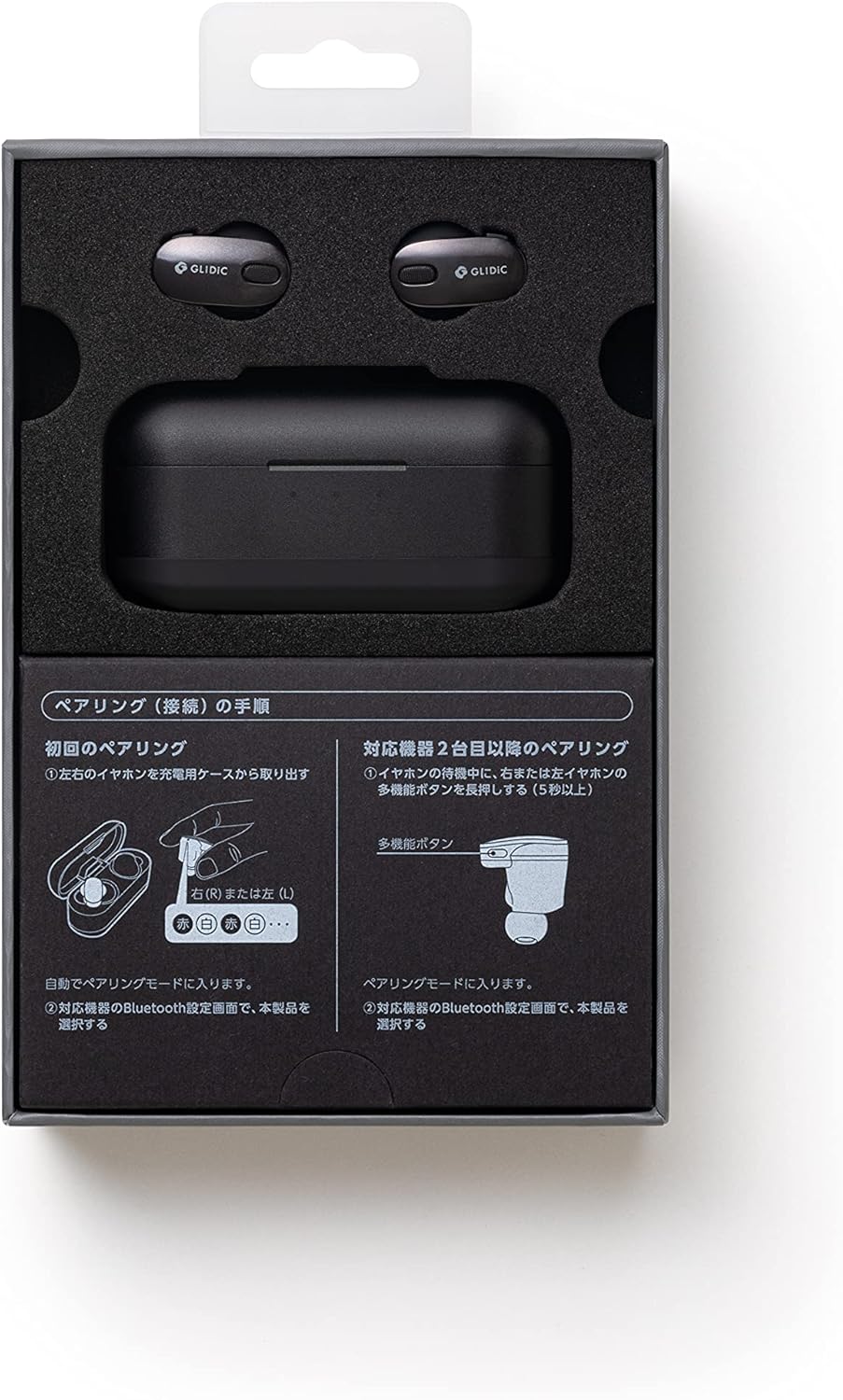
Image: A diagram illustrating the pairing procedure for the GLIDiC SB-WS91-MRTW/BK TW-9000 earphones. It shows two main sections: "First Pairing" and "Pairing with a second device or later". For first pairing, it depicts taking the earphones out of the case, which automatically enters pairing mode. For subsequent pairings, it shows pressing and holding the multi-function button on either the left or right earphone for 5 seconds while in standby mode to enter pairing mode.
- Open the charging case and remove both the left and right earphones. They will automatically enter pairing mode.
- On your device (smartphone, tablet, laptop), go to the Bluetooth settings.
- Search for available devices and select "GLIDiC TW-9000" from the list.
- Once connected, a confirmation sound or message will indicate successful pairing.
Pairing with a Second Device or Later
To pair with another device or re-pair after initial setup:
- Ensure the earphones are in standby mode (not connected to another device).
- Press and hold the multi-function button on either the left (L) or right (R) earphone for approximately 5 seconds until the indicator light flashes, indicating pairing mode.
- On your device, go to Bluetooth settings and select "GLIDiC TW-9000" to connect.
Operating the Earphones
Power On/Off
- Power On: Remove the earphones from the charging case. They will power on automatically.
- Power Off: Place the earphones back into the charging case. They will power off automatically and begin charging.
Wearing the Earphones
Insert the earphones gently into your ears, ensuring a comfortable and secure fit. Adjust them until the sound quality is optimal and external noise is minimized. The correct fit is crucial for effective Active Noise Cancellation.
Controls
The GLIDiC TW-9000 earphones feature touch controls and support voice control for various functions. Specific touch gestures and voice commands may vary. Refer to the quick start guide or manufacturer's website for detailed control mappings.
- Play/Pause: Typically a single tap on either earphone.
- Next Track: Often a double tap on the right earphone.
- Previous Track: Often a double tap on the left earphone.
- Answer/End Call: Single tap during an incoming call.
- Activate Voice Assistant: Long press or specific tap sequence.
Active Noise Cancellation (ANC)
The earphones are equipped with Active Noise Cancellation to reduce ambient noise. This feature can be toggled on or off, or switched to an ambient sound mode, typically through a specific touch control gesture. Consult the detailed control instructions for your model.
Maintenance
Cleaning
Regular cleaning helps maintain sound quality and hygiene.
- Use a soft, dry, lint-free cloth to wipe the earphones and charging case.
- For stubborn dirt, slightly dampen the cloth with water or a mild, non-abrasive cleaner. Avoid getting moisture into openings.
- Clean the ear tips regularly. If removable, they can be washed with mild soap and water, then thoroughly dried before reattaching.
- Do not use harsh chemicals, alcohol, or abrasive materials.
Storage
When not in use, store the earphones in their charging case to protect them from dust, damage, and to keep them charged.
Battery Care
To prolong battery life:
- Avoid fully discharging the batteries frequently.
- Store the device in a cool, dry place away from extreme temperatures.
- If storing for an extended period, charge the case and earphones to about 50% capacity.
Troubleshooting
If you encounter issues, try the following solutions:
No Sound or Intermittent Connection
- Ensure earphones are charged.
- Check that Bluetooth is enabled on your device and the earphones are connected.
- Move the earphones closer to your device and away from potential interference sources (e.g., Wi-Fi routers, other Bluetooth devices).
- Try unpairing and re-pairing the earphones with your device.
- Restart your audio source device.
Earphones Not Charging
- Ensure the charging cable is securely connected to both the case and the power source.
- If using wireless charging, ensure the case is correctly positioned on the charging pad.
- Check for any debris in the charging port of the case or on the earphone charging contacts.
- Try a different charging cable or power adapter.
One Earphone Not Working
- Place both earphones back into the charging case, close the lid, wait a few seconds, then remove them.
- Ensure both earphones are charged.
- Perform a factory reset if the issue persists (refer to manufacturer's website for specific instructions).
Specifications
| Model Name | SB-WS91-MRTW/BK (TW-9000) |
| Brand | GLIDiC |
| Connectivity Technology | Wireless (Bluetooth) |
| Wireless Communication Technologies | Bluetooth |
| Ear Placement | In Ear |
| Form Factor | In Ear |
| Noise Control | Active Noise Cancellation |
| Control Type | Voice Control |
| Compatible Devices | Laptops, Smart Speakers, Smartphones |
| Batteries | 3 Lithium Polymer batteries (included) |
| Item Weight | 0.24 Kilograms (240 g) |
| Product Dimensions | 3 x 8 x 4 cm |
| Material Type | Metallic (Material not specified) |
| Included Components | Cable, Wireless Charging Case |
Warranty and Support
For warranty information and technical support, please refer to the warranty card included with your product or visit the official GLIDiC website. Keep your proof of purchase for warranty claims.
If you require further assistance, please contact GLIDiC customer service through their official channels.
