
Introduction
Thank you for choosing the Redragon K568R Mechanical Gaming Keyboard. This manual provides essential information for setting up, operating, and maintaining your new keyboard. Please read it carefully to ensure optimal performance and longevity of your device.
Product Overview
The Redragon K568R is a high-performance mechanical gaming keyboard designed for PC and laptop users. It features responsive red mechanical switches, vibrant RGB (Rainbow) backlighting, and a durable, spill-resistant design. Its wired USB connection ensures stable and lag-free input, making it ideal for gaming and everyday use.
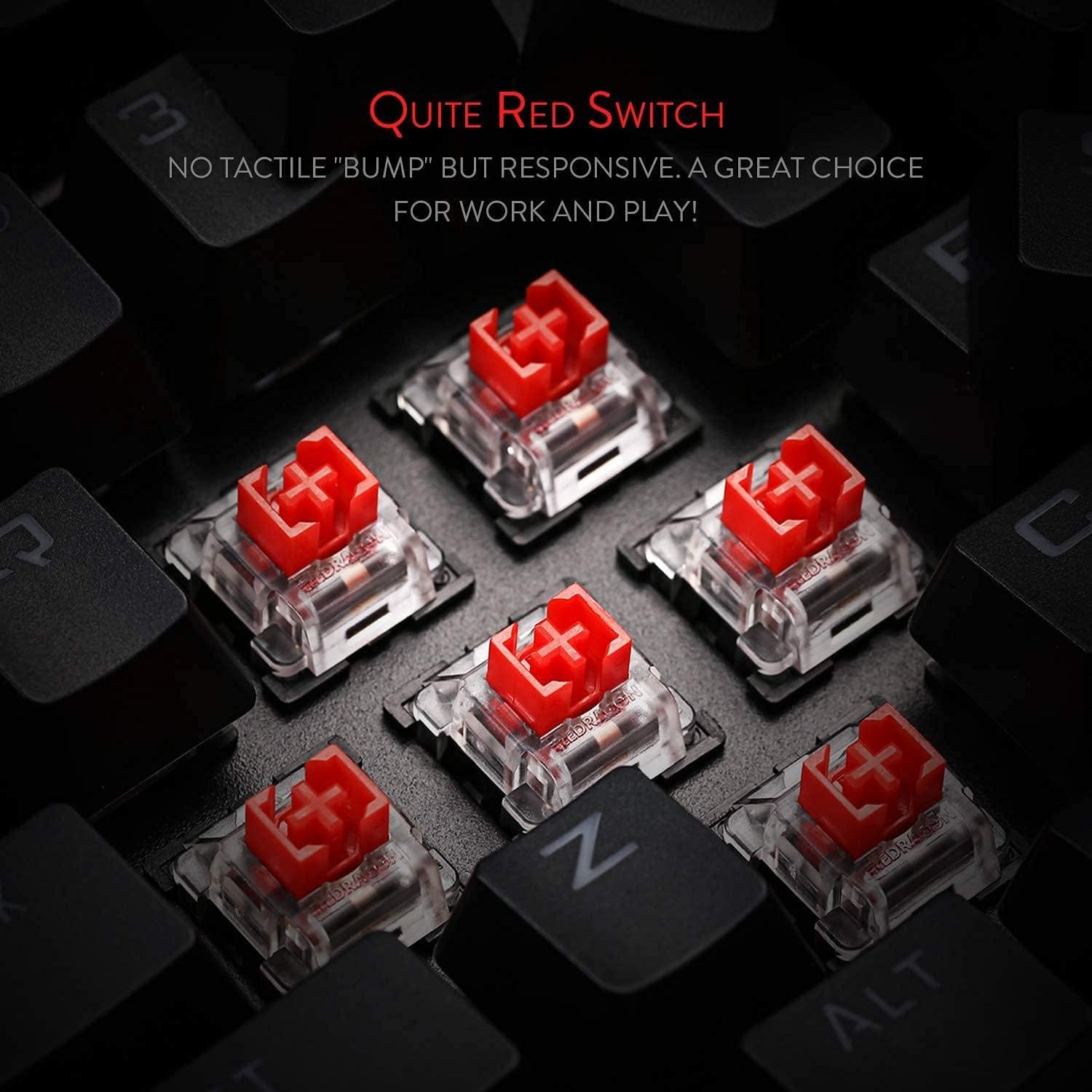
Figure 1: Redragon K568R Mechanical Gaming Keyboard, angled view.
Key Features:
- Red Mechanical Switches: Offer a linear, quiet, and responsive typing experience without a tactile bump, suitable for fast-paced gaming and typing.
- RGB Backlighting: Customizable rainbow backlighting with multiple effects and brightness levels.
- Wired USB Connectivity: Ensures reliable and fast data transmission.
- Spill-Resistant Design: Provides protection against accidental liquid spills.
- Durable Construction: Built with multi-materials for enhanced longevity.
- PC and Laptop Compatibility: Works seamlessly with Windows operating systems (e.g., Windows 10).

Figure 2: Close-up view of the Red Mechanical Switches on the Redragon K568R keyboard.
Setup Instructions
- Unpack the Keyboard: Carefully remove the Redragon K568R keyboard from its packaging.
- Connect to Computer: Locate the USB cable attached to the keyboard. Plug the USB connector into an available USB port on your PC or laptop.
- Driver Installation: The keyboard is plug-and-play. Your operating system (e.g., Windows 10) should automatically detect and install the necessary drivers. This process may take a few moments.
- Verify Connection: Once drivers are installed, the keyboard's backlighting should illuminate, indicating it is powered on and ready for use. Test by typing in a text editor.
Operating Instructions
Basic Usage:
The Redragon K568R functions as a standard keyboard for typing and input. All keys are pre-programmed for their standard functions.

Figure 3: Top-down view of the Redragon K568R keyboard layout, showing function keys and backlighting.
Backlight Control:
The K568R features dynamic RGB backlighting. Use the following key combinations to control the lighting effects:
- FN + INS: Cycle through various backlight modes.
- FN + HOME: Activate specific lighting effects.
- FN + PGUP: Adjust backlight brightness (usually 5 levels).
- FN + PGDN: Adjust backlight speed/direction for dynamic modes.
- FN + DEL: Change backlight colors in certain modes.
- FN + END: Turn backlighting on/off.
Note: Specific key combinations for backlight control may vary slightly. Refer to the keyboard's printed legends or experiment with FN key combinations.
Multimedia Keys:
Access multimedia functions using the FN key in combination with the F-keys (F1-F12). Common functions include:
- FN + F1-F12: Control media playback (play/pause, stop, previous/next track), volume (mute, up, down), and launch applications (e.g., email, web browser).
Maintenance
Proper maintenance ensures the longevity and performance of your Redragon K568R keyboard.
- Cleaning: Regularly clean the keyboard with a soft, dry cloth. For deeper cleaning, use compressed air to remove dust and debris from between the keycaps. You may carefully remove keycaps using a keycap puller (if included) to clean underneath.
- Spill Management: While the keyboard is spill-resistant, it is not waterproof. In case of a liquid spill, immediately disconnect the keyboard from your computer, turn it upside down to drain liquid, and allow it to air dry completely before reconnecting.
- Storage: Store the keyboard in a cool, dry place away from direct sunlight and extreme temperatures when not in use for extended periods.
Troubleshooting
Keyboard Not Responding:
- Check USB Connection: Ensure the USB cable is securely plugged into both the keyboard and the computer. Try a different USB port.
- Restart Computer: A simple system restart can often resolve connectivity issues.
- Test on Another Computer: If possible, test the keyboard on another computer to determine if the issue is with the keyboard or your system.
Backlight Not Working/Incorrect:
- Check Backlight Controls: Ensure the backlight is not turned off (FN + END) or set to the lowest brightness (FN + PGUP).
- Reset Keyboard: Some keyboards have a factory reset function (often FN + ESC for a few seconds). Consult Redragon support if this is a persistent issue.
Keys Not Registering:
- Clean Keycaps: Remove the affected keycap and clean any debris or dust from the switch mechanism.
- Software Interference: Ensure no conflicting software or drivers are running that might interfere with keyboard input.
Specifications
| Feature | Detail |
|---|---|
| Brand | Redragon |
| Model Number | K568R RED |
| Keyboard Type | Mechanical |
| Switch Type | Red Switches |
| Connectivity | Wired USB |
| Compatible Devices | PC, Laptop |
| Operating System | Windows 10 (and compatible with other Windows versions) |
| Backlight | RGB (Rainbow) |
| Special Features | Spill-resistant |
| Color | Black |
| Item Weight | 300 grams |
| Product Dimensions | 39.5 x 17.6 x 5.7 cm |

Figure 4: Angled side view of the Redragon K568R keyboard, highlighting its profile.
Warranty and Support
Redragon products typically come with a manufacturer's warranty. Please refer to the warranty card included with your product or visit the official Redragon website for detailed warranty terms and conditions.
For technical support, troubleshooting assistance, or inquiries about your Redragon K568R keyboard, please contact Redragon customer service through their official website or the contact information provided in your product packaging.


