
1. Introduction
Thank you for purchasing the Redragon H112 Wired Over-Ear Gaming Headset. This manual provides essential information for setting up, operating, and maintaining your headset to ensure optimal performance and longevity. Please read this manual thoroughly before use.
2. Package Contents
Please check the package contents carefully. If any items are missing or damaged, contact your retailer.
- Redragon H112 Wired Over-Ear Gaming Headset
- Ear Cushions
- User Manual (this document)
3. Product Overview
Familiarize yourself with the components of your Redragon H112 headset.
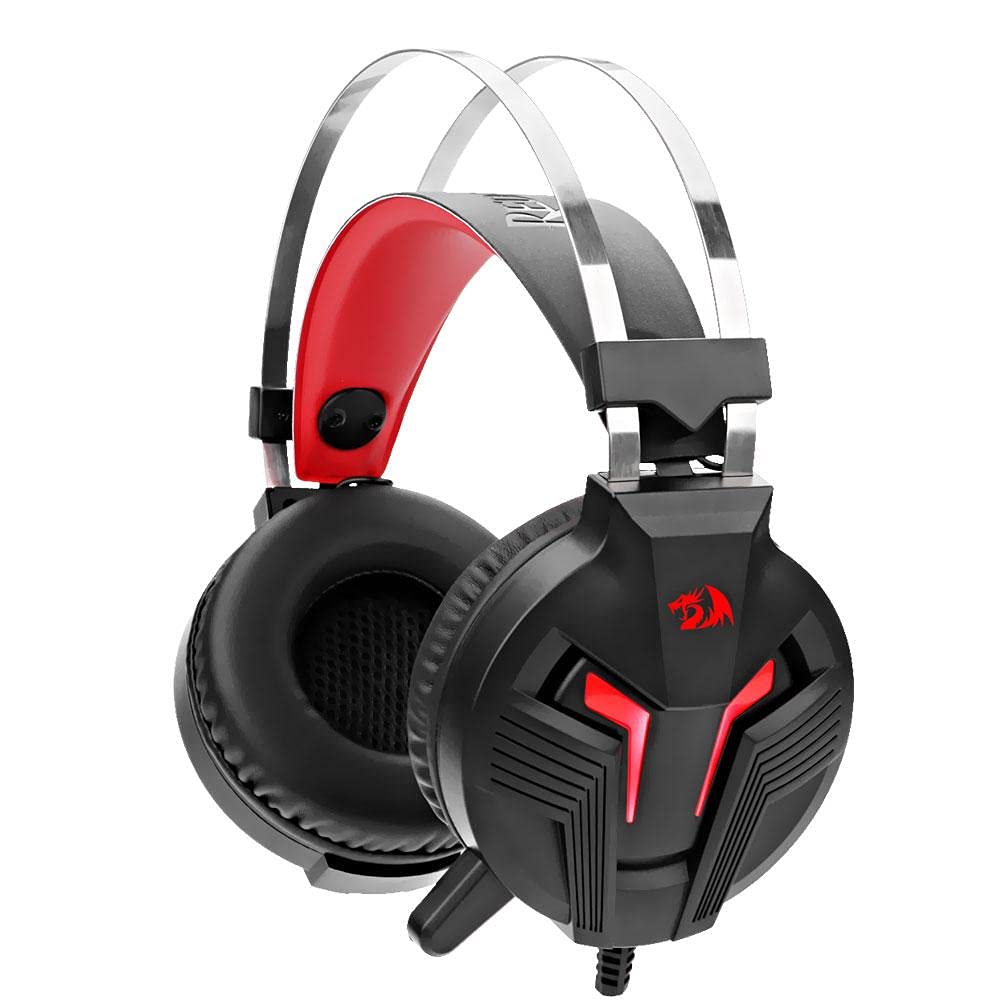
Figure 3.1: Front view of the Redragon H112 headset, showing the over-ear design and integrated microphone.
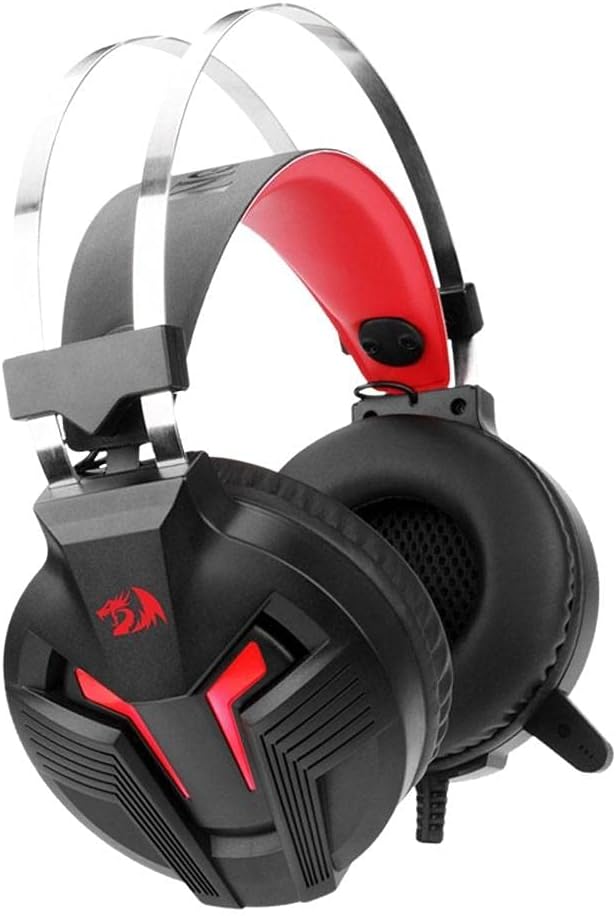
Figure 3.2: Angled view of the Redragon H112 headset, highlighting the earcups and adjustable headband.

Figure 3.3: Headset dimensions, showing height, width, and earcup size for proper fit.
Key Components:
- Adjustable Headband: For a comfortable fit on various head sizes.
- Over-Ear Earcups: Designed for comfort during long gaming sessions and passive sound isolation.
- Integrated Microphone: For clear voice communication.
- Wired Connection: Durable cable for reliable audio transmission.
4. Setup Guide
Follow these steps to connect your Redragon H112 headset to your device.

Figure 4.1: The headset features a USB connector, a green 3.5mm audio jack, and a pink 3.5mm microphone jack. The cable length is 2 meters.
4.1 Connecting to a PC
- Locate the audio output (green) and microphone input (pink) ports on your computer.
- Plug the green 3.5mm jack from the headset into your PC's audio output port.
- Plug the pink 3.5mm jack from the headset into your PC's microphone input port.
- Plug the USB connector into an available USB port on your PC. This connection typically powers the headset's LED lighting (if applicable).
- Adjust audio settings in your operating system to ensure the headset is selected as the default playback and recording device.
4.2 Connecting to PS4, Xbox One, or Mobile Devices
For devices with a single 3.5mm combined audio/microphone jack (e.g., most game controllers, smartphones, laptops), you will need a 3.5mm Y-splitter adapter (not included) to combine the headset's green and pink jacks into a single 4-pole 3.5mm jack.
- Connect the green 3.5mm jack and the pink 3.5mm jack from the headset into the corresponding ports on your 3.5mm Y-splitter adapter.
- Plug the single 4-pole 3.5mm jack from the Y-splitter adapter into your device's combined audio/microphone port.
- The USB connector is generally not used for these devices unless they have a dedicated USB port for headset power/lighting.
- Adjust audio settings on your console or mobile device to ensure the headset is selected for audio output and microphone input.
5. Operating Instructions
5.1 Wearing the Headset
- Adjust the headband to fit comfortably over your head.
- Ensure the earcups fully cover your ears for optimal sound and comfort.
- Position the microphone appropriately for clear voice capture, typically near your mouth.
5.2 Volume Control
The Redragon H112 headset features an in-line volume control wheel on the cable. Rotate the wheel up to increase volume and down to decrease volume.
5.3 Microphone Usage
The headset includes an integrated microphone. Ensure it is positioned correctly for clear communication. Some models may include an in-line microphone mute switch; refer to your specific product for this feature.
6. Maintenance
Proper care will extend the life of your headset.
- Cleaning: Use a soft, dry cloth to clean the earcups and headband. Do not use harsh chemicals or abrasive materials.
- Storage: Store the headset in a cool, dry place away from direct sunlight and extreme temperatures. Avoid tangling the cable.
- Handling: Do not pull on the cable to disconnect the headset. Always grasp the plug firmly.
7. Troubleshooting
If you encounter issues with your headset, refer to the following common problems and solutions.
7.1 No Sound from Headset
- Ensure the green 3.5mm audio jack is fully inserted into the correct audio output port.
- Check the in-line volume control on the headset cable and ensure it is turned up.
- Verify your device's audio settings (PC, console, mobile) to confirm the headset is selected as the default playback device and the volume is not muted.
- Test the headset with another device to rule out a device-specific issue.
7.2 Microphone Not Working
- Ensure the pink 3.5mm microphone jack is fully inserted into the correct microphone input port.
- Check your device's audio settings (PC, console, mobile) to confirm the headset microphone is selected as the default recording device and is not muted.
- Ensure any in-line microphone mute switch (if present) is in the "unmuted" position.
- Test the microphone with another application or device.
7.3 Sound Distortion or Poor Quality
- Ensure all connections are secure and free from debris.
- Try adjusting the volume levels on both the headset and your device.
- Test the headset with another device to determine if the issue is with the headset or the source device.
8. Specifications
Below are the technical specifications for the Redragon H112 Gaming Headset.
| Feature | Detail |
|---|---|
| Brand Name | Redragon |
| Model Name | Redragon H112 Crystal Gaming Headset |
| Model Number | H112 |
| Color | Black |
| Headphone Form Factor | Over-Ear |
| Connectivity Technology | Wired |
| Headphone Jack | 3.5 mm Jack |
| Microphone | Yes |
| Noise Control | Sound Isolation |
| Frequency Response | 1204 (Unspecified rate) |
| Sensitivity | 92 dB |
| Compatible Devices | PC (also PS4, Xbox One, Mobile with adapter) |
| Cable Feature | Tangle-free |
| Water Resistance Level | Not Water Resistant |
| Material | Polycarbonate (PC), Polyurethane (PU) |
| Item Weight | 1.5 grams |
| Age Range Description | Adult |
9. Warranty & Support
The Redragon H112 headset comes with a manufacturer's warranty. The provided information indicates a warranty period of "1". Please refer to your purchase documentation or contact Redragon customer support for specific warranty terms and conditions.
Customer Support:
For technical assistance, warranty claims, or general inquiries, please visit the official Redragon website or contact their customer service department. Contact information can typically be found on the product packaging or the official Redragon website.


