
Product Overview
The HyperX Cloud Flight is a wireless gaming headset designed for use with PlayStation 5 and PlayStation 4 consoles. It features a robust 2.4GHz wireless connection, offering up to 30 hours of battery life for extended gaming sessions. The headset is engineered for comfort with memory foam ear cushions and premium leatherette, and includes adjustable steel sliders for durability. It provides immersive in-game audio through 50mm drivers and features a detachable, noise-cancelling microphone for clear communication. Convenient onboard controls for volume and mic mute are located directly on the earcups.

Image: The HyperX Cloud Flight wireless gaming headset, featuring black earcups with blue HyperX logos and a detachable microphone.
Package Contents
Verify that all items are present in your HyperX Cloud Flight package:
- HyperX Cloud Flight Wireless Gaming Headset
- USB Wireless Dongle
- Detachable Noise-Cancelling Microphone
- USB Charging Cable

Image: All components of the HyperX Cloud Flight headset package laid out, including the headset, USB dongle, detachable microphone, and charging cable.
Setup Guide
Charging the Headset:
Before first use, fully charge the headset. Connect the included USB charging cable to the headset's charging port and to a USB power source (e.g., console, PC, or USB wall adapter). The LED indicator on the headset will show charging status.
Connecting to PlayStation (PS5/PS4):
Insert the USB wireless dongle into an available USB port on your PlayStation console. The headset and dongle are pre-paired from the factory. Once the headset is powered on, it should automatically connect to the dongle. A solid blue LED on the dongle indicates a successful connection.

Image: The HyperX Cloud Flight headset positioned next to its compact USB wireless dongle, ready for connection.
Attaching the Microphone:
Align the detachable noise-cancelling microphone with the microphone port on the left earcup and firmly insert it. Ensure it clicks into place for a secure connection.

Image: A close-up view of the HyperX Cloud Flight headset, highlighting the detachable microphone and its connection port on the earcup.
Operating Instructions
Power On/Off:
Press and hold the power button located on the left earcup for approximately 3 seconds to power the headset on or off. An audible tone will indicate the power status change.
Volume Control:
Adjust the volume using the volume wheel located on the right earcup. Rotate the wheel up to increase volume and down to decrease it.
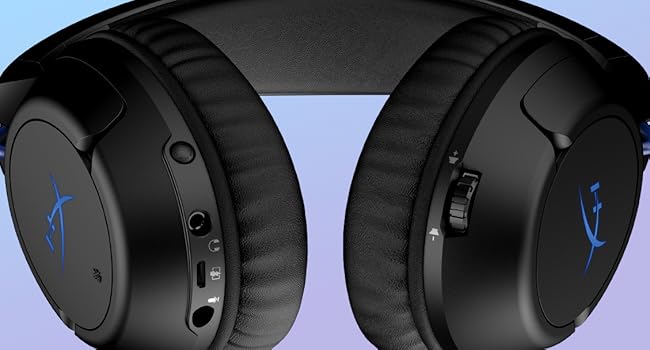
Image: A detailed view of the controls on the earcups of the HyperX Cloud Flight headset, showing the volume wheel and other buttons.
Microphone Mute:
Press the microphone mute button on the left earcup to toggle the microphone on or off. The LED indicator on the microphone tip will illuminate red when muted.
LED Lighting Effects:
The earcups feature LED lighting effects. These can be configured or toggled via the HyperX NGENUITY software (if connected to a PC) or may indicate connection status.
Battery Life:
The headset provides up to 30 hours of battery life on a single charge (tested at 50% headphone volume). A low battery indicator will alert you when charging is needed.
Rotating Ear Cups:
The ear cups can rotate 90 degrees, allowing the headset to rest comfortably around your neck when not in use.
Maintenance
Cleaning:
Wipe the headset surfaces with a soft, dry, lint-free cloth. For stubborn dirt, slightly dampen the cloth with water. Do not use harsh chemicals or abrasive cleaners. Avoid getting moisture into ports or openings.
Storage:
When not in use, store the headset in a cool, dry place away from direct sunlight and extreme temperatures. Detach the microphone if storing for extended periods or during travel.
Troubleshooting
| Problem | Solution |
|---|---|
| No audio from headset. |
|
| Microphone not working. |
|
| Headset not connecting wirelessly. |
|
| Short battery life. |
|
Specifications
| Feature | Detail |
|---|---|
| Model Name | Cloud Flight for PlayStation |
| Connectivity Technology | Wireless (RF 2.4GHz) |
| Compatible Devices | PlayStation 5, PlayStation 4 |
| Battery Life | Up to 30 hours (at 50% volume) |
| Audio Driver Type | Dynamic Driver (50mm) |
| Frequency Range | 10 Hz - 21 kHz |
| Impedance | 32 Ohm |
| Microphone | Detachable, Noise-Cancelling with LED Mute indicator |
| Controls | Onboard volume wheel, mic mute button |
| Ear Placement | Over Ear |
| Material | Steel (frame), Memory foam, Premium leatherette (ear cushions) |
| Item Weight | 287 Grams (approx. 10.1 ounces) |
| Product Dimensions | 7.67 x 7.2 x 3.34 inches |
| Manufacturer | HP Inc. |
| Item Model Number | 4P5H6AA |
| UPC | 196188047309, 740617315493 |
Warranty and Support
The HyperX Cloud Flight Wireless Gaming Headset is backed by a manufacturer's warranty. Please refer to the warranty card included in your product packaging or visit the official HyperX website for detailed warranty terms and conditions specific to your region.
For technical support, troubleshooting assistance, or to download the latest firmware and software (such as HyperX NGENUITY for PC customization), please visit the official HyperX support page:
You can also find additional resources and FAQs on the HyperX brand store on Amazon: HyperX Amazon Store
Important Safety Information
- Avoid prolonged listening at high volumes to prevent hearing damage.
- Do not expose the headset to extreme temperatures, humidity, or liquids.
- Do not attempt to disassemble or repair the headset yourself. Refer all servicing to qualified personnel.
- Dispose of batteries and electronic components responsibly according to local regulations.


