
Introduction
The LYMAX Monitor Light Bar RGB-012 is designed to enhance your desktop experience by providing both eye-caring front lighting and dynamic RGB ambient backlighting. This manual provides detailed instructions for the proper setup, operation, and maintenance of your device to ensure optimal performance and longevity.
Product Features
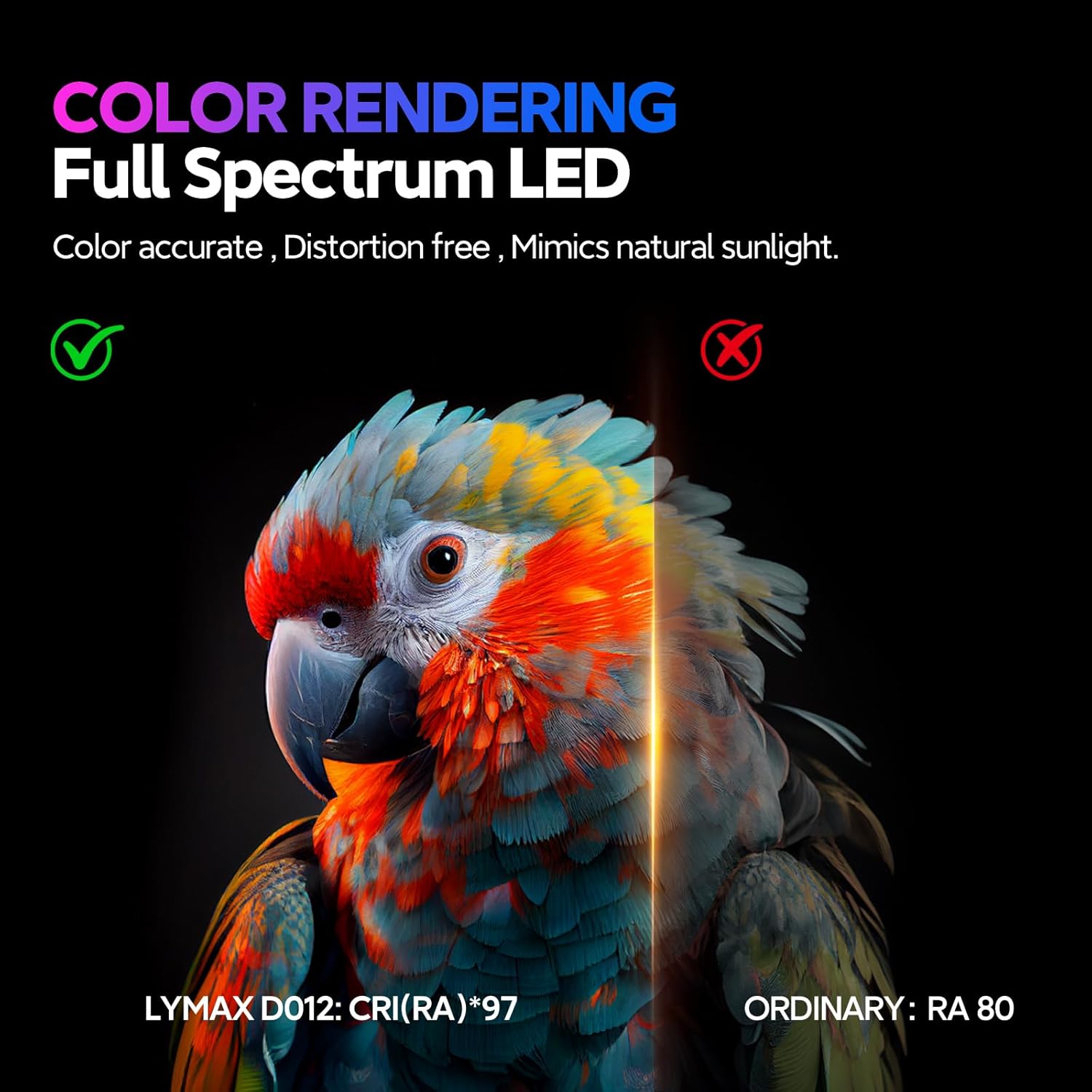
- Eye-Caring & Anti-Blue Light: Features an asymmetrical light source that illuminates only your desktop and keyboard, preventing screen glare and flicker. Equipped with 60 superior LED bulbs to reduce harmful blue light, promoting eye comfort during extended use.
- Stable & Space-Saving Design: Utilizes a gravity damper bracket clamp for secure placement on top of your monitor, saving valuable desk space. Suitable for monitors with a top edge thickness between 0.2 to 1.5 inches. Anti-slip silicone padding ensures stability and protects your monitor from scratches.
- Dual Light Modes & Adjustable Brightness & RGB Backlight: Offers adjustable front light brightness (2900-6500K) via a built-in touch control sensor. Includes dual light modes for cold work and warm game environments. The colorful ambient RGB backlight, with 28 bulbs, enhances gaming immersion.
- Convenient USB Power: Powered via a USB-C port, allowing connection to a computer or power bank with the included 59-inch cord. Ensure your USB interface provides 5V/1A capacity for proper function.
- Wide Compatibility: Dimensions of 17.7 x 4.1 x 1.4 inches make it suitable for most 15-24 inch flat computer monitors and 14-7 inch laptops.
What's in the Box
Verify that all components are present in the package:
- LYMAX Monitor Light Bar RGB-012
- USB-C Power Cable
- User Manual

Setup and Installation
Follow these steps to correctly install your LYMAX Monitor Light Bar:
- Unfold the Clamp: Gently unfold the gravity damper bracket clamp on the light bar.
- Position on Monitor: Place the light bar securely on top of your monitor. Ensure the anti-slip silicone pads are in contact with the monitor to prevent movement and scratches. The light bar is designed to fit monitors with a top edge thickness between 0.2 to 1.5 inches.
- Connect Power: Insert the USB-C end of the power cable into the port on the light bar. Connect the USB-A end to a compatible USB port on your computer, power bank, or a 5V/1A USB adapter.
Operating Instructions
The LYMAX Monitor Light Bar features intuitive touch controls for both the front light and RGB backlight.
Front Light Control
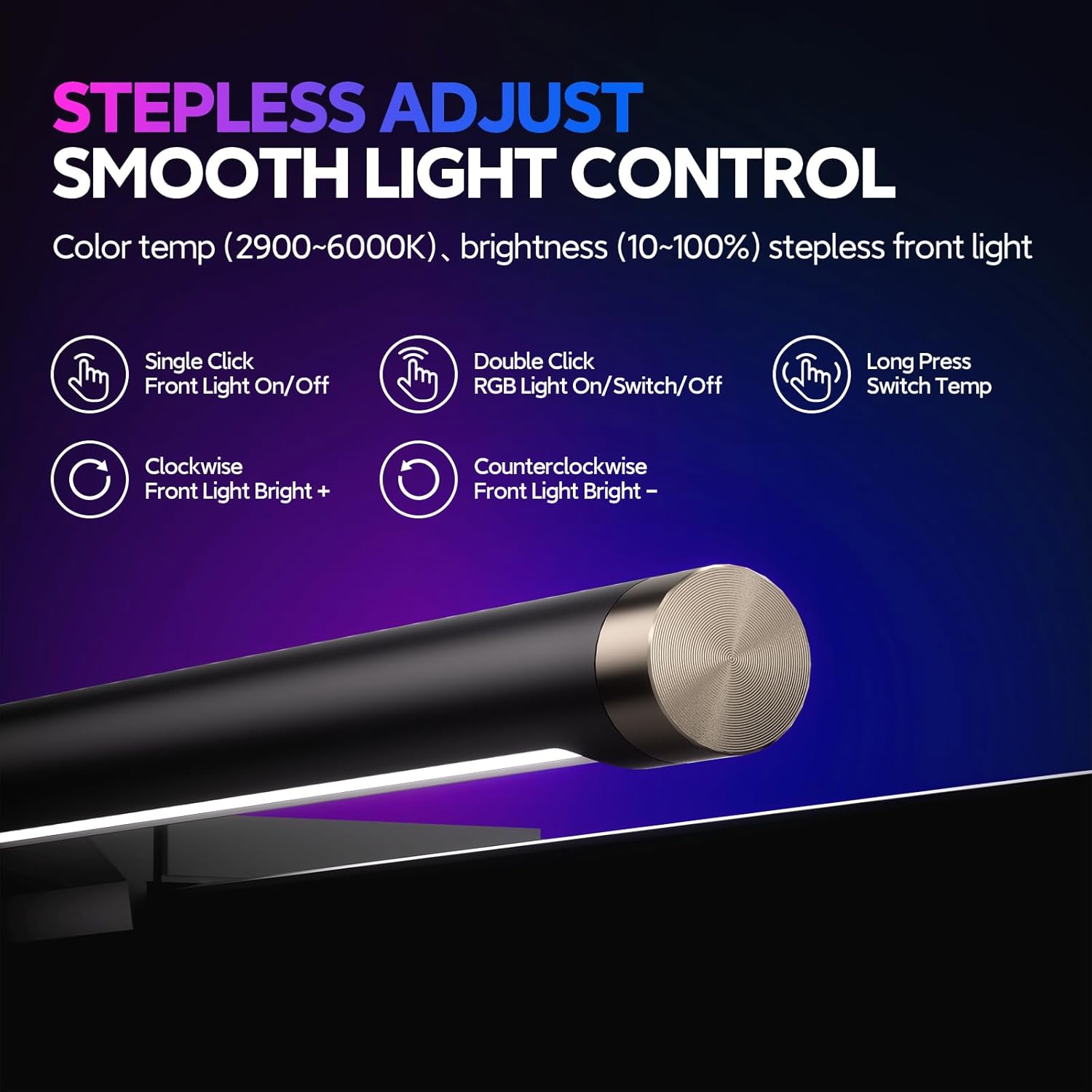
- Power On/Off: Single-click the control button on the right side of the light bar to turn the front light on or off.
- Adjust Brightness: Rotate the control button clockwise to increase brightness and counter-clockwise to decrease brightness (10-100%).
- Change Color Temperature: Long-press the control button to cycle through color temperatures (2900K-6500K), offering cool white for work and warm white for relaxation.
RGB Backlight Control
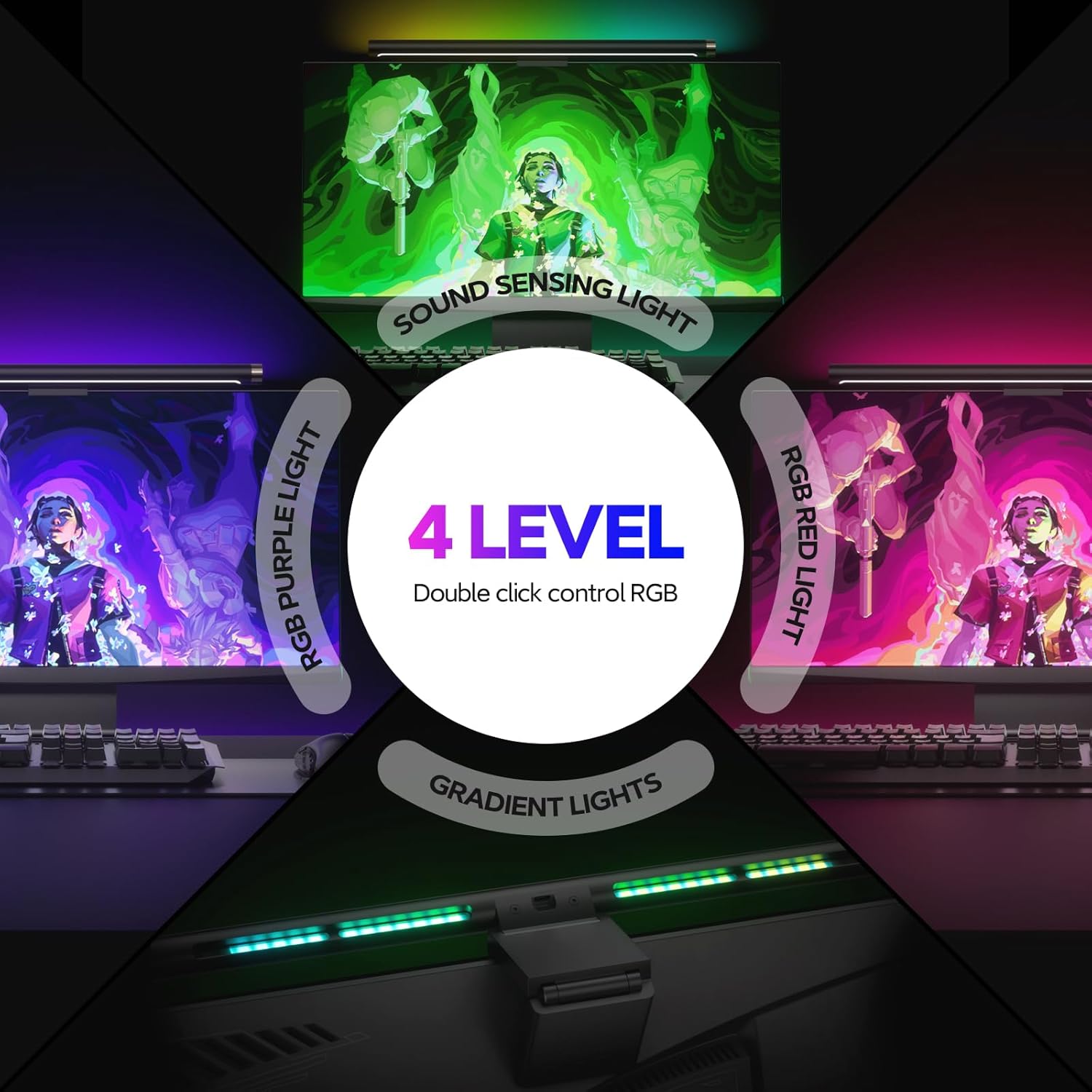
- Activate/Deactivate RGB: Double-click the control button to turn the RGB ambient backlight on or off.
- RGB Modes: The RGB backlight offers various dynamic effects, including sound-sensing light, gradient lights, RGB purple light, and RGB red light, to enhance your gaming or entertainment experience.

Maintenance
To ensure the longevity and optimal performance of your LYMAX Monitor Light Bar, follow these simple maintenance guidelines:
- Cleaning: Use a soft, dry cloth to wipe the surface of the light bar. Avoid using abrasive cleaners, solvents, or harsh chemicals, as these may damage the finish or electronic components.
- Storage: If storing the device for an extended period, disconnect it from the power source and store it in a cool, dry place away from direct sunlight and extreme temperatures.
- Handling: Handle the light bar with care to avoid dropping or impacting it, which could damage internal components.
Troubleshooting
If you encounter any issues with your LYMAX Monitor Light Bar, refer to the following troubleshooting tips:
- Light Bar Not Turning On:
- Ensure the USB-C cable is securely connected to both the light bar and the power source.
- Verify that the USB power source (computer, power bank, or adapter) is providing at least 5V/1A. Try a different USB port or adapter if necessary.
- Single-click the control button to ensure the front light is activated.
- RGB Backlight Not Working:
- Double-click the control button to activate the RGB backlight.
- Ensure the light bar is receiving adequate power.
- Brightness or Color Temperature Not Adjusting:
- Ensure you are using the correct gesture: rotate for brightness, long-press for color temperature.
- Clean the touch control area to ensure no obstructions are interfering with the sensor.
- Light Bar is Unstable:
- Ensure the gravity damper bracket is properly unfolded and seated on the monitor.
- Verify that the monitor's top edge thickness is within the supported range (0.2 to 1.5 inches).
- Check that the anti-slip silicone pads are clean and making full contact with the monitor surface.
If the issue persists after trying these steps, please contact customer support for further assistance.
Specifications
| Feature | Specification |
|---|---|
| Model Name | D012 |
| Product Dimensions | 17.7 x 4.1 x 1.4 inches (5.9"D x 21.7"W x 1.2"H) |
| Item Weight | 14.4 ounces |
| Material | Aluminum |
| Light Source Type | LED |
| Color Temperature | 2900K-6500K (Adjustable) |
| Brightness | 400 Lux |
| Wattage | 5 watts |
| Voltage | 5 Volts |
| Control Method | Touch |
| Color Rendering Index (CRI) | 95.00 |
| Mounting Type | Desktop (Gravity Damper Bracket) |
| Recommended Monitor Thickness | 0.2 to 1.5 inches |
Warranty and Support
LYMAX products are designed for quality and reliability. For information regarding warranty coverage, please refer to the warranty card included with your product or visit the official LYMAX website.
If you have any questions, require technical assistance, or need to report an issue, please contact LYMAX customer support through the following channels:
- Online Support: Visit the LYMAX official website for FAQs and support contact forms.
- Email: Refer to your product packaging or the official website for the customer service email address.
Please have your product model (D012) and purchase information ready when contacting support.
