
Dynavin D9-DF56 Premium Flex
DYNAVIN D9-DF56 Premium Flex Android Car Radio User Manual
Comprehensive guide for installation, operation, and maintenance.
Product Overview
The DYNAVIN D9-DF56 Premium Flex is an advanced Android car radio system designed for seamless integration with VW Sharan and Seat Alhambra models from 2010 onwards. It features a 9-inch high-resolution touchscreen, integrated GPS navigation, a powerful DSP amplifier, and supports wireless CarPlay and Android Auto.

Image: The DYNAVIN D9-DF56 Premium Flex unit seamlessly integrated into a car's dashboard, displaying its user interface with various application icons. This image highlights the large 9-inch display and its modern aesthetic within the vehicle's interior.
Key Features
- Vehicle Compatibility: Perfectly compatible with VW Sharan and Seat Alhambra models from 2010 onwards.
- Audio System: Integrated Class D DSP amplifier (4 * 60 W RMS) with adjustable crossover and speaker gain. Vehicle-specific sound configuration files are available.
- Display: 9-inch high-resolution (1280x720) anti-glare capacitive touchscreen.
- Operating System: Android 11 OS with Quad-Core CPU and 4GB RAM.
- Head-up Display (HUD): Shows navigation information (Dynaway, Apple Maps, Google Maps), vehicle speed, and speed camera alerts (Blitzer.de data).

Image: A split image showing the Head-up Display (HUD) unit mounted on the dashboard, projecting navigation directions and speed onto the windshield. This illustrates how the HUD provides essential driving information directly in the driver's line of sight.
- Integration: Supports steering wheel controls, multifunctional display (MFD+), Climatronic control status, and virtual parking lines.
- Smartphone Connectivity: Compatible with wireless CarPlay, Android Auto, and Smartphone Mirroring (31-day free trial, activation code required).
- Microphone: Compact digital dual microphone with noise suppression for clear call quality.

Image: A close-up view of the compact Dynavin digital dual microphone, typically installed near the dashboard or steering column. This microphone features a unique noise suppression algorithm for excellent voice quality during calls.
- Navigation: Integrated GPS navigation with Blitzer.de database (31-day trial, included in Dynapp pack).
- Dynapp-Pack: Includes Dynaway navigation app, Google Playstore access, third-party app installation, and speed limit display on HUD.
Package Contents
Before beginning installation, please verify that all components listed below are present in your package.
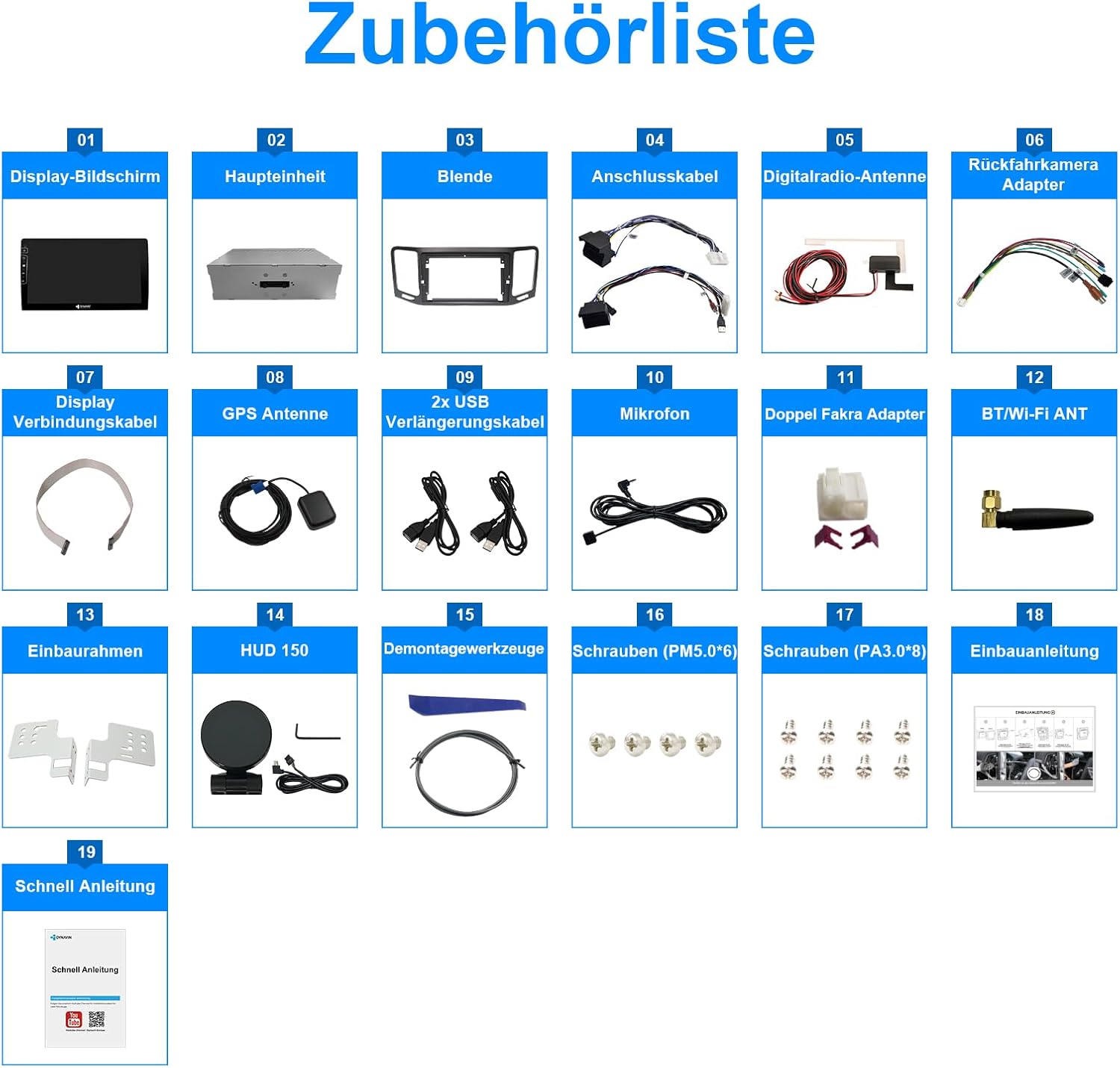
Image: A comprehensive diagram illustrating all components included in the DYNAVIN D9-DF56 Premium Flex package. Each item is numbered and labeled, providing a visual checklist for users to confirm package completeness before installation.
- Display Screen
- Main Unit
- Bezel
- Connection Cables
- Digital Radio Antenna
- Rear Camera Adapter
- Display Connection Cable
- GPS Antenna
- 2x USB Extension Cable
- Microphone
- Dual Fakra Adapter
- BT/Wi-Fi Antenna
- Installation Frame
- HUD 150 (Head-up Display unit)
- Disassembly Tools
- Screws (PM5.0*6)
- Screws (PA3.0*8)
- Installation Manual
- Quick Guide
Installation
Professional installation is recommended for this product. Refer to the included installation manual (Item 18 in Package Contents) and quick guide (Item 19) for detailed instructions specific to your vehicle model.
Pre-Installation Checklist:
- Ensure the vehicle's ignition is off and the battery is disconnected before starting.
- Verify all package contents are present and undamaged.
- Gather necessary tools (e.g., screwdrivers, trim removal tools). Disassembly tools are included (Item 15).
Key Installation Steps:
- Remove the original car radio unit using the provided disassembly tools.
- Connect the main unit (Item 02) to the vehicle's wiring harness using the connection cables (Item 04). Ensure all connections are secure.
- Install the GPS antenna (Item 08) in a location with clear sky view, typically on the dashboard or under the windshield.
- Connect the digital radio antenna (Item 05) and BT/Wi-Fi antenna (Item 12).
- Mount the display screen (Item 01) into the bezel (Item 03) and secure it using the installation frame (Item 13) and screws (Items 16, 17).
- Connect the display screen to the main unit using the display connection cable (Item 07).
- Install the compact digital dual microphone (Item 10) in an optimal location for voice pickup, typically near the driver's sun visor or rearview mirror.
- If using, connect the rear camera adapter (Item 06) and any optional accessories.
- Reconnect the vehicle battery and test the unit's functionality.
Operating Instructions
Basic Operation:
- Power On/Off: Press and hold the power button on the unit or use the vehicle's ignition.
- Volume Control: Adjust using the physical buttons on the unit or steering wheel controls.
- Touchscreen Navigation: Tap icons to open applications, swipe to navigate menus.
Radio (FM RDS):
- Access the "Radio" application from the main screen.

Image: The main user interface of the DYNAVIN D9-DF56 Premium Flex, displaying a grid of application icons such as Media, Navigation, Spotify, and YouTube. This image demonstrates the intuitive layout for accessing various functions.
- Use the scan function to find available stations or manually tune to a frequency.
- Save up to 15 preset stations for quick access.
Navigation (GPS):
- Open the "Navigation" application.
- Enter your destination using the on-screen keyboard.
- Follow turn-by-turn voice instructions and on-screen guidance.
- The system includes the Blitzer.de database for speed camera alerts.
CarPlay / Android Auto:
- Ensure your smartphone's Wi-Fi and Bluetooth are enabled.
- Connect your phone to the unit via Bluetooth or Wi-Fi.
- Follow the on-screen prompts to activate Wireless CarPlay or Android Auto.
- Note: A 31-day free trial is included; an activation code may be required for continued use.
DSP Amplifier Settings:
- Access the sound settings menu.
- Adjust crossover frequencies and speaker gain for optimal audio performance.
- Download vehicle-specific sound configuration files from the Dynavin website for enhanced sound tuning.

Image: The DYNAVIN D9-DF56 Premium Flex unit displaying a music video, with text overlays highlighting its "100W X 4 CLASS-D High Power Amplifier" capabilities. This image emphasizes the unit's audio performance and multimedia playback features.
Maintenance
- Cleaning: Use a soft, dry cloth to clean the display screen and unit. For stubborn marks, a slightly damp cloth with a mild, non-abrasive cleaner can be used, ensuring no liquid enters the unit.
- Software Updates: Periodically check the official Dynavin website for software updates to ensure optimal performance and access to new features. Follow the instructions provided with the update files.
- Temperature: Avoid exposing the unit to extreme temperatures, direct sunlight for prolonged periods, or high humidity.
Troubleshooting
| Problem | Possible Cause | Solution |
|---|---|---|
| Unit does not power on. | Loose power connection; Vehicle battery low/disconnected; Blown fuse. | Check power cables and connections; Verify vehicle battery charge; Inspect and replace fuses if necessary. |
| No sound from speakers. | Speaker wires disconnected; Volume too low; Mute function active; DSP settings misconfigured. | Check speaker connections; Increase volume; Deactivate mute; Reset DSP settings or load default profile. |
| GPS signal weak or lost. | GPS antenna improperly installed or obstructed; Software issue. | Ensure GPS antenna has clear sky view; Check antenna connection; Restart unit; Update navigation software. |
| CarPlay/Android Auto not connecting. | Bluetooth/Wi-Fi off on phone/unit; Software activation required; Incompatible phone. | Enable Bluetooth/Wi-Fi; Ensure activation code is entered; Check phone compatibility; Restart phone and unit. |
| Steering wheel controls not working. | CANBUS integration issue; Incorrect wiring. | Verify CANBUS connections; Check unit settings for steering wheel control configuration. |
If the problem persists after attempting these solutions, please contact Dynavin customer support.
Specifications
- Model: D9-DF56 Premium Flex
- Brand: Dynavin
- Display Size: 9 inches
- Display Resolution: 1280x720
- Operating System: Android 11
- Processor: Quad-Core CPU
- RAM: 4GB
- Amplifier: Class D DSP, 4 * 60 W RMS
- Connectivity: Bluetooth, Wi-Fi, 2x USB ports, RCA
- Special Features: DAB+ Radio, Wireless CarPlay, Android Auto, Smartphone Mirroring, Integrated GPS Navigation (Blitzer.de), Head-up Display support, CANBUS Integration (Steering Wheel Control, MFD+, Climatronic, Parking Sensors), Digital Dual Microphone.
- Color: Black
Warranty and Support
Dynavin products are covered by a manufacturer's warranty. For specific warranty terms and conditions, please refer to the documentation included with your purchase or visit the official Dynavin website. For technical support, troubleshooting assistance beyond this manual, or warranty claims, please contact Dynavin customer service through their official channels.
Official Website: www.dynavin.com
Related documentsD9-DF56 Premium Flex


Ask a question about this manual
Ask about setup, troubleshooting, compatibility, parts, safety, or missing instructions. Manuals+ will review the question and use this page’s manual context to help answer it.