
Dell DELL-WL7022
Dell Premier Wireless ANC Headset WL7022 User Manual
Model: WL7022
Product Overview
The Dell Premier Wireless ANC Headset WL7022 is designed to provide an immersive audio experience with high-quality stereo sound and advanced noise cancellation features. It is optimized for professional use with leading Unified Communications (UC) platforms, including Microsoft Teams.

Image: The Dell Premier Wireless ANC Headset WL7022, shown with its dedicated charging stand and USB dongle, highlighting its sleek design and wireless capabilities.
Key Features
- Active Noise Cancellation (ANC): On-demand switch to block out ambient sounds or stay aware of surroundings.
- Superior Voice Clarity: Triple-mics with background noise canceling for clear communication.
- Intuitive Controls: Dedicated mute button on the boom mic, easy call controls (answer, volume, redial).
- Smart Sensors: Automatically mute calls when the headset is removed and resume when put back on.
- Comfortable Design: Adjustable leatherette headband and earpads for extended wear.
- Flexible Boom Mic: Can be worn on either side.
- Hearing Protection: Detects and prevents sudden loud audio spikes.
- Multiple Charging Options: Via charging stand or micro-USB port.
- Teams Certified: Optimized for Microsoft Teams and compatible with other leading UC platforms.
Package Contents
Ensure all items are present in your package:
- Dell Premier Wireless ANC Headset WL7022
- USB Dongle
- Charging Stand (optional, if included in specific bundle)
- Micro-USB Charging Cable
- Carrying Pouch
Note: Specific accessories may vary based on the purchased product bundle.
Setup
1. Charging the Headset
Before first use, fully charge your headset. You can charge it using the included charging stand or directly via the micro-USB port.
- Using the Charging Stand:
- Connect the micro-USB cable to the charging stand and then to a USB power source (e.g., computer USB port, wall adapter).
- Place the headset onto the charging stand, ensuring proper alignment. The headset's indicator light will show charging status.
- Direct Micro-USB Charging:
- Connect the micro-USB cable directly to the headset's charging port and then to a USB power source.
- The indicator light on the headset will illuminate to show charging is in progress.
A full charge typically takes approximately 2-3 hours. The headset has 1 Lithium Ion battery included.
2. Connecting the Headset
The headset connects wirelessly via Bluetooth using the provided USB dongle.
- Insert the USB dongle into an available USB port on your computer or compatible device.
- Turn on the headset by sliding the power switch. The headset will automatically attempt to connect to the USB dongle.
- Once connected, the status indicator light on the USB dongle will change to a solid color, indicating a successful connection.
- Ensure the Dell Premier Wireless ANC Headset WL7022 is selected as the default audio input and output device in your operating system's sound settings and your communication applications (e.g., Microsoft Teams, Zoom).

Image: Front view of the Dell Premier Wireless ANC Headset WL7022, showcasing its over-ear design and integrated boom microphone.
Operating the Headset
Controls and Functions
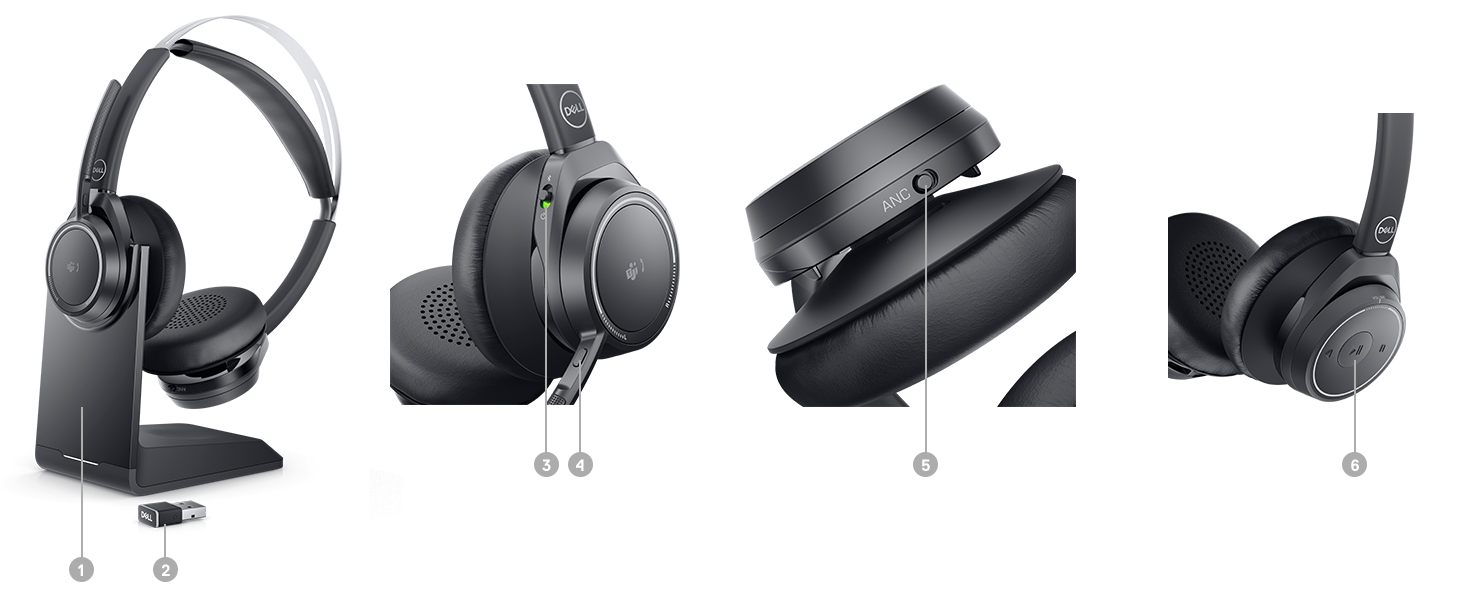
Image: A detailed diagram illustrating the various control points and features on the Dell Premier Wireless ANC Headset WL7022, including the charging stand and USB dongle.
| Feature/Control | Description |
|---|---|
| Power Switch | Slide to turn the headset On or Off. |
| Active Noise Cancellation (ANC) Switch | Toggle to activate or deactivate ANC, reducing ambient noise. |
| Volume Controls | Adjust audio output volume. |
| Mute Button (on Boom Mic) | Press to mute or unmute your microphone during calls. Can also function as an open mic button to hear surroundings. |
| Call Control Button | Answer/end calls, redial last number (functionality may vary by UC platform). |
| Smart Sensors | Automatically mute microphone when headset is removed and unmute when put back on. |
| Status Indicator Light (on USB Dongle) | Indicates connection status and call status. |
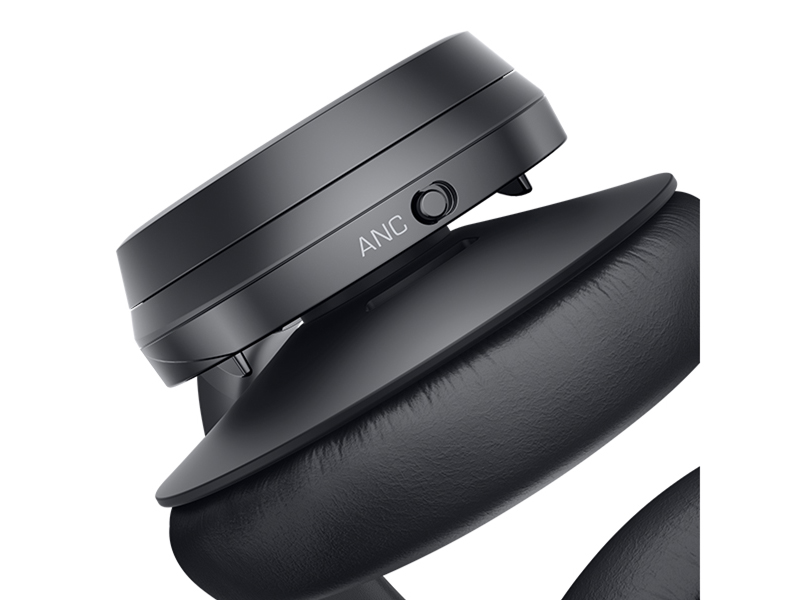
Image: A close-up view of the Active Noise Cancellation (ANC) switch located on the earcup of the headset, allowing users to easily control noise reduction.
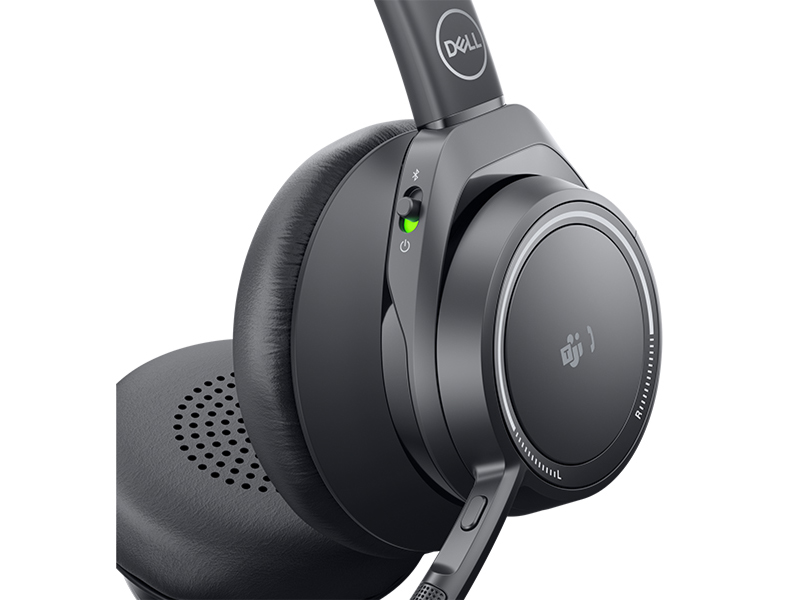
Image: A detailed shot of the headset's earcup, showing the integrated controls and the status indicator light, which provides visual feedback on the headset's operational state.
Wearing the Headset
Adjust the headband for a comfortable and secure fit. The boom microphone can be rotated and worn on either the left or right side, depending on your preference. Position the microphone approximately two fingers' width from the corner of your mouth for optimal voice pickup.

Image: A user wearing the Dell Premier Wireless ANC Headset WL7022 while participating in a video conference, demonstrating its ergonomic design and suitability for professional environments.
Maintenance
Cleaning Instructions
- Wipe the headset and earpads with a soft, dry, lint-free cloth.
- For stubborn dirt, slightly dampen the cloth with water or a mild, non-abrasive cleaner. Avoid excessive moisture.
- Do not use harsh chemicals, solvents, or abrasive cleaning agents.
- Ensure the headset is completely dry before charging or storing.
Storage
When not in use, store the headset in the included carrying pouch to protect it from dust and scratches. Avoid storing in extreme temperatures or high humidity.
The foldable earpads allow for compact storage, making it easy to pack for travel.
Troubleshooting
| Problem | Possible Solution |
|---|---|
| No audio or poor audio quality |
|
| Microphone not working |
|
| Active Noise Cancellation (ANC) not effective |
|
| Headset not charging |
|
Specifications
| Feature | Detail |
|---|---|
| Model Name | Premier |
| Model Number | DELL-WL7022 |
| Connectivity | Wireless (Bluetooth) via USB Dongle |
| Headphones Jack | USB (for dongle connection) |
| Frequency Range | 20 Hz - 20,000 Hz |
| Noise Control | Active Noise Cancellation (ANC) |
| Microphone | Triple-mics with background noise canceling |
| Controls | Call Control, Touch Control, Mute Button, Volume Controls, ANC Switch |
| Ear Placement | Over Ear |
| Form Factor | Over Ear |
| Material | Leatherette (earpads, headband) |
| Color | Black |
| Dimensions (L x W x H) | 7.28 x 4.53 x 8.27 inches |
| Item Weight | 0.73 Pounds (11.7 ounces) |
| Batteries | 1 Lithium Ion battery (included) |
| Compatible Devices | Leading UC Platforms (e.g., Microsoft Teams) |
| UPC | 884116398448 |
Warranty and Support
For warranty information and technical support, please refer to the official Dell support website or contact Dell customer service directly. Keep your proof of purchase and product serial number (if applicable) readily available when seeking support.
You can find more information and support resources by visiting the Dell Store on Amazon or the official Dell support portal.
Related Documents - DELL-WL7022
 |
Dell WL7024 Premier Wireless ANC Headset Quick Start Guide Quick start guide for the Dell WL7024 Premier Wireless ANC Headset, detailing setup, connections, controls, and maintenance. |
 |
Dell Pro Premium Wireless ANC Headset WL7024 User Guide - Setup, Features, Troubleshooting Comprehensive user guide for the Dell Pro Premium Wireless ANC Headset WL7024, covering setup, features, connectivity, troubleshooting, and warranty information. |
 |
Dell Peripheral Manager User Guide: Installation, Features, and Updates Comprehensive user guide for Dell Peripheral Manager software. Learn how to install, pair devices, customize settings like DPI and actions, and manage software updates for your Dell peripherals. |
 |
Guida per l'utente Cuffie ANC senza fili Dell Pro WL5024 Guida completa per le Cuffie ANC senza fili Dell Pro WL5024, che copre configurazione, funzionalità, risoluzione dei problemi, sicurezza e informazioni legali. |
 |
Dell Pro Wireless ANC Headset WL5024 User's Guide User's guide for the Dell Pro Wireless ANC Headset WL5024, detailing its features, setup, connectivity options, troubleshooting, and safety information. |
 |
Dell Pro Wireless ANC Headset WL5024 User's Guide Comprehensive user's guide for the Dell Pro Wireless ANC Headset WL5024, covering setup, operation, features, troubleshooting, specifications, and safety information. Learn how to connect, manage settings, and get the most out of your headset. |
Ask a question about this manual
Ask about setup, troubleshooting, compatibility, parts, safety, or missing instructions. Manuals+ will review the question and use this page’s manual context to help answer it.