
1. Introduction
This manual provides essential information for the safe and efficient use of your Gateway GWTN156-4PR 15.6" laptop. Please read this manual thoroughly before operating your device to ensure proper setup, operation, and maintenance. Keep this manual for future reference.
2. Product Overview
The Gateway GWTN156-4PR is a 15.6-inch laptop designed for everyday computing tasks, featuring an AMD Ryzen 5 3450U processor, 8GB of RAM, and a 256GB SSD, running Windows 10 Home.

Figure 2.1: Front view of the Gateway GWTN156-4PR laptop, open with the screen displaying a vibrant, colorful abstract image. This view highlights the full keyboard and touchpad.

Figure 2.2: Angled view of the Gateway GWTN156-4PR laptop, showcasing the Windows 10 desktop environment. This perspective provides a clear view of the screen's display and the laptop's slim profile.
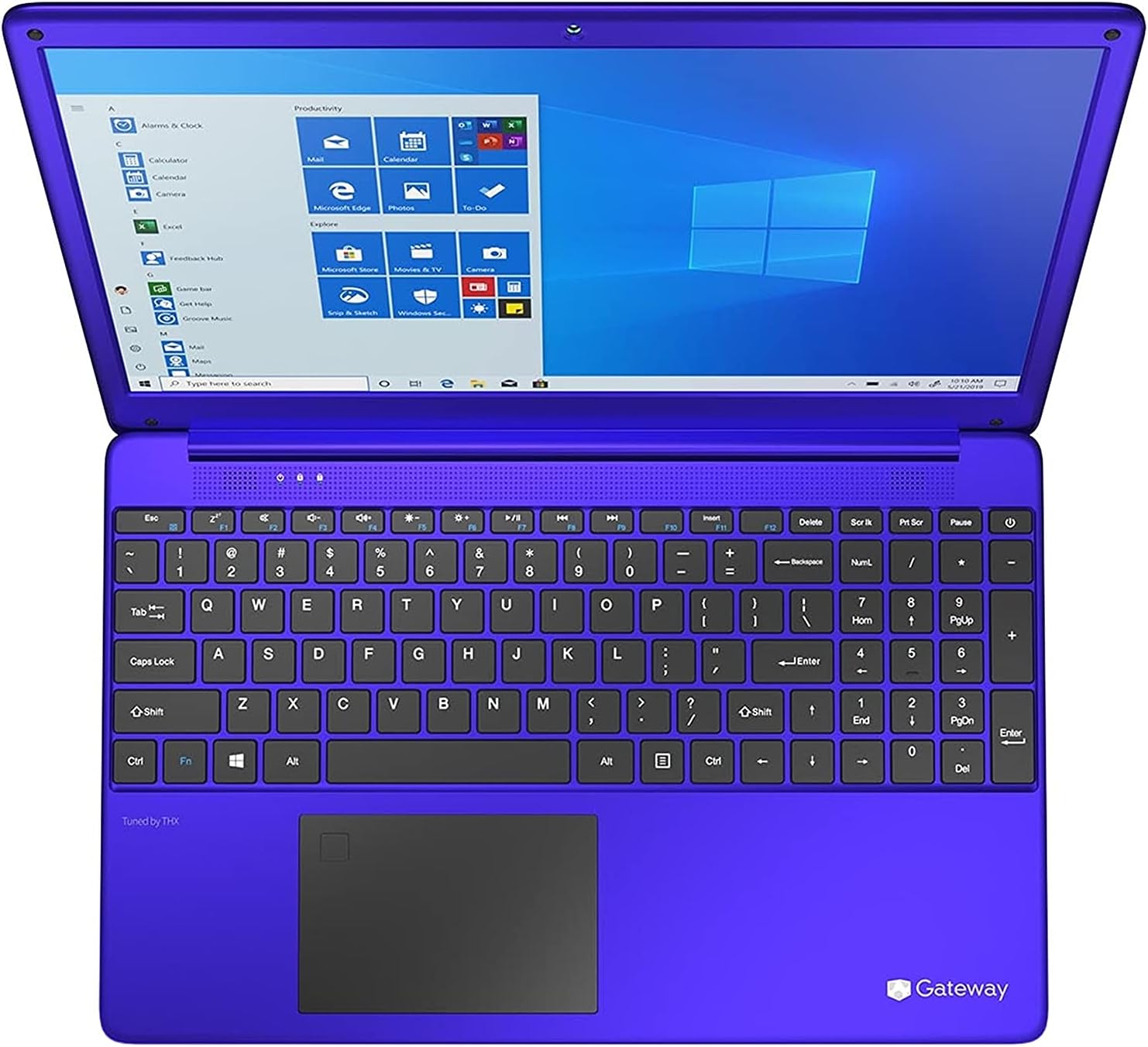
Figure 2.3: Top-down view of the Gateway GWTN156-4PR laptop, focusing on the keyboard layout and the screen. This image provides a detailed look at the key arrangement and the integrated touchpad.
3. Setup
3.1 Unboxing
Carefully remove the laptop and all accessories from the packaging. Verify that all components are present:
- Gateway GWTN156-4PR Laptop
- AC Power Adapter and Power Cord
- Quick Start Guide (if included)
3.2 Connecting Power
Before first use, ensure the laptop is fully charged. Connect the AC power adapter to the power input port on the side of the laptop, then plug the power cord into a wall outlet. The charging indicator light will illuminate.
3.3 Initial Boot and Windows Setup
Press the power button to turn on the laptop. The system will guide you through the initial Windows 10 Home setup process. Follow the on-screen prompts to:
- Select your region and language.
- Connect to a Wi-Fi network.
- Accept the Microsoft License Terms.
- Create or sign in with a Microsoft account.
- Set up a PIN or password.
- Configure privacy settings.
3.4 Connecting to Wi-Fi
During initial setup, you will be prompted to connect to a Wi-Fi network. If you skip this step or need to connect later:
- Click the Network icon (looks like a globe or Wi-Fi signal) in the taskbar.
- Select your desired Wi-Fi network from the list.
- Click Connect.
- Enter the network security key (password) if prompted, then click Next.
3.5 Basic Peripheral Connection
Your laptop includes various ports for connecting external devices:
- USB Ports: For connecting USB drives, mice, keyboards, etc.
- HDMI Port: For connecting to external monitors or TVs.
- Audio Jack: For connecting headphones or external speakers.
4. Operating Instructions
4.1 Keyboard Functions
The keyboard includes standard alphanumeric keys, function keys (F1-F12), and special keys. Many function keys have secondary actions accessed by holding the Fn key (usually located near the left Ctrl key) and pressing the desired function key. Common Fn key combinations include:
- Fn + Fx: Adjust screen brightness, volume, enable/disable Wi-Fi, etc. (refer to keyboard icons).
- Windows Key: Opens the Start Menu.
4.2 Touchpad Usage
The integrated touchpad allows you to control the cursor and interact with the system. Common gestures include:
- Single Tap: Left-click.
- Two-Finger Tap: Right-click.
- Two-Finger Scroll: Scroll up/down or left/right.
- Pinch-to-Zoom: Zoom in or out.
4.3 Windows 10 Home Navigation
Familiarize yourself with the Windows 10 interface:
- Start Menu: Access applications, settings, and power options.
- Taskbar: Displays open applications and system icons.
- Action Center: Provides notifications and quick settings (click the icon in the bottom-right corner of the taskbar).
- File Explorer: Manage your files and folders.
4.4 Power Management
To manage power states:
- Sleep: Puts the laptop into a low-power state, preserving your work.
- Shut Down: Turns off the laptop completely.
- Restart: Shuts down and then immediately restarts the laptop.
Access these options via the Start Menu > Power icon.
5. Maintenance
5.1 Cleaning the Laptop
Regular cleaning helps maintain your laptop's appearance and functionality:
- Screen: Use a soft, lint-free cloth specifically designed for electronics. Dampen slightly with water or a screen cleaner, never spray directly onto the screen.
- Keyboard and Chassis: Use a soft cloth. For stubborn dirt, a slightly dampened cloth with mild soap solution can be used, ensuring no liquid enters openings. Compressed air can remove dust from between keys.
Always power off and unplug the laptop before cleaning.
5.2 Battery Care
To maximize battery lifespan:
- Avoid extreme temperatures.
- Do not fully discharge the battery frequently.
- If storing the laptop for an extended period, charge the battery to about 50-60% before storage.
5.3 Software Updates
Keep your operating system and drivers updated for optimal performance and security:
- Windows Update: Go to Settings > Update & Security > Windows Update to check for and install updates.
- Driver Updates: Drivers are typically updated via Windows Update, but you may occasionally need to visit the Gateway support website for specific driver downloads.
6. Troubleshooting
This section addresses common issues you might encounter.
6.1 No Power / Laptop Not Turning On
- Ensure the AC adapter is securely connected to both the laptop and a working power outlet.
- Verify the power outlet is functional by plugging in another device.
- Try holding the power button for 15-20 seconds to perform a hard reset.
6.2 No Display / Blank Screen
- Ensure the laptop is powered on.
- Try pressing Fn + Fx (where Fx is the display toggle key, usually F5 or F7) to switch display output.
- If connected to an external monitor, try disconnecting it.
6.3 Wi-Fi Connectivity Issues
- Check if Wi-Fi is enabled (via Fn + Fx or Windows settings).
- Restart your router and modem.
- Forget the network in Windows settings and reconnect.
- Run the Windows Network Troubleshooter (Settings > Network & Internet > Status > Network troubleshooter).
6.4 Slow Performance
- Close unnecessary applications running in the background.
- Check for and install Windows updates.
- Run a disk cleanup to free up storage space.
- Scan for malware or viruses.
7. Specifications
| Feature | Specification |
|---|---|
| Model | GWTN156-4PR |
| Screen Size | 15.6 Inches |
| Resolution | 1080p |
| Processor | AMD Ryzen 5 3450U |
| RAM | 8 GB DDR4 |
| Storage | 256GB SSD |
| Operating System | Windows 10 Home |
| Battery Life (Average) | 10 Hours |
| Hardware Interface | Solid State Drive |
| Display Type | LED |
8. Warranty and Support
8.1 Warranty Information
Your Gateway GWTN156-4PR laptop comes with a limited warranty. Please refer to the warranty card included in your product packaging for specific terms, conditions, and duration of coverage. Keep your proof of purchase for warranty claims.
8.2 Technical Support
For technical assistance, troubleshooting beyond this manual, or warranty service, please contact Gateway customer support. Visit the official Gateway website for the most up-to-date contact information, support resources, and driver downloads.
Before contacting support, please have your laptop's model number (GWTN156-4PR) and serial number ready. The serial number is typically located on a sticker on the bottom of the laptop.