
1. Introduction and Overview
The Logitech G PRO Mechanical Gaming Keyboard, League of Legends Edition, is engineered for competitive gaming. This ultra-portable tenkeyless (TKL) keyboard features durable GX Brown Tactile Switches, customizable LIGHTSYNC RGB backlighting, and a detachable USB cable for easy transport. It is designed to provide precision and responsiveness for optimal performance.

Figure 1: Logitech G PRO Mechanical Gaming Keyboard, League of Legends Edition.
2. What's in the Box
- Logitech G PRO Gaming Keyboard
- Keyboard Data Cable
- User documentation
3. Setup
3.1 System Requirements
- USB 2.0 port
- Operating System: Windows 10, 8.1, 8, or 7
3.2 Connecting the Keyboard
- Locate the detachable micro USB cable included in the box.
- Connect the micro USB end of the cable to the port on the back of the keyboard.
- Connect the standard USB-A end of the cable to an available USB 2.0 port on your computer.
- The keyboard will automatically be recognized by your operating system.
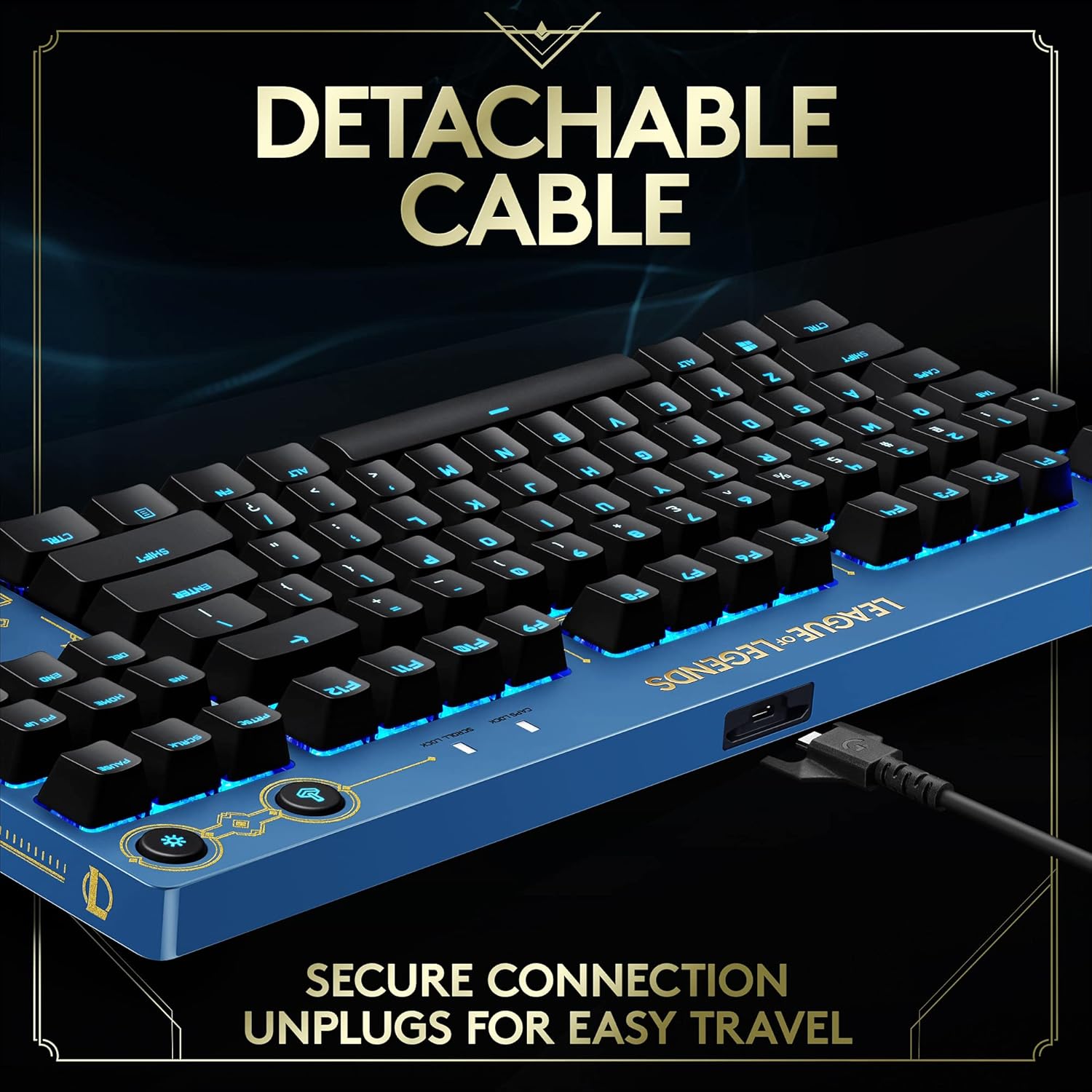
Figure 2: The detachable micro USB cable ensures a secure connection and easy portability.
3.3 Software Installation (Logitech G HUB)
For full customization of LIGHTSYNC RGB lighting and programmable macros, download and install the Logitech G HUB software from the official Logitech G website. This software is required for advanced features.
4. Features
4.1 Ultra-Portable Tenkeyless (TKL) Design
The compact TKL design removes the numeric keypad, freeing up valuable desk space for mouse movement, especially beneficial for low-sensitivity mouse users. Its portable form factor makes it easy to pack and transport for gaming tournaments or travel.
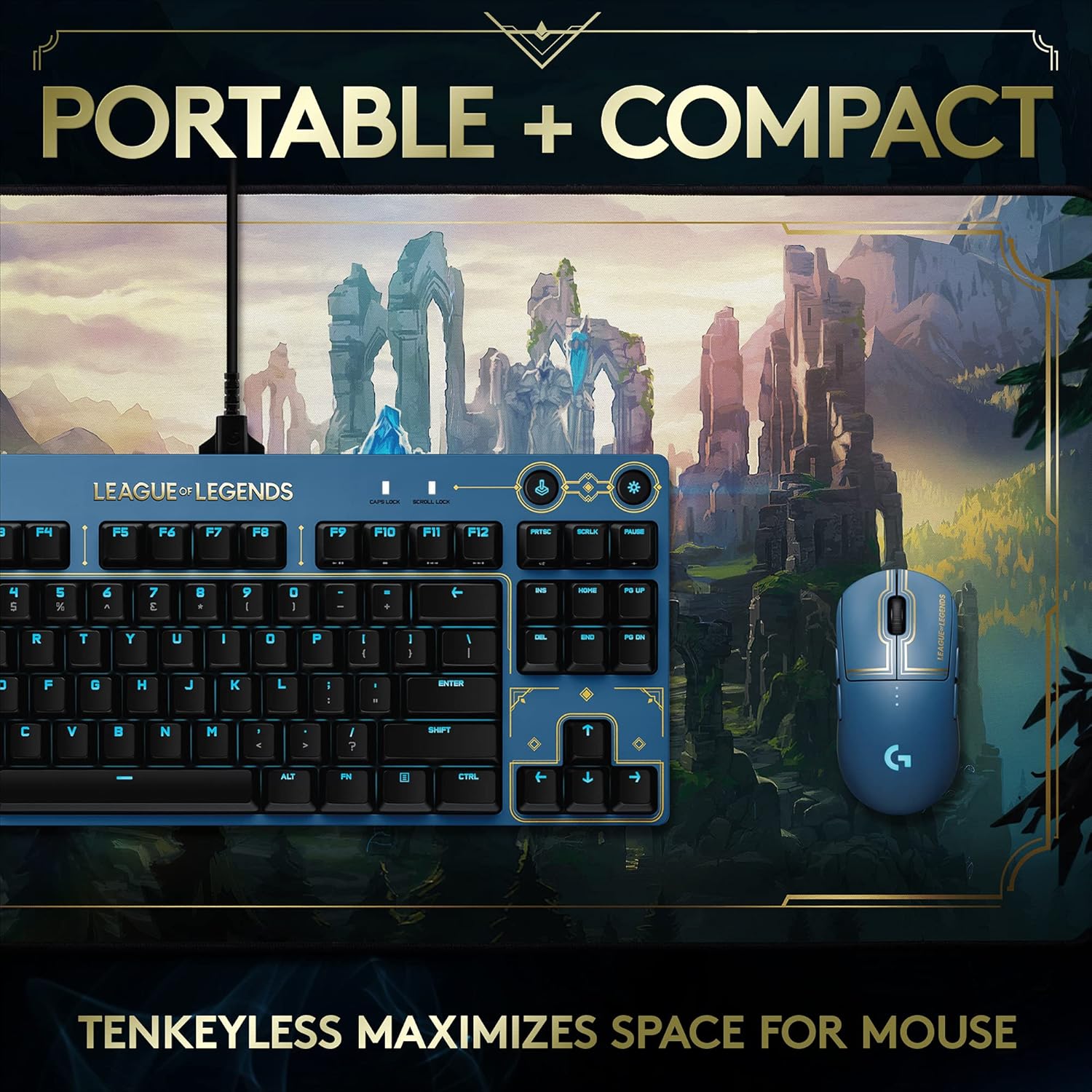
Figure 3: The tenkeyless design maximizes desk space for mouse movement.
4.2 GX Brown Tactile Switches
Equipped with durable GX Brown Tactile Switches, this mechanical keyboard provides discernable feedback during actuation. This ensures confidence and precision in keystrokes without producing excessive noise, making it suitable for various environments.

Figure 4: Internal view of a GX Brown Tactile Switch, illustrating its mechanical components.
4.3 LIGHTSYNC RGB Backlighting
Personalize your keyboard with LIGHTSYNC RGB to highlight backlit keys. Static lighting patterns can be programmed and stored to onboard memory, which is useful for tournament systems that may not allow G HUB installations. Full customization of colors and effects is available through the Logitech G HUB software.
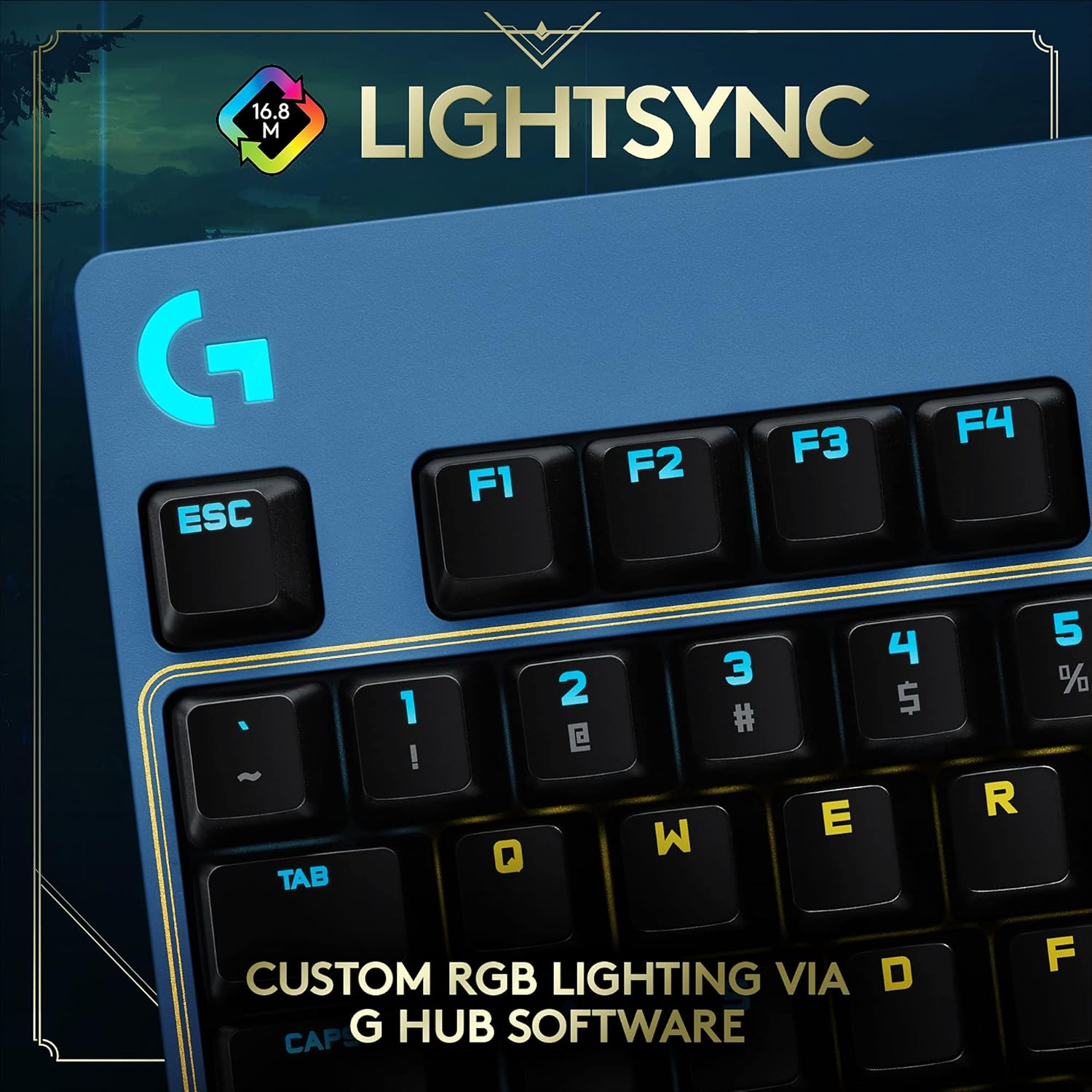
Figure 5: Customizable LIGHTSYNC RGB lighting on the keyboard keys.
4.4 Detachable USB Cable
The keyboard features a detachable micro USB cable with a three-pronged design. This ensures a secure connection during use and allows for easy detachment, making the keyboard safe and convenient to transport.
4.5 Adjustable Angle
The wired gaming keyboard offers 3-step angle adjustment, allowing you to set the keyboard to a comfortable typing or gaming position. Rubber feet provide stability, preventing the keyboard from sliding during intense use.
4.6 Programmable Macros
Utilize the Logitech G HUB software to program complex or timed actions and commands to the F-keys (F1-F12). This feature enhances efficiency and speed in games and applications.
5. Operating Instructions
5.1 Top Row Controls
The top row of the keyboard features several dedicated control buttons:
- Lightspeed/Wireless Connection: Activates the 1ms Lightspeed wireless connection.
- Bluetooth Connection: Enables Bluetooth connectivity for other devices.
- Game Mode: Disables the Windows key to prevent accidental interruptions during gameplay.
- RGB Brightness: Adjusts the brightness of the LIGHTSYNC RGB backlighting.
- Multimedia Keys: Dedicated buttons for media playback control (skip, play/pause, mute).
- Volume Roller: A convenient scroll wheel for adjusting system volume.
Video 1: A closer look at the Logitech G PRO Mechanical Gaming Keyboard's features and controls.
6. Maintenance
- Cleaning: Regularly clean the keycaps and keyboard surface with a soft, dry cloth. For deeper cleaning, keycaps can be carefully removed.
- Cable Care: Handle the detachable USB cable with care to prevent damage. Avoid sharp bends or excessive pulling.
- Storage: When not in use, store the keyboard in a clean, dry environment. Detach the USB cable for safer transport.
7. Troubleshooting
- Keyboard Not Responding:
- Ensure the USB cable is securely connected to both the keyboard and the computer.
- Try connecting the keyboard to a different USB port.
- Restart your computer.
- RGB Lighting Issues:
- Check the RGB brightness button on the keyboard's top row.
- Ensure Logitech G HUB software is installed and updated. Verify lighting profiles.
- Macro Keys Not Working:
- Confirm that Logitech G HUB software is running and macros are correctly configured.
- Windows Key Disabled:
- Press the Game Mode button (joystick icon) on the top row to toggle the Windows key functionality.
8. Specifications
| Feature | Detail |
|---|---|
| Brand | Logitech G |
| Series | PRO |
| Model Number | 920-010533 |
| Hardware Platform | Laptop, PC |
| Operating System | Windows 10, Windows 7, Windows 8, Windows 8.1 |
| Item Weight | 2.16 pounds (980 g) |
| Product Dimensions (LxWxH) | 14.2 x 6 x 1.4 inches (361 x 153 x 34 mm) |
| Color | League of Legends Edition |
| Power Source | Corded Electric |
| Connectivity Technology | USB 2.0 |
| Keyboard Description | Mechanical, Gaming |
| Recommended Uses | Gaming, Multimedia, Programming |
| Special Feature | Backlit, Portable |
| Keyboard Backlighting Color Support | RGB (LIGHTSYNC) |
9. Warranty and Support
For warranty information and technical support, please refer to the user documentation included in the product packaging or visit the official Logitech G support website.
Logitech G support can be accessed via their official website: www.logitechg.com/support


