
1. Introduction
This document serves as an instruction manual for the Bresser 7-in-1 Wireless Sensor, model 7803300. This sensor is designed as a replacement outdoor unit for the Bresser Comfort Weather Center 7003300. It provides comprehensive local weather data, including temperature, humidity, wind speed, wind direction, rainfall, UV level, and light intensity, to your compatible base station.
2. Package Contents
Please verify that all items listed below are present in your package:
- Multi-function outdoor sensor
- Mounting hardware
- User manual
Note: The Bresser Comfort Weather Center base station and 3 AA batteries are not included with this replacement sensor.
3. Product Overview
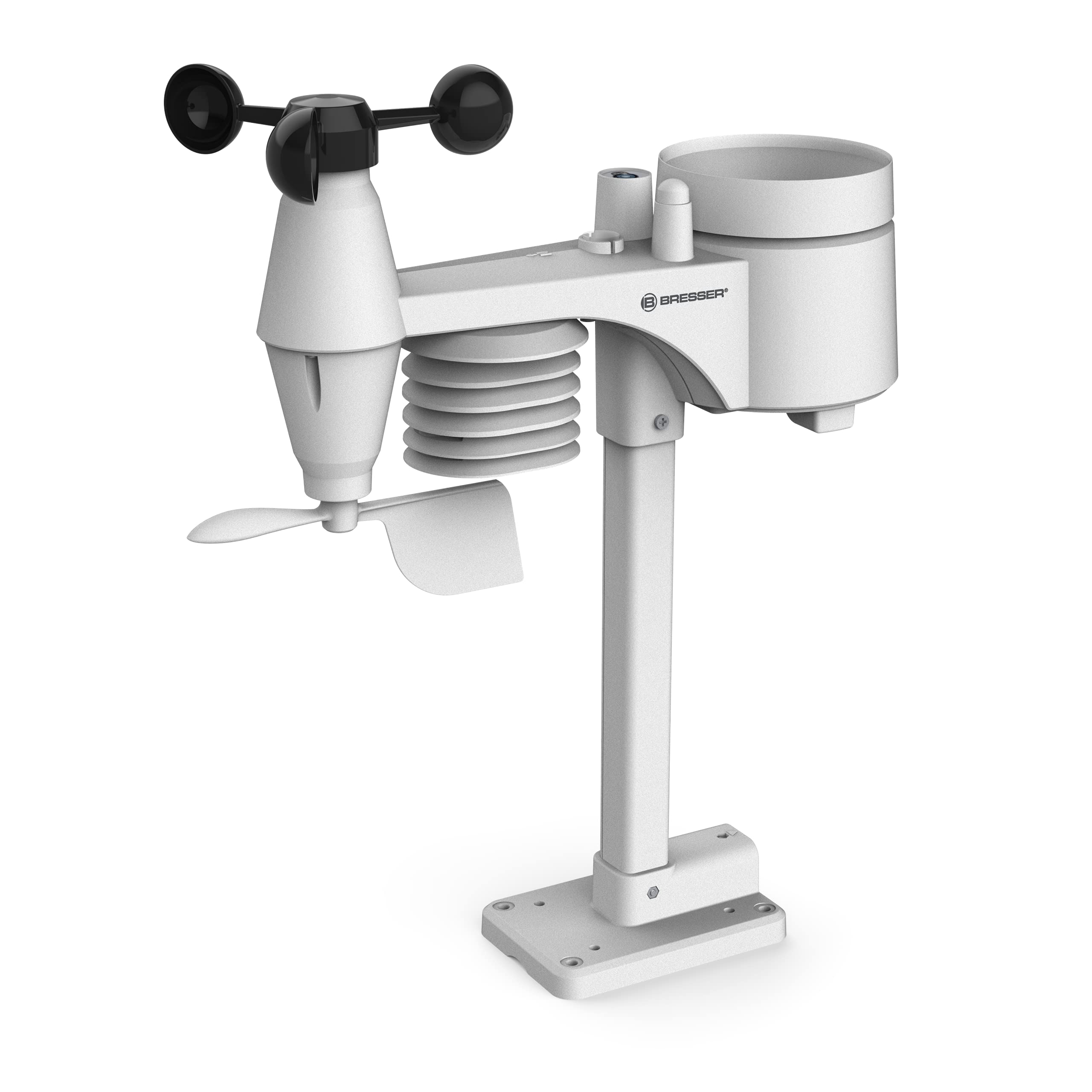
Figure 3.1: Front view of the Bresser 7-in-1 Wireless Sensor, showing the wind cups, wind vane, radiation shield, and rain collector.
The Bresser 7-in-1 Wireless Sensor is a sophisticated outdoor unit capable of measuring seven different weather parameters:
- Outdoor temperature
- Outdoor humidity
- Wind speed
- Wind direction
- Rainfall amount
- UV level
- Light intensity
These measurements are transmitted wirelessly to a compatible Bresser Comfort Weather Center base station (model 7003300) at a frequency of 868 MHz, with a range of up to 150 meters.
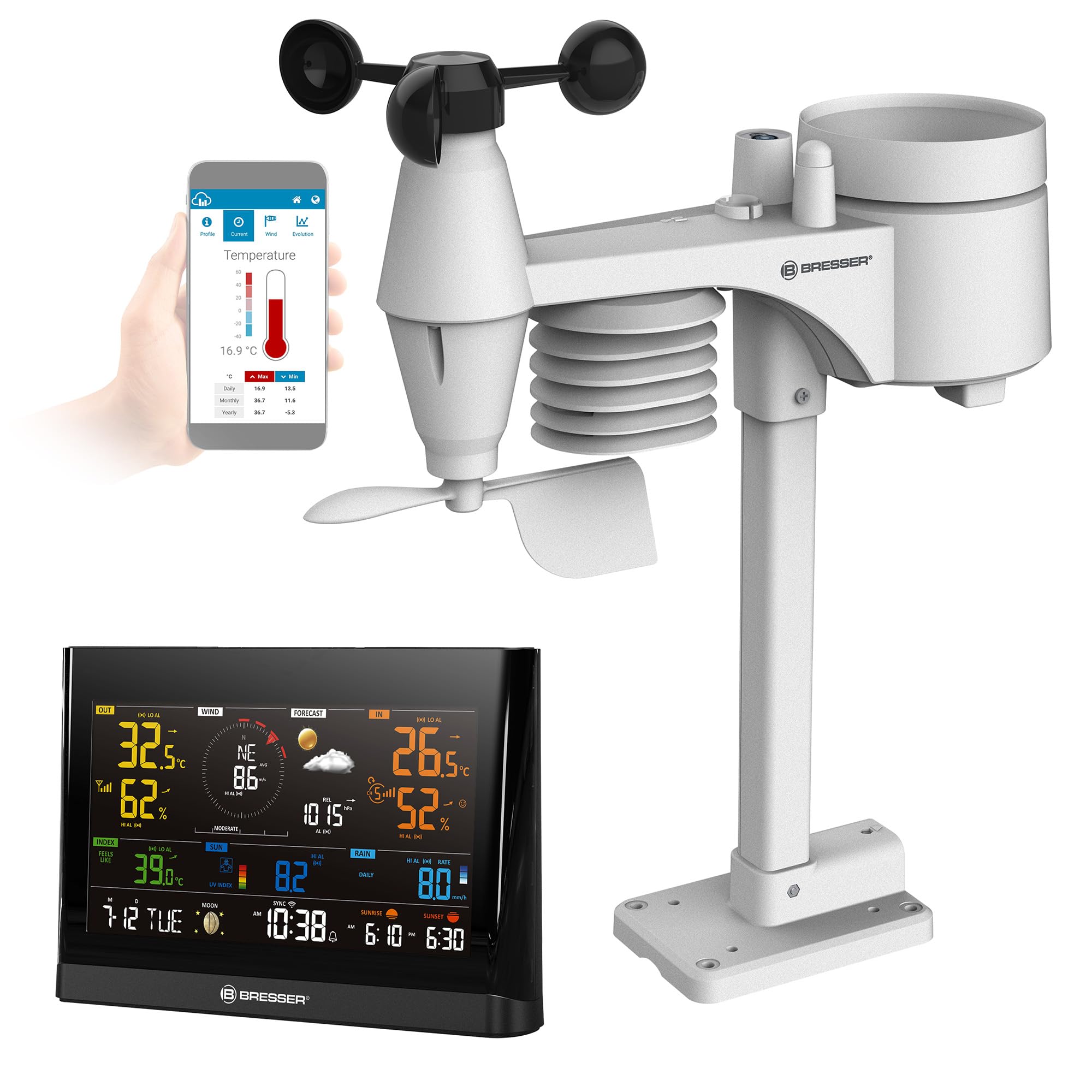
Figure 3.2: The Bresser 7-in-1 Wireless Sensor shown alongside a compatible Bresser Comfort Weather Center display unit, illustrating data transmission.
4. Setup
Follow these steps to set up your Bresser 7-in-1 Wireless Sensor:
- Power Supply: Insert 3 AA batteries (not included) into the sensor's battery compartment. Ensure correct polarity.
- Mounting: Select a suitable outdoor location for the sensor. The location should be open, free from obstructions, and allow for accurate measurement of wind, rain, and sunlight. Use the provided mounting hardware to securely install the sensor.
- Connection to Base Station: Ensure your Bresser Comfort Weather Center base station (model 7003300) is powered on.
- Initiate Search: On your base station, press the 'WIFI/SENSOR' button. Refer to your base station's manual for the exact button location. The base station will begin searching for the signal from your new outdoor sensor.
- Synchronization: Allow a short period for the sensor and base station to synchronize. Once connected, the local weather data will appear on your base station's display.
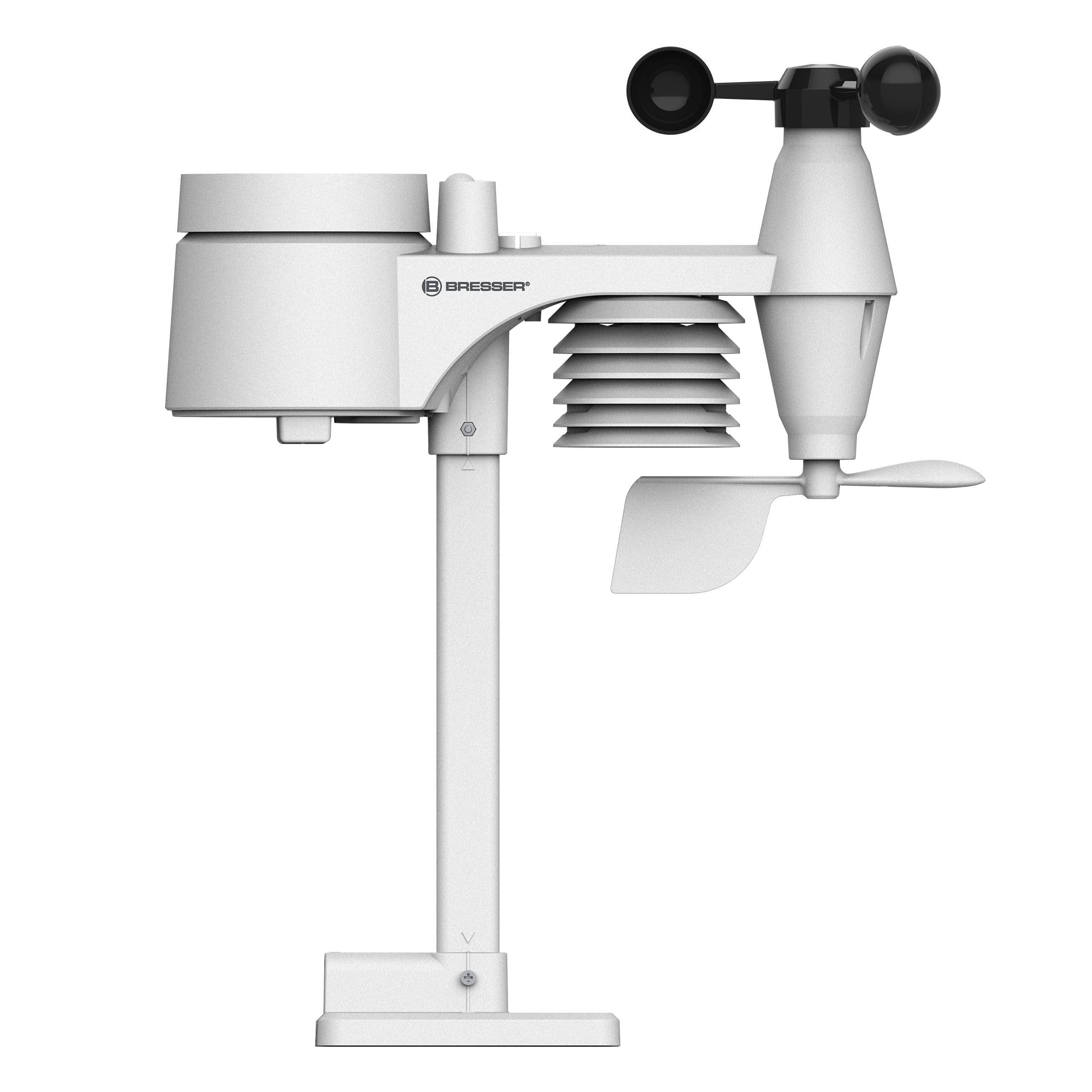
Figure 4.1: Side view of the sensor, illustrating its compact design and various components for weather measurement.
5. Operating Instructions
Once successfully connected to your Bresser Comfort Weather Center base station, the 7-in-1 Wireless Sensor operates automatically. It continuously measures and transmits weather data to the base station. Ensure the sensor remains powered with fresh batteries for uninterrupted operation. The base station will display the received data and may offer additional features such as data logging or internet connectivity, depending on its model.
6. Maintenance
To ensure optimal performance and longevity of your sensor:
- Battery Replacement: Replace the 3 AA batteries when the low battery indicator appears on your base station, or approximately once a year, depending on battery type and environmental conditions.
- Cleaning: Periodically clean the sensor's exterior, especially the rain collector and wind cups, to prevent debris buildup that could affect measurement accuracy. Use a soft, damp cloth. Do not use abrasive cleaners or solvents.
- Inspection: Regularly inspect the mounting for stability and ensure no obstructions have grown around the sensor that could interfere with readings.
7. Troubleshooting
If you experience issues with your Bresser 7-in-1 Wireless Sensor, consider the following:
- No Data Displayed:
- Check if the sensor batteries are correctly installed and have sufficient charge. Replace if necessary.
- Ensure the sensor is within the 150-meter range of the base station and there are no significant obstructions (e.g., thick walls, large metal objects) between them.
- Re-initiate the sensor search on your base station by pressing the 'WIFI/SENSOR' button.
- Inaccurate Readings:
- Verify the sensor's mounting location. Ensure it is free from obstructions that could affect wind, rain, or temperature readings.
- Clean the rain collector and wind cups if they appear dirty or obstructed.
- Connection Interruption:
- This can sometimes occur due to environmental factors or interference. Try repositioning the sensor or base station slightly.
- Ensure the base station's Wi-Fi connection (if applicable) is stable, as some base stations rely on this for full functionality.
8. Specifications
| Model Number | 7803300 |
| Dimensions (L x W x H) | 34.4 x 13.6 x 39.4 cm |
| Weight | 485 grams |
| Power Source | 3 x AA batteries (not included) |
| Wireless Frequency | 868 MHz |
| Wireless Range | Up to 150 meters (open field) |
| Material | Plastic |
| Measured Parameters | Temperature, Humidity, Wind Speed, Wind Direction, Rainfall, UV Level, Light Intensity |
| Compatibility | Bresser Comfort Weather Center 7003300 |
9. Warranty and Support

Figure 9.1: Bresser customer support is available for assistance.
For warranty information and technical support, please refer to the documentation provided with your original Bresser Comfort Weather Center 7003300 base station or visit the official Bresser website. Keep your purchase receipt as proof of purchase.
You can typically find contact information for Bresser support on their official website or within the original product packaging.


