
Midea M7
Midea M7 Robot Vacuum and Mop Cleaner User Manual
Model: M7
Introduction
The Midea M7 Robot Vacuum and Mop Cleaner is designed to provide efficient and automated floor cleaning. It combines powerful suction with advanced navigation technology to clean various floor types, including hard floors and carpets. This manual provides essential information for setup, operation, maintenance, and troubleshooting to ensure optimal performance of your device.
Product Overview
The Midea M7 features a 4000Pa suction power, LiDAR navigation for precise mapping, and a 3-in-1 cleaning system for sweeping, vacuuming, and mopping. It is equipped with a 5200mAh battery for extended cleaning sessions and can be controlled via the M Smartlife App, Alexa, or Google Home.

Image: The Midea M7 Robot Vacuum demonstrating its Laser NaviPolaris Technology for precise positioning, mapping, obstacle recognition, and clear route planning across different rooms.
Setup
1. Unpacking and Placement
- Remove all packaging materials and protective films from the robot and charging dock.
- Place the charging dock against a wall on a hard, level surface. Ensure there is at least 0.5 meters of clear space on both sides and 1.5 meters in front of the dock.
- Connect the power adapter to the charging dock and plug it into a power outlet.
2. Initial Charging
- Place the robot onto the charging dock. Ensure the charging contacts on the robot align with those on the dock.
- Allow the robot to fully charge before its first use. The indicator light will change to indicate a full charge.
3. App Connection and Mapping
- Download the "M Smartlife" app from your mobile device's app store.
- Follow the in-app instructions to add your Midea M7 robot vacuum. This typically involves pressing and holding the power button on the robot for a few seconds until a prompt tone is heard, then connecting via Bluetooth and Wi-Fi.
- Once connected, the robot will perform an initial mapping of your home using its LiDAR navigation system. This map will be displayed in the app, allowing you to set no-go zones, virtual boundaries, and specific cleaning areas. The robot can store up to 3 maps for multi-level homes.
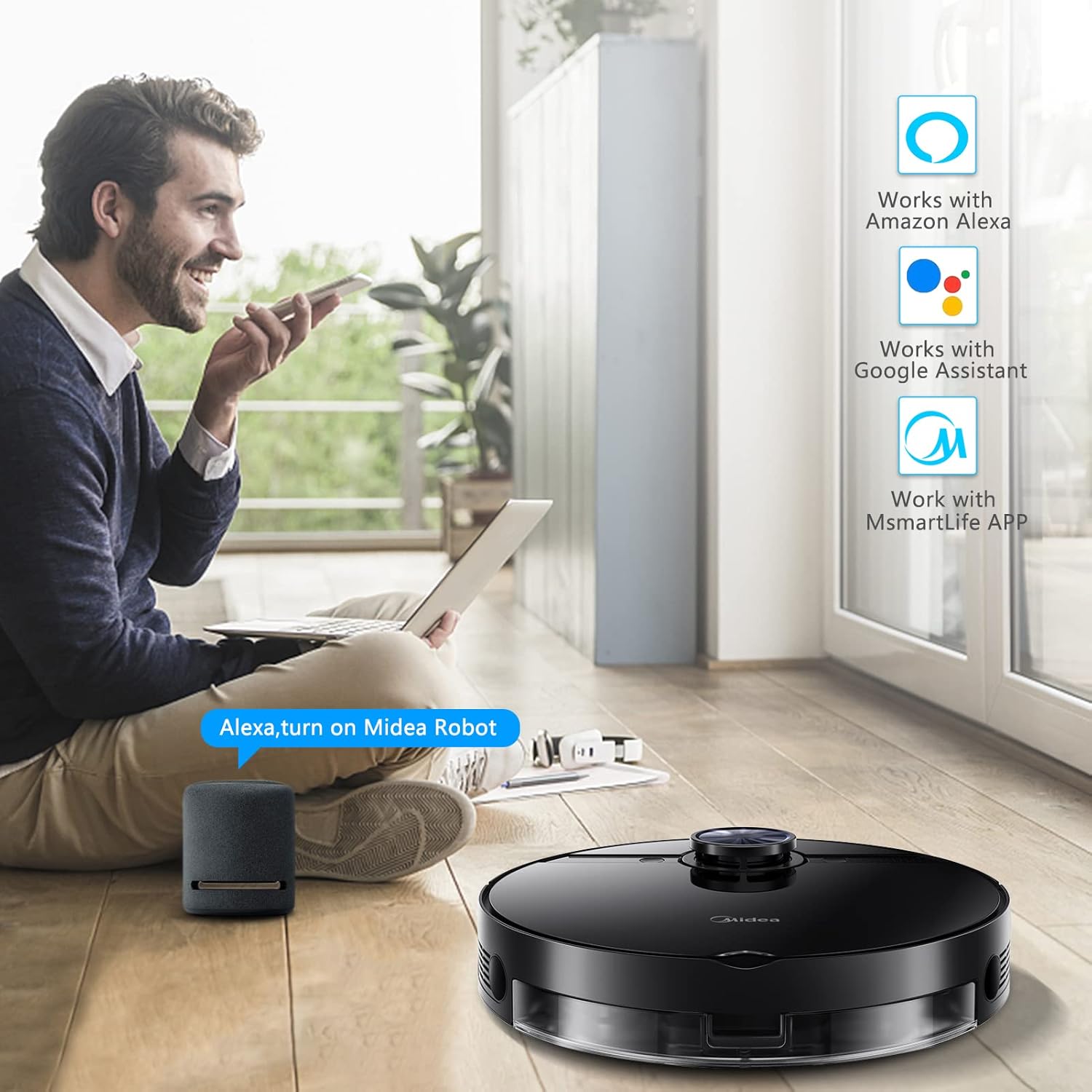
Image: The Midea M7 Robot Vacuum being controlled via a smartphone app, highlighting its compatibility with Amazon Alexa, Google Assistant, and the M Smartlife APP for smart home integration.
Video: This video demonstrates the easy connection process of the Midea M7 Robot Vacuum with Bluetooth and Wi-Fi, its smart navigation capabilities using LDS, and the ability to schedule cleaning appointments and program intelligent cleaning paths via the app.
Operating Instructions
1. Starting a Cleaning Cycle
- Press the power button on the robot or use the M Smartlife app to start a cleaning cycle.
- The robot will automatically navigate and clean your home based on its mapped layout.
- To pause cleaning, press the power button once. To resume, press it again.
- To send the robot back to its charging dock, press the home button on the robot or use the app.
2. Cleaning Modes
The Midea M7 offers multiple cleaning modes, including sweeping, vacuuming, and mopping. These can be selected and customized through the M Smartlife app.
- Vacuum Mode: Utilizes 4000Pa strong suction to effectively pick up dirt, dust, debris, and pet hair from various surfaces. The robot automatically increases suction power on carpets.
- Mop Mode: For hard floors, the robot uses its 220ml vibration water tank to mop. Ensure the mopping pad is attached and the water tank is filled. The app allows for three levels of water dripping speed control.
- Sweeping Mode: The V-shaped main brush and dual side-sweeping brushes work together to gather debris towards the suction inlet.

Image: The Midea M7 Robot Vacuum highlighting its 4000PA strong suction capability, illustrating its effectiveness on various debris like hair, dust, water stains, coffee beans, and screws across different floor types such as carpets, hard floors, and wooden floors.
3. Smart Features
- Voice Control: Compatible with Amazon Alexa and Google Home. Link your Midea M7 through the respective smart home apps to control it with voice commands.
- Scheduled Cleaning: Set specific cleaning times and days via the M Smartlife app.
- Virtual Boundaries & No-Go Zones: Use the app to define areas where the robot should not clean or enter.
- Obstacle Avoidance: The robot is designed to identify obstacles and make detours, and can climb over thresholds up to 2cm.

Image: The Midea M7 Robot Vacuum demonstrating its advanced navigation features, including fall prevention from stairs, 2cm climbing capability over obstacles, and its ultra-thin design for navigating under furniture, complemented by anti-collision technology.
Maintenance
Regular maintenance ensures the longevity and optimal performance of your Midea M7 robot vacuum. Always power off the robot before performing any maintenance.
1. Dust Box and Filter
- Empty the 450ml dust box after each cleaning cycle or when full.
- Clean the filter regularly by tapping it to remove dust. Replace the filter every 3-6 months, or as needed, to maintain suction performance.
2. Main Brush and Side Brushes
- Remove the V-shaped main brush and clean any tangled hair or debris using the cleaning tool provided.
- Inspect the dual side-sweeping brushes for wear or damage. Clean any hair or debris wrapped around them. Replace if bristles are bent or worn.
3. Water Tank and Mopping Pad
- After mopping, empty any remaining water from the 220ml vibration water tank.
- Clean the mopping pad thoroughly. It is recommended to wash the pad after each use.
- The Hall Effect Sensor ensures no water drips out when the mopping pad is not attached.
4. Sensors and Charging Contacts
- Wipe the LiDAR sensor, cliff sensors, and charging contacts on both the robot and the charging dock with a clean, dry cloth to ensure proper function.
Troubleshooting
If your Midea M7 robot vacuum encounters an issue, refer to the following common troubleshooting steps. For more complex problems, consult the M Smartlife app or contact customer support.
1. Robot Not Charging
- Ensure the charging dock is powered on and the power indicator light is illuminated.
- Check that the robot is correctly placed on the charging dock and the charging contacts are aligned and clean.
- Verify that the power adapter is securely plugged into both the dock and the wall outlet.
2. Mopping Function Not Working
- Ensure the water tank is filled with water and correctly installed.
- Verify that the mopping pad is properly attached. The Hall Effect Sensor prevents water release if the pad is not detected.
- Check the water dripping speed setting in the M Smartlife app. Increase it if water flow is too low.
- Clean the water outlet on the tank to ensure it's not clogged.
3. Robot Getting Stuck or Not Navigating Properly
- Clear any obstacles, loose cables, or small items from the cleaning path.
- Clean the LiDAR sensor and cliff sensors to ensure they are free from dust or debris.
- If the robot frequently gets stuck in a specific area, consider setting a virtual boundary or no-go zone in the app.
- Ensure the robot is operating on a flat surface and not attempting to climb over obstacles higher than 2cm.
4. Poor Suction Performance
- Empty the dust box and clean the filter. A clogged filter can significantly reduce suction.
- Check the main brush and side brushes for tangled hair or debris and clean them.
- Ensure the suction inlet is not blocked.
- Verify that the robot is not in a low-power cleaning mode. Adjust the suction power setting in the app if necessary.
Specifications
| Feature | Detail |
|---|---|
| Brand | Midea |
| Model Number | M7 |
| Suction Power | 4000Pa |
| Navigation Type | LiDAR |
| Cleaning Modes | Sweeping, Vacuuming, Mopping (3-in-1) |
| Dust Box Capacity | 450ml |
| Water Tank Capacity | 220ml (Vibration Water Tank) |
| Battery Capacity | 5200mAh |
| Run Time | Up to 150 minutes |
| Control Methods | M Smartlife App, Voice Control (Alexa, Google Home) |
| Climbing Ability | Up to 2cm |
| Product Dimensions | 14 x 14 x 4 inches |
| Item Weight | 12.72 pounds |
| Color | Black |
Warranty and Support
For warranty information, please refer to the warranty card included with your product or visit the official Midea website. If you require technical support, have questions about your product, or need to order replacement parts, please contact Midea customer service. Contact details can typically be found on the Midea website or within the M Smartlife app.
Related documentsM7


Ask a question about this manual
Ask about setup, troubleshooting, compatibility, parts, safety, or missing instructions. Manuals+ will review the question and use this page’s manual context to help answer it.