
ZTE MF920U
ZTE MF920U Mobile WiFi Hotspot User Manual
Model: MF920U
1. Introduction
This user manual provides essential information for the safe and efficient operation of your ZTE MF920U Mobile WiFi Hotspot. Please read this manual thoroughly before using the device to ensure proper setup and functionality. The ZTE MF920U is designed to provide portable internet access by converting a 4G LTE cellular signal into a Wi-Fi hotspot, allowing multiple devices to connect simultaneously.

Figure 1.1: Front view of the ZTE MF920U Mobile WiFi Hotspot.
2. Safety Information
Always observe the following safety precautions to avoid injury or damage to the device:
- Do not expose the device to extreme temperatures, direct sunlight, or high humidity.
- Avoid dropping or subjecting the device to severe impact.
- Use only manufacturer-approved chargers and accessories.
- Do not attempt to disassemble or modify the device.
- Keep the device away from medical devices, as it may interfere with their operation.
3. Package Contents
Verify that all items are present in your package:
- ZTE MF920U Mobile WiFi Hotspot
- Standard USIM card slot (integrated)
- USB Charging Cable (typically included, though not explicitly listed in 'whats_in_the_box')
- Quick Start Guide (typically included)
4. Device Layout
Familiarize yourself with the physical components of your MF920U hotspot.
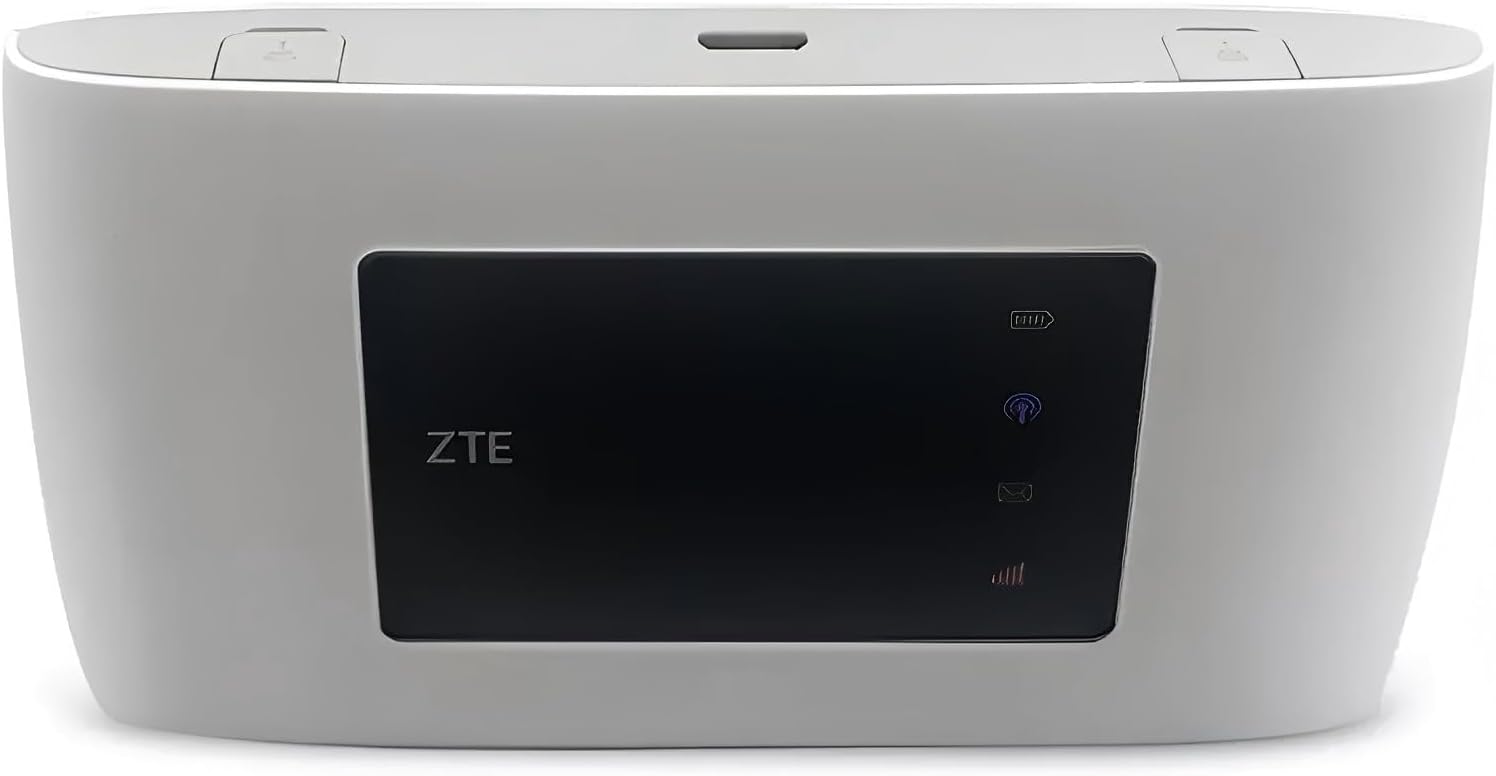
Figure 4.1: Angled view of the ZTE MF920U.
4.1 Front Panel
- Display Screen: Shows signal strength, Wi-Fi status, battery level, and new message indicators.
4.2 Side and Rear Panels

Figure 4.2: Side view of the ZTE MF920U with ports.
- Micro USB Port: For charging the device.
- External Antenna Ports: Two ports for optional external antennas to improve signal reception.
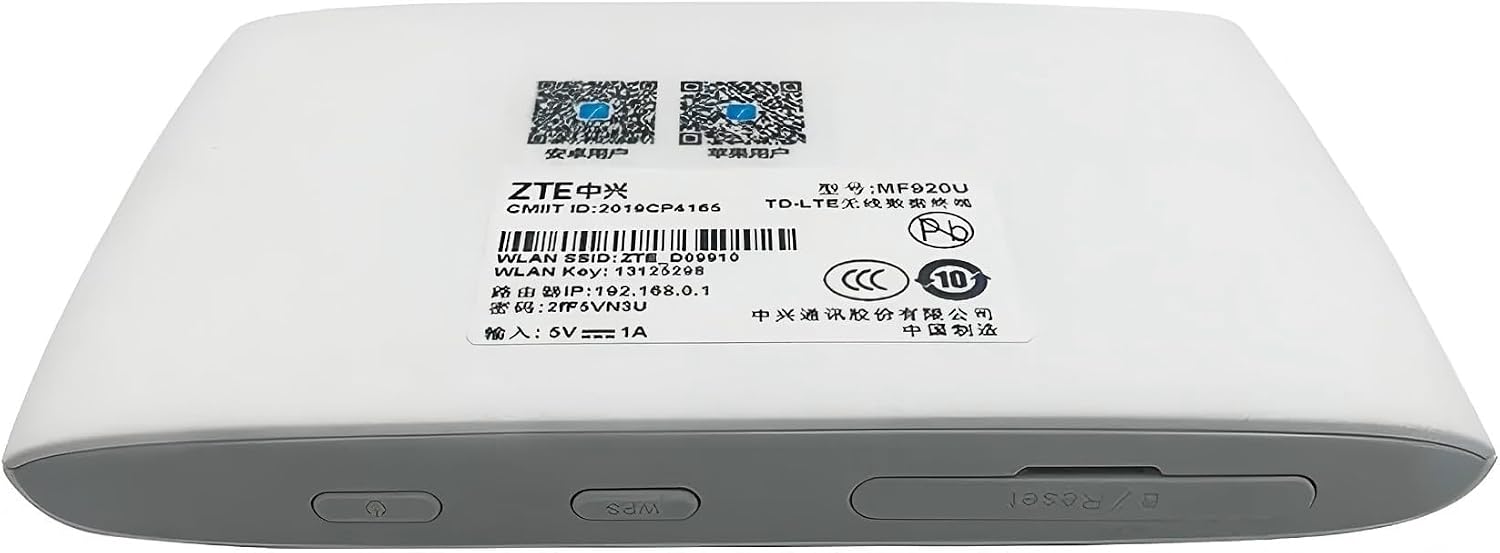
Figure 4.3: Back view of the ZTE MF920U with product label.
- SIM Card Slot: Located under the back cover, for inserting a standard USIM card.
- Reset Button: A small button to restore factory settings.
- WPS Button: For Wi-Fi Protected Setup.
- Power Button: To turn the device on or off.
5. Setup
5.1 Inserting the SIM Card
- Remove the back cover of the device.
- Locate the standard USIM card slot.
- Insert your activated standard USIM card into the slot with the gold contacts facing down and the notched corner aligned correctly.
- Replace the back cover.
5.2 Charging the Device
Before first use, fully charge the device.
- Connect the micro USB cable to the device's charging port.
- Connect the other end of the cable to a compatible USB power adapter or a computer's USB port.
- The battery indicator on the display will show charging status. A full charge typically takes a few hours.
5.3 Powering On/Off
- To Power On: Press and hold the Power button until the display screen lights up.
- To Power Off: Press and hold the Power button until the device shuts down.
5.4 Initial Configuration
Upon powering on, the device will attempt to connect to the cellular network. The default Wi-Fi network name (SSID) and password (WLAN Key) are typically found on a label under the battery cover or on the device's packaging. For advanced settings, you can access the device's web management interface via a connected computer or smartphone.
6. Operating the Device
6.1 Connecting Devices to Wi-Fi
The MF920U can connect up to 10 Wi-Fi enabled devices simultaneously.
- Ensure the MF920U is powered on and has an active cellular connection.
- On your Wi-Fi enabled device (laptop, smartphone, tablet, gaming console), search for available Wi-Fi networks.
- Select the SSID of your MF920U (e.g., ZTE_DXXXXX).
- Enter the Wi-Fi password (WLAN Key) when prompted.
- Your device should now be connected to the internet via the hotspot.

Figure 6.1: The MF920U connecting multiple devices.
6.2 Battery Life and Portability
The device features a 2000mAh battery, providing approximately 6 hours of working time in 4G (LTE) mode. Its compact size makes it an ideal portable solution for travel Wi-Fi.

Figure 6.2: Battery capacity and estimated working hours.

Figure 6.3: Device portability.
6.3 Advanced Features
- Auto APN: The device supports automatic Access Point Name configuration for various carriers.
- SMS Support: Send and receive SMS messages via the web management interface.
- USSD Support: Utilize Unstructured Supplementary Service Data codes for carrier services.
- Parental Control and Guest Network: Manage internet access and create a separate network for guests through the web interface.
- Disconnect Devices: Easily disconnect connected devices from the web interface.

Figure 6.4: Advanced management features.
7. Maintenance
Proper maintenance ensures the longevity of your device:
- Cleaning: Use a soft, dry cloth to clean the device. Do not use liquid cleaners or aerosols.
- Storage: Store the device in a cool, dry place when not in use.
- Battery Care: Avoid fully discharging the battery frequently. Charge the device regularly, even if not in use, to maintain battery health.
- Software Updates: Check the manufacturer's website for any available firmware updates to ensure optimal performance and security.
8. Troubleshooting
If you encounter issues with your MF920U, try the following solutions:
| Problem | Possible Cause | Solution |
|---|---|---|
| No network signal | No SIM card, SIM card not activated, poor signal area. | Ensure SIM is inserted correctly and activated. Move to an area with better signal. |
| Cannot connect to Wi-Fi | Incorrect Wi-Fi password, Wi-Fi disabled on device. | Verify Wi-Fi password. Ensure Wi-Fi is enabled on the hotspot. |
| Slow internet speed | Weak signal, too many connected devices, network congestion. | Move to an area with stronger signal. Disconnect some devices. Try again later. |
| Device not powering on | Battery drained. | Charge the device for at least 30 minutes before attempting to power on. |
| Forgot Wi-Fi password | Password lost. | Refer to the label under the battery cover or perform a factory reset (this will erase all custom settings). |
9. Specifications
| Feature | Description |
|---|---|
| Model Name | MF920U |
| Product Dimensions | 4.1 x 2.5 x 0.5 inches |
| Item Weight | 1.41 ounces (120g) |
| 4G LTE Bands | 1(2100), 2(1900), 4(1700), 5(850), 7(2600), 8(900), 28(700), 38(2600), 40(2300), 66(1700) |
| 3G Bands | 850/900/1900/2100 |
| 2G Bands | Quad Band |
| LTE Download Speed | Up to 150Mbps |
| LTE Upload Speed | Up to 50Mbps |
| Wi-Fi Standard | 802.11b/g/n, 2.4GHz |
| Max Connected Devices | 10 |
| SIM Card Type | Standard USIM |
| Antenna | Internal Antenna (with external antenna ports) |
| Battery Capacity | 2000mAh |
| Battery Life (4G LTE) | Up to 6 hours |
| Special Feature | WPS |
| Compatible Devices | Laptop, Gaming Console, Tablet, Smartphone |
| Recommended Uses | Home, Business |
10. Warranty and Support
For warranty information, please refer to the documentation provided with your purchase or contact your retailer. The product typically comes with a manufacturer's warranty covering defects in materials and workmanship.
Return Policy: This product is subject to a 30-day return policy from the date of purchase. Please consult your retailer's specific return terms and conditions.
For technical support or further assistance, please visit the official ZTE support website or contact their customer service.
Related documentsMF920U


Ask a question about this manual
Ask about setup, troubleshooting, compatibility, parts, safety, or missing instructions. Manuals+ will review the question and use this page’s manual context to help answer it.