
GOODTEL G7
GOODTEL Kids Tablet G7 User Manual
Model: G7
Brand: GOODTEL
Introduction and Overview
The GOODTEL Kids Tablet G7 is a 7-inch Android tablet specifically designed for children, offering a safe and engaging digital experience. It features robust parental controls, a durable shock-proof case, and pre-installed educational content to support learning through play. This manual provides essential information for setting up, operating, maintaining, and troubleshooting your G7 tablet.

Figure 1: The GOODTEL Kids Tablet G7, showcasing its protective case and included accessories.
What's in the Box
Upon unboxing your GOODTEL Kids Tablet G7, please ensure all the following items are present:
- 1 x 7-inch Anti-drop Tablet Protective Case
- 1 x USB Cable & UL Certified Charger
- 1 x User Manual (this document)
- 1 x Protective Film (pre-applied or for user application)

Figure 2: Detailed view of the tablet and its protective case, highlighting key components like the front camera, 3.5mm jack, SD card slot, Type-C charging port, microphone, power button, volume controls, speaker, and foldable stand.
Product Features
The GOODTEL G7 tablet is equipped with features designed for optimal performance and child safety:
- GMS Certified Android Tablet: This tablet is GMS (Google Mobile Services) certified, ensuring full access to the Google Play Store and compatibility with a wide range of Android applications. It runs on Android 11 Go Edition, providing a smooth and efficient user experience.
- Ample Storage and Battery Life: The tablet comes with 32GB of internal storage (ROM) and is expandable up to 128GB via a microSD card (not included). A 3500mAh battery provides approximately 6 hours of mixed use on a single charge, ideal for travel.
- Kid-Appropriate Content and Parental Controls: Pre-installed with the iWAWA Kids Education app, the tablet offers a variety of fun and educational content for ages 2 and up, including games, videos, drawing tools, and eBooks. Parental controls allow for managing app access, setting usage time limits, and curating safe content, ensuring a secure environment free from advertising.
- Exclusive Kid-Proof Case: The tablet is housed in a durable, lightweight, and non-toxic EVA foam and silicone case. This shock-proof design effectively protects the tablet from drops and bumps. The case includes an integrated stand for hands-free viewing and a portable grip for easy carrying.


Figure 3: Visual representation of the tablet's core features and the protective design of its case.
Setup Guide
- Initial Charge: Before first use, fully charge the tablet using the provided USB cable and UL certified charger. The charging port is located on the side of the tablet (refer to Figure 2).
- Power On: Press and hold the Power button (refer to Figure 2) until the GOODTEL logo appears on the screen.
- Initial Setup: Follow the on-screen prompts to select your language, connect to a Wi-Fi network, and set up your Google account. This is necessary to access the Google Play Store and other online services.
- Applying Protective Film: If the protective film is not pre-applied, carefully clean the screen with a soft cloth. Align the film with the screen edges and gently press it down, smoothing out any air bubbles from the center outwards.
- Inserting MicroSD Card (Optional): To expand storage, locate the microSD card slot (refer to Figure 2). Gently insert a compatible microSD card (up to 128GB) until it clicks into place. Ensure the tablet body is removed from the case first if necessary.
Video 1: This video demonstrates the process of cleaning the tablet screen, applying a screen protector, and showcasing the tablet's interface and pre-installed applications, including the use of the protective case and its stand.
Operating Instructions
Basic Navigation
The tablet operates using a touch-sensitive IPS HD display. Swipe to navigate between screens, tap to open applications, and pinch to zoom. The volume buttons and power button are located on the side of the tablet (refer to Figure 2).
Parental Control Mode
The GOODTEL G7 is equipped with a dedicated Parental Control Mode to manage your child's tablet usage. This mode allows you to:
- Application Management: Filter and approve apps that your child can access.
- Time Management: Set daily usage limits and specific time periods for tablet use.
- Content Curation: Choose safe and healthy content for browsing, including pre-installed educational apps like iWAWA.
Access the Parental Control settings through the tablet's main menu to customize these options. The tablet comes with pre-installed apps like YouTube Kids, YouTube Music, and various puzzle and educational games within the iWAWA app.
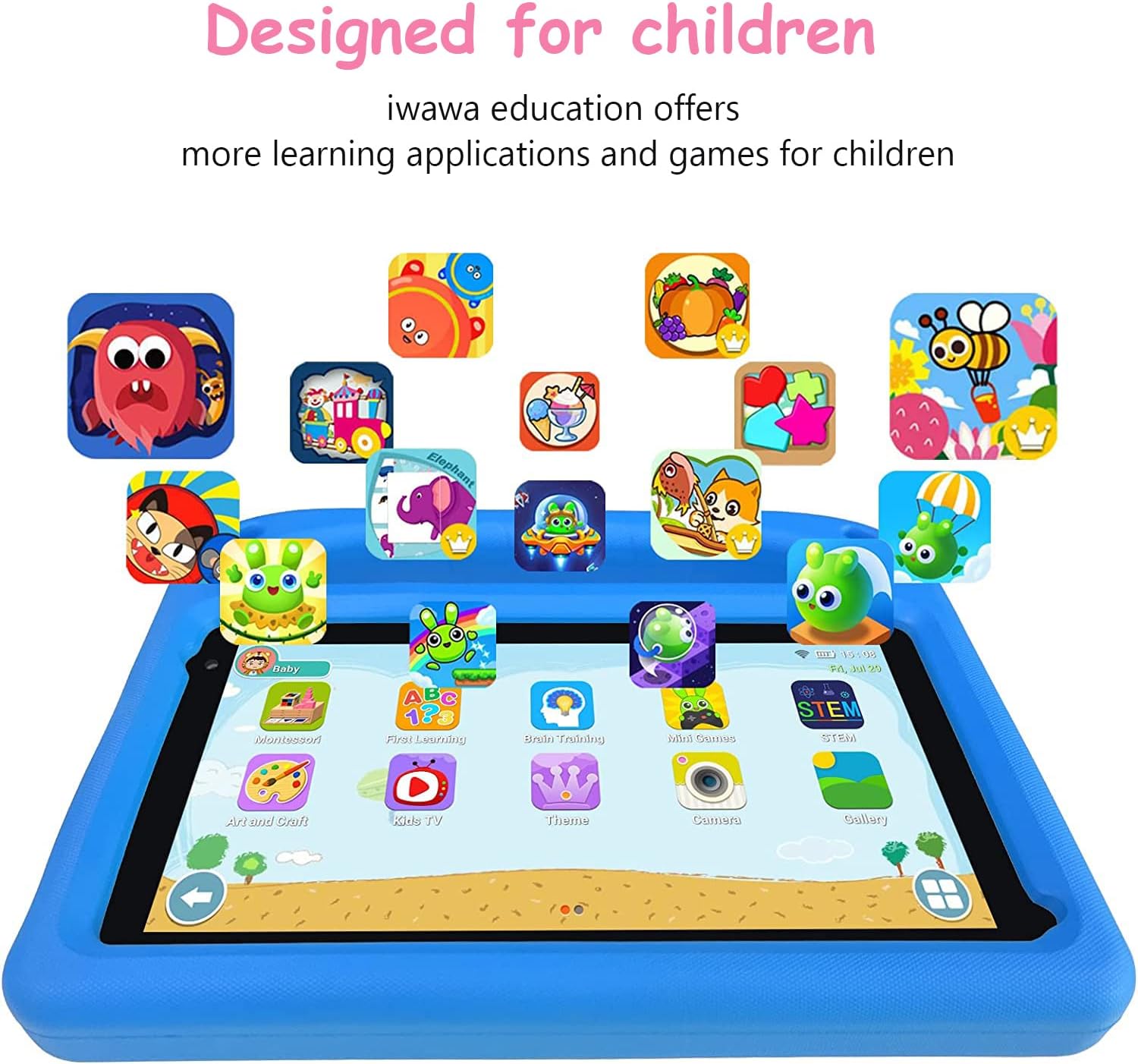
Figure 4: The tablet's interface showcasing a selection of pre-installed educational and entertainment applications designed for children.
Using the Protective Case
The durable EVA case provides excellent protection and usability. The integrated handle allows children to easily carry the tablet. The foldable stand on the back of the case can be extended to prop up the tablet for hands-free viewing, ideal for watching videos or engaging in educational activities.
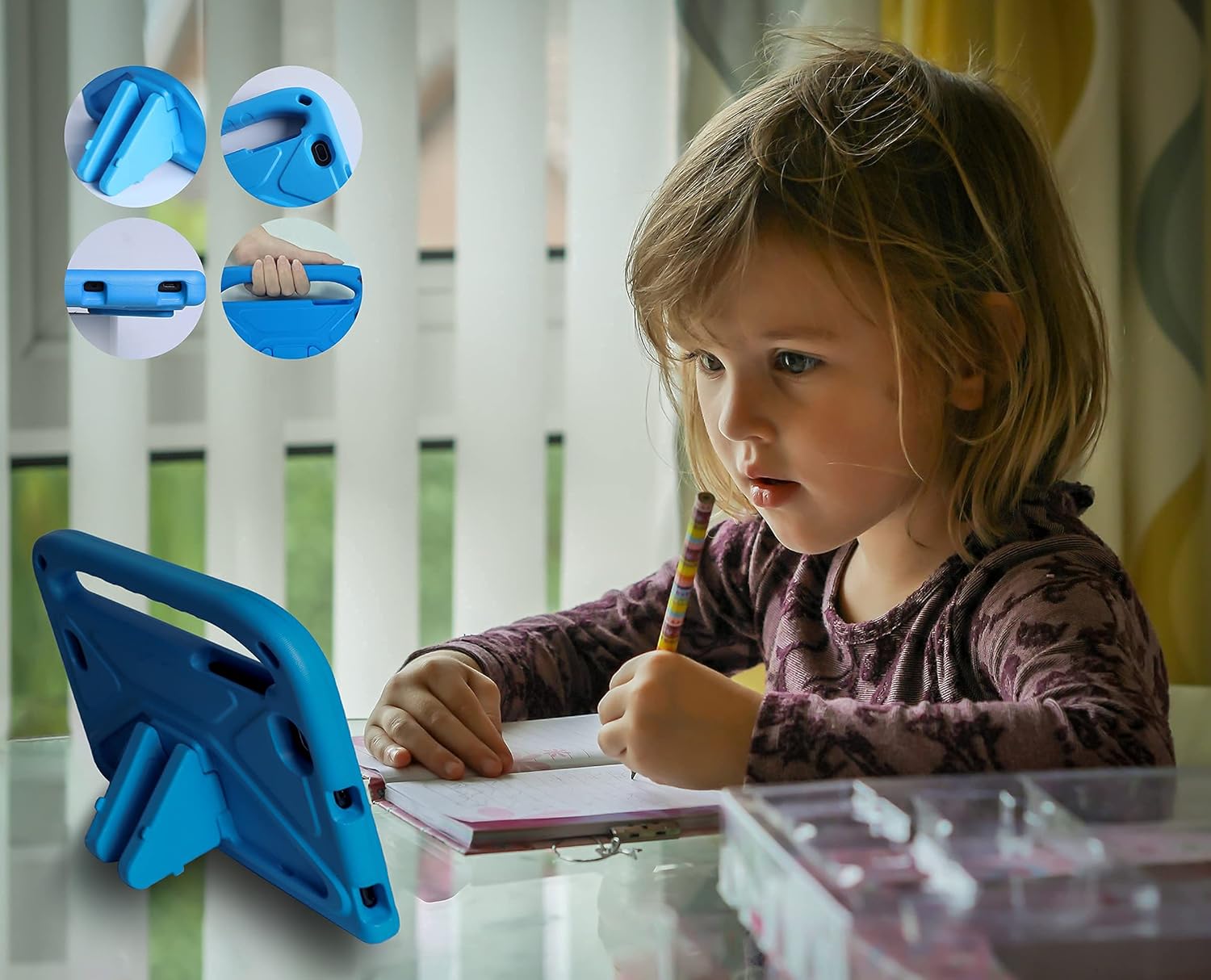
Figure 5: A child utilizing the tablet's integrated stand for comfortable viewing during an activity.
Maintenance
- Cleaning: Use a soft, lint-free cloth to clean the screen and tablet body. For stubborn smudges, slightly dampen the cloth with water or a screen-safe cleaner. Avoid harsh chemicals or abrasive materials.
- Battery Care: To prolong battery life, avoid fully discharging the tablet frequently. Charge the tablet regularly, and if storing for an extended period, ensure it has at least a 50% charge.
- Software Updates: Periodically check for system updates in the tablet's settings. Keeping the software updated ensures optimal performance, security, and access to new features.
- Case Care: The EVA protective case can be wiped clean with a damp cloth. Ensure it is dry before re-inserting the tablet.
Troubleshooting
If you encounter issues with your GOODTEL G7 tablet, please refer to the following common solutions:
| Problem | Possible Cause | Solution |
|---|---|---|
| Tablet does not power on. | Low battery or system crash. | Charge the tablet for at least 30 minutes. If still unresponsive, press and hold the power button for 10-15 seconds to force a restart. |
| Wi-Fi connection issues. | Weak signal, incorrect password, or router issue. | Ensure you are within Wi-Fi range. Re-enter the Wi-Fi password. Restart your Wi-Fi router. |
| Applications are slow or freezing. | Too many apps running in the background, low storage, or outdated software. | Close unused applications. Clear app caches in settings. Check for and install system updates. Consider uninstalling unused apps or moving media to an SD card. |
| Screen is unresponsive. | Temporary software glitch or screen protector issue. | Force restart the tablet. Ensure the screen protector is properly applied and not interfering with touch sensitivity. |
Specifications
| Feature | Detail |
|---|---|
| Standing Screen Display Size | 7 Inches |
| Screen Resolution | 1024x600 Pixels |
| Processor | 1.6 GHz (A100, 4 Cores) |
| RAM | 2 GB |
| Internal Storage (ROM) | 32 GB |
| Expandable Memory | Up to 128 GB via MicroSD (card not included) |
| Operating System | Android 11 Go Edition |
| Wireless Type | 802.11ac (Wi-Fi 2.4 Ghz) |
| Battery Capacity | 3500 mAh (1 Lithium Polymer battery included) |
| Average Battery Life | 6 Hours (mixed use) |
| Rear Webcam Resolution | 5 MP |
| Item Weight | 1.03 pounds |
| Product Dimensions (LxWxH) | 8.2 x 7 x 1.07 inches |
| Color | Blue-3 |
Warranty and Support
GOODTEL is committed to providing excellent customer service. If you have any questions, require technical support, or need assistance with your G7 tablet, please contact our professional support team.
For direct inquiries, please visit the "JINDAKE" shop on Amazon and utilize their contact options. Our team aims to respond quickly to all customer questions and provide comprehensive support.
Please retain your proof of purchase for warranty purposes. Specific warranty terms and conditions may apply and are typically outlined at the point of purchase or on the product packaging.
Related documentsG7


Ask a question about this manual
Ask about setup, troubleshooting, compatibility, parts, safety, or missing instructions. Manuals+ will review the question and use this page’s manual context to help answer it.