
1. Overview
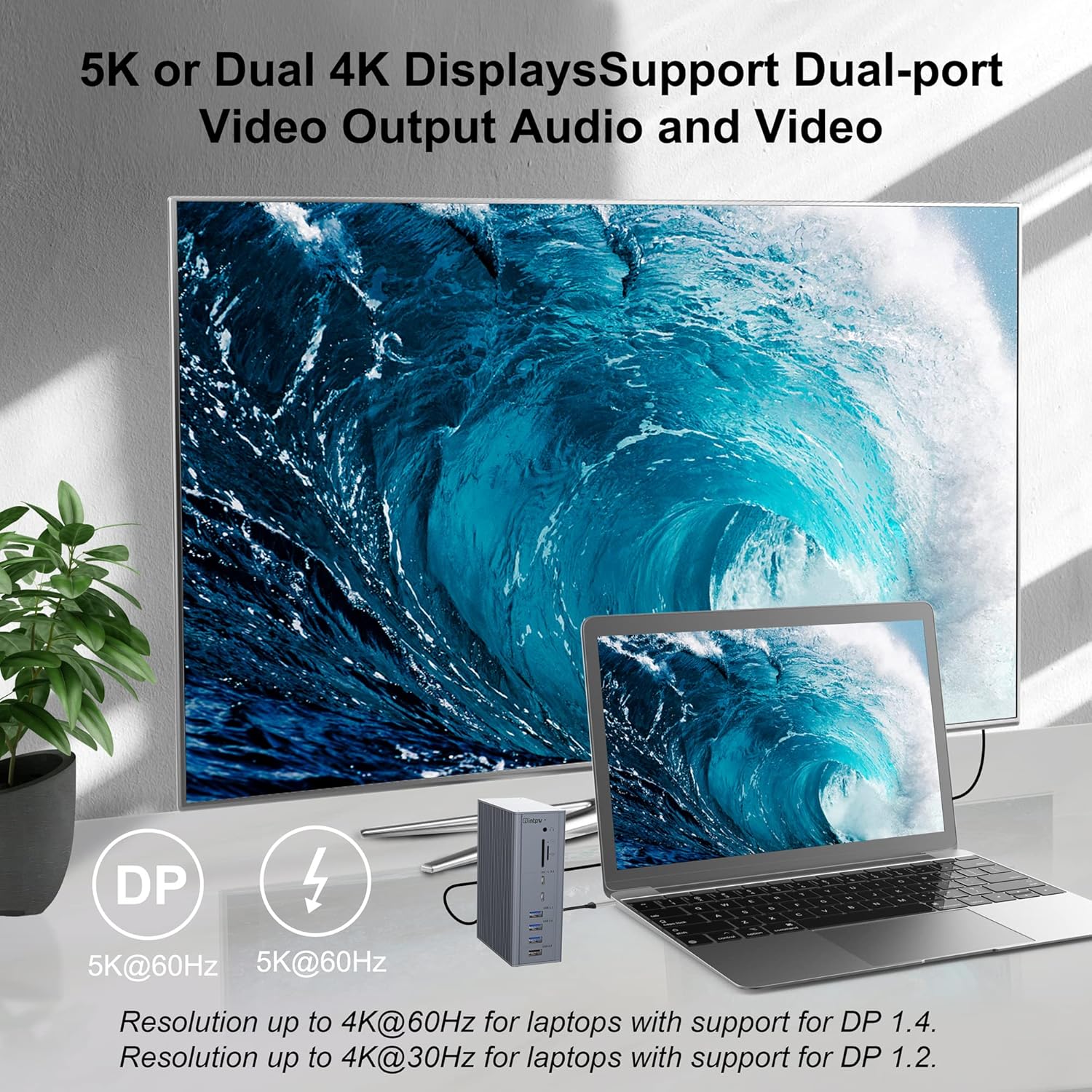
The intpw Thunderbolt 3 Docking Station is a versatile 16-in-1 solution designed to expand the connectivity and display capabilities of your Thunderbolt 3/4 enabled laptop. It supports single 5K@60Hz or dual 4K@60Hz displays, provides up to 60W Power Delivery for laptop charging, and offers a wide array of high-speed data transfer ports and network connectivity. This docking station is ideal for creating a powerful and efficient workstation environment.
2. Package Contents
Verify that all items are present in the package:
- 1 x intpw Thunderbolt 3 Docking Station
- 1 x 90W (20V/3.25A) DC Power Adapter
- 1 x 0.5m Thunderbolt 3 Cable
- 1 x User Manual
3. Product Features
- 16-in-1 Connectivity: Equipped with 2 Thunderbolt 3 ports, DisplayPort 1.4, 2x USB-C 3.1 Gen2, 3x USB-A 3.0, 2x USB-A 2.0, Gigabit Ethernet Port, SD/TF card reader, S/PDIF, and 3.5mm Stereo Audio.
- High-Resolution Display: Supports single 5K (5120 x 2880 @ 60Hz) via TB3/DP 1.4 ports or dual 4K (3840 x 2160 @ 60Hz) displays via both TB3 and DP 1.4 ports (Note: MacBooks with M1 chip only support one extended monitor).
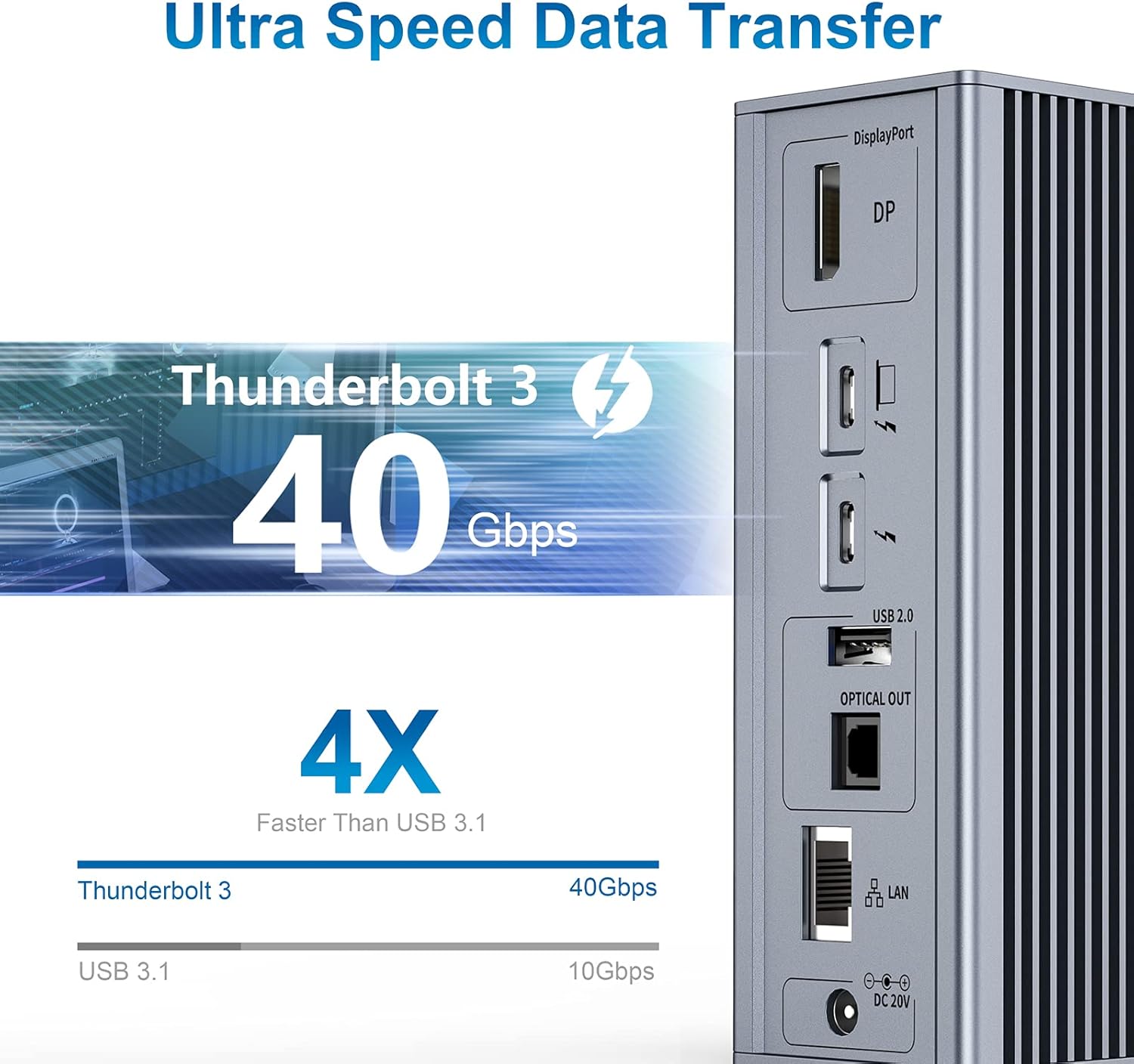
- High-Speed Data Transfer: Thunderbolt 3 ports offer 40Gbps. USB-C 3.1 Gen2 and USB-A 3.1 ports provide up to 10Gbps. USB 3.0 ports offer 5Gbps, and USB 2.0 ports provide 480Mbps.
- Power Delivery: Delivers up to 60W to charge your laptop via the upstream Thunderbolt 3 port. The secondary Thunderbolt 3 port provides 15W for charging compatible downstream devices.
- Gigabit Ethernet: Integrated 10/100/1000 Mbps Ethernet port for stable and fast wired network connection.
- Wide Compatibility: Plug & Play functionality with no drivers required for Thunderbolt 3/4 laptops, including Intel-based Macs and Windows PCs. Compatible with macOS 10.12 or later and Windows 8, 8.1, 10 or later. (Not compatible with 2015+ MacBook-Retina USB-C port).
4. Port Layout
4.1 Front Panel
The front panel provides convenient access to frequently used ports:
- Power Button & LED: To power on/off the device and indicate status.
- USB 2.0 Ports (2x): For keyboard, mouse, or wireless dongles.
- 3.5mm Audio Jack: For headphones with microphone.
- SD Card Reader: Supports standard SD cards.
- Micro SD Card Reader: Supports Micro SD cards.
- USB 3.0 Ports (2x): For high-speed data transfer (5Gbps).
- USB-C 3.1 Gen2 Port (1x): For high-speed data transfer (10Gbps).

4.2 Rear Panel
The rear panel houses the main power and display connections:
- DC-IN (20V): Connect the included 90W DC Power Adapter here.
- Thunderbolt 3 Upstream Port (Laptop): Connect to your laptop's Thunderbolt 3/4 port using the provided Thunderbolt 3 cable. This port also provides up to 60W Power Delivery to your laptop.
- USB-A 3.0 Port (1x): For additional peripherals (5Gbps).
- DisplayPort 1.4 (1x): Connect to a monitor for up to 4K@60Hz display.
- Thunderbolt 3 Downstream Port (1x): Supports 40Gbps data transfer, 5K@60Hz display, and 15W power output for daisy-chaining or connecting another monitor.
- Gigabit Ethernet Port (LAN): Connect an Ethernet cable for stable wired network access (10/100/1000 Mbps).
- S/PDIF OUT (Optical Digital Audio): For digital audio output.

5. Setup
- Power Connection:
- Plug one end of the included 90W DC Power Adapter into the DC-IN port on the rear of the docking station.
- Connect the other end of the power adapter to a power outlet. The power LED on the front panel will illuminate, indicating the dock is receiving power.
- Connect to Laptop:
- Use the provided Thunderbolt 3 cable to connect the Thunderbolt 3 Upstream Port (labeled "Laptop") on the rear of the docking station to a Thunderbolt 3/4 port on your laptop.
- Ensure your laptop's Thunderbolt port supports Power Delivery for charging via the dock.
- Connect Monitors:
- For a single 5K@60Hz display, connect your monitor to either the DisplayPort 1.4 or the Thunderbolt 3 Downstream Port.
- For dual 4K@60Hz displays, connect one monitor to the DisplayPort 1.4 and another to the Thunderbolt 3 Downstream Port.
- (Note: MacBooks with M1 chip only support one extended monitor due to Apple chip limitations.)
- Connect Peripherals:
- Connect your keyboard, mouse, and other USB devices to the available USB 2.0, USB 3.0, or USB-C 3.1 ports on the front or rear panels.
- For wired internet, connect an Ethernet cable to the LAN port on the rear.
- Connect headphones or speakers to the 3.5mm audio jack on the front, or use the S/PDIF OUT for digital audio.


6. Operating the Docking Station
6.1 Display Configuration
Once connected, your operating system should automatically detect the connected monitors. You may need to adjust display settings in your system preferences:
- Windows: Go to Display Settings to arrange displays, set resolutions, and choose between "Extend" or "Duplicate" modes.
- macOS: Go to System Preferences > Displays to arrange displays, set resolutions, and choose between "Extend" or "Mirror" modes.
- M1 MacBooks: Due to limitations of the Apple M1 chip, these devices can only extend to one external monitor. The Thunderbolt 3 port and DP port cannot work simultaneously for extended displays with M1 MacBooks.

6.2 Data Transfer
Utilize the high-speed USB ports for quick data transfer:
- Connect external SSDs, hard drives, or other storage devices to the Thunderbolt 3 (40Gbps), USB-C 3.1 Gen2 (10Gbps), or USB 3.0 (5Gbps) ports for rapid file transfers.
- The SD/TF card readers allow for fast import of photos and videos from memory cards.
6.3 Charging
The docking station provides power to your laptop and other devices:
- The Thunderbolt 3 Upstream Port delivers up to 60W to charge your connected laptop.
- The Thunderbolt 3 Downstream Port provides 15W for charging compatible downstream devices.
- USB-A ports can also provide power for charging smaller devices like smartphones.

7. Maintenance
- Cleaning: Use a soft, dry cloth to clean the docking station. Avoid liquid cleaners or solvents.
- Heat Dissipation: The solid aluminum material and ribbed design of the docking station are engineered for efficient heat dissipation. It is normal for the dock to feel warm during high-speed charging or data transfer. Ensure adequate airflow around the device.
- Cable Management: Keep cables organized to prevent tangling and damage.
8. Troubleshooting
- No Display Output:
- Ensure the docking station is powered on and correctly connected to your laptop via the Thunderbolt 3 cable.
- Verify that monitors are properly connected to the DisplayPort or Thunderbolt 3 Downstream Port.
- Check your laptop's display settings to ensure external monitors are detected and configured correctly (Extend/Duplicate).
- If using an M1 MacBook, remember it only supports one extended monitor.
- Ensure your devices support 4K/5K resolution for corresponding video output.
- Screen Drop, Black Screen, or Flickering:
- A slight flicker immediately after connecting is normal and should resolve in a few seconds.
- If issues persist, try reconnecting the Thunderbolt 3 cable between the dock and your laptop.
- If your laptop or dock has been running for a long time, a restart of both devices may resolve the issue.
- Slow Charging:
- The dock provides up to 60W charging. While sufficient for most laptops, it may charge slower than higher wattage OEM chargers (e.g., 87W/96W MacBook chargers). This is normal.
- Peripherals Not Detected:
- Ensure peripherals are securely connected to the correct USB ports.
- Try connecting the peripheral directly to your laptop to rule out device issues.
- For wireless keyboard/mouse, connect the dongle to a USB 2.0 port to avoid potential interference with high-speed data ports.
- Ethernet Connection Issues:
- Verify the Ethernet cable is securely connected to both the dock's LAN port and your router/modem.
- Check your laptop's network settings.
- Using Other USB-C Cables:
- It is recommended to use the included Thunderbolt 3 cable for optimal performance and compatibility. Other USB-C cables may not support all features or data speeds.
For further assistance, please refer to the Warranty & Support section.
9. Specifications
| Feature | Detail |
|---|---|
| Model | Thunderbolt 3 Dock (B09895P78B) |
| Brand | intpw |
| Connectivity | 16-in-1 |
| Host Connection | 1x Thunderbolt 3 Upstream (40Gbps, 60W PD) |
| Downstream Thunderbolt | 1x Thunderbolt 3 Downstream (40Gbps, 5K@60Hz, 15W PD) |
| Display Outputs | 1x DisplayPort 1.4 (4K@60Hz) |
| Max Resolution (Single) | 5K (5120 x 2880 @ 60Hz) via TB3 or DP 1.4 |
| Max Resolution (Dual) | 4K (3840 x 2160 @ 60Hz) via TB3 + DP 1.4 |
| USB-C Data Ports | 2x USB-C 3.1 Gen2 (10Gbps) |
| USB-A Data Ports | 3x USB-A 3.0 (5Gbps), 2x USB-A 2.0 (480Mbps) |
| Ethernet | 1x Gigabit Ethernet (10/100/1000 Mbps) |
| Card Readers | 1x SD Card, 1x TF Card (USB 2.0 speeds) |
| Audio | 1x 3.5mm Stereo Audio (Headphone/Mic), 1x S/PDIF OUT |
| Power Input | 90W DC (20V/3.25A) |
| System Requirements | Thunderbolt 3/4 Computer, macOS 10.12+, Windows 8/8.1/10+ |
| Dimensions | 5.51 x 3.94 x 1.97 inches (140.0 x 100.0 x 50.0 mm) |
| Weight | 16.5 oz (470g) |
10. Warranty & Support
intpw products come with a standard warranty. For detailed warranty information, please refer to the included user manual or visit the official intpw website.
If you have any questions, concerns, or require technical support, please contact intpw customer service:
- Email: support@intpw.com
- Website: www.intpw.com
Please provide your product model number (B09895P78B) and a detailed description of the issue when contacting support for faster resolution.
11. Product Videos
11.1 One Port for Everything | Intpw Thunderbolt 3 Dock
This video provides a concise overview of the intpw Thunderbolt 3 Dock, showcasing its ability to consolidate multiple connections into a single port for enhanced productivity.
11.2 USB C Thunderbolt Docking Station 5K@60Hz for MacBook Air
Watch this video to see the intpw Thunderbolt 3 Docking Station in action, demonstrating its 5K@60Hz display capabilities specifically with a MacBook Air.
11.3 Intpw Thunderbolt 3 Dock
A general product video highlighting the key features and benefits of the intpw Thunderbolt 3 Docking Station.


