
Introduction
This manual provides essential information for the setup, operation, maintenance, and troubleshooting of your Ematic PBS Kids Playtime Pad+ tablet. Please read this manual thoroughly before using the device to ensure proper function and safety.
The Ematic PBS Kids Playtime Pad+ (Model: PBSKD7200) is a 2nd Generation kid-safe Android tablet designed for educational and entertainment purposes. It features a 7-inch HD screen, a quad-core processor, and comes pre-loaded with PBS Kids apps.
What's in the Box
- Ematic PBS Kids Playtime Pad+ Tablet
- Charging Cable (USB)
- Power Adapter
- Quick Start Guide (not included in this manual)
Setup
1. Initial Charge
Before first use, fully charge the tablet. Connect the charging cable to the tablet's charging port and the power adapter to a wall outlet. The charging indicator will show when the tablet is charging.
2. Powering On/Off
To power on, press and hold the power button located on the side of the tablet until the screen lights up. To power off, press and hold the power button, then select "Power off" from the options that appear on the screen.
3. Wi-Fi Connection
To connect to Wi-Fi:
- Go to Settings.
- Select Network & Internet or Wi-Fi.
- Turn on Wi-Fi and select your desired network from the list.
- Enter the password if prompted and tap Connect.
4. Parental Controls Setup
The tablet features robust parental controls to manage content and screen time. Access these settings through the "Grownups" section on the main screen. You can create a PIN code and select approved apps for your child's profile.

Image: Parental control interface showing PIN creation and app selection.
Operating the Tablet
1. Navigating the Interface
The tablet's home screen provides access to pre-loaded PBS Kids apps like "My Apps" and "Live TV". Swipe left or right to view additional screens or access the app drawer.

Image: The main screen of the tablet showing the "My Apps" and "Live TV" sections, along with character icons.
2. Using Pre-loaded Apps
- PBS KIDS Games: Access a variety of educational games.
- PBS KIDS Video: Stream thousands of video clips and full episodes.
- Play & Learn Science: Engage with science-focused educational content.
- Live TV: Watch 24/7 live PBS Kids programming.
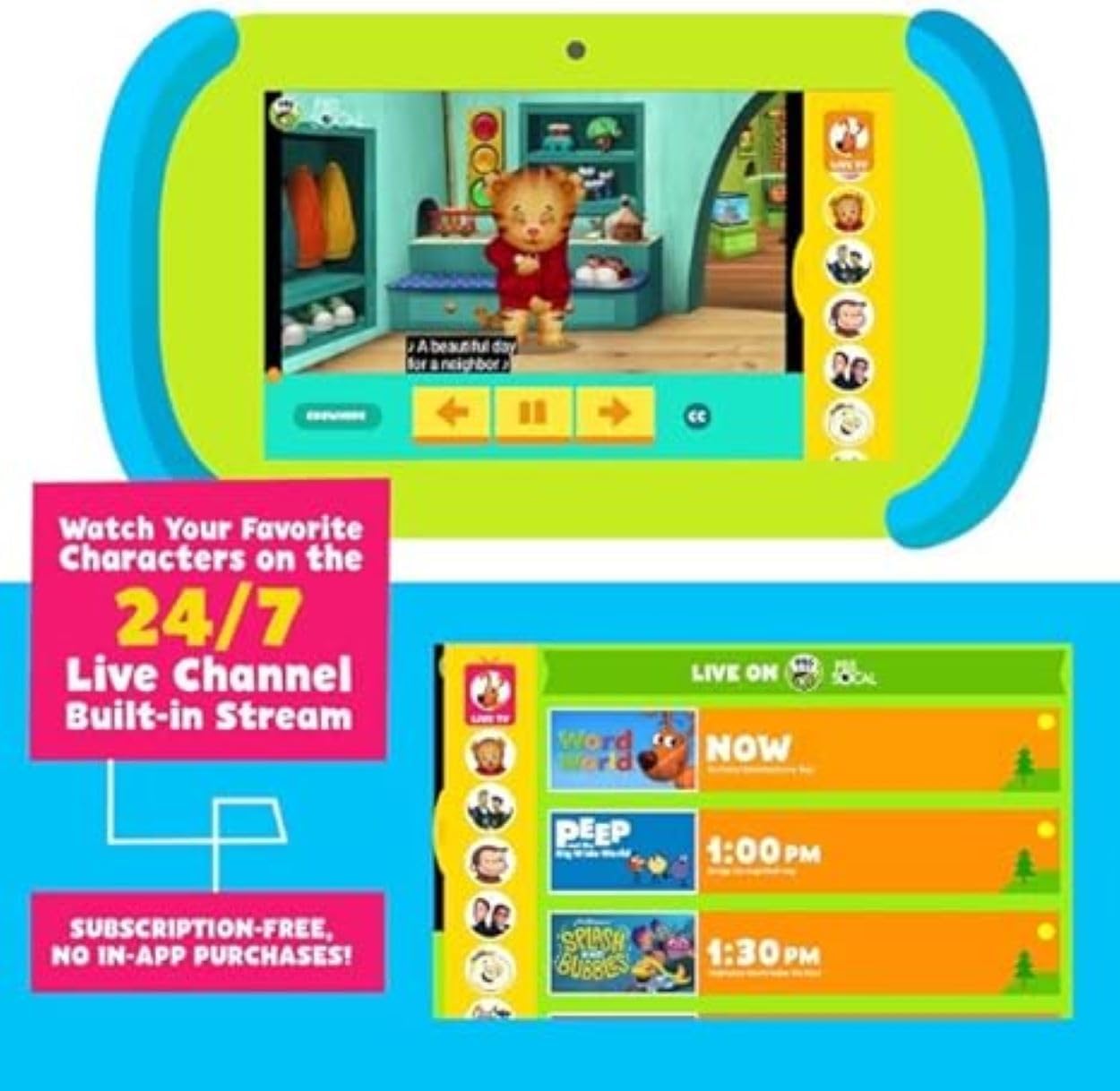
Image: The tablet displaying a PBS Kids video and a guide for the 24/7 Live TV channel.
3. Google Play Store
The tablet supports Google Play, allowing access to over 1 million additional apps, games, movies, and books. Ensure Wi-Fi is connected to download content.
4. Camera Functionality
The tablet is equipped with both front and back cameras. Open the camera application to take photos or record videos.

Image: Illustration showing the locations of the front and back cameras on the tablet.
Maintenance
1. Cleaning the Tablet
Use a soft, lint-free cloth to clean the screen and body of the tablet. Do not use abrasive cleaners or solvents. Avoid getting moisture into openings.
2. Battery Care
To prolong battery life, avoid extreme temperatures. Charge the tablet regularly and avoid letting the battery completely drain for extended periods.
3. Software Updates
Periodically check for software updates in the tablet's settings to ensure optimal performance and access to the latest features and security patches. Connect to Wi-Fi for updates.
Troubleshooting
| Problem | Possible Cause | Solution |
|---|---|---|
| Tablet does not turn on. | Low battery; system crash. | Charge the tablet for at least 30 minutes. Perform a hard reset by holding the power button for 10-15 seconds. |
| Screen is unresponsive. | Temporary software glitch. | Restart the tablet. If unresponsive, perform a hard reset. |
| Cannot connect to Wi-Fi. | Incorrect password; router issue; out of range. | Verify Wi-Fi password. Restart your router. Ensure tablet is within Wi-Fi range. |
| Apps are running slowly. | Too many apps open; low storage; outdated software. | Close unused apps. Clear cache. Check for and install system updates. Free up storage space. |
| Battery drains quickly. | High screen brightness; background apps; old battery. | Reduce screen brightness. Close background apps. Limit usage of power-intensive apps. |
Specifications
| Feature | Detail |
|---|---|
| Model Number | PBSKD7200 |
| Screen Size | 7 Inches |
| Screen Resolution | 1024x600 HD |
| Processor | 1.5 GHz Quad-Core (Allwinner) |
| RAM | 2GB |
| Flash Memory Size | 16 GB (formatted capacity will be less) |
| Operating System | Android |
| Cameras | Front and Back (Rear Webcam Resolution: 0.3 MP) |
| Wireless Type | 802.11g Wi-Fi |
| Bluetooth | Yes |
| Item Weight | 1.49 pounds |
| Product Dimensions | 10.5 x 3 x 6 inches |
| Color | Green, Blue |
Warranty and Support
For warranty information and technical support, please refer to the documentation included with your purchase or visit the official Ematic support website. Keep your proof of purchase for warranty claims.
For further assistance, you may contact Ematic customer service. Contact details are typically found on the manufacturer's website or in the product packaging.

