
1. Introduction
This manual provides essential instructions for the proper setup, operation, and maintenance of your Craig CMP840 10.1-inch Quad Core Tablet with Keyboard Case and Headphones. Please read this manual thoroughly before using your device to ensure optimal performance and longevity. Keep this manual for future reference.
2. Product Overview
The Craig CMP840 is a 10.1-inch tablet designed for entertainment, professional, and educational use. It features a quad-core processor, Android 9 Pie operating system, and comes bundled with a protective keyboard case and stereo headphones.
Included Components
- Craig CMP840 10.1-inch Tablet
- 10.1-inch Keyboard Case
- Stereo Headphones
- USB Charging Cable
- AC/USB Adapter
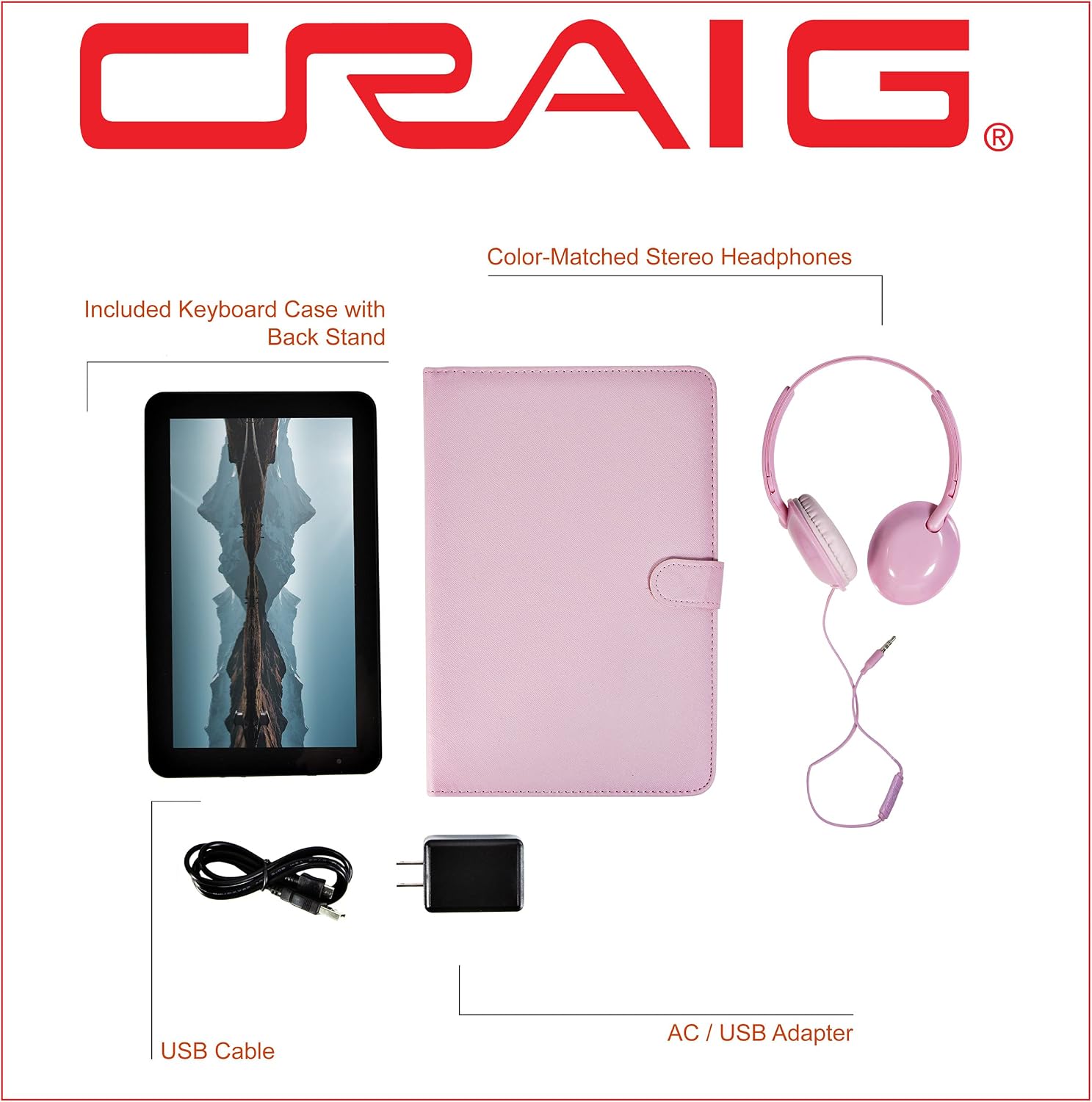
Figure 2.1: All included accessories for the Craig CMP840 tablet bundle.
Key Features
- Display: 10.1-inch color capacitive touch screen with 1024 x 600 resolution.
- Processor: Allwinner Quad Core 1.2 GHz.
- Operating System: Android 9 Pie.
- Memory: 1 GB RAM, 16 GB internal flash memory.
- Connectivity: Wi-Fi (802.11n), Bluetooth, Micro-USB port, Micro SD card slot, 3.5mm stereo headphone jack.
- Camera: Front camera with HD 720p video capture resolution.
- Accessories: Detachable keyboard case with back stand, color-matched stereo headphones.

Figure 2.2: Key features and specifications of the Craig CMP840 tablet.
3. Setup
3.1 Charging the Tablet
Before first use, fully charge the tablet. Connect the USB charging cable to the tablet's Micro-USB port and the AC/USB adapter. Plug the adapter into a power outlet. The charging indicator will illuminate. A full charge may take several hours.

Figure 3.1: Tablet connected to charging cable within the keyboard case.
3.2 Powering On/Off
- To Power On: Press and hold the Power button (typically located on the side or top edge) until the screen lights up.
- To Power Off: Press and hold the Power button until a menu appears. Select "Power off" and confirm.
- To Restart: From the power menu, select "Restart."
3.3 Initial Setup
Upon first power-on, the tablet will guide you through the initial setup process. This includes selecting your language, connecting to a Wi-Fi network, and signing in with or creating a Google account. A Google account is necessary to download apps from the Google Play Store.
3.4 Connecting the Keyboard Case
Place the tablet into the keyboard case, ensuring it is securely held by the corner clips. The keyboard connects via a Micro-USB cable that plugs into the tablet's Micro-USB port. No Bluetooth pairing is required for the keyboard.
3.5 Connecting Headphones
Plug the 3.5mm audio jack of the included headphones into the tablet's headphone port. The tablet will automatically switch audio output to the headphones.
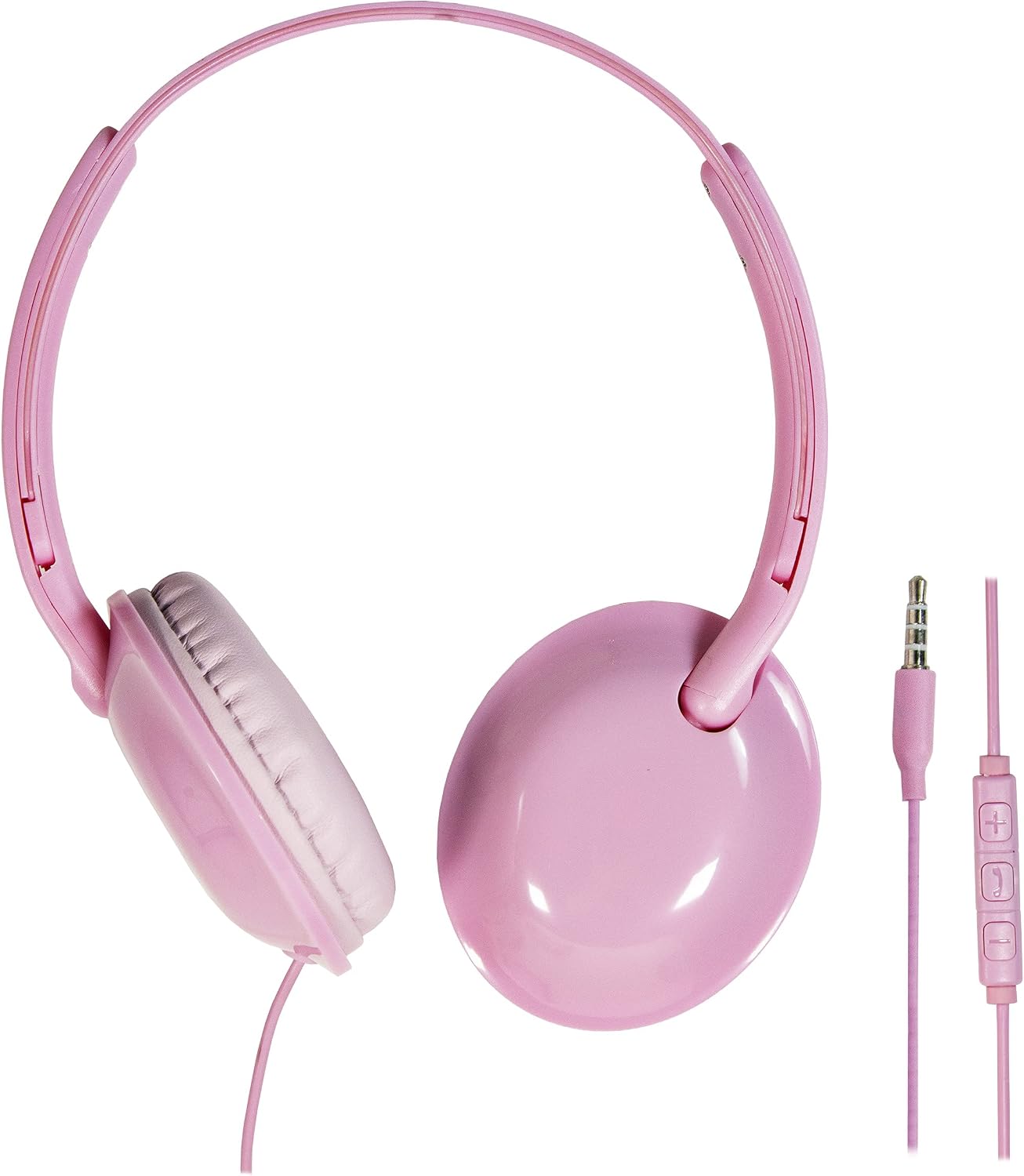
Figure 3.2: Included stereo headphones.
4. Operating the Tablet
4.1 Basic Touchscreen Gestures
- Tap: Select an item or open an app.
- Tap & Hold: Access contextual menus or move icons.
- Swipe: Navigate between screens or scroll through content.
- Pinch-to-Zoom: Zoom in or out on images and web pages.
4.2 Using the Keyboard Case
Once connected, the physical keyboard can be used for typing, navigation, and executing shortcuts. The keyboard case also features a built-in kickstand for comfortable viewing angles.

Figure 4.1: Tablet in keyboard case with kickstand extended.
4.3 Accessing Applications
All pre-installed applications are accessible from the home screen or the app drawer. To download new applications, open the Google Play Store app and search for desired content. A Google account and Wi-Fi connection are required.
4.4 Wi-Fi Connectivity
To connect to a Wi-Fi network:
- Go to Settings > Network & Internet > Wi-Fi.
- Toggle Wi-Fi On.
- Select your desired network from the list.
- Enter the password if prompted and tap Connect.
4.5 Storage Management
The tablet comes with 16 GB of internal storage. You can expand storage by inserting a Micro SD card into the dedicated slot. To manage storage, go to Settings > Storage.
4.6 Using the Camera
The tablet features a front-facing camera. Open the Camera app to take photos or record videos. Adjust settings within the app for different modes and effects.
5. Maintenance
5.1 Cleaning the Device
Use a soft, lint-free cloth to clean the screen and body of the tablet. For stubborn smudges, slightly dampen the cloth with water or a screen-cleaning solution. Avoid harsh chemicals or abrasive materials.
5.2 Battery Care
- Avoid exposing the tablet to extreme temperatures.
- Do not leave the tablet fully discharged for extended periods.
- Use only the provided charging cable and adapter.
5.3 Software Updates
Periodically check for system updates to ensure your tablet has the latest features and security patches. Go to Settings > System > Advanced > System update.
5.4 Storage Optimization
To maintain performance, regularly clear unnecessary files, uninstall unused apps, and transfer large media files to an external Micro SD card or cloud storage.
6. Troubleshooting
If you encounter issues with your tablet, refer to the following common solutions:
| Problem | Solution |
|---|---|
| Tablet does not power on | Ensure the tablet is fully charged. Press and hold the Power button for at least 10-15 seconds. |
| Slow performance or apps crashing | Close unused apps, clear cache, free up storage space, or restart the tablet. Consider a factory reset if issues persist (backup data first). |
| Wi-Fi connection issues | Ensure Wi-Fi is enabled. Restart your router and the tablet. Re-enter Wi-Fi password. Check if other devices can connect to the network. |
| Keyboard not responding | Ensure the Micro-USB cable from the keyboard is securely connected to the tablet's port. Try disconnecting and reconnecting. |
| No sound from headphones | Ensure headphones are fully plugged into the 3.5mm jack. Check volume settings on the tablet. Test with another pair of headphones if available. |
| Screen unresponsive | Restart the tablet. If the issue persists, a factory reset might be necessary. |
Factory Reset
A factory reset will erase all data on your tablet and restore it to its original factory settings. This can resolve persistent software issues. Backup all important data before proceeding. To perform a factory reset, go to Settings > System > Advanced > Reset options > Erase all data (factory reset).
7. Specifications
| Feature | Detail |
|---|---|
| Model Number | CMP840 |
| Display Size | 10.1 inches |
| Display Resolution | 1024 x 600 |
| Processor | Allwinner Quad Core 1.2 GHz |
| RAM | 1 GB DDR3 SDRAM |
| Internal Storage | 16 GB |
| Operating System | Android 9 Pie |
| Connectivity | Wi-Fi (802.11n), Bluetooth, USB |
| Ports | Micro-USB, Micro SD Card Slot, 3.5mm Headphone Jack |
| Camera | Front (HD 720p video capture) |
| Included Components | Tablet, Keyboard Case, Headphones, USB Charging Cable, AC/USB Adapter |
| Item Weight | 0.02 kg (tablet only) |
8. Warranty & Support
8.1 Warranty Information
This Craig CMP840 tablet is covered by a 90-day manufacturer's limited warranty from the date of purchase. This warranty covers defects in materials and workmanship under normal use. It does not cover damage caused by misuse, accidents, unauthorized repairs, or normal wear and tear. Please retain your proof of purchase for warranty claims.
8.2 Customer Support
For further assistance, technical support, or warranty inquiries, please refer to the official Craig website or contact their customer service department. Contact information can typically be found on the manufacturer's packaging or website.
