1. Introduction
Thank you for choosing the Redragon Perdition 3 M901-2 Gaming Mouse. This manual provides detailed instructions for setting up, operating, maintaining, and troubleshooting your new gaming mouse. Please read this manual carefully to ensure optimal performance and longevity of your device.
2. Package Contents
- Redragon Perdition 3 M901-2 Gaming Mouse
- Adjustable Weight Set (8 individual weights)
- User Manual
3. Product Overview
The Redragon Perdition 3 M901-2 is a high-performance gaming mouse designed for precision and customization. It features a Pixart PMW3327 sensor, 18 programmable buttons, and customizable RGB lighting.

Image: Angled view of the Redragon Perdition 3 M901-2 Gaming Mouse, showcasing its ergonomic design, RGB logo, and side buttons.
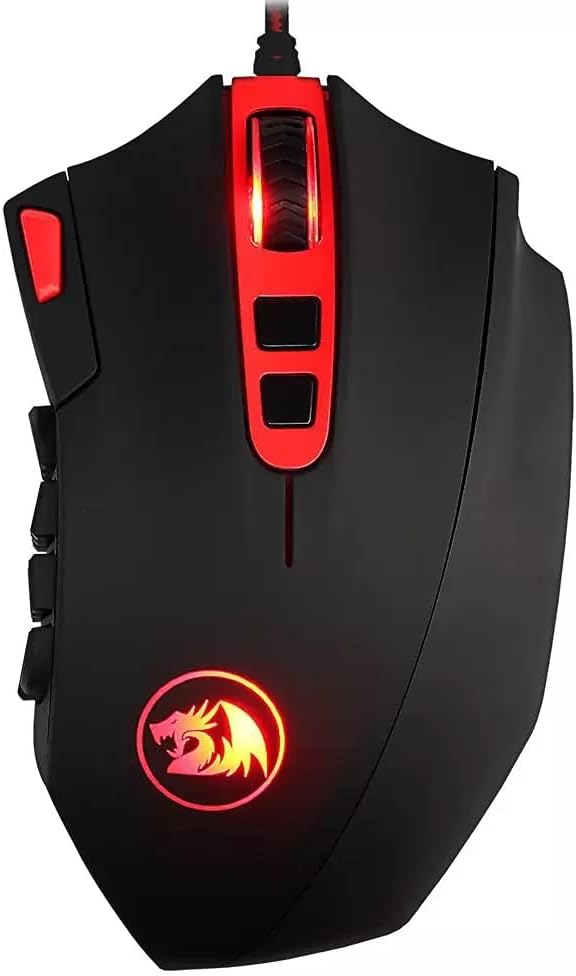
Image: Front view of the Redragon Perdition 3 M901-2 Gaming Mouse, highlighting the scroll wheel and top-mounted buttons.
Key Features:
- Pixart PMW3327 High Performance Sensor: Provides accurate tracking and responsiveness.
- 18 Programmable Buttons: Includes 12 customizable side buttons for macros and in-game commands.
- Redragon Chroma Mk.II RGB Lighting: Customizable lighting effects and modes.
- Adjustable Weight System: Fine-tune the mouse's weight for personalized comfort and control.
4. Setup
4.1 Connecting the Mouse
- Unpack the Redragon Perdition 3 M901-2 Gaming Mouse from its packaging.
- Locate an available USB port on your computer (PC or Notebook).
- Insert the USB connector of the mouse into the USB port.
- Your operating system (e.g., Windows 7 or later) will automatically detect and install the necessary drivers.

Image: Angled view of the Redragon Perdition 3 M901-2 Gaming Mouse, showing the braided USB cable ready for connection.
4.2 Software Installation (Optional, for advanced customization)
To unlock the full potential of your Redragon Perdition 3 M901-2, including button programming, DPI settings, and RGB lighting customization, it is recommended to install the official Redragon software.
- Visit the official Redragon website.
- Navigate to the support or downloads section.
- Locate and download the software for the M901-2 model.
- Follow the on-screen instructions to complete the installation.
5. Operating Instructions
5.1 DPI Adjustment
The mouse features on-the-fly DPI adjustment. Use the dedicated DPI buttons (usually located near the scroll wheel) to cycle through preset DPI levels. For precise customization, use the Redragon software.
5.2 Programmable Buttons
The Redragon Perdition 3 M901-2 features 18 buttons, including 12 side buttons, which can be programmed for various functions, macros, or key bindings. This is particularly useful for gaming (MMORPGs) and productivity tasks.

Image: Side view of the Redragon Perdition 3 M901-2 Gaming Mouse, clearly displaying the 12 numbered programmable thumb buttons.
To program the buttons:
- Ensure the Redragon software is installed and running.
- Open the software interface.
- Select the button you wish to program.
- Assign a function, macro, or key combination.
- Save your settings to the mouse's onboard memory.
5.3 RGB Lighting Customization
The mouse features Redragon Chroma Mk.II RGB lighting. You can customize lighting effects, colors, and brightness through the Redragon software. Explore various modes to match your setup or mood.

Image: Angled view of the Redragon Perdition 3 M901-2 Gaming Mouse, showing the illuminated scroll wheel and logo with RGB lighting.
5.4 Adjustable Weight System
The Redragon Perdition 3 M901-2 includes an adjustable weight system with 8 individual weights, allowing you to fine-tune the mouse's balance and overall weight to your preference.

Image: Bottom view of the Redragon Perdition 3 M901-2 Gaming Mouse, showing the circular compartment for the adjustable weights and the USB connector.
To adjust the weight:
- Carefully turn the mouse over.
- Locate the weight compartment cover on the bottom.
- Open the compartment and add or remove weights as desired.
- Close the compartment cover securely.
6. Maintenance
6.1 Cleaning
- Disconnect the mouse from your computer before cleaning.
- Use a soft, dry cloth to wipe the surface of the mouse.
- For stubborn dirt, lightly dampen the cloth with water or a mild cleaning solution. Avoid harsh chemicals.
- Use a cotton swab or compressed air to clean around buttons and the optical sensor.
6.2 Storage
When not in use, store the mouse in a clean, dry environment away from direct sunlight and extreme temperatures.
7. Troubleshooting
| Issue | Possible Solution |
|---|---|
| Mouse not responding |
|
| DPI or RGB settings not changing |
|
| Programmable buttons not working |
|
8. Specifications
| Feature | Detail |
|---|---|
| Brand | Redragon |
| Model Number | M901-2 |
| Series | Redragon Perdition 3 |
| Connectivity Technology | Wired (Com fio) |
| Movement Detection | Optical |
| Sensor | Pixart PMW3327 |
| Button Quantity | 18 (including 12 programmable side buttons) |
| Special Features | 18 Programmable Buttons, LED Lights (RGB Chroma Mk.II), Adjustable Weight System |
| Hand Orientation | Right |
| Product Dimensions | 20 x 16 x 7 cm |
| Item Weight | 245 g |
| Power Source | Electric Power (USB) |
| Hardware Platform | Notebook, PC |
| Operating System | Windows 7 and above |
| Color | Black and Red |
9. Warranty and Support
Redragon products are designed for durability and performance. For warranty information, technical support, or to download the latest software and drivers, please visit the official Redragon website or contact their customer service department. Keep your purchase receipt as proof of purchase for warranty claims.


