
Introduction
Welcome to the Easyfone Prime-A1 Pro 4G Flip Phone user manual. This guide provides essential information for setting up, operating, and maintaining your new device. Designed for ease of use, the Prime-A1 Pro features large buttons, clear sound, and dedicated functions for convenience and safety.
What's in the Box
- Easyfone Prime-A1 Pro Handset
- Charger Suit (Adapter and USB Cable)
- Battery (1500mAh)
- Charging Dock
- User Manual
- SpeedTalk SIM Card
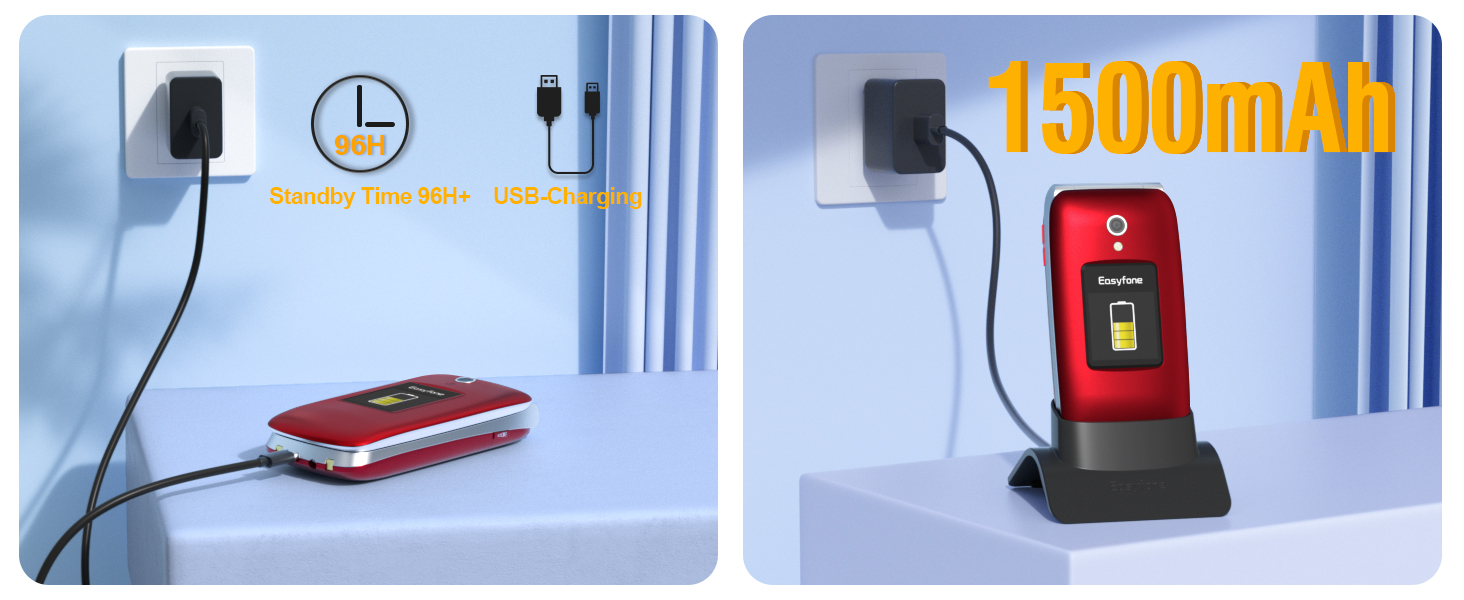
Image: All items included in the Easyfone Prime-A1 Pro package, neatly laid out on a surface.
Setup
1. Battery Installation
- Carefully remove the back cover of the phone.
- Insert the 1500mAh Lithium Ion battery into its compartment, ensuring the gold contacts align.
- Replace the back cover, pressing firmly until it clicks into place.
2. SIM Card Installation
- With the back cover and battery removed, locate the SIM card slot(s).
- Insert the SpeedTalk SIM card (or your preferred compatible SIM card) into the designated slot. Ensure the card is correctly oriented as indicated by the diagram near the slot.
- Reinsert the battery and back cover.
Network Compatibility: This phone works with Speedtalk Mobile, Tello Mobile, and T-Mobile Prepaid Plan. Other SIM cards may not be compatible. Ensure your SIM card is activated before insertion.
3. Charging Your Phone
The Easyfone Prime-A1 Pro can be charged using the included charging dock or directly via the USB-C cable.
- Using the Charging Dock: Place the phone into the charging dock, ensuring it sits securely and the charging indicator appears on the screen.
- Using the USB-C Cable: Connect the USB-C cable to the phone's charging port and the other end to the power adapter, then plug into a wall outlet.

Image: The Easyfone Prime-A1 Pro phone is placed in its charging dock, connected to a wall charger. Text indicates 1500mAh battery and 96+ hours standby time.
Operating Instructions
Basic Call Functions
- Answering Calls: Simply flip open the phone to answer an incoming call.
- Ending Calls: Close the phone to hang up a call, or press the red 'End Call' button.
- Making Calls: Dial the number using the large keypad and press the green 'Call' button.

Image: The Easyfone Prime-A1 Pro phone is open, displaying an incoming call with a contact photo and the name 'Emma'. Options to 'Answer' or 'Silent' are visible.
Large Buttons and Clear Display
The phone features a 2.4" HD main display and a 1.44" external colorful HD screen, both designed with large fonts and icons for easy readability. The silicone keyboard has large, well-spaced buttons for comfortable dialing.

Image: The Easyfone Prime-A1 Pro phone is shown both open and closed, with callouts indicating the 2.4-inch main HD IPS LCD and 1.44-inch external HD IPS displays.

Image: A close-up view of the Easyfone Prime-A1 Pro's silicone keyboard, emphasizing the large, clearly labeled buttons for easy use.
SOS Emergency Button
For emergencies, press and hold the dedicated SOS button. The phone will automatically dial pre-set SOS contacts in a loop until an answer is received. It also sends SOS alerts and messages to these contacts.

Image: A hand holds the Easyfone Prime-A1 Pro, with the SOS button highlighted. The background shows a map with pins indicating emergency contacts, illustrating the SOS function.
Photo Speed Dial
The Photo Speed Dial feature allows you to assign contacts with photos to specific speed dial buttons, making it easier to identify and call frequently contacted individuals.

Image: The Easyfone Prime-A1 Pro phone is open, showing the main display with a speed dial contact. A photo of 'Mom' is displayed along with her name and the speed dial number.
Block Button
The specially designed red 'BLOCK' button allows you to add harassing numbers to your blacklist with a single press, preventing further unwanted calls.
FM Radio
Enjoy listening to your favorite FM radio stations directly on your phone.

Image: The Easyfone Prime-A1 Pro phone is open, showing the main display with the FM radio application interface.
Flashlight
Activate the built-in flashlight for convenience in low-light conditions.
Clear Sound and HAC Compatibility
The phone features a powerful speaker with clear sound for easy hearing and is HAC (Hearing Aid Compatible) for users with hearing aid devices.

Image: The Easyfone Prime-A1 Pro phone is open, displaying a call screen with a speaker icon. A diagram next to it illustrates the loud and clear receiver and powerful loud speaker, emphasizing hearing aid compatibility.
Maintenance
- Cleaning: Use a soft, dry cloth to clean the phone's exterior. Avoid liquid cleaners.
- Battery Care: To prolong battery life, avoid extreme temperatures and fully discharge and recharge the battery periodically.
- Storage: Store the phone in a cool, dry place when not in use for extended periods.
Troubleshooting
- Phone not turning on: Ensure the battery is correctly installed and charged.
- No network signal: Check if the SIM card is properly inserted and activated. Verify network compatibility with your carrier.
- Poor call quality: Ensure you are in an area with good network coverage. Check speaker and microphone for obstructions.
- Charging issues: Verify the charger and cable are securely connected. Try charging directly with the USB-C cable if the dock is not working.
Specifications
| Feature | Detail |
|---|---|
| Model Name | Prime-A1 Pro |
| Operating System | Easyfone OS |
| Cellular Technology | 4G |
| Screen Size | 2.4 Inches (Main Display) |
| External Display | 1.44 Inches |
| Battery Capacity | 1500 Milliamp Hours |
| Phone Talk Time | 6 Hours |
| Phone Standby Time | 178 Hours |
| Memory Storage Capacity | 16 GB |
| Special Features | Basic Phone, Bluetooth, Charging Dock, FM Radio, Hearing Aid Compatible, External Display, Photo Speed Dial |
| Product Dimensions | 4.09 x 2.05 x 0.91 inches |
| Item Weight | 9.1 ounces |
Warranty and Support
For warranty information and customer support, please refer to the documentation included with your product or visit the official Easyfone website. Keep your purchase receipt for any warranty claims.


