
XTRONS TX123GS
XTRONS 10.1-inch 2DIN Android14 Car Navigation System
Model: TX123GS
Brand: XTRONS
Introduction
This manual provides comprehensive instructions for the installation, operation, and maintenance of your XTRONS TX123GS 10.1-inch 2DIN Android14 Car Navigation System. Please read this manual thoroughly before using the product to ensure proper functionality and safety. Keep this manual for future reference.
Key Features
- Android 14 Operating System: Powered by a robust 8-core processor with 4GB RAM and 64GB ROM for fast app launches and smooth video playback.
- 10.1-inch QLED Display: Ultra-high quality 1280x720 QLED screen for a cinematic visual experience.
- Built-in DVD Player: Enjoy your favorite DVDs directly on the large screen.
- 4G Communication & SIM Support: Integrated 4G module allows internet access via a micro SIM card. Supports Wi-Fi and USB tethering for flexible connectivity.
- Gyroscope & Adjustable Monitor: Features a gyroscope for tilt information display, ideal for off-road use. The 10.1-inch monitor can be rotated and adjusted vertically (within 50mm) to avoid obstructing controls like DVD insertion or air conditioning vents.
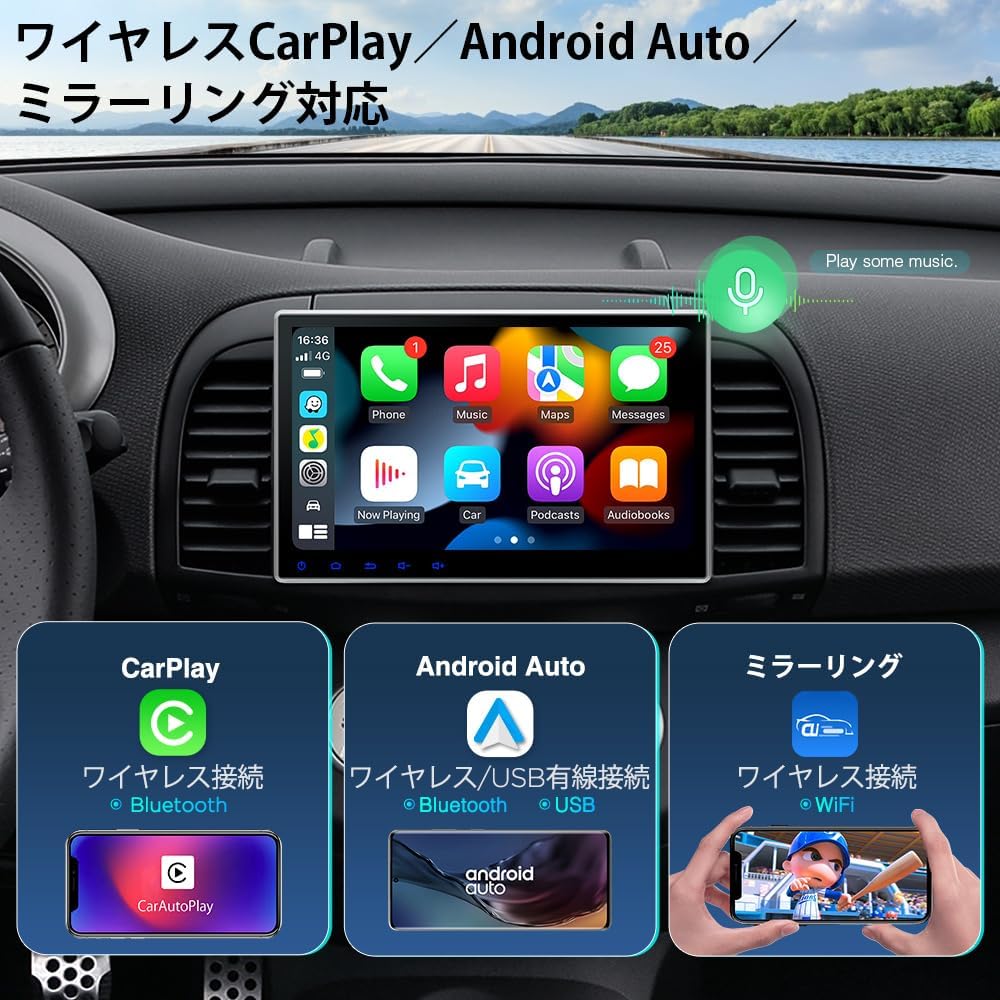
- CarPlay & Android Auto: Supports wireless iPhone CarPlay and wireless/wired Android Auto for seamless smartphone integration. (Note: Video apps are not supported via CarPlay/Android Auto).
- Screen Mirroring: Mirror your smartphone's photos, music, and videos directly to the navigation unit.
- Multi-Window Display: Run two applications simultaneously on the screen for enhanced multitasking.
- Bluetooth 5.0: Hands-free calling and Bluetooth audio streaming.
- Steering Wheel Control: Compatible with steering wheel controls for easy operation without distraction.
- GPS Navigation: Download your preferred navigation apps from the Play Store for online map usage.
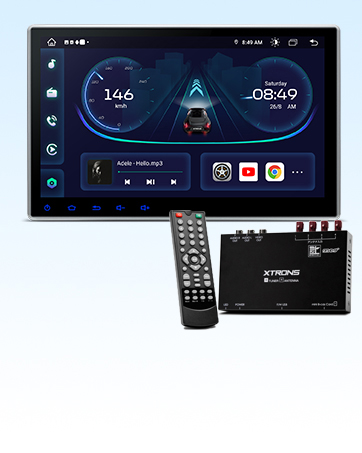
- Full-Seg Digital TV Tuner: High-sensitivity 4x4 full-seg tuner for enjoying TV on the 10.1-inch screen. Digital TV can be operated via app linkage or directly on the unit.
- PDF Japanese Manual & 1-Year Warranty: A PDF Japanese instruction manual is available for download. The product comes with a 1-year warranty.
Setup and Installation
Product Dimensions
Ensure your vehicle has a standard double DIN space (100mm height x 178mm width x 153mm depth) for proper installation.


Monitor Attachment (4 Steps)
- Connect the cable from the main unit to the monitor.
- Align the monitor's rear bracket with the main unit's bracket.
- Pull the two clips on the back of the monitor to both sides, then slide the monitor onto the main unit's bracket from above.
- Release the clips at a suitable position to complete the attachment.
Caution: Do not power on the main unit when attaching the monitor. Ensure the red ACC wiring is not energized during attachment.

Wiring Diagram
Refer to the diagram below for correct wiring connections. Improper wiring can lead to malfunctions.


Included Accessories
- 1 x ISO Cable
- 1 x SIM Card Slot
- 1 x 4G Antenna
- 1 x WiFi Antenna
- 2 x USB Cables
- 1 x GPS Antenna
- 2 x Mounting Brackets
- 8 x Mounting Screws
- 1 x External Microphone (3M)
- 1 x Camera Cable
- 1 x User Manual (English, Japanese PDF downloadable)
- 1 x Installation Notes
Operating Instructions
Basic Operation
The XTRONS TX123GS operates like a tablet, allowing intuitive touch control for various functions. The Android 14 interface is designed for ease of use and customization.

DVD Playback
The unit features a built-in DVD player. Simply insert a DVD into the slot to begin playback. The adjustable monitor angle ensures optimal viewing.


4G, Wi-Fi, and USB Tethering
The TX123GS supports 4G communication via a micro SIM card inserted into the dedicated slot. Alternatively, you can connect to the internet using Wi-Fi tethering or USB tethering from your smartphone. This allows access to online maps, YouTube, and other apps from the Play Store.


CarPlay and Android Auto
Connect your iPhone wirelessly for CarPlay or your Android smartphone wirelessly/wired for Android Auto. This allows you to display and control compatible phone apps on the unit's screen. (Note: Video applications are not supported through CarPlay or Android Auto functionality).

Screen Mirroring
Use the built-in screen mirroring app to display content from your smartphone, such as photos, music, and videos, directly onto the navigation unit's screen.

Multi-Window / Picture-in-Picture (PIP) Mode
The multi-window feature allows you to run two applications simultaneously on the screen, such as navigation and a video player, for enhanced multitasking.

Audio Features (Bluetooth 5.0 & DSP)
Enjoy high-quality audio with Bluetooth 5.0 for hands-free calls and music streaming. The built-in DSP (Digital Signal Processor) allows for advanced sound customization with an equalizer to optimize your audio experience.

Steering Wheel Control
The unit supports steering wheel controls, allowing you to manage various functions without taking your hands off the wheel. This enhances safety and convenience.

Video 1: Demonstrates how to set up steering wheel controls for the G10 Android car navigation system. This process is similar for the TX123GS model.
GPS Navigation
Utilize the built-in GPS by downloading your preferred navigation applications from the Google Play Store. This allows for real-time traffic updates and accurate route guidance.

Digital TV (Full-Seg)
The TX123GS includes a 4x4 high-sensitivity full-seg digital TV tuner, allowing you to watch television on the 10.1-inch screen. TV functions can be controlled via a dedicated app or directly on the unit.
Rear Camera Support
The unit supports AHD 1080P rear cameras (sold separately) for clear rear view during parking. This feature significantly enhances safety and convenience.

Video 2: Demonstrates the installation method for a backup camera with the UX7SKJ-PRO-MAX, which is similar for the TX123GS model.
Optional Accessories (OBD2, DVR, TPMS)
Enhance your driving experience with optional accessories such as OBD2 diagnostic tools, drive recorders (DVR), and Tire Pressure Monitoring Systems (TPMS). These are sold separately.

Specifications
| Feature | Description |
|---|---|
| Screen Size | 10.1 inches |
| Display Type | QLED, 1280x720 Resolution |
| Tuner Type | Full-Seg Digital TV (4x4) |
| Map Type | Street (via downloadable apps) |
| Product Model Number | TX123GS |
| Brand | XTRONS |
| Compatible Vehicle Type | Passenger Car |
| Features | 4x4 Digital TV Tuner, Hands-free Calling, Gyroscope, Adjustable Monitor |
| Connectivity Technology | USB, Wi-Fi, Bluetooth 5.0, 4G (SIM support) |
| Mounting Type | Panel Mount (2DIN) |
| Memory Storage Capacity | 64 GB ROM, 4 GB RAM |
| Touch Screen Type | Capacitive |
Troubleshooting
If you encounter any issues with your XTRONS TX123GS, please refer to the following common solutions. For more detailed troubleshooting, consult the downloadable PDF manual or contact customer support.
Common Issues and Solutions:
- Slow Startup or App Performance: The unit features an 8-core processor with 4GB RAM. While generally smooth, performance can be affected by too many background apps or large data loads. Close unused applications to improve responsiveness.
- Display Resolution/Quality: The unit has a 1280x720 QLED display. If the image appears rough or low quality, ensure the video source is of sufficient resolution.
- Audio Sync Issues (e.g., with TV tuner): If audio and video are out of sync, especially with the digital TV tuner, this might be due to signal processing. Ensure a strong signal and try restarting the application or unit.
- Radio Frequency Issues: Ensure the radio frequency settings are correctly configured for your region. If the unit cannot tune to local Japanese frequencies, check the settings or consult the manual for region-specific adjustments.
- No Image on Rear Camera / Black Screen on Reverse:
- Power cable connection is unstable: Ensure all power connections are secure.
- Wiring is disconnected or interface is not fully connected: Check all wiring, especially the RCA connectors. For rear cameras, ensure the yellow RCA interface is used.
- Incorrect RCA interface connection: Rear cameras typically use the yellow RCA interface. Connecting to other video input interfaces may not work.
- Video signal incompatibility: Most Japanese market monitors and navigation systems support NTSC (CVBS) video signals. If your camera uses a different signal (e.g., PAL), it might not be compatible.
- Trigger wire error: Ensure the rear camera's trigger wire (typically connected to the reverse light +12V) and the monitor's reverse signal wire are correctly connected.
Video 3: General solutions for common problems, including image display issues and wiring checks.
Video 4: Demonstrates UI upgrade methods for UX6SKJ-PRO-MAX, which may be relevant for system updates on TX123GS.
Maintenance
To ensure the longevity and optimal performance of your XTRONS TX123GS, follow these general maintenance guidelines:
- Cleaning: Use a soft, dry cloth to clean the screen and unit. Avoid abrasive cleaners or solvents.
- Software Updates: Regularly check for and install system updates to ensure the latest features and security patches.
- Environmental Conditions: Avoid exposing the unit to extreme temperatures, direct sunlight for prolonged periods, or excessive moisture.
- Cable Connections: Periodically check all cable connections to ensure they are secure and free from damage.
Warranty and Support
Your XTRONS TX123GS comes with a 1-year warranty. For any questions or issues, please contact XTRONS customer support via email.
A detailed PDF version of the Japanese instruction manual can be downloaded from the official XTRONS website:
https://user-manuals.xtrons.com/community/index.php/user-manuals-japanese/
Related documentsTX123GS


Ask a question about this manual
Ask about setup, troubleshooting, compatibility, parts, safety, or missing instructions. Manuals+ will review the question and use this page’s manual context to help answer it.