
1. Product Overview
The ORDRO AE7 is a versatile 2.7K digital camcorder designed for capturing high-quality videos and photos. It features IR night vision, a 3.0-inch TFT touchscreen with 270° rotation, 16x digital zoom, and multiple connectivity options, making it suitable for various recording needs.
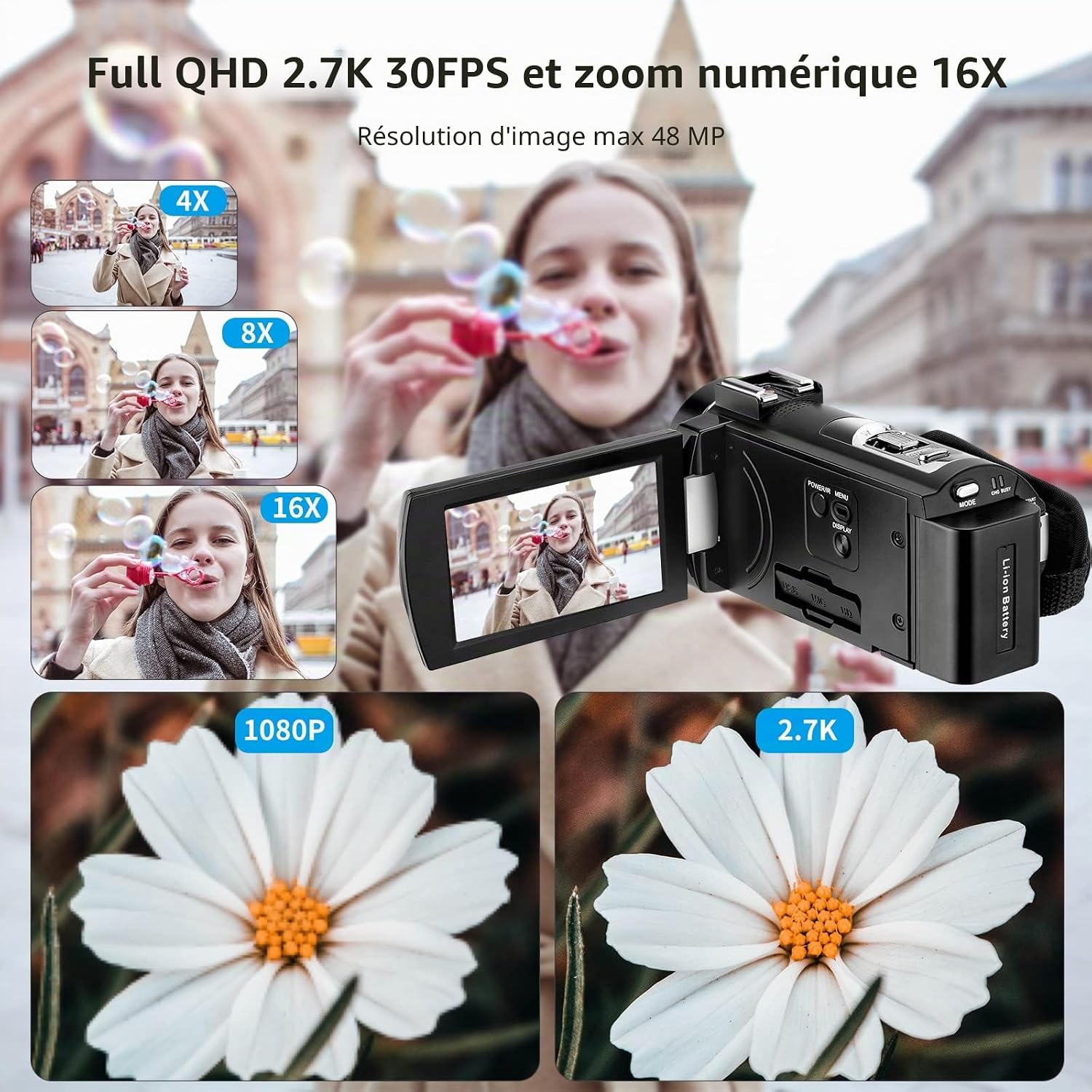
Image: The ORDRO AE7 camcorder with its screen open, showcasing its compact design.
Key Features:
- 2.7K QHD Video Recording: Capture videos at 2688*1520 resolution (30fps) for clear and detailed footage.
- 48MP Photo Capture: Take high-resolution still images.
- IR Night Vision: Record in low-light or no-light conditions using infrared technology.
- 3.0-inch TFT Touch Screen: A rotatable screen (270°) for flexible viewing and control.
- 16x Digital Zoom: Magnify your subjects for closer shots.
- Webcam Function: Connect to a computer via USB for video calls.
- Pause Function: Pause and resume recording within the same file.
- Remote Control: Conveniently operate the camcorder from a distance.
- HDMI Output: Connect to a TV for larger viewing.
- Lightweight and Portable: Easy to carry for on-the-go recording.
What's Included:
The ORDRO AE7 package typically includes:
- ORDRO AE7 Video Camera
- Two NP-180 Lithium Batteries (3.7V 1400mAh)
- USB Charger
- USB Cable
- HDMI Cable
- Remote Control
- Camera Bag
- User Manual
2. Setup Guide
2.1. Battery Installation and Charging
The camcorder uses NP-180 Lithium-polymer batteries. Ensure batteries are fully charged before first use.
- Open the battery compartment cover located on the bottom of the camcorder.
- Insert a fully charged NP-180 battery, ensuring correct polarity.
- Close the battery compartment cover securely.
- To charge, connect the camcorder to the USB charger using the provided USB cable. The charging indicator will illuminate. A full charge provides approximately 90 minutes of recording time. The camcorder supports charging during recording.

Image: The camcorder connected to a power bank, illustrating the "Recording While Charging" feature.
2.2. Memory Card Installation
The ORDRO AE7 supports SD cards up to 128GB. A Class 10 or higher SD card is recommended for optimal performance.
- Locate the SD card slot on the side of the camcorder.
- Insert the SD card with the metal contacts facing down until it clicks into place.
- To remove, gently push the card until it pops out.
- Upon first use or with a new card, format the SD card using the camcorder's menu settings to ensure compatibility and prevent data corruption.
2.3. Initial Power On
Press and hold the power button until the screen illuminates. The camcorder will boot up and display the main recording interface.
3. Operating Instructions
3.1. Basic Controls
Familiarize yourself with the main buttons and screen functions:
- Power Button: Turns the camcorder on/off.
- Record Button: Starts and stops video recording.
- Photo Button: Captures still images.
- Zoom Lever: Controls digital zoom (W for wide, T for telephoto).
- Mode Button: Switches between video, photo, and playback modes.
- Menu Button: Accesses system settings and options.
- 3.0-inch TFT Touch Screen: Navigate menus and settings by touching the screen. The screen can rotate 270 degrees for various shooting angles.

Image: The ORDRO AE7 camcorder with its screen rotated, demonstrating flexibility for different shooting perspectives.
3.2. Video Recording
- Turn on the camcorder.
- Ensure the camcorder is in video recording mode (indicated by an icon on the screen).
- Press the Record button to start recording. A red indicator will typically appear on the screen.
- Press the Record button again to stop recording.
- Use the zoom lever to adjust the digital zoom during recording.
3.3. Photo Capture
- Turn on the camcorder.
- Switch to photo mode.
- Frame your shot using the screen.
- Press the Photo button to capture an image.
3.4. IR Night Vision
To record in low-light conditions:
- In video or photo mode, access the menu.
- Locate and activate the "IR Night Vision" function. The screen will display a monochrome image.
- Proceed with recording or photo capture as usual.

Image: The camcorder displaying a scene in IR night vision mode, showing its capability in dark environments.
3.5. Webcam Function
Use the camcorder as a webcam for video calls:
- Connect the camcorder to your computer using the USB cable.
- On the camcorder screen, select "PC Camera" or "Webcam Mode" when prompted.
- Your computer should recognize the camcorder as a webcam. Select it in your video conferencing software.

Image: The camcorder connected to a laptop, demonstrating its use as a webcam for video calls.
3.6. Pause Function
The pause function allows you to temporarily stop recording and resume in the same file, avoiding multiple video clips for a single event.
- During video recording, press the Pause button (or the designated button on the remote control).
- To resume recording in the same file, press the Record button again.

Image: An icon representing the pause function, indicating its availability for video recording.
3.7. Connecting to a TV (HDMI)
To view your recordings on a larger screen:
- Connect one end of the HDMI cable to the camcorder's HDMI port.
- Connect the other end to an HDMI input on your television.
- Select the corresponding HDMI input on your TV. The camcorder's display will appear on the TV screen.
3.8. Using the Remote Control
The included remote control allows for convenient operation from a distance. It can be used to start/stop recording, take photos, and adjust zoom without touching the camcorder.

Image: The ORDRO AE7 camcorder being operated with its remote control, showing ease of use from a distance.
4. Maintenance
4.1. Cleaning the Camcorder
- Use a soft, dry cloth to clean the camcorder body.
- For the lens, use a specialized lens cleaning cloth and solution. Avoid touching the lens with your fingers.
- Clean the screen with a soft, lint-free cloth. Do not use abrasive cleaners.
4.2. Battery Care
- Store batteries in a cool, dry place when not in use.
- Avoid fully discharging the batteries frequently to prolong their lifespan.
- If storing for extended periods, charge batteries to about 50% capacity.
4.3. Storage
When not in use, store the camcorder in its protective bag in a dry, dust-free environment, away from extreme temperatures and direct sunlight.
5. Troubleshooting
If you encounter issues with your ORDRO AE7 camcorder, refer to the following common problems and solutions:
| Problem | Possible Cause | Solution |
|---|---|---|
| Camcorder does not power on. | Battery is dead or incorrectly inserted. | Ensure battery is fully charged and correctly inserted. Try the second battery. |
| Cannot record video/take photos. | SD card is full, not inserted, or not formatted. | Insert an SD card. Format the SD card via the camcorder's menu. Delete unnecessary files to free up space. |
| Poor image/video quality. | Lens is dirty; insufficient lighting; incorrect settings. | Clean the lens. Ensure adequate lighting or activate IR Night Vision. Check resolution settings in the menu. |
| Remote control not working. | Battery in remote is dead; obstacle between remote and camcorder. | Replace remote control battery. Ensure clear line of sight to the camcorder's IR receiver. |
| Camcorder freezes or becomes unresponsive. | Temporary software glitch. | Remove and reinsert the battery to perform a hard reset. |
6. Specifications
Detailed technical specifications for the ORDRO AE7 Camcorder:
| Feature | Specification |
|---|---|
| Brand | ORDRO |
| Model Number | AE7 |
| Photo Sensor Technology | CMOS |
| Video Recording Resolution | 2.7K (2688x1520 pixels) |
| Effective Photo Resolution | 48 Megapixels |
| Maximum Focal Length | 7.5 Millimeters |
| Maximum Aperture | f/3.2 |
| Flash Memory Type | SD (up to 128GB) |
| Video Capture Format | AVI |
| Supported Audio Format | Common audio formats |
| Screen Size | 3 Inches (TFT Touch Screen, 270° Rotation) |
| Connectivity Technology | USB, HDMI |
| Color | Black |
| Product Features | Infrared Night Vision, Webcam Function, Pause Function, Remote Control |
| Water Resistance Level | Not waterproof |
| Image Stabilization | Digital |
| Form Factor | Handheld |
| Item Weight | 250 Grams |
| Average Battery Life | 90 minutes (recording) |
| Wireless Technology Type | 2.4 GHz Radio Frequency (for remote) |
| Number of Batteries | 2 Lithium-polymer (included) |
| Supported Operating Systems | Android, Windows, iOS (for compatible devices/webcam) |
| Shooting Modes | Night, Aperture Priority |
| Image Aspect Ratio | 16:9 |
| Supported Image Format | JPEG |
| White Balance Settings | Auto |
| Exposure Control Type | Automatic |
| Digital Zoom | 16x |
| Focus Type | Auto Focus |
| Compatible Devices | Computer, TV, Smartphone, Tablet |
7. Warranty Information
ORDRO products are typically covered by an official manufacturer's warranty. For specific details regarding the warranty period and terms for your ORDRO AE7 camcorder, please refer to the warranty card included in your product packaging or visit the official ORDRO website. Keep your proof of purchase for warranty claims.
8. Customer Support
For technical assistance, troubleshooting not covered in this manual, or service inquiries, please contact ORDRO customer support through their official website or the contact information provided in your product documentation. You may also find helpful resources and FAQs on the ORDRO brand store page on Amazon: ORDRO Amazon Store.
9. Official Product Videos
No official seller videos (m3u8 format) were found in the provided product data to embed in this manual.

