
Deeoee RPI LCD (A) V3
3.5 Inch TFT LCD Touch Screen Display User Manual
Brand: Deeoee | Model: RPI LCD (A) V3
1. Introduction
This manual provides detailed instructions for the installation, operation, maintenance, and troubleshooting of your Deeoee 3.5 Inch TFT LCD Touch Screen Display. This display is designed for seamless integration with Raspberry Pi P1, P2, and P3 models, offering a compact and interactive visual interface.
2. Setup and Installation
Follow these steps to properly connect your 3.5-inch LCD display to your Raspberry Pi.

Figure 2.1: The 3.5-inch TFT LCD Touch Screen Display, shown with its accompanying stylus. This is the main display unit that connects to your Raspberry Pi.
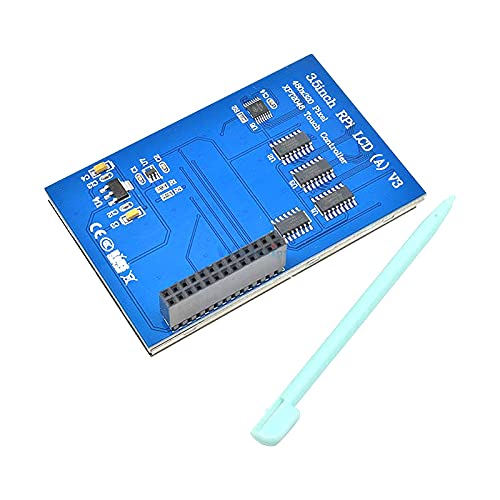
Figure 2.2: The reverse side of the display's PCB, highlighting the GPIO pin header. This header is crucial for connecting the display directly to the Raspberry Pi's GPIO pins.
Installation Steps:
- Prepare your Raspberry Pi: Ensure your Raspberry Pi is powered off and disconnected from any power source.
- Align the Display: Carefully align the 40-pin GPIO connector on the back of the 3.5-inch LCD display with the GPIO pins on your Raspberry Pi.
- Connect the Display: Gently press the display onto the Raspberry Pi's GPIO pins until it is securely seated. Ensure all pins are correctly aligned to prevent damage.
- Power On: Once the display is securely connected, you can power on your Raspberry Pi.
- Install Drivers (if necessary): Depending on your Raspberry Pi operating system and specific setup, you may need to install or configure drivers for the display and touch functionality. Refer to the official Raspberry Pi documentation or the display's product page for specific driver installation instructions.
3. Operating Instructions
The 3.5-inch TFT LCD display operates via an SPI interface and provides touch input capabilities.
Display Operation:
- Once connected and drivers are installed, the display should automatically show the Raspberry Pi's graphical interface.
- The display resolution is 320x240 pixels, providing a clear visual output for various applications.
Touch Screen Functionality:
- The display features a resistive touch screen, controlled by the XPT2046 touch IC.
- Use the provided stylus or a gentle touch with your finger for accurate input. Avoid using sharp objects that could damage the screen.
- Calibration may be required for optimal touch accuracy. Refer to your operating system's touch screen calibration tools.
4. Maintenance
Proper care will extend the lifespan and maintain the performance of your display.
- Cleaning: Use a soft, lint-free cloth slightly dampened with water or a screen-safe cleaning solution to clean the display surface. Do not use harsh chemicals or abrasive materials.
- Handling: Always handle the display by its edges. Avoid touching the screen surface directly with bare hands to prevent smudges.
- Storage: When not in use, store the display in a cool, dry place away from direct sunlight and extreme temperatures.
- Protection: Consider using a protective case for your Raspberry Pi and display assembly, especially if transporting it.
5. Troubleshooting
If you encounter issues with your display, refer to the following common problems and solutions:
| Problem | Possible Cause | Solution |
|---|---|---|
| Display does not light up | Incorrect connection; No power to Raspberry Pi; Driver issue | Ensure display is securely connected to GPIO pins. Verify Raspberry Pi is powered on. Install or reconfigure display drivers. |
| Touch screen unresponsive | Driver issue; Calibration needed; Hardware fault | Install or update touch screen drivers. Perform touch screen calibration. Check for physical damage. |
| Display shows distorted image | Incorrect resolution settings; Loose connection | Verify display resolution settings in Raspberry Pi configuration. Re-seat the display connection. |
| Screen flickers | Insufficient power; Loose connection | Ensure Raspberry Pi power supply is adequate. Check display connection. |
6. Specifications
Detailed technical specifications for the 3.5 Inch TFT LCD Touch Screen Display:
| Feature | Specification |
|---|---|
| Display Size | 3.5 inches |
| Resolution | 320x240 pixels |
| Touch IC | XPT2046 |
| LCD IC | ILI9486 / ILI9488 / R61581 |
| Interface | SPI (Serial Peripheral Interface) |
| Operating Voltage | 5V |
| Applicable Models | Raspberry Pi P1, P2, P3 |
| Bit Width | 16 bits |
| PCB Size | 55.6 x 85.42 mm |
7. Warranty and Returns
This product is subject to the seller's return policy. Typically, a 30-day return period is offered for refunds or replacements from the date of purchase. Please refer to your purchase documentation or contact the seller directly for specific warranty terms and return procedures.
8. Customer Support
For further assistance, technical support, or inquiries not covered in this manual, please contact the seller or manufacturer directly through the platform where the product was purchased. Provide your order details and a clear description of the issue for prompt support.
Related documentsRPI LCD (A) V3

Ask a question about this manual
Ask about setup, troubleshooting, compatibility, parts, safety, or missing instructions. Manuals+ will review the question and use this page’s manual context to help answer it.