
1. Introduction
This manual provides detailed instructions for the installation, operation, and maintenance of the Deeoee CM6631A Digital Interface Board. This device functions as a high-quality 24-bit/192kHz USB to Coaxial, Optical Fiber, SPDIF, and I2S converter, designed for audio enthusiasts and professionals seeking to integrate a USB audio source with various digital audio receivers.
2. Product Overview
The CM6631A board is a compact and versatile digital audio interface. It accepts audio input via a USB-B 2.0 port and provides multiple digital audio outputs, including Coaxial, Optical Fiber (SPDIF), and I2S. It supports high-resolution audio up to 32-bit/384kHz sampling depth.

Figure 2.1: Deeoee CM6631A Digital Interface Board, top view.

Figure 2.2: CM6631A Board with key components and connection points labeled, including USB IN, SPDIF OUT, GND, SCK, BCK, DATA, and LRCK.
3. Features
- Input Interface: USB-B 2.0 (backward compatible).
- Output Interfaces: Coaxial, Optical Fiber (SPDIF), and I2S.
- Maximum Output Sample Rate: 384kHz for both I2S and SPDIF.
- Sampling Depth: Up to 32-bit.
- Dimensions: 50mm x 59mm (excluding the protruding USB connector).
4. Setup
Follow these steps to set up your CM6631A Digital Interface Board:
- Power Supply: The board is typically powered via the USB connection. Ensure your USB source can provide sufficient power.
- USB Connection: Connect the USB-B 2.0 port on the CM6631A board to a USB port on your computer or audio source using a compatible USB cable.
- Output Connection:
- For Coaxial/Optical SPDIF: Connect the appropriate output from the CM6631A board to your DAC or audio receiver using a coaxial or optical fiber cable.
- For I2S: Connect the I2S pins (GND, SCK, BCK, DATA, LRCK) to a compatible I2S input on your DAC. Refer to Figure 2.2 for pin identification. Ensure correct pin mapping to avoid damage.
- Driver Installation: For most modern operating systems (Windows 10/11, macOS, Linux), the CM6631A should be recognized as a standard USB audio device and may not require specific drivers. If issues arise, check the manufacturer's website for driver availability.
5. Operating Instructions
Once the CM6631A board is connected and recognized by your computer or audio source, follow these steps to begin audio playback:
- Select Audio Output: On your computer or audio source, navigate to the sound settings or audio output preferences. Select the CM6631A (or a similarly named USB audio device) as your primary audio output device.
- Configure Sample Rate and Bit Depth: In your audio settings, you may be able to configure the sample rate and bit depth. For optimal performance, select the desired output resolution up to 32-bit/384kHz, ensuring compatibility with your receiving DAC.
- Start Playback: Begin playing audio from your preferred media player or streaming service. The digital audio signal will be transmitted from the CM6631A board to your connected DAC or audio system.
Note: The quality of the output audio depends on the source material, the quality of the USB connection, and the capabilities of the connected DAC.
6. Specifications
| Feature | Specification |
|---|---|
| Model | CM6631A |
| Input Interface | USB-B 2.0 (backward compatible) |
| Output Interfaces | Coaxial, Optical Fiber (SPDIF), I2S |
| Maximum Output Sample Rate | 384kHz (I2S and SPDIF) |
| Sampling Depth | 32-bit |
| Product Dimensions (L x W) | 59mm x 50mm (2.32" x 1.97") |
| Material | Fiber (referring to optical fiber output) |
| Manufacturer | Deeoee |
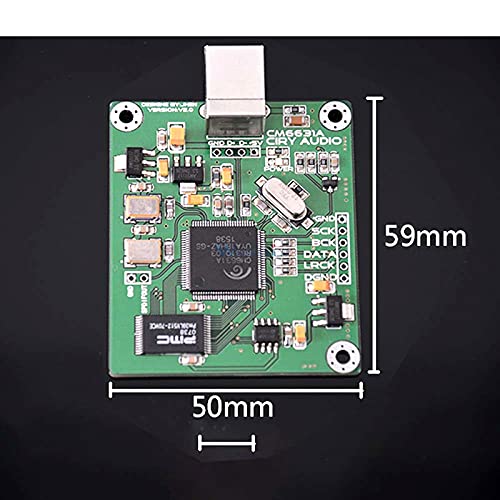
Figure 6.1: Physical dimensions of the CM6631A Digital Interface Board.
7. Maintenance
To ensure the longevity and optimal performance of your CM6631A Digital Interface Board, observe the following maintenance guidelines:
- Handling: Handle the board by its edges to avoid touching components, especially the delicate pins and solder joints.
- Cleaning: Use a soft, dry, anti-static cloth to gently wipe the board if necessary. Avoid using liquids or abrasive cleaners.
- Environment: Store and operate the board in a dry, dust-free environment, away from extreme temperatures and direct sunlight.
- Static Electricity: Take precautions against electrostatic discharge (ESD) when handling the board.
8. Troubleshooting
If you encounter issues with your CM6631A Digital Interface Board, refer to the following common problems and solutions:
- No Sound Output:
- Ensure the USB cable is securely connected to both the board and the audio source.
- Verify that the CM6631A is selected as the default audio output device in your operating system's sound settings.
- Check all output cable connections (Coaxial, Optical, I2S) to your DAC/receiver.
- Confirm that your DAC/receiver is set to the correct input source.
- Test with a different USB port or cable.
- Intermittent Audio or Dropouts:
- Ensure the USB connection is stable and not loose.
- Avoid placing the board near sources of electromagnetic interference.
- Check for system resource conflicts on your computer.
- Device Not Recognized:
- Reconnect the USB cable.
- Try a different USB port on your computer.
- Restart your computer.
- Check your operating system's device manager for any unrecognized devices or driver issues.
9. Warranty and Support
For information regarding warranty coverage, technical support, or service for your Deeoee CM6631A Digital Interface Board, please refer to the documentation provided at the time of purchase or contact your retailer directly. Specific warranty terms may vary depending on the point of purchase and region.