
Introduction
This manual provides instructions for the SinLoon 4-Port USB 2.0 Printer Sharing Switch, designed to allow up to four computers to share a single USB device such as a printer or scanner. This device enhances efficiency in environments where multiple users need access to a single peripheral.
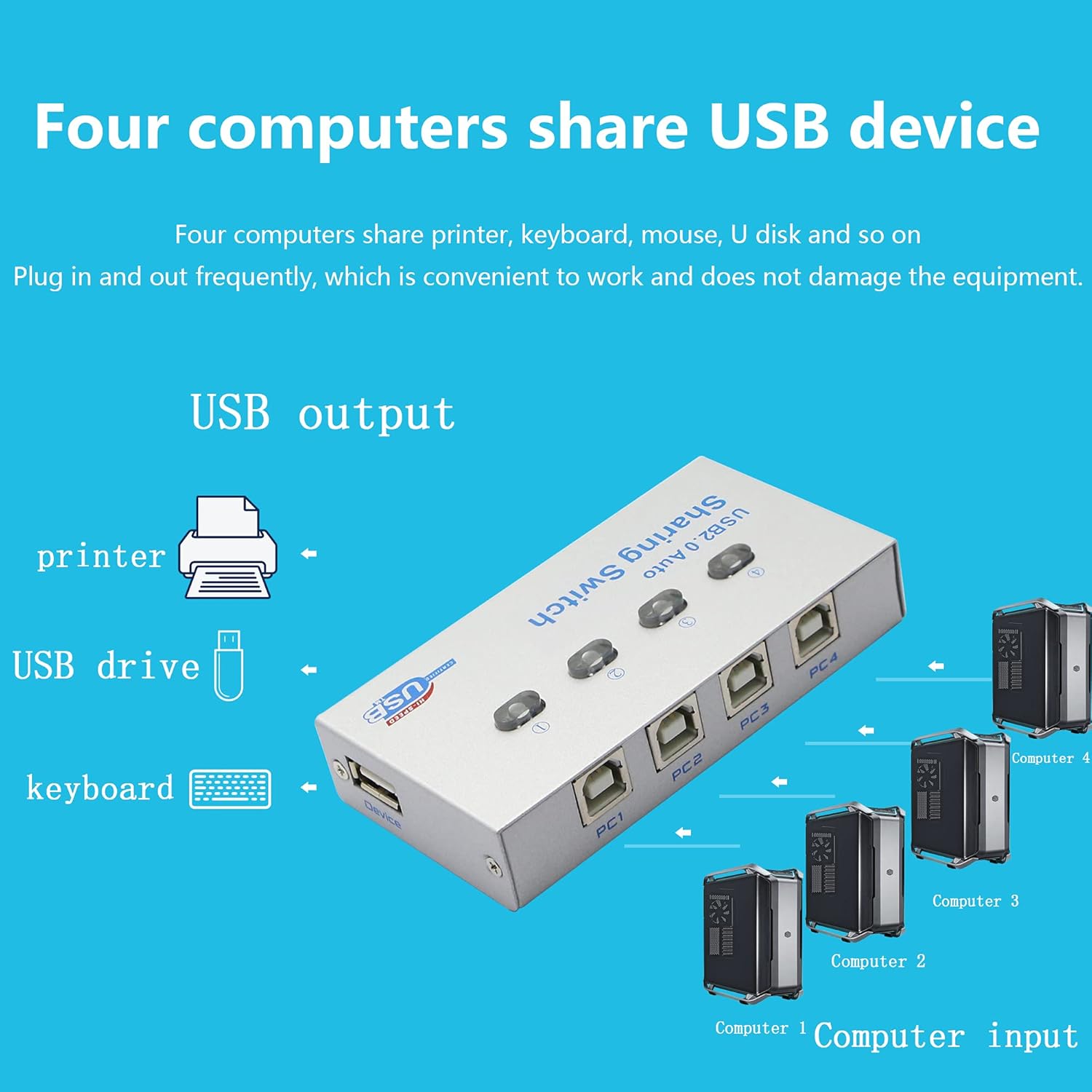
Image: The SinLoon USB Sharing Switch, illustrating its function of enabling four computers to share one USB device, such as a printer.
Package Contents
- 1 x SinLoon 4-Port Printer Sharing Switch Hub
- 1 x Software CD (for Windows systems)
- 1 x User Manual
Product Features
- Allows up to 4 computers to share one USB 2.0 device.
- Supports manual switching via physical buttons on the device.
- Offers software-based switching (keyboard hotkeys or mouse control) for Windows operating systems.
- LED indicator lights clearly show which connected computer currently has control of the attached device.
- Constructed with a durable metal casing for enhanced longevity and resistance to oxidation and high temperatures.
- Compatible with a wide range of USB devices, including printers, scanners, plotters, multifunction printers, and Bluetooth equipment.
Setup Guide
Hardware Connection
Follow these steps to connect your devices to the SinLoon USB Sharing Switch:
- Connect your shared USB device (e.g., printer, scanner) to the single USB Type-A output port labeled "Device" on the switch.
- Connect up to four computers to the four USB Type-B input ports labeled "PC1", "PC2", "PC3", and "PC4" using appropriate USB cables.

Image: A detailed connection diagram showing a printer connected to the output port and four computers connected to the input ports of the USB sharing switch.
Software Installation (for Automatic Switching on Windows)
For enhanced functionality, including keyboard hotkey and mouse control, install the provided software on your Windows computers. This step is optional for manual button switching.
- Insert the Software CD into your computer's CD drive.
- Locate and copy the
USBShare.exefile to your desired installation folder, then execute it. Alternatively, run theUSBShare_Setupfile to begin the installation process. - After successful installation, a shortcut icon named "USBShare" will appear on your desktop. Run this application. A globe icon will also be added to the lower right corner of your PC screen (system tray).
- Ensure all necessary drivers for the USB sharing hub and the connected USB device (e.g., printer drivers) are installed on each computer that will use the switch.
Important Note:
The automatic file switching feature and software control are exclusively available for Windows operating systems. When using iOS operating systems, the device functions solely as a manual switch box, requiring physical button presses for switching.
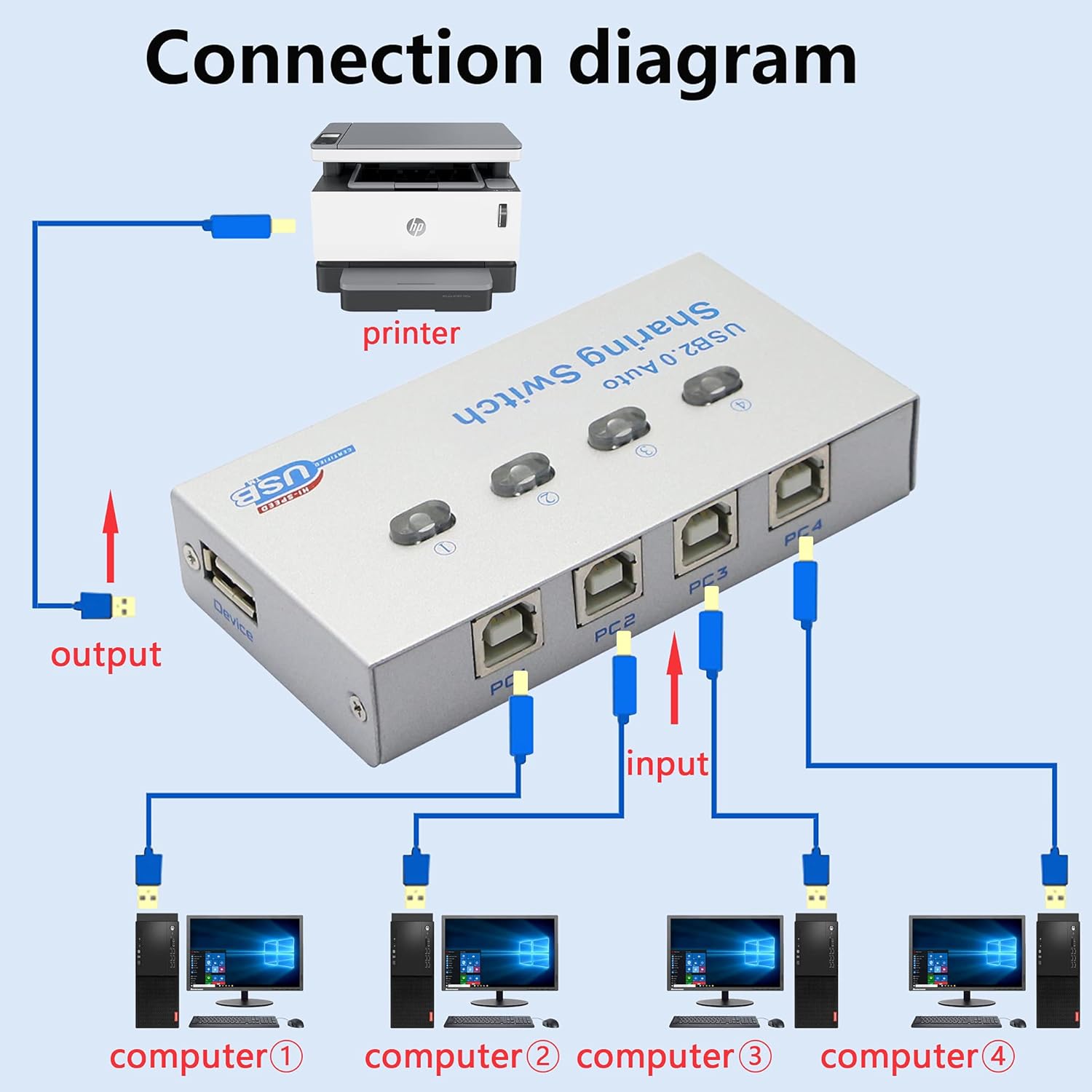
Image: Diagram illustrating the broad operating system compatibility, including Windows XP, Vista, 7, 8, 10, Mac OS, and Linux.
Operating Instructions
Once all devices are properly connected and drivers are installed, you can switch control of the shared USB device using one of the following methods:
Manual Button Switching
Press the corresponding numbered button (1, 2, 3, or 4) on the top of the switch to select which connected computer will control the USB device. The LED indicator next to the button will illuminate to show the active computer.
Software Switching (Windows Only)
On Windows systems with the USBShare software installed:
- Left-click the
USBShareicon (globe icon) in your system tray to open the software interface and select the desired computer. - Use the keyboard hotkeys
Ctrl+F11to cycle through the connected computers.
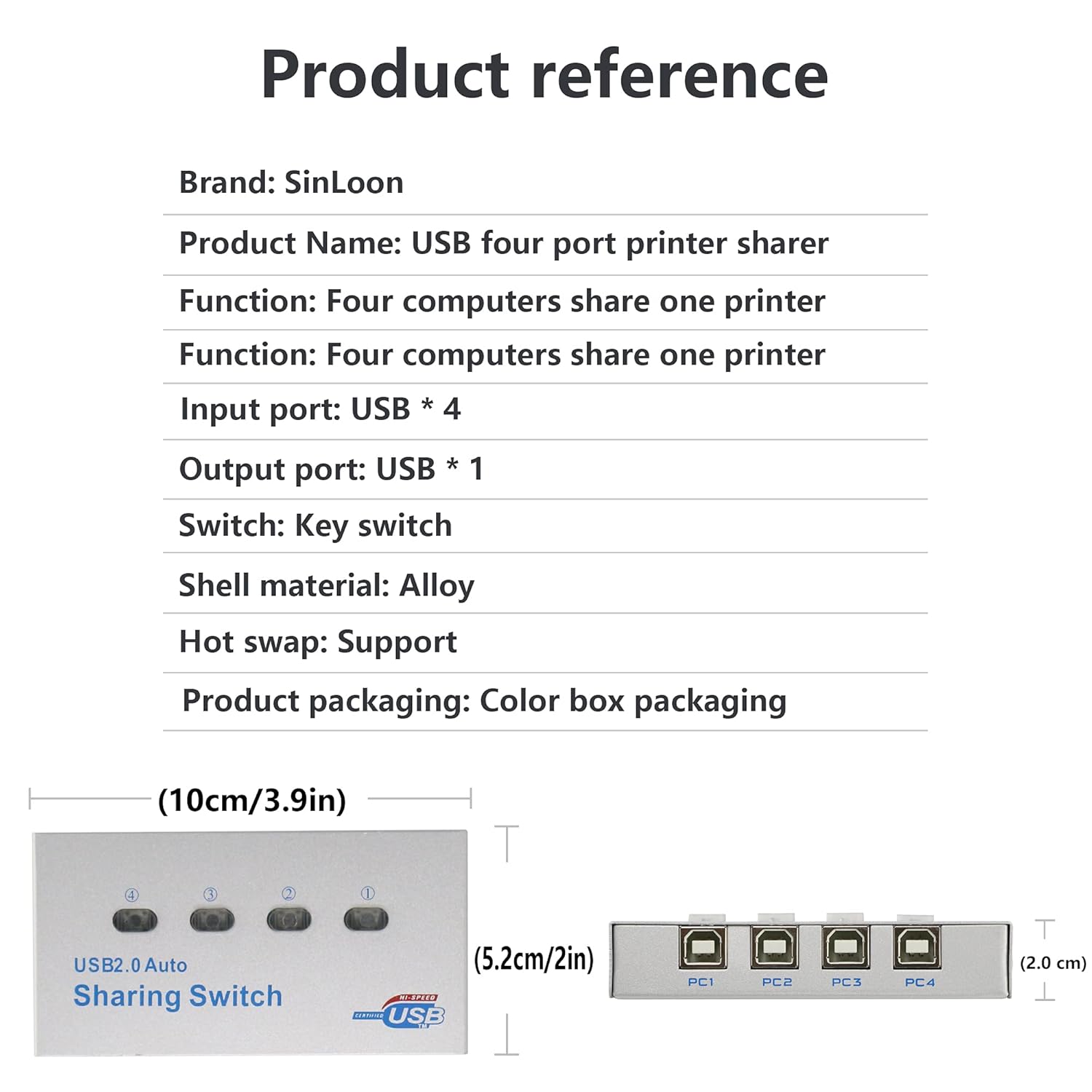
Image: A hand pressing one of the four selection buttons on the USB sharing switch, demonstrating the simple one-click switching functionality.
Important Note:
The SinLoon USB Sharing Switch does not automatically detect or switch printing tasks. You must manually select the desired computer before initiating any operation with the shared USB device. Only one computer can actively use the shared device at any given time.
Maintenance
To ensure optimal performance and longevity of your SinLoon USB Sharing Switch, follow these maintenance guidelines:
- Keep the device in a clean, dry, and dust-free environment.
- Clean the exterior of the switch with a soft, dry cloth. Avoid using liquid cleaners, solvents, or abrasive materials.
- Do not attempt to open, disassemble, or repair the device yourself. Refer all servicing to qualified personnel.
- Protect the device from extreme temperatures and direct sunlight.
Troubleshooting
If you encounter issues with your SinLoon USB Sharing Switch, refer to the following common problems and solutions:
Device Not Recognized or Functioning
- Check Connections: Ensure all USB cables are securely connected to both the switch and the computers/device.
- Verify Active Computer: Confirm that the correct computer is selected on the switch by checking the illuminated LED indicator.
- Driver Installation: Ensure that the necessary drivers for both the USB sharing switch and the connected USB device (e.g., printer drivers) are properly installed on the active computer.
- Direct Connection Test: Try connecting the USB device directly to the computer to determine if the issue lies with the device itself or the switch.
Automatic Switching Not Working (Windows)
- Software Running: Verify that the
USBSharesoftware is installed and actively running in the background on your Windows computer. - Operating System: Confirm that you are using a Windows operating system. Automatic switching is not supported on iOS or other non-Windows platforms.
Slow Performance or Data Transfer Issues
- Cable Quality: Ensure you are using high-quality USB 2.0 compliant cables for all connections. Low-quality or excessively long cables can affect performance.
- Reconnect: Disconnect and reconnect all USB cables to refresh the connection.
Specifications
| Feature | Detail |
|---|---|
| Brand | SinLoon |
| Model Number | SL2023016 |
| Input Ports | 4 x USB 2.0 Type-B (for computers) |
| Output Port | 1 x USB 2.0 Type-A (for shared device) |
| Switching Method | Manual Push Button, Software (Windows only) |
| Shell Material | Alloy Steel |
| Item Dimensions (L x W x H) | 5.5 x 4 x 0.5 inches (13.97 x 10.16 x 1.27 cm) |
| Item Weight | 0.1 Pounds (approx. 45 grams) |
| Compatible Devices | Printers, Scanners, Keyboards, Mouse, U-disk, etc. |
| Operating System Compatibility | Windows XP/Vista/7/8/10, Mac OS, Linux |

Image: Product reference diagram detailing the dimensions (10cm/3.9in length, 5.2cm/2in width, 2.0cm/0.8in height) and port layout of the USB sharing switch.
Warranty and Support
For warranty information, technical assistance, or customer support regarding your SinLoon 4-Port USB 2.0 Printer Sharing Switch, please refer to the documentation included with your purchase or visit the official SinLoon website. Contact details for support are typically provided on the product packaging or the manufacturer's website.