
Introduction
This manual provides essential instructions for setting up, operating, maintaining, and troubleshooting your BLU J6 2021 smartphone. Please read this guide thoroughly to ensure proper use and to maximize your device's performance.
What's in the Box
Upon opening your BLU J6 package, verify that all the following items are included:
- BLU J6 Smartphone
- Charger Adapter
- USB Cable
- Rugged Case
- Quick Start Guide / Documentation
- Sticker
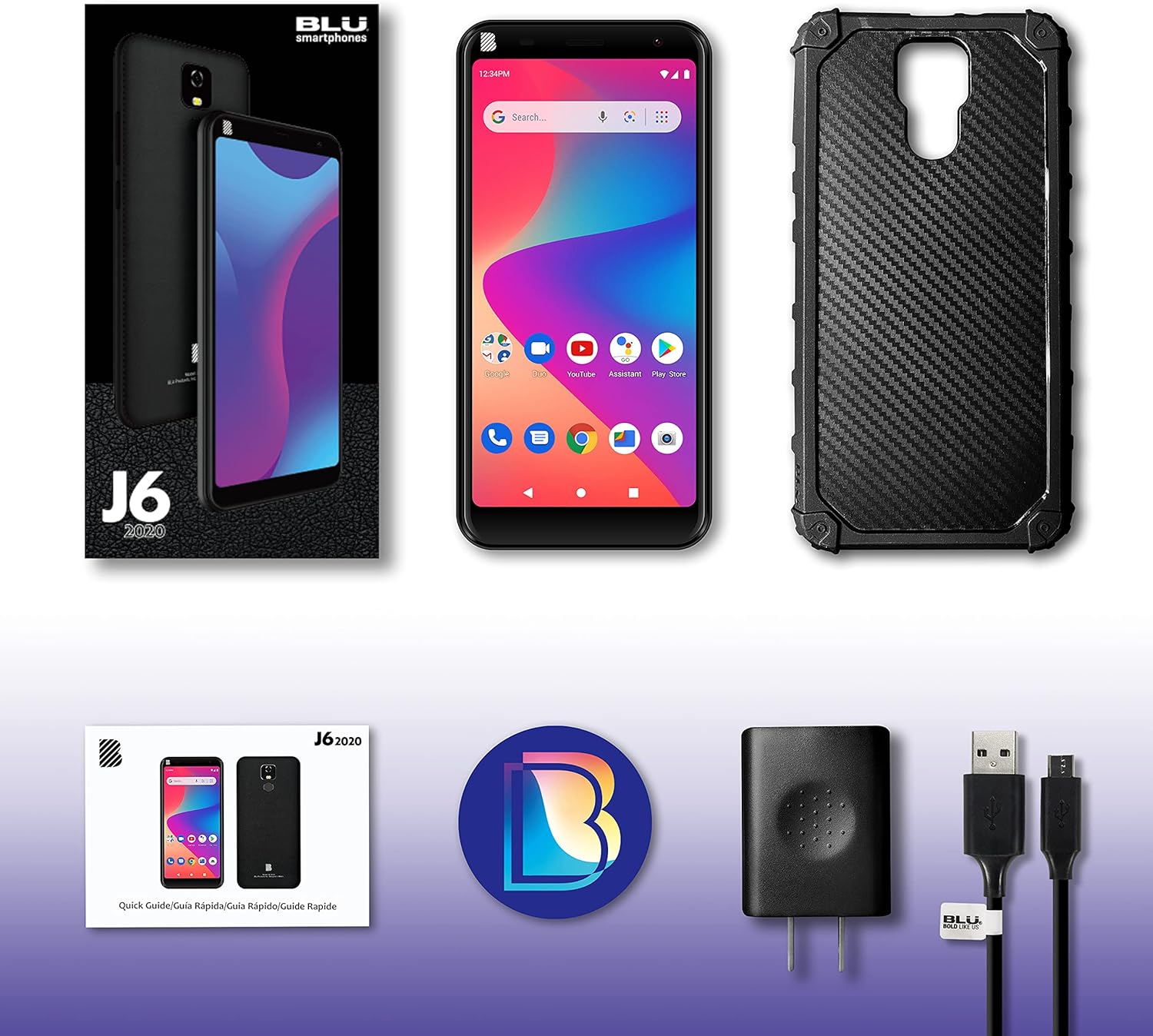
Image: Contents of the BLU J6 2021 retail package.
Setup
Insert SIM Card
Locate the SIM card tray on the side of your BLU J6. Use the provided SIM ejector tool (if included, otherwise a small paperclip) to open the tray. Insert your Nano-SIM card(s) into the designated slots. Ensure the SIM card is correctly oriented. This device is compatible with GSM carriers such as AT&T, T-Mobile, and Metro PCS. Note: SIM card is not included. Not compatible with NEW AT&T or Cricket activations or with CDMA Networks like Verizon, Sprint, and Boost Mobile.
Charge the Battery
Connect the USB cable to the charger adapter and then to your BLU J6's charging port. Plug the charger into a power outlet. Allow the phone to charge fully before initial use. The device includes a 4000mAh battery.
Power On and Initial Configuration
Press and hold the Power button until the BLU logo appears. Follow the on-screen prompts to select your language, connect to a Wi-Fi network, and set up your Google account. This will guide you through the initial setup process for the Android 10 operating system.

Image: Front and back view of the BLU J6 2021 smartphone.
Operating Instructions
Basic Navigation (Android 10)
- Home Screen: Swipe left or right to access different home screens.
- App Drawer: Swipe up from the bottom of the screen to view all installed applications.
- Notifications & Quick Settings: Swipe down from the top of the screen to access notifications and quick settings toggles.
- Navigation Buttons: Use the virtual buttons at the bottom of the screen for Back, Home, and Recent Apps functions.
Making Calls and Sending Messages
- Calls: Tap the Phone icon, enter the number, and tap the call button.
- Messages: Tap the Messages icon, start a new conversation, enter the recipient and your message.
Camera Usage
The BLU J6 features an 8MP main camera and an 8MP front camera. Tap the Camera icon to open the camera application. You can switch between front and rear cameras, select modes, and adjust settings within the app.
Display Features
The device is equipped with a 6.0-inch HD+ 18:9 Curved Glass display. Adjust brightness, screen timeout, and other display settings in the Settings menu under "Display."

Image: Illustration of the BLU J6's 6-inch HD+ Curved Glass Display.

Image: Illustration of the BLU J6's rear fingerprint sensor for secure unlocking.
Maintenance
- Cleaning: Use a soft, lint-free cloth to clean the screen and body of the phone. Avoid using harsh chemicals or abrasive materials.
- Software Updates: Regularly check for and install system updates to ensure optimal performance and security. Go to Settings > System > System update.
- Battery Care: To prolong battery life, avoid extreme temperatures. Do not leave the phone charging for extended periods after it reaches 100%.
- Storage Management: Periodically clear unnecessary files and apps to maintain 32GB internal storage efficiency.
Troubleshooting
If you encounter issues with your BLU J6, refer to the following common solutions:
- Phone Not Powering On:
Ensure the battery is sufficiently charged. Connect the phone to its charger and allow it to charge for at least 30 minutes before attempting to power it on again. If the issue persists, perform a forced restart by holding the Power button for 10-15 seconds.
- Poor Network Connectivity:
Check if your SIM card is properly inserted. Verify that you are within your carrier's network coverage area. Try restarting the phone or toggling Airplane Mode on and off.
- Apps Crashing or Freezing:
Close and reopen the problematic app. Clear the app's cache and data via Settings > Apps & notifications > [App Name] > Storage & cache. If the issue continues, uninstall and reinstall the app.
- Slow Performance:
Close unused background applications. Clear cache and temporary files. Consider uninstalling apps you no longer use to free up storage space. A factory reset can resolve persistent performance issues, but remember to back up your data first.
Specifications
| Feature | Detail |
|---|---|
| Model Name | J6 |
| Operating System | Android 10.0 |
| Display | 6.0 Inches HD+ 18:9 Curved Glass (1440 x 720 Resolution) |
| Processor | 1.3GHz Quad-Core |
| Internal Storage | 32 GB |
| RAM | 1 GB |
| Rear Camera | 8 MP |
| Front Camera | 8 MP |
| Battery Capacity | 4000 mAh Lithium Ion |
| Phone Talk Time | Up to 16 Hours |
| Connectivity | 2G Cellular, USB |
| Wireless Carrier Compatibility | Unlocked for GSM Carriers (AT&T, T-Mobile, Metro PCS, etc.) |
| Item Weight | 14 ounces |
| Dimensions | 7.2 x 3.82 x 1.93 inches (Package) |
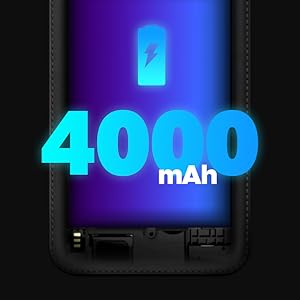
Image: Illustration of BLU J6's internal specifications.
Warranty and Support
The BLU J6 2021 smartphone comes with a US Warranty. For specific warranty terms, conditions, and duration, please refer to the warranty card included in your product packaging or visit the official BLU Products website.
For technical support, troubleshooting assistance beyond this manual, or service inquiries, please contact BLU customer support through their official channels. Contact information can typically be found on the BLU Products website or in the documentation provided with your device.


