
Introduction
This manual provides detailed instructions for the safe and efficient operation of your Portronics Dash 40W TWS Bluetooth Portable Speaker. Please read this manual thoroughly before using the product and retain it for future reference.

Image: The Portronics Dash 40W TWS Bluetooth Portable Speaker in Grey, showcasing its design and LED lighting.
What's in the Box
Carefully unpack the box and ensure all items are present:
- Portable Speaker (1 unit)
- Power Adapter (1 unit)
- AUX Cable (1 unit)
- Remote Control (1 unit)
- Wireless Karaoke Microphone (1 unit)
- User Manual (1 unit)
Product Overview
Control Panel

Image: A detailed view of the speaker's top control panel, featuring buttons for volume, mode, playback, record, and LED control, along with a digital display.
The speaker features an integrated control panel with a digital display for easy operation. Key controls include:
- Volume Control: Adjusts the speaker's output volume.
- Mode Button: Switches between Bluetooth, USB, AUX, and other available modes.
- Playback Controls: Play/Pause, Next Track, Previous Track.
- Record Button: Initiates audio recording via the wireless microphone.
- LED Button: Controls the speaker's LED lighting effects.
- Power Button: Turns the speaker on or off.
Connectivity Ports
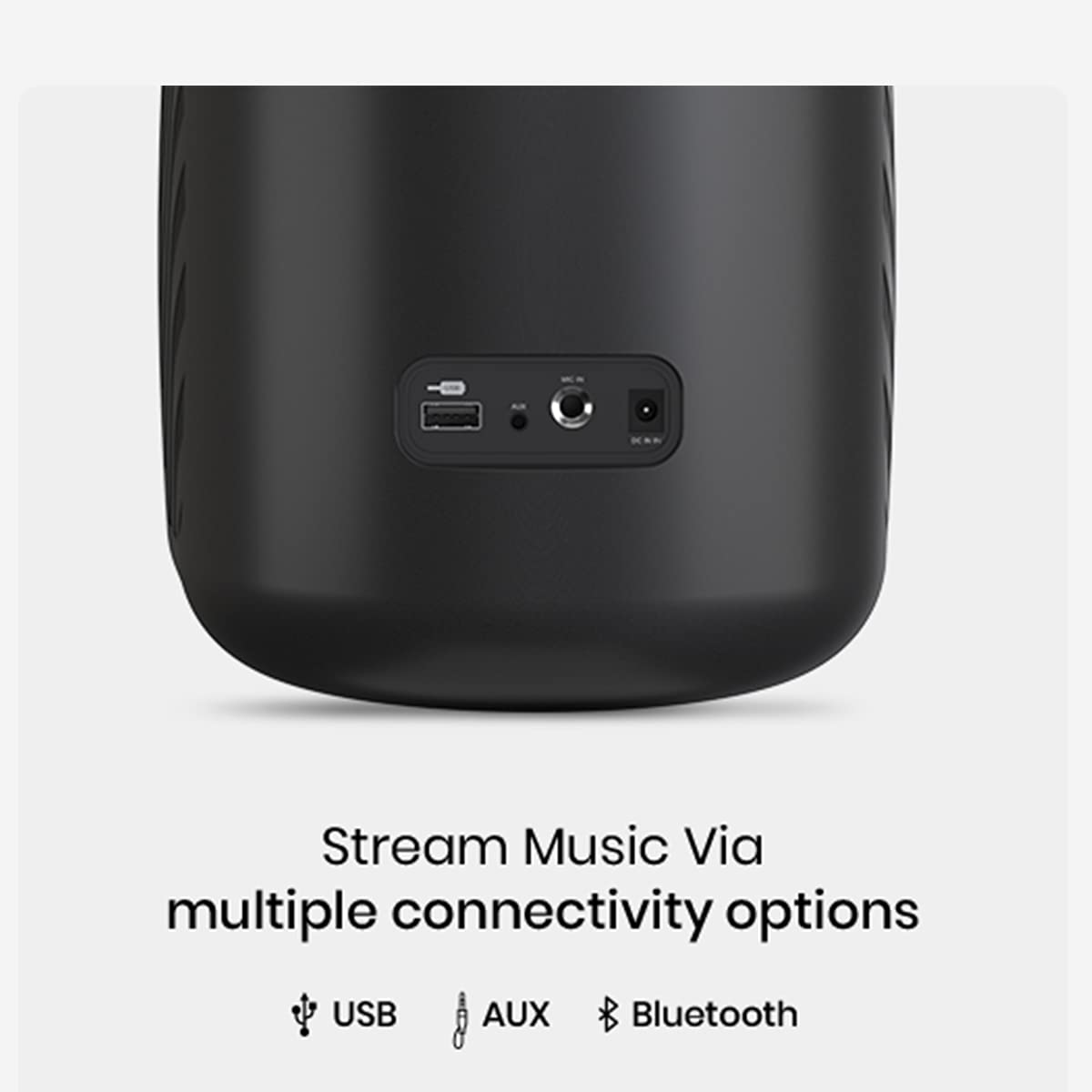
Image: The rear panel of the speaker showing the USB port, AUX input, and DC 9V power input.
The speaker offers multiple connectivity options:
- USB Port: For playing music from USB drives.
- AUX Input: For connecting external audio devices via a 3.5mm audio cable.
- DC 9V Input: For charging the speaker.
Setup
Charging the Speaker
- Connect the provided power adapter to the DC 9V input port on the speaker.
- Plug the power adapter into a wall outlet.
- The charging indicator (if available) will illuminate. Allow sufficient time for a full charge before first use.
Wireless Microphone Setup
- Insert batteries into the wireless karaoke microphone (batteries not included).
- Turn on the microphone using its power switch.
- The microphone will automatically pair with the speaker when the speaker is in microphone mode.

Image: The Portronics Dash speaker alongside its wireless karaoke microphone and remote control.
Operating Instructions
Power On/Off
- Press and hold the Power button on the control panel to turn the speaker on or off.
Bluetooth Pairing
- Turn on the speaker. It will automatically enter Bluetooth pairing mode, indicated by a flashing 'BLUE' on the digital display.
- Enable Bluetooth on your mobile device or computer.
- Search for 'PORTRONICS DASH' in the list of available Bluetooth devices.
- Select 'PORTRONICS DASH' to connect. Once connected, the display will show a steady 'BLUE' and you will hear a confirmation tone.
TWS (True Wireless Stereo) Functionality
To connect two Portronics Dash speakers for stereo sound:
- Ensure both speakers are powered on and not connected to any Bluetooth device.
- On one speaker (this will be the primary speaker), press the TWS button. The speaker will emit a tone and search for the secondary speaker.
- The two speakers will automatically pair with each other. Once paired, the primary speaker's display will indicate TWS mode.
- Now, connect your mobile device to the primary speaker via Bluetooth as described above. Both speakers will play audio in stereo.
USB Playback
- Insert a USB drive containing MP3 audio files into the USB port.
- The speaker will automatically switch to USB mode and begin playing music. If not, press the Mode button to select USB mode.
- Use the playback controls on the speaker or remote to manage music.
AUX Playback
- Connect one end of the 3.5mm AUX cable to the AUX input port on the speaker.
- Connect the other end to the audio output jack of your external device (e.g., laptop, mobile phone).
- The speaker will automatically switch to AUX mode. If not, press the Mode button to select AUX mode.
- Control playback and volume from your connected device.
Karaoke Microphone Usage & Recording
- Ensure the wireless microphone is powered on and paired with the speaker.
- Adjust the microphone volume using the dedicated controls on the microphone or speaker.
- To record your singing, press the REC button on the speaker's control panel. A USB drive must be inserted for recording functionality.
- Press REC again to stop recording. The recorded audio will be saved to the USB drive.

Image: A person actively singing into the wireless karaoke microphone, demonstrating the recording feature.
LED Lights
- Press the LED button on the control panel to cycle through different lighting modes or turn the LED lights off.

Image: The Portronics Dash speaker displaying its dynamic LED lighting, enhancing the audio experience.
Specifications
| Feature | Description |
|---|---|
| Model Number | POR-1360 |
| Output Wattage | 40 Watts |
| Connectivity Technology | Bluetooth, USB, AUX |
| Battery Type | Lithium-ion |
| Battery Capacity | 4400 mAh |
| Playtime | Up to 5-6 hours (at typical listening volumes) |
| Item Dimensions (L x W x H) | 25 x 21 x 21 Centimeters |
| Item Weight | 3000 Grams |
| Special Features | TWS Functionality, Wireless Karaoke Microphone, Audio Recording, Digital Display, LED Lights |
Maintenance
- Keep the speaker away from water, moisture, and direct sunlight.
- Clean the speaker with a soft, dry cloth. Do not use abrasive cleaners or solvents.
- Store the speaker in a cool, dry place when not in use for extended periods.
- Avoid dropping or subjecting the speaker to strong impacts.
Troubleshooting
No Power
- Ensure the speaker is fully charged.
- Verify the power adapter is correctly connected to both the speaker and a working power outlet.
No Sound
- Check the volume levels on both the speaker and your connected device.
- Ensure the correct input mode (Bluetooth, USB, AUX) is selected.
- For Bluetooth, ensure the device is properly paired and within range.
- For AUX, ensure the cable is securely connected to both devices.
Microphone Not Working
- Check if the microphone is powered on and has fresh batteries.
- Ensure the microphone is paired with the speaker.
- Adjust the microphone volume.
TWS Pairing Issues
- Ensure both speakers are not connected to any other Bluetooth device before initiating TWS pairing.
- Make sure both speakers are within close proximity to each other.
- Repeat the TWS pairing steps carefully.
Warranty and Support
The Portronics Dash 40W TWS Bluetooth Portable Speaker comes with a 1 Year Manufacturing Warranty.
For warranty claims, technical support, or any other inquiries, please contact Portronics customer service:
- Manufacturer Contact: Portronics, 9555-245-245
- Importer/Packer Contact: Portronics Digital Pvt. Ltd. B-76, Wazirpur Industrial Area, New Delhi -110052
Product Video Overview
Video: A brief overview of the Portronics Dash 40W TWS Bluetooth Portable Speaker's key features and design.


