
BLU J4 Android Smartphone User Manual
Model: J455BLU
Introduction
Welcome to the BLU J4 user manual. This guide provides essential information for setting up, operating, and maintaining your new smartphone. Please read this manual thoroughly to ensure proper use and to maximize your device's potential.
Package Contents
- BLU J4 Smartphone
- Charger
- Quick Start Guide (may vary by region)
- Safety Information (may vary by region)
Device Layout
Familiarize yourself with the physical components of your BLU J4 smartphone.

This image displays the BLU J4 smartphone in Violet, showing both the front screen and the textured back panel. The front features the display, front camera, and earpiece. The back includes the main camera, LED flash, and BLU logo.
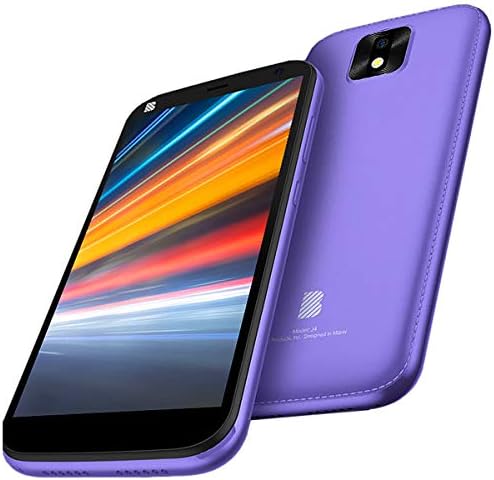
This image presents the BLU J4 smartphone from a slightly different angle, highlighting the sleek design and the violet color. It shows the display with a vibrant wallpaper and the rear camera module.
Physical Buttons and Ports
- Power Button: Located on the right side, used to turn the device on/off or wake/sleep the screen.
- Volume Buttons: Located on the right side, used to adjust media volume or ringtone volume.
- Micro USB Port: Located at the bottom, used for charging and data transfer.
- SIM/MicroSD Tray: Located on the left side, for inserting SIM cards and a MicroSD card.
- Main Camera & Flash: Located on the rear.
- Front Camera: Located on the front, above the display.
Initial Setup
Inserting SIM Cards and MicroSD Card
- Power off the device completely.
- Locate the SIM/MicroSD tray on the left side of the phone.
- Use the provided SIM ejector tool (or a thin, pointed object) to gently press into the small hole on the tray until it ejects.
- Carefully place your Nano SIM cards (up to two) and MicroSD card (up to 64GB) into the designated slots on the tray. Ensure correct orientation as indicated on the tray.
- Gently push the tray back into the phone until it is flush with the device's side.
Charging the Device
Connect the charger to the Micro USB port at the bottom of the phone and plug the other end into a power outlet. The battery indicator on the screen will show the charging status. It is recommended to fully charge the device before first use.
Powering On/Off
- To Power On: Press and hold the Power button until the BLU logo appears on the screen.
- To Power Off: Press and hold the Power button, then select "Power off" from the options that appear on the screen.
Basic Operation
Making Calls
Open the Phone app from your home screen. Enter the desired phone number using the dial pad, then tap the call icon. If you have two SIM cards inserted, you will be prompted to select which SIM to use for the call.
Sending Messages
Open the Messages app. Tap "Start chat" or the new message icon. Enter the recipient's phone number or select a contact from your address book. Type your message in the text field and tap the send icon.
Connecting to Wi-Fi
Navigate to Settings > Network & internet > Wi-Fi. Toggle the Wi-Fi switch to the "On" position. Your phone will scan for available networks. Select your desired network from the list and enter the password if required. Tap "Connect" to establish the connection.
Using the Camera
Open the Camera app from your home screen or app drawer. Tap the shutter button to capture a photo. To switch between the 8MP main camera and the 8MP front camera, tap the camera switch icon on the screen.
Dual SIM Functionality
Your BLU J4 supports two SIM cards, allowing you to manage two different phone numbers or network providers simultaneously. You can configure preferred SIMs for calls, messages, and mobile data by going to Settings > Network & internet > SIM cards.
Maintenance and Care
Cleaning Your Device
To clean your BLU J4, use a soft, lint-free cloth. Gently wipe the screen and the body of the phone. Avoid using harsh chemicals, abrasive materials, or excessive moisture, as these can damage the device.
Software Updates
Regularly check for system updates to ensure your device has the latest features, security patches, and performance improvements. You can typically find this option in Settings > System > System update.
Battery Care
- Avoid exposing your device to extreme temperatures (very hot or very cold).
- Do not frequently allow the battery to fully discharge to 0%.
- Always use the charger provided with your BLU J4 or an approved compatible charger.
Troubleshooting
Device Not Turning On
- Ensure the battery is sufficiently charged. Connect the charger and wait a few minutes before attempting to power on.
- Press and hold the Power button for at least 10-15 seconds to perform a forced restart.
Poor Network Signal
- Verify that your SIM cards are correctly inserted into the tray.
- Move to an area with better cellular network coverage.
- Restart your device to refresh the network connection.
Apps Crashing or Freezing
- Close the problematic app and reopen it.
- Clear the app's cache: Go to Settings > Apps & notifications > [Select App Name] > Storage & cache > Clear cache.
- Restart your phone.
Technical Specifications
| Feature | Detail |
|---|---|
| Model | J455BLU |
| Operating System | Android |
| Processor | 1.3 GHz Quad-Core |
| Display | 5.5" HD+ (720 x 1440) |
| Internal Storage | 32GB |
| RAM | 1GB |
| Expandable Storage | MicroSD up to 64GB |
| Main Camera | 8MP with LED Flash |
| Front Camera | 8MP with Flash |
| Connectivity | GSM Quad Band 3G (850/900/1900/2100), Wi-Fi (b/g/n), Bluetooth 4.0, Hotspot, Micro USB v2.0 |
| SIM | Dual SIM |
| Audio Jack | No headphone jack |
| Package Dimensions | 6.69 x 3.62 x 2.01 inches |
| Item Weight | 10.8 ounces |
Warranty Information
For detailed warranty terms and conditions, please refer to the warranty card included in your product packaging. You may also visit the official BLU website for the most current warranty policy applicable to your region.
Support
If you encounter issues not covered in this manual or require further assistance, please visit the official BLU support website or contact their customer service department. Have your device model number and purchase information ready when seeking support.
Official BLU Website: www.bluproducts.com


