
MekedeTech Android 12 Car Radio 12.5 inch Head Unit
MekedeTech Android 12 Car Radio 12.5 inch Touch Screen User Manual
Model: 12.5 inch Head Unit for Mercedes Benz C/GLC Class W205 (2016-2018)
Introduction
This user manual provides detailed instructions for the installation, operation, and maintenance of your MekedeTech Android 12 Car Radio 12.5 inch Touch Screen Head Unit. This system is designed to enhance your in-car entertainment and navigation experience while seamlessly integrating with your vehicle's original functions.
Applicable Models
This head unit is compatible with the following Mercedes-Benz models:
- Mercedes-Benz C-Class W205 (2015 to 2018) with NTG 5.0 system
- Mercedes-Benz GLC-Class X253 (2016 to 2018) with NTG 5.0 system
- Mercedes-Benz V-Class W446 (2016 to 2018) with NTG 5.0 system
Please ensure your vehicle's NTG system version matches the requirements for proper compatibility.
Key Features
- Operating System: Android 12 system
- Processor & Memory: Octa-core CPU, 4GB RAM, 64GB ROM
- Display: 12.5 inch 1920x720 IPS touch screen
- Dual System Conversion: Seamlessly switch between original NTG system and Android System.
- Original Function Retention: Supports factory radio, GPS navigation, Bluetooth, DVD/CD, USB, SD, factory rear view camera with reverse trajectory, 360 camera, door open warning.
- Control Compatibility: Compatible with original joystick, touch mouse and steering wheel controls.
- Audio Integration: Compatible with original sound system and optic fiber, supports lossless audio playback.
- Built-in Wireless CarPlay: No additional dongle required for CarPlay functionality.
- AHD Reversing Video Support: Provides clearer rear view video quality.
- Anti-collision Warning: Integrated driving recorder for enhanced safety.
- Split Screen Display: Run two applications simultaneously on the screen.
- Dual WiFi Band: Supports both 2.4GHz and 5GHz for faster network connectivity.
Package Contents
Please verify that all items listed below are included in your package:

Image showing the complete set of accessories including power cable, LVDS cable, USB cable, GPS antenna, 4G antenna, two types of microphones, and an AUX convert line.
- MekedeTech 12.5 inch Android Head Unit
- Power Cable
- LVDS Cable
- USB Cable
- GPS Antenna
- 4G Antenna
- Microphone (2 types)
- AUX Convert Line
- Mounting Bracket (pre-attached or separate)
Installation Guide
The MekedeTech head unit is designed for a plug-and-play installation, requiring no modification to your original car display. Simply exchange the original car TFT monitor.
Installation Steps:
- Preparation: Ensure the vehicle's ignition is off and the battery is disconnected before beginning installation.
- Remove Original Display: Carefully remove the original car's TFT monitor from the dashboard. Refer to your vehicle's service manual for specific instructions on removing trim panels and the display unit.
- Connect Cables: Connect the provided power cable, LVDS cable, USB cable, GPS antenna, and 4G antenna to the new MekedeTech head unit. Ensure all connections are secure.
- Integrate with Original System: Connect the necessary cables to integrate with your vehicle's original wiring harness. The system is designed to retain all original functions such as radio, amplifier, joystick control, and original rear view camera.
- Mount New Display: Securely mount the new 12.5 inch MekedeTech display into the dashboard opening. Ensure it is properly seated and aligned.
- Reconnect Battery: Once all connections are made and the unit is mounted, reconnect the vehicle's battery.
- Test Functionality: Turn on the ignition and test all functions of the new head unit, including touch screen response, audio, navigation, CarPlay, Bluetooth, and original system integration.

Visual comparison showing the original smaller screen and the new larger 12.5-inch MekedeTech screen installed in the dashboard.

Close-up view of the MekedeTech 12.5-inch display seamlessly integrated into a Mercedes Benz C-Class dashboard after installation.

Image showing the rear of the head unit, highlighting the connection ports and the robust mounting bracket design.
Operating Instructions
This section details the primary functions and how to operate your MekedeTech Android 12 Car Radio.
1. Main Interface Navigation

The primary home screen displaying quick access icons for Navigation, Music, Telephone, NTG Menu, and Settings.

Another view of the interface, showing icons for Video playback, Apps, PhoneLink, Dashboard information, and DVR controls.
The main interface provides intuitive access to core functions. Tap on the desired icon to launch the application or feature. You can swipe left or right to access additional screens with more applications.
2. Switching Between Systems (NTG & Android)
The unit supports seamless conversion between the original NTG system and the Android system. To switch, locate the "NTG Menu" icon on the Android interface and tap it. This will revert the display to your car's original system. To return to the Android system, typically press and hold the "C" or "Clear" button on your original car's console, or refer to the specific instructions provided with your unit.
3. Wireless CarPlay / Android Auto

The CarPlay interface displayed on the car radio screen, demonstrating phone navigation mirroring and other app icons.
The unit comes with built-in wireless CarPlay and Android Auto. To connect your smartphone:
- Ensure Bluetooth and Wi-Fi are enabled on your smartphone.
- On the head unit, navigate to the CarPlay/Android Auto application.
- Follow the on-screen prompts to pair your phone via Bluetooth. Once paired, the system will automatically establish a Wi-Fi connection for wireless CarPlay/Android Auto.
- Your phone's compatible apps will now be accessible on the head unit's display.
4. Bluetooth Connectivity
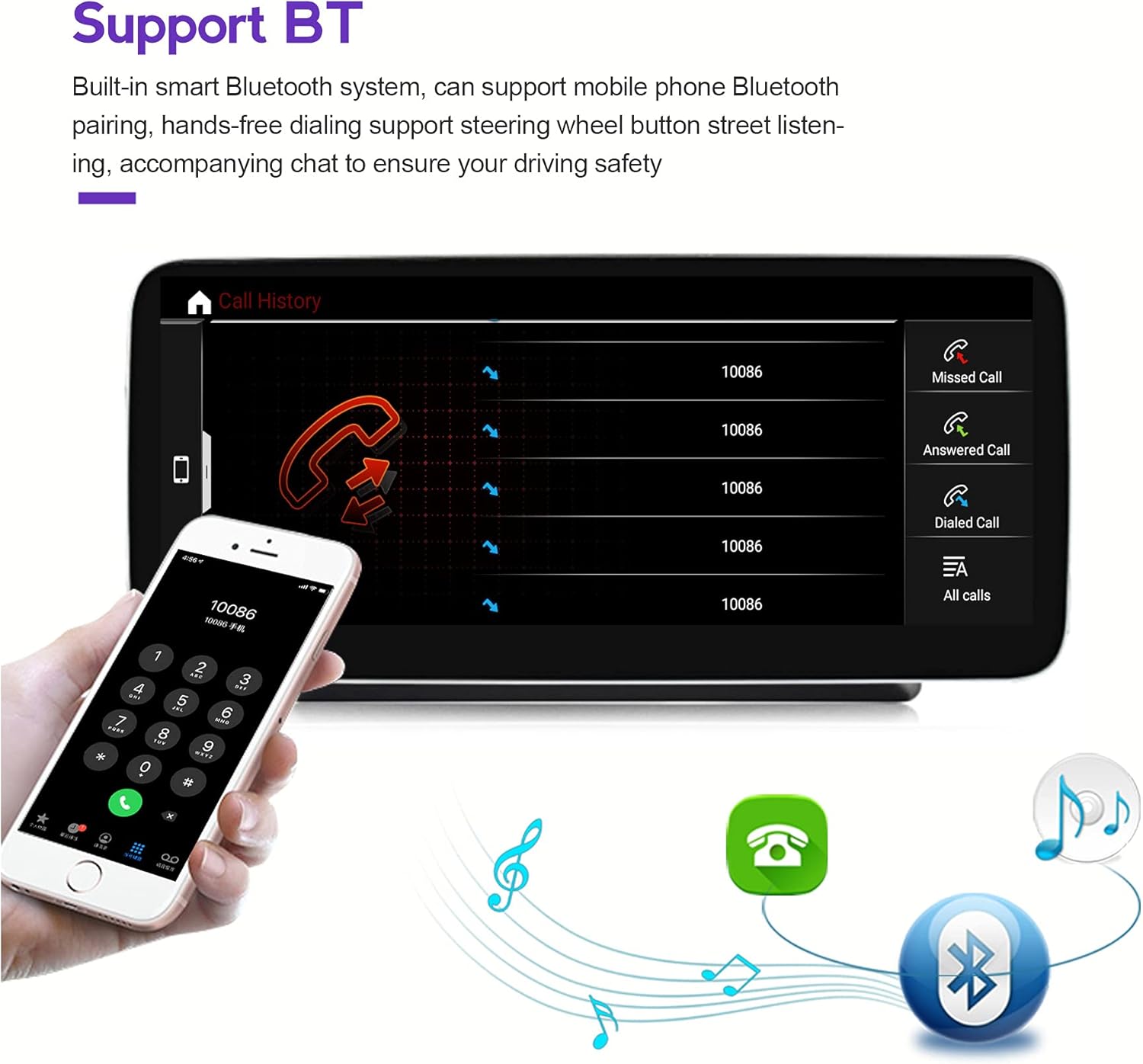
The Bluetooth interface showing call history on the car radio screen, with a smartphone displaying a dial pad, indicating hands-free calling capability.
The built-in smart Bluetooth system supports mobile phone pairing for hands-free calling and audio streaming.
- Go to the "Telephone" or "Bluetooth" application on the head unit.
- Enable Bluetooth on your smartphone and search for available devices.
- Select the head unit's Bluetooth name (e.g., "MekedeTech Car Radio") from your phone's list and confirm the pairing code.
- Once connected, you can make/receive calls, access contacts, and play music directly through the car's speakers.
5. Split Screen Display
The split-screen feature allows you to run two applications simultaneously. For example, you can have navigation on one side and music playback on the other.
- Open the first application you wish to use.
- Press and hold the "Recents" or "Multitasking" button (usually a square icon or three vertical lines) on the screen or the physical button if available.
- Drag the current application to one side of the screen.
- Select the second application from the app list to fill the other half of the screen.
6. Navigation
The unit supports various navigation applications available on the Android platform. You can download your preferred navigation app from the Google Play Store (requires internet connection).
- Tap the "Navigation" icon on the main interface.
- If prompted, select your preferred navigation application.
- Enter your destination and follow the on-screen directions.
Specifications
| Feature | Specification |
|---|---|
| Model | MekedeTech Android 12 Car Radio 12.5 inch |
| Operating System | Android 12 |
| CPU | Octa-core |
| RAM | 4GB |
| ROM | 64GB |
| Screen Size | 12.5 inches |
| Resolution | 1920x720 IPS |
| Connectivity | Wireless (Wi-Fi 2.4GHz/5GHz), Bluetooth, USB |
| Special Features | Built-in Wireless CarPlay, Split Screen, AHD Reversing Video, Anti-collision Warning, Original NTG System Retention |
| Compatible Devices | Smartphone, iPhone |
| Audio Output Mode | Stereo |
| Color | Black |
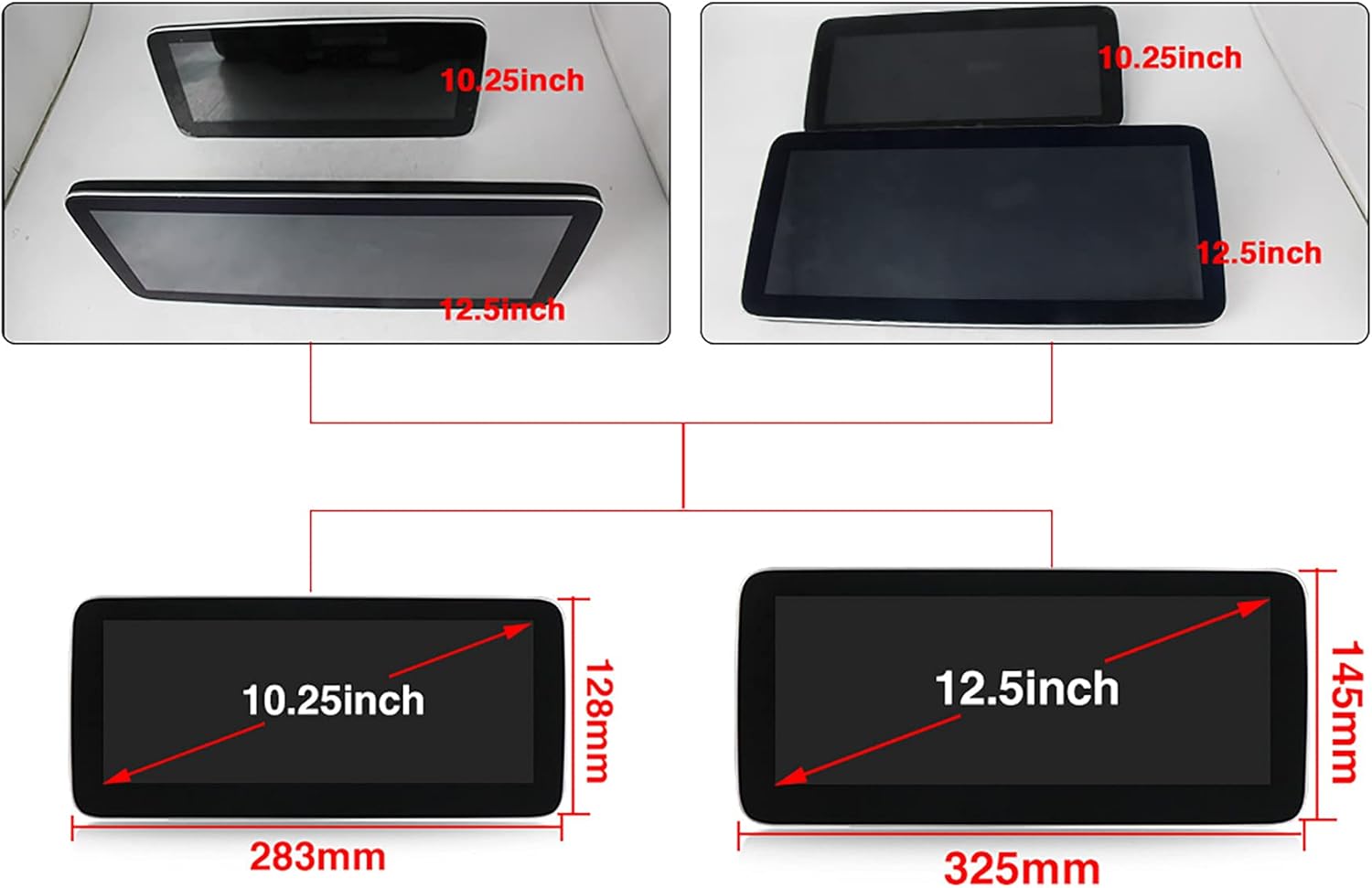
Diagram illustrating the physical dimensions of both the 10.25-inch and 12.5-inch screen variants, showing length and height measurements.
Maintenance
Proper maintenance ensures the longevity and optimal performance of your head unit.
- Screen Cleaning: Use a soft, lint-free cloth slightly dampened with water or a screen cleaner specifically designed for electronics. Do not use harsh chemicals or abrasive materials.
- Software Updates: Periodically check for software updates provided by MekedeTech to ensure you have the latest features and bug fixes. Updates can typically be found on the manufacturer's official website or through the unit's settings menu (if an OTA update feature is available).
- Environmental Conditions: Avoid exposing the unit to extreme temperatures, direct sunlight for prolonged periods, or excessive moisture.
- Cable Connections: Ensure all cables remain securely connected. Loose connections can lead to intermittent issues.
Troubleshooting
This section addresses common issues you might encounter and their potential solutions.
| Problem | Possible Cause / Solution |
|---|---|
| Unit does not power on. |
|
| No sound from speakers. |
|
| CarPlay/Android Auto not connecting. |
|
| Touch screen unresponsive. |
|
| Original NTG functions not working. |
|
Warranty and Support
MekedeTech products come with a standard manufacturer's warranty. For specific warranty terms and conditions, please refer to the warranty card included in your product packaging or visit the official MekedeTech website.
For technical support, troubleshooting assistance, or inquiries regarding parts and service, please contact MekedeTech customer service through their official channels. You may find contact information on their website or in your product documentation.
Manufacturer: Shenzhen Mekede Technology Co.,Ltd
Ask a question about this manual
Ask about setup, troubleshooting, compatibility, parts, safety, or missing instructions. Manuals+ will review the question and use this page’s manual context to help answer it.