
ezcap ezcap324
Ezcap 4K HDMI Internal PCI-E Video Capture Card User Manual
Brand: ezcap
Model: ezcap324
1. Introduction
The ezcap324 4K HDMI Internal PCI-E Video Capture Card is designed for high-quality video and audio recording and streaming. It offers seamless integration into your PC for live streaming, PC gaming, and sound mixing. This versatile capture card is compatible with a wide range of operating systems and gaming consoles, including Windows 10, Mac OS, PS4, Xbox, and Switch.
Key features include:
- 4K HDMI Video Capture: Captures 4K resolution video and audio via HDMI for high-quality recording and streaming.
- Internal PCI-Express Design: Allows for easy installation and saves space within your computer case.
- Live Streaming and Sound Mixing: Features line-in audio input and dedicated audio output for mixing sound from different sources, enhancing professional-quality live streams.
- PC Gaming Optimization: Provides smooth, low-latency video and audio capture for an enhanced gaming experience.
- Cross-Platform Compatibility: Compatible with Windows 10, Mac OS, PS4, Xbox, and Switch.
2. What's in the Box
Upon opening the package, please verify that all the following items are included:
- Ezcap324 Capture Card
- Installation Guide

Figure 2.1: Box contents of the ezcap324 capture card, showing the card itself, an anti-static bag, and the installation guide.
Video 2.1: An unboxing video of the Ezcap324 4K PCIE Capture Card, demonstrating the contents and initial presentation of the product.
3. Product Overview
The ezcap324 is an internal PCI-E card designed to fit into a compatible slot on your computer's motherboard. It features multiple ports for connecting various audio and video sources.

Figure 3.1: Detailed diagram of the ezcap324 capture card, highlighting its various input and output ports.
Port Descriptions:
| Label | Description |
|---|---|
| 1: PCI-E X1 | Connects to a PCI-E slot on your computer's motherboard. |
| 2: LINE IN | Audio input for mixing sound from an audio mixer or microphone. |
| 3: LINE OUT | Audio output for monitoring or routing mixed audio. |
| 4: HDMI IN | HDMI input for connecting video sources such as gaming consoles (PS4, Xbox, Switch) or other HDMI-enabled devices. |
| 5: HDMI OUT/Pass through | HDMI output for passing the video signal through to a display without latency. |
4. Setup and Installation
Follow these steps to install and set up your ezcap324 capture card:
- Install the Capture Card:
Power off your computer and open the computer case. Locate an available PCI-E X16 card slot on your motherboard. Carefully insert the ezcap324 capture card into the slot until it is firmly seated. Secure the card with the appropriate screw or latch mechanism on your computer case.

Figure 4.1: The ezcap324 card is designed for plug-and-play installation into a computer's PCI-E X16 slot, ensuring compatibility with most modern desktop systems.
- Connect HDMI Devices:
Connect your video source (e.g., gaming console, camera) to the HDMI IN port on the capture card using an HDMI cable. Connect your display monitor to the HDMI OUT/Pass through port on the capture card using another HDMI cable. This allows you to view your source content directly on your monitor without any delay.
- Connect Audio Devices (Optional):
If you wish to mix external audio, connect your audio mixer or microphone to the LINE IN port. For audio monitoring or routing, connect your speakers or headphones to the LINE OUT port.
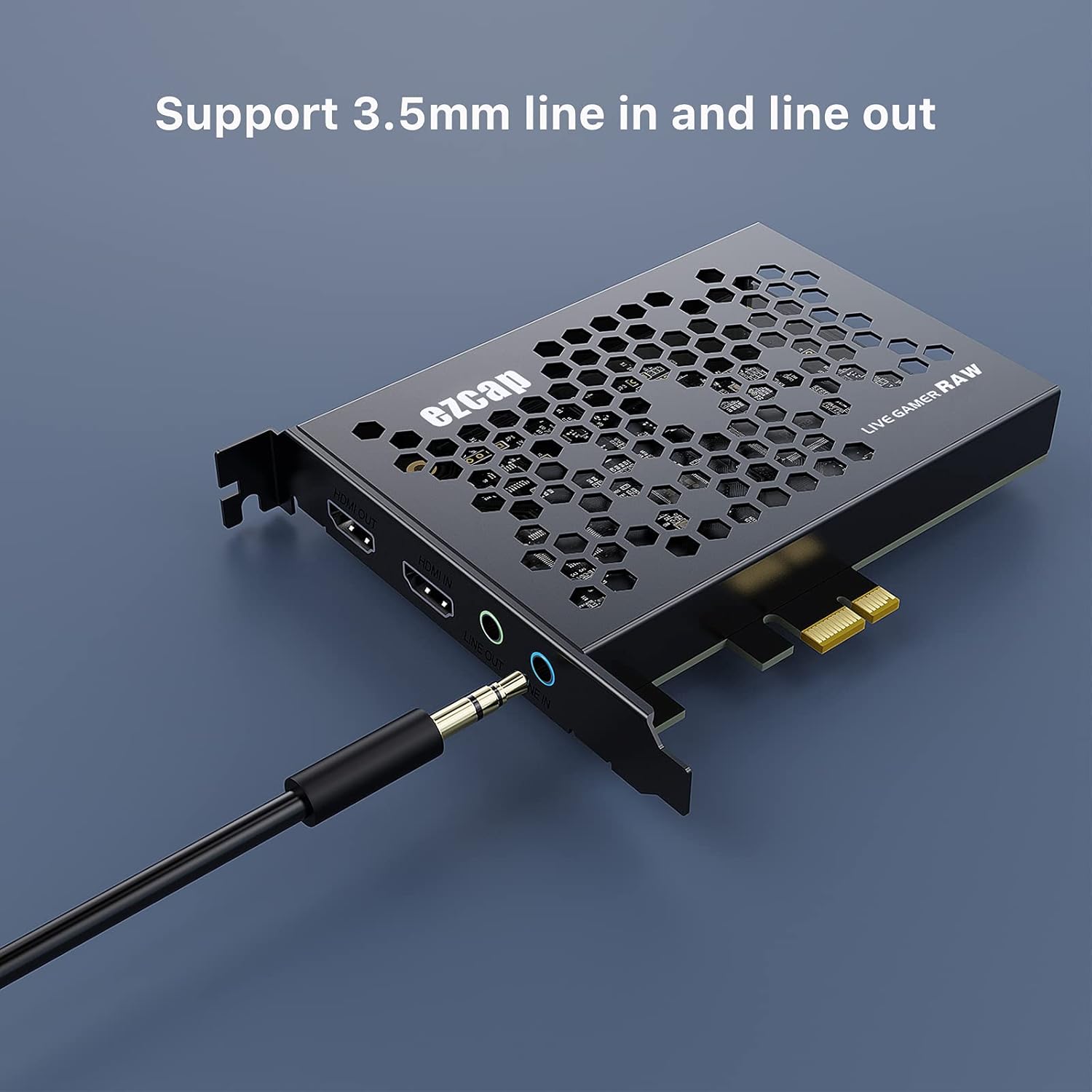
Figure 4.2: The ezcap324 supports 3.5mm line-in and line-out connections, allowing for external audio integration and monitoring.
- Power On and Driver Installation:
Close your computer case and power on your computer. The ezcap324 is generally plug-and-play on Windows 10 and Mac OS, meaning drivers should install automatically. If prompted, follow the on-screen instructions for driver installation.
- Software Installation:
For full functionality, install the official ezcaplink software or use third-party video capture software such as OBS Studio, Potplayer, or VLC. The ezcaplink software can typically be downloaded from the official ezcap website. These applications will allow you to configure recording, streaming, and audio mixing settings.

Figure 4.3: The ezcaplink software provides a user-friendly interface for managing video capture, recording, and live streaming settings.
Video 4.1: A demonstration of connecting the Ezcap324 4K PCIE HDMI Video Capture Card to a computer and external devices, showcasing the setup process.
5. Operating the Capture Card
Once installed and connected, the ezcap324 allows you to capture and stream content from various HDMI sources. The card is optimized for low-latency performance, crucial for gaming and live events.

Figure 5.1: The ezcap324 leverages PCI-E Gen2 super-fast speed to achieve latency less than 50ms, ensuring smooth and responsive capture.
Using with Software:
- ezcaplink Software: Open the ezcaplink application. Select the ezcap324 as your video and audio input device. Configure your desired resolution (up to 4K@30fps, 1080p@120fps, or 1440p@60fps) and frame rate. You can then start recording or initiate a live stream.
- OBS Studio (Recommended): For advanced streaming and recording, OBS Studio is highly recommended. Add a "Video Capture Device" source and select the ezcap324. Configure video and audio settings within OBS. You can also add other sources, scenes, and apply filters for a professional broadcast.
- Sound Mixing: Utilize the LINE IN port to bring in external audio, such as commentary from a microphone or background music from an audio mixer. This audio can be mixed with the HDMI audio within your capture software for a unified output.
The card supports various resolutions and frame rates, including 2160p30, 1080p120, and 1440p60 for both input and pass-through, ensuring high-quality capture for diverse applications.
6. Maintenance
To ensure the longevity and optimal performance of your ezcap324 capture card, follow these maintenance guidelines:
- Keep Clean: Regularly clean the exterior of the card and the surrounding area inside your PC case to prevent dust buildup, which can affect performance and lead to overheating. Use compressed air to gently remove dust from the card's heatsink and vents.
- Proper Handling: When handling the card, always hold it by its edges to avoid touching the gold-plated connectors or sensitive components.
- Environmental Conditions: Operate the card within a well-ventilated computer case to maintain proper airflow and prevent excessive heat. Avoid exposing the card to extreme temperatures or humidity.
- Software Updates: Keep your operating system and capture software (ezcaplink, OBS, etc.) updated to the latest versions to ensure compatibility and access to performance improvements and bug fixes.
7. Troubleshooting
If you encounter issues with your ezcap324 capture card, please refer to the following common problems and solutions:
- No Signal or Frozen Image:
Ensure all HDMI cables are securely connected to both the capture card and your source/display devices. Try unplugging and re-plugging the HDMI cables. Verify that your source device is powered on and outputting a signal. Check your capture software settings to ensure the correct input is selected and configured.
- Software Issues (Settings Not Retained, Chopped Recordings):
Some users have reported issues with the bundled software not retaining settings or chopping recordings into multiple files. It is highly recommended to use third-party software like OBS Studio, which offers more robust features and stability. Ensure your software is running with administrator privileges if necessary.
- Lower Than Expected Resolution/Quality:
Verify that your source device is outputting the desired resolution and that your capture software is configured to capture at that resolution. While the card supports up to 4K@30fps, 1080p@120fps, and 1440p@60fps, actual performance can depend on your computer's specifications and the software used. Ensure your graphics drivers are up to date.
- HDCP Error Messages:
If you are trying to capture content from a device that uses High-bandwidth Digital Content Protection (HDCP), the capture card may display an error message or no signal. This is a standard digital rights management protocol and affects most capture cards. The ezcap324 cannot bypass HDCP. Ensure your source content is not HDCP-protected if you intend to capture it.
- Audio Issues (No Sound, Distorted Audio):
Check audio connections for both HDMI and 3.5mm line-in/out ports. Verify audio input and output settings within your capture software. Ensure volume levels are appropriately set on both the source device and within your software.
8. Specifications
| Feature | Detail |
|---|---|
| Brand | ezcap |
| Model Name | ezcap324B |
| Item Model Number | ezcap324 |
| Hardware Interface | PCI-E, HDMI, 3.5mm Audio |
| Video Capture Resolution | Up to 4K@30fps, 1080p@120fps, 1440p@60fps |
| Operating System Compatibility | Windows 10, Mac OS |
| Item Weight | 11.3 ounces |
| Package Dimensions | 7.72 x 5.94 x 1.57 inches |
| Color | ezcap324 (Black) |
| Manufacturer | ezcap |
| First Available Date | June 23, 2021 |
9. Warranty and Support
For detailed warranty information, please refer to the official ezcap website or the warranty card included with your product. Warranty terms and conditions may vary by region and retailer.
If you require technical assistance or have questions not covered in this manual, please visit the official ezcap support page or contact their customer service. Keep your purchase receipt handy as proof of purchase may be required for support or warranty claims.
You can find more information and support resources on the ezcap Amazon Store.
Ask a question about this manual
Ask about setup, troubleshooting, compatibility, parts, safety, or missing instructions. Manuals+ will review the question and use this page’s manual context to help answer it.