
1. Introduction
The ezcap234 Portable Cassette Player & Recorder is a versatile device designed for playing cassette tapes, converting them to MP3 files, and functioning as an AM/FM radio. It also features a built-in microphone for voice recording and a speaker for direct audio output. This manual provides detailed instructions for the setup, operation, and maintenance of your device.

Figure 1.1: Ezcap234 Portable Cassette Player and Recorder (Grey model)
This image displays the Ezcap234 device from a slightly elevated angle, showcasing its grey and black casing, speaker grille, control buttons, and extended antenna. It highlights the compact and portable design of the unit.
2. Product Features
- AM/FM Radio Reception: Supports AM 520-1610KHz and FM 87-108MHz with excellent reception via a long antenna and upgraded DSP chip.
- Cassette Player: Plays standard cassette tapes with an auto-stop function. Includes playback function for recorded files.
- Cassette to MP3 Converter: Converts audio from cassette tapes directly to digital MP3 files on a Micro SD (TF) card. Supports automatic song division and FAT/FAT32 TF card format. No computer or driver required.
- Audio Recorder: Features a built-in microphone for voice recording directly to the TF card.
- Sound Quality: Equipped with a 1W speaker for clear audio output. Includes a 3.5mm headphone jack for private listening.
- Portable Design: Lightweight and compact, suitable for on-the-go use.
- Power Supply: Operates on 2x AA batteries or via USB power.

Figure 2.1: Key Features of the Ezcap234
This image illustrates the primary functionalities of the Ezcap234, including Tape Player/Converter, AM/FM Radio, Voice Recorder, Earphone Jack, Playback, and Inside Speaker, represented by distinct icons.
3. Package Contents
Verify that all items are present in the package:
- Ezcap234 Portable Cassette Player & Recorder
- USB cable
- Owner's Manual
- Micro SD card

Figure 3.1: Contents of the Ezcap234 Retail Box
This image shows the Ezcap234 device, its retail packaging, a USB cable, and the user guide, indicating the items included in the product box.
4. Product Layout and Controls
Familiarize yourself with the various parts and controls of your Ezcap234 device:

Figure 4.1: Ezcap234 Labeled Diagram
This diagram provides a detailed view of the Ezcap234, with labels pointing to key components such as the antenna, volume adjustment, microphone, earphone jack, Micro SD card slot, radio tuning knob, FM/AM switch, Tape/Radio switch, Record/Stop recording button, Indicator LED, UP/DOWN buttons, Play/Stop playing button, Tape fast forward and rewind buttons, Stop playing tape button, Play tape button, Speaker, and 5V DC jack.
- Antenna: Extend for improved AM/FM radio reception.
- Volume Adjustment: Rotary knob to control audio output level.
- Microphone: Built-in microphone for voice recording.
- Earphone Jack (3.5mm): For connecting headphones.
- Micro SD Card Slot: Insert TF card for MP3 conversion and recording.
- Radio Tuning Knob: Adjusts radio frequency.
- FM/AM Switch: Selects between FM and AM radio bands.
- Tape/Radio Switch: Toggles between cassette player and radio modes.
- Record / Stop Recording Button: Initiates or stops recording.
- Indicator LED: Shows device status (e.g., recording, power).
- UP / DOWN Buttons: Navigation buttons, typically for MP3 playback.
- Play / Stop Playing Button: Starts or pauses cassette playback/MP3 playback.
- Tape Fast Forward and Rewind Buttons: Controls tape movement.
- Stop Playing Tape Button: Stops cassette playback.
- Speaker: Integrated speaker for audio output.
- 5V DC Jack: For connecting the USB power cable.
5. Setup
5.1 Power Supply
The Ezcap234 can be powered by two (2) AA batteries or via the included USB cable.
- Battery Installation: Open the battery compartment cover on the back of the device. Insert two AA batteries, ensuring correct polarity (+/-). Close the cover securely.
- USB Power: Connect the small end of the USB cable to the 5V DC jack on the device and the other end to a USB power adapter (not included) or a computer USB port.
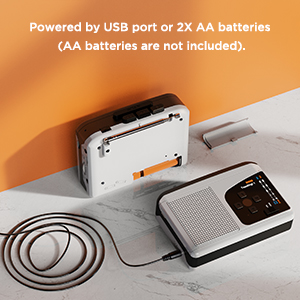
Figure 5.1: Powering the Ezcap234
This image demonstrates the two power options for the Ezcap234: connecting via a USB cable to a power source or inserting two AA batteries into the battery compartment.
5.2 Micro SD (TF) Card Insertion
A Micro SD (TF) card is required for converting tapes to MP3, recording voice, and playing MP3 files. Ensure the card is formatted to FAT or FAT32.
- Locate the Micro SD card slot on the side of the device.
- Insert the Micro SD card gently until it clicks into place. To remove, push the card in again until it springs out.
6. Operating Instructions
6.1 Cassette Playback
- Open the cassette compartment and insert a cassette tape. Close the compartment.
- Slide the Tape/Radio switch to the "Tape" position.
- Press the Play button to start playback.
- Adjust the Volume knob to your desired listening level.
- Use the Fast Forward or Rewind buttons to navigate the tape.
- Press the Stop button to end playback. The device features an auto-stop function at the end of the tape.
6.2 AM/FM Radio Operation
- Slide the Tape/Radio switch to the "Radio" position.
- Slide the FM/AM switch to select your desired band (FM or AM).
- Extend the Antenna for optimal reception.
- Rotate the Radio Tuning Knob to find a station.
- Adjust the Volume knob.

Figure 6.1: Ezcap234 Radio Functionality
This image visually represents the Ezcap234's capability to receive AM/FM radio broadcasts, with text bubbles indicating various types of content like Sport Programs, Weather, Music, Entertainment Programs, Talk shows, and News.
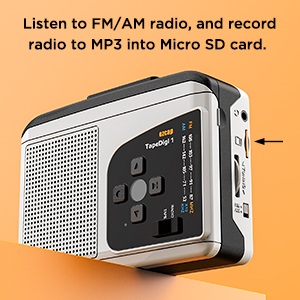
Figure 6.2: Recording Radio to MP3
This image shows the side view of the Ezcap234, highlighting the Micro SD card slot, with text indicating the ability to listen to FM/AM radio and record it to MP3 on the Micro SD card.
6.3 Cassette to MP3 Conversion
This device allows you to convert audio from cassette tapes directly to MP3 files on a Micro SD (TF) card without needing a computer.
- Ensure a FAT/FAT32 formatted Micro SD card is inserted into the slot.
- Insert the cassette tape you wish to convert.
- Slide the Tape/Radio switch to the "Tape" position.
- Press the Play button on the cassette player.
- Press the Record button. The Indicator LED will change to confirm recording has started.
- The device supports automatic song division. Each song will be saved as a separate MP3 file.
- To stop recording, press the Record button again.

Figure 6.3: Direct Recording from Tape to TF Card
This image shows the Ezcap234 with a cassette tape placed next to it, illustrating the direct recording capability of tapes onto a TF card.
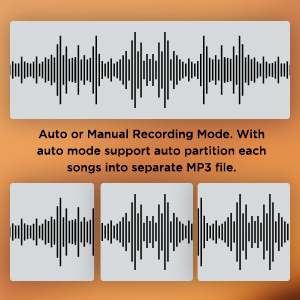
Figure 6.4: Recording Mode Options
This graphic displays waveform representations, indicating that the Ezcap234 supports both auto and manual recording modes, with auto mode capable of partitioning songs into separate MP3 files.
6.4 Voice Recording
The built-in microphone allows you to record external voices directly to the Micro SD card.
- Ensure a Micro SD card is inserted.
- Slide the Tape/Radio switch to the "Radio" position (or any mode where tape is not playing).
- Press the Record button. The Indicator LED will illuminate.
- Speak clearly towards the built-in microphone.
- To stop recording, press the Record button again.
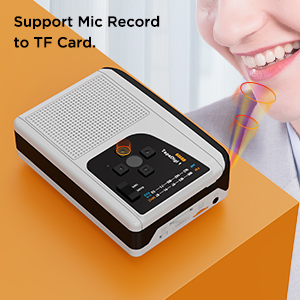
Figure 6.5: Microphone Recording Capability
This image depicts a person speaking near the Ezcap234, with sound waves emanating from their mouth towards the device, illustrating its support for microphone recording to a TF card.
6.5 MP3 Playback from TF Card
You can play MP3 files stored on your Micro SD card. Ensure MP3 files are placed in the "TAPEMP3" folder on the card.
- Ensure a Micro SD card with MP3 files in the "TAPEMP3" folder is inserted.
- Slide the Tape/Radio switch to the "Tape" position.
- Press the Play button. The device will automatically detect and play MP3 files from the "TAPEMP3" folder.
- Use the UP/DOWN buttons to navigate between tracks.
- Adjust the Volume knob.
- Press the Stop button to end playback.
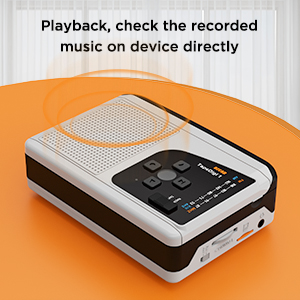
Figure 6.6: Playback Functionality
This image shows the Ezcap234 with sound waves emanating from it, indicating its ability to play back and allow users to check recorded music directly on the device.
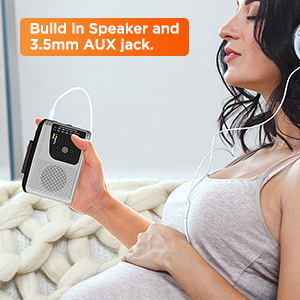
Figure 6.7: Headphone Use
This image depicts a person holding the Ezcap234 while wearing headphones, emphasizing the device's built-in speaker and 3.5mm AUX jack for private listening.
7. Maintenance
- Cleaning: Use a soft, dry cloth to clean the exterior of the device. Do not use liquid cleaners or abrasive materials.
- Cassette Head Cleaning: Periodically clean the cassette player's head and pinch rollers with a cotton swab lightly dampened with isopropyl alcohol to ensure optimal sound quality and prevent tape damage.
- Storage: When not in use for extended periods, remove batteries to prevent leakage. Store the device in a cool, dry place away from direct sunlight and extreme temperatures.
- Avoid Moisture: Keep the device away from water and high humidity.
8. Troubleshooting
| Problem | Possible Cause | Solution |
|---|---|---|
| Device does not power on. | Batteries are dead or incorrectly inserted. USB cable is not connected properly or power source is faulty. | Replace batteries or ensure correct polarity. Check USB cable connection and try a different USB port or power adapter. |
| No sound from speaker/headphones. | Volume is too low. Headphones not fully plugged in. Device is in the wrong mode (e.g., Tape mode for Radio). | Increase volume. Ensure headphones are fully inserted into the 3.5mm jack. Verify the Tape/Radio switch is in the correct position. |
| Poor radio reception. | Antenna not extended. Weak signal in current location. | Fully extend the antenna. Try repositioning the device or moving to a different location. |
| Cassette to MP3 conversion fails or files are corrupted. | Micro SD card not formatted to FAT/FAT32. Card is full. Tape head is dirty. | Format the Micro SD card to FAT or FAT32. Delete unnecessary files from the card or use a new card. Clean the cassette head. |
| MP3 files on TF card not playing. | MP3 files are not in the "TAPEMP3" folder. Incorrect file format. | Ensure MP3 files are placed in a folder named "TAPEMP3" on the root of the Micro SD card. Verify files are standard MP3 format. |
9. Specifications
| Feature | Detail |
|---|---|
| Product Dimensions | 4.7 x 3.5 x 1.4 inches (11.94 x 8.89 x 3.56 cm) |
| Item Weight | 10.5 ounces (297.67 grams) |
| Manufacturer | ezcap |
| Model Number | 7a57a55c-dbb1-4096-9f82-bf14841a9e93 |
| Color | Grey |
| Special Feature | Lightweight, Portable |
| Connectivity Technology | USB |
| Tuner Technology | AM, FM |
| Power Source | Battery Powered (2x AA batteries), USB Power Supply |
| Radio Bands Supported | AM, FM |
| Frequency | FM: 87-108 MHz; AM: 520-1610 KHz |
| Included Components | Owner's Manual, USB cable, micro SD card |

Figure 9.1: Ezcap234 Product Dimensions
This image provides a perspective view of the Ezcap234, with overlaid measurements indicating its approximate dimensions: 4.7 inches in length, 3.5 inches in width, and 1.4 inches in height.
10. Warranty and Support
For product support, technical assistance, or warranty inquiries, please contact the manufacturer, ezcap. Refer to the contact information provided with your purchase documentation or visit the official ezcap website for further details.
Please note that return policies may vary based on the retailer. For purchases made on Amazon, a 30-day refund/replacement policy is typically available from the date of purchase.
Manufacturer: ezcap Official Store


