
1. Product Overview
The Elitech ECB-LS230-WiFi is a sophisticated split electrical control box designed for precise temperature management in various applications, including cold storage. It features remote monitoring capabilities, a large LED display, and supports cooling, defrost, and fan control functions. Its split design enhances safety and installation flexibility.
- Split Design: The main controller and display board are separated, allowing for remote control up to 200 meters and ensuring convenient, safe installation.
- Large Touch Screen: Equipped with an innovative LED touch screen for clear display and easy operation.
- Enhanced Safety: The separation of strong and weak electricity in the split design provides a safer operating environment.
- APP Parameter Settings: Parameters can be configured via a mobile application using Wi-Fi, simplifying setup without extensive manual reading.
- Real-time Alarms: Provides 24-hour real-time monitoring of cold storage conditions with equipment status reports via SMS, APP, and email.
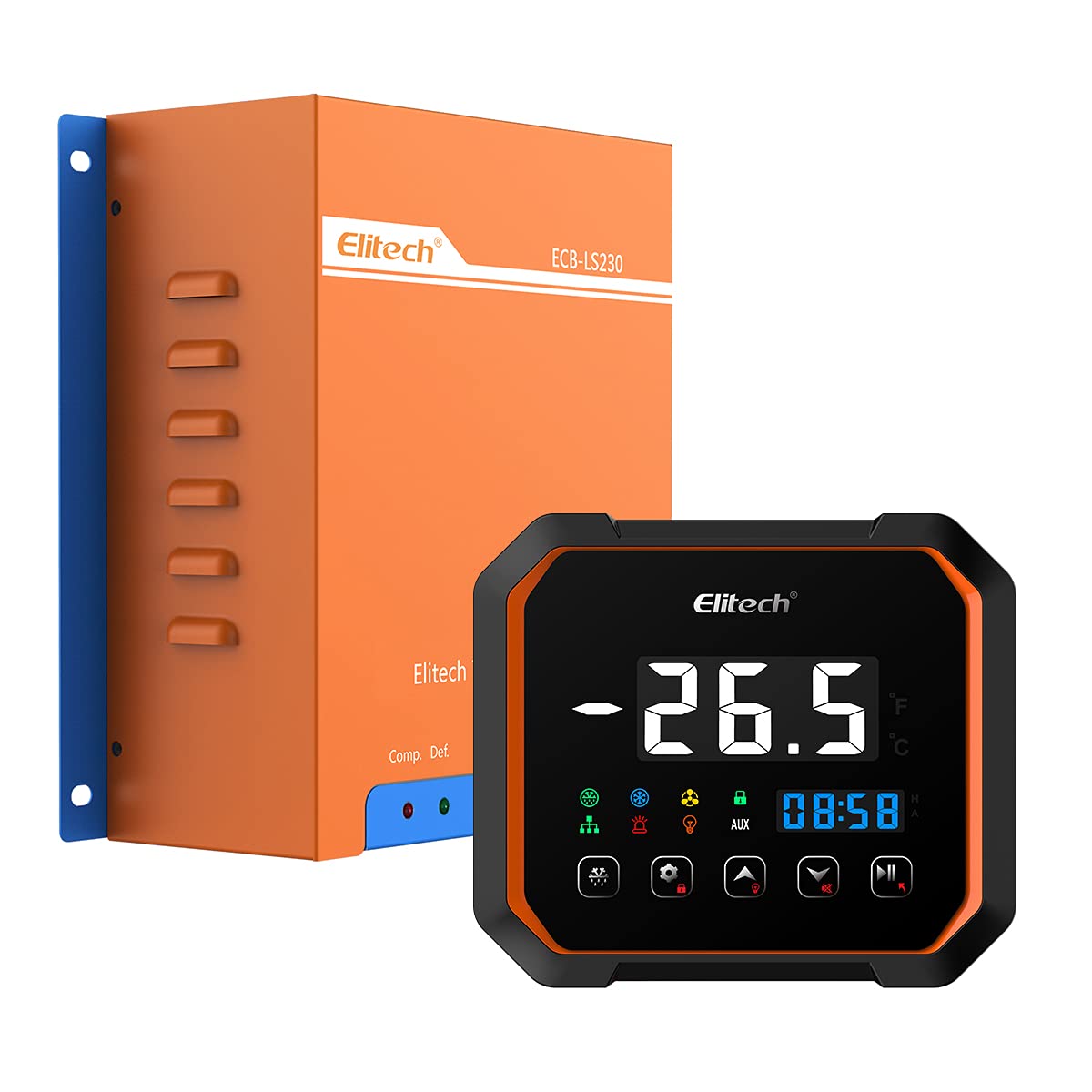
This image displays the Elitech ECB-LS230-WiFi Split Electrical Control Box, featuring its orange casing and blue mounting brackets. The Elitech logo and model number ECB-LS230 are visible on the front panel.
2. Product Components and Display
The ECB-LS230-WiFi system consists of a main control box and a separate display panel. Understanding the display and button functions is crucial for operation.

This image illustrates the digital display and control buttons of the Elitech ECB-LS230-WiFi. It shows the temperature reading, time, and various indicator lamps for defrosting, refrigeration, fan, unlock, communication, alarm, and auxiliary functions. Key buttons for force defrosting, setting/unlock, upper/light, lower, and pause/exit are also labeled.
Display Indicators:
- Defrosting Indicator Lamp: Illuminates when the defrost cycle is active.
- Refrigeration Indicator Lamp: Illuminates when the refrigeration compressor is running.
- Fan Indicator Lamp: Illuminates when the fan is operating.
- Unlock Indicator Lamp: Indicates the control panel is unlocked for parameter adjustments.
- Communication Indicator Lamp: Shows active communication, typically with the mobile app or network.
- Alarm Indicator Lamp: Flashes or illuminates to signal an alarm condition.
- Light Indicator Lamp: Indicates the status of an auxiliary light output.
- AUX Auxiliary Indicator Lamp: Indicates the status of an auxiliary function.
Control Buttons:
- Force Defrosting Button: Initiates a manual defrost cycle.
- Setting/Unlock Button: Used to enter parameter setting mode or unlock the panel.
- Upper Button/Light Button: Used to increase values in setting mode or control an auxiliary light.
- Lower Button: Used to decrease values in setting mode.
- Pause/Exit Button: Used to pause operations or exit setting modes.
3. Setup and Installation
The ECB-LS230-WiFi features a split design for flexible and safe installation. The main control box handles power and relays, while the display panel provides user interface.
Installation Guidelines:
- Mounting: Securely mount the main control box in a suitable location, ensuring adequate ventilation and protection from moisture. The display panel can be mounted remotely, up to 200 meters away, for convenient access.
- Wiring: Connect the power supply and load wiring (compressor, fan, defrost heater) to the main control box terminals as per the wiring diagram provided in the full product manual. Ensure all connections are secure and comply with local electrical codes.
- Display Connection: Connect the display panel to the main control box using the specified communication cable. This separation ensures that high voltage components are isolated from the user interface.
- Sensor Installation: Install temperature sensors in the appropriate locations within the controlled environment to ensure accurate readings.
- Power On: After all connections are verified, apply power to the unit. The display panel should illuminate.
For detailed wiring diagrams and specific installation instructions, please refer to the comprehensive manual included with your product.
4. Operating Instructions
The ECB-LS230-WiFi offers both direct control via its touch screen and remote control through a mobile application.
Basic Operation via Display Panel:
- Power On/Off: The unit powers on automatically when connected to a power source. There is no dedicated power button on the display.
- Viewing Temperature: The current temperature is continuously displayed on the large LED screen.
- Setting Parameters: Press the 'Setting/Unlock' button to enter parameter setting mode. Use the 'Upper' and 'Lower' buttons to adjust values. Press 'Setting/Unlock' again to confirm and move to the next parameter, or 'Pause/Exit' to exit without saving changes.
- Manual Defrost: Press the 'Force Defrosting' button to initiate a manual defrost cycle.
- Lock/Unlock Panel: The 'Setting/Unlock' button can also be used to lock or unlock the panel to prevent accidental changes.
Remote Operation via Mobile APP:
The Elitech ECB-LS230-WiFi can be controlled and monitored remotely using the Elitech iCold mobile application.
- Download APP: Download the Elitech iCold app from your smartphone's app store.
- Connect to Wi-Fi: Follow the in-app instructions to connect your ECB-LS230-WiFi unit to your local Wi-Fi network.
- Parameter Configuration: Once connected, you can view real-time data, adjust all operational parameters, and receive alarm notifications directly through the app.
- Monitoring: The app provides detailed graphs and logs of temperature data, allowing for comprehensive monitoring of your cold storage.

This image shows the Elitech iCold mobile application interface on a smartphone, displaying device information, data graphs, alarms, and settings. The Elitech ECB-LS230-WiFi control panel is also visible, highlighting the remote monitoring capabilities via the app.
5. Maintenance
Regular maintenance ensures the longevity and optimal performance of your Elitech ECB-LS230-WiFi control box.
- Cleaning: Periodically clean the display panel with a soft, dry cloth. Avoid using abrasive cleaners or solvents.
- Inspections: Regularly inspect all wiring connections for tightness and signs of wear or damage. Ensure the main control box is free from dust and debris.
- Sensor Check: Verify that temperature sensors are clean and properly positioned.
- Software Updates: Check for firmware updates for the control box and app updates for the Elitech iCold application to ensure you have the latest features and security enhancements.
Always disconnect power to the unit before performing any maintenance or inspection.
6. Troubleshooting
This section provides basic troubleshooting steps for common issues. For more complex problems, contact technical support.
- Display Not Working: Check power supply to the main control box and the communication cable connection between the main box and the display panel.
- Incorrect Temperature Reading: Verify sensor connections and ensure sensors are correctly placed and not damaged.
- Unit Not Responding: Check power supply. If the display is on but unresponsive, try restarting the unit by cycling the power.
- No APP Connection: Ensure the unit is properly connected to your Wi-Fi network and your smartphone has internet access. Check Wi-Fi signal strength.
- Alarm Triggered: Check the alarm message on the display or in the app to identify the cause. Address the underlying issue (e.g., high temperature, sensor error).
7. Specifications
| Feature | Specification |
|---|---|
| Brand | Elitech |
| Model | ECB-LS230-WiFi |
| Voltage | 380 Volts |
| Control Type | Temperature Control, Cooling, Defrost, Fan |
| Display | Large LED Touch Screen |
| Connectivity | Wi-Fi, Bluetooth |
| Remote Control Distance | Up to 200 meters (display to main unit) |
| Manufacturer | Elitech |
| Country Of Origin | China |
| GTIN | 781454242375 |
| ASIN | B097MWSZ97 |
8. Warranty and Support
For warranty information and technical support, please refer to the official Elitech website or contact your authorized Elitech dealer. Keep your purchase receipt as proof of purchase for any warranty claims.
Elitech Technology, Inc.
For assistance, please visit the Elitech support page or contact their customer service directly.