
1. Introduction
The ORIGINCOM YHD1100D is a versatile 2D barcode reader designed for efficient and accurate scanning of various barcode types. It supports both 1D (e.g., JAN codes) and 2D (e.g., QR codes) barcodes, including those displayed on smartphone screens and computer monitors. This device offers flexible scanning modes and is compatible with a wide range of systems, making it ideal for retail, inventory management, and other business applications.

Figure 1: The ORIGINCOM YHD1100D 2D Barcode Reader with its integrated USB cable.
2. Setup
The YHD1100D barcode reader is designed for plug-and-play operation, requiring no driver installation on most Windows and Android systems. Power is supplied and data is read simultaneously via the USB connection.
2.1 Connecting to a PC
- Locate an available USB port on your computer (Windows PC or compatible system).
- Insert the USB cable of the YHD1100D barcode reader into the USB port.
- The system will automatically detect the device. No additional drivers are typically required.

Figure 2: Simply plug the USB cable into your PC for immediate use.
2.2 Connecting to an Android Smartphone
For use with Android smartphones, a separately sold OTG (On-The-Go) conversion adapter is required. Operation is not guaranteed with all smartphone models or adapter types.

Figure 3: The barcode reader is compatible with various PCs and compatible registers.
3. Operating Instructions
3.1 Scanning Barcodes
The YHD1100D supports a wide range of 1D and 2D barcode types. It can scan codes from printed labels as well as digital displays such as smartphone screens and computer monitors.
- 1D Codes: UPC-A, UPC-E, EAN-8, EAN-13, Code128, Code39, Code93, Code11, Interleaved2of5, Matrix2of5, Standard2of5, Codabar, MSIPlessey, RSS, ISBN, ISSN, GS1DataBar(RSS14), etc.
- 2D Codes: QRCode, DataMatrix, PDF417, Azteccode, Maxicode, etc.
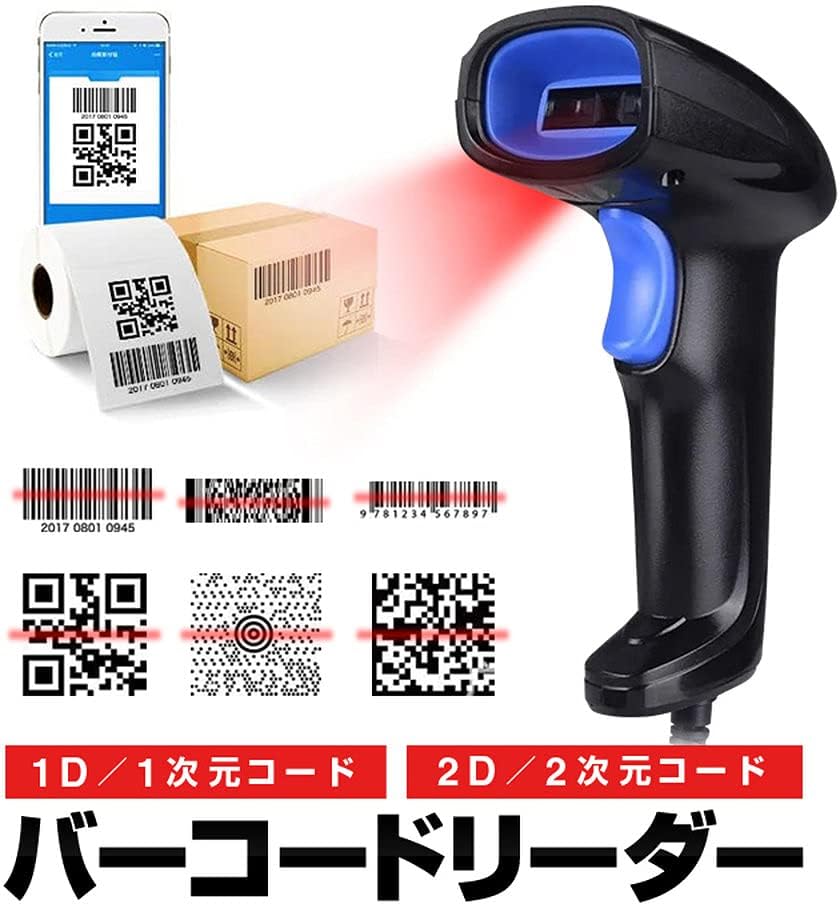
Figure 4: The scanner's capability to read both 1D and 2D barcodes, including those displayed on smartphone screens.

Figure 5: The device supports mobile payment QR codes and lists various 1D and 2D barcode types. For more information on supported codes, you may refer to external resources such as this video link.
3.2 Scanning Modes
The scanner offers multiple trigger modes:
- Button Trigger: Press the trigger button to initiate a scan.
- Automatic Continuous: The scanner continuously scans without needing to press the trigger.
- Automatic Sensing Scan: The scanner automatically detects a barcode in its field of view and initiates a scan.
Refer to the included English instruction manual for details on how to switch between these modes.
3.3 Keyboard Format Compatibility
The device supports over 20 types of keyboard formats. When using the scanner with a PC, especially when scanning QR codes containing URLs or special characters, you may need to adjust your system's language settings to ensure correct data input. For example, on Windows, navigate to "Time & Language" > "Region & Language" > "Preferred languages" and add "English (United States)". Then, switch your IME (Input Method Editor) to English (United States) when performing scans.
4. Specifications
| Feature | Detail |
|---|---|
| CPU | ARM 32-bit Cortex |
| Sensor | CMOS 640*480 |
| Reading Accuracy | 4mil |
| Illumination | 624nm LED |
| Decode Speed | 500 times/second |
| Anti-interference | 100000Lux Max |
| Voltage | 5V DC |
| Depth of Field | [13mil-EAN13]40-250mm, [4mil-code39]50-90mm, [20mil-QR]40-290mm, [10mil-PDF417]40-260mm |
| Supported 1D Codes | UPC-A, UPC-E, EAN-8, EAN-13, Code128, Code39, Code93, Code11, Interleaved2of5, Matrix2of5, Standard2of5, Codabar, MSIPlessey, RSS, Codabar, ISBN, ISSN, GS1DataBar(RSS14) etc. |
| Supported 2D Codes | QRCode, DataMatrix, PDF417, Azteccode, Maxicode etc. |
| Trigger Mode | Button, Automatic Continuous, Automatic Sensing Scan |
| Current | 80mA (operating), 30mA (standby) |
| Operating Environment | -20 ℃ to 50 ℃ (Humidity 5%~95%) |
| Storage Environment | -40 ℃ to 60 ℃ (Humidity 5%~95%) |
| Interface | USB, TTL, RS232, KBW |
| Dimensions (Approx.) | 16.5cm (Height) x 9.5cm (Length) x 6.3cm (Width) |

Figure 6: Approximate dimensions of the barcode reader.
5. Troubleshooting
- Incorrect Characters When Scanning URLs/Special Characters: If scanned data, especially from QR codes containing URLs, appears incorrect (e.g., '_' appearing as '='), ensure your computer's keyboard input language is set to English (United States) and your IME is switched accordingly. Refer to section 3.3 for detailed instructions.
- Device Not Recognized: While typically driver-free, some operating system versions may require manual driver installation. If the device is not recognized, check your OS documentation or the included English manual for specific driver requirements.
- Mobile Device Compatibility: Operation with Type-C or microUSB conversion adapters for mobile devices is not guaranteed. Ensure you are using a compatible OTG adapter if connecting to an Android smartphone.
- Scanning Issues: Ensure the barcode is clear, well-lit, and within the scanner's depth of field. Try adjusting the distance and angle.
6. Maintenance
To ensure the longevity and optimal performance of your barcode reader, follow these general maintenance guidelines:
- Keep the scanner clean. Use a soft, dry cloth to wipe the exterior. For the scanning window, use a lens cleaning cloth to avoid scratches.
- Avoid exposing the device to extreme temperatures, humidity, or direct sunlight.
- Do not drop or subject the scanner to strong impacts.
- Store the device in a cool, dry place when not in use.
7. Important Notes and Warnings
- QR Code and QR Code are registered trademarks of Denso Wave Inc.
- This product is intended for barcode scanning purposes only. Do not use it for purposes other than its original intent.
- The package includes only the barcode reader and the listed set contents (USB cable, English instruction manual).
- Minor scratches, scuffs, or dents may be present on the exterior or main unit due to manufacturing or transit.
- The manufacturer is not responsible for any accidents or damages that occur when using this product.
8. Warranty and Support
Please note the following regarding warranty and support for this product:
- A Japanese instruction manual is not included; only an English version is provided.
- Direct support for specific usage methods or applications is not provided by the seller. Please refer to the included English manual for operational guidance.
- There are no official product videos from the seller available for embedding.