
Viotek GFT27DB V2
Viotek GFT27DB V2 27-Inch WQHD Gaming Monitor User Manual
Model: GFT27DB V2 | Brand: Viotek
1. Introduction
This user manual provides comprehensive instructions for the setup, operation, maintenance, and troubleshooting of your Viotek GFT27DB V2 27-Inch WQHD Gaming Monitor. Please read this manual thoroughly before using the product to ensure proper functionality and safety.

Image 1.1: The Viotek GFT27DB V2 27-inch WQHD Gaming Monitor, showcasing its sleek design and immersive display during gameplay.
2. Safety Information
Always observe the following safety precautions to prevent damage to the monitor and ensure user safety:
- Do not expose the monitor to rain, moisture, or extreme temperatures.
- Ensure proper ventilation around the monitor. Do not block ventilation openings.
- Use only the power adapter supplied with the monitor.
- Disconnect the power cable from the outlet during lightning storms or when unused for long periods.
- Do not attempt to repair the monitor yourself. Refer all servicing to qualified service personnel.
- Avoid placing heavy objects on the power cord.
- Clean the monitor with a soft, dry cloth. Do not use liquid cleaners or aerosol cleaners.
3. Package Contents
Verify that all the following items are present in your package:
- Viotek GFT27DB V2 27-Inch WQHD Gaming Monitor
- Monitor Stand (Base and Neck)
- Power Adapter
- DisplayPort (DP) Cable (1x)
- HDMI Cable (Optional, may vary by region)
- User Manual (this document)
- Mounting Screws (for stand assembly)
4. Setup Instructions
4.1 Assembling the Stand
- Carefully remove the monitor from its packaging, keeping the screen protected.
- Attach the stand neck to the monitor panel. Ensure it clicks securely into place or is fastened with screws if applicable.
- Attach the stand base to the stand neck. Tighten the thumb screw or screws at the bottom of the base.
- Place the assembled monitor on a stable, flat surface.

Image 4.1: Illustration of the monitor with its stand, ready for connection.
4.2 Connecting to a Device
The Viotek GFT27DB V2 offers multiple connectivity options:
- DisplayPort (DP 1.2): For optimal performance, including 144Hz refresh rate at 1440p resolution.
- HDMI (HDMI 2.0 x1, HDMI 1.4 x2): Supports various resolutions and refresh rates.
- 3.5mm Audio Out: For connecting external speakers or headphones.
- Connect one end of the DisplayPort or HDMI cable to the corresponding port on your computer's graphics card.
- Connect the other end of the cable to the appropriate input port on the monitor.
- Connect the power adapter to the monitor's power input, then plug the power adapter into a wall outlet.
- (Optional) Connect external speakers or headphones to the 3.5mm audio out port.

Image 4.2: Rear view of the monitor highlighting the DisplayPort, HDMI, and audio output connections.
5. Operating Instructions
5.1 Powering On/Off
Press the power button, usually located on the back or bottom right of the monitor, to turn the monitor on or off. The power indicator light will illuminate when the monitor is on.
5.2 On-Screen Display (OSD) Menu Navigation
The OSD menu allows you to adjust various monitor settings. The control buttons are typically located on the back or bottom of the monitor.
- Power Button: Turns the monitor on/off.
- Menu Button: Opens the OSD menu.
- Navigation Buttons: Used to move through menu options (Up/Down, Left/Right).
- Enter/Select Button: Confirms a selection.
- Exit Button: Exits the current menu or OSD.
Note: If the OSD menu appears in an unfamiliar language (e.g., Chinese), follow these steps to change it to English:
- Press the Menu button (often the far-left button if controls are on the back).
- Navigate to the "Other" sub-menu. This is typically the last option at the bottom of the main menu.
- Press the Enter/Select button.
- Navigate to the "Language" option.
- Press the Enter/Select button and choose "English" from the list.
5.3 Basic Display Settings
Within the OSD menu, you can adjust settings such as:
- Brightness: Adjusts the overall luminance of the screen.
- Contrast: Controls the difference between the brightest and darkest areas.
- Color Temperature: Changes the warmth or coolness of the colors (e.g., Warm, Cool, User).
- Input Source: Manually select between DisplayPort, HDMI 1, HDMI 2, or HDMI 3.
6. Advanced Features
6.1 Adaptive Sync (AMD FreeSync with LFC)
The Viotek GFT27DB V2 supports AMD FreeSync with Low Framerate Compensation (LFC). This technology synchronizes the monitor's refresh rate with your graphics card's frame rate, eliminating screen tearing and stuttering for a smoother gaming experience, even when frame rates fluctuate.

Image 6.1: Visual comparison demonstrating the effect of AMD FreeSync on gameplay, showing smoother visuals compared to FreeSync off.
6.2 GamePlus Crosshairs & FPS/RTS Optimization
Enhance your gaming precision with built-in GamePlus features:
- Crosshairs: Overlay a virtual crosshair on the screen, useful in games that disable in-game crosshairs.
- FPS/RTS Optimization: Adjusts display settings to enhance visibility in fast-paced (FPS) or strategy (RTS) games, bringing out details in dark areas.

Image 6.2: Display showing the GamePlus crosshair overlay feature, providing an aiming aid for gamers.
6.3 TN Panel with 115% sRGB Color Gamut
Despite being a TN panel, the GFT27DB V2 is engineered to deliver an ultra-wide 115% sRGB color gamut, providing rich and vibrant colors that are typically not found in traditional TN monitors. This results in 16.7 million stunning colors with enhanced accuracy.
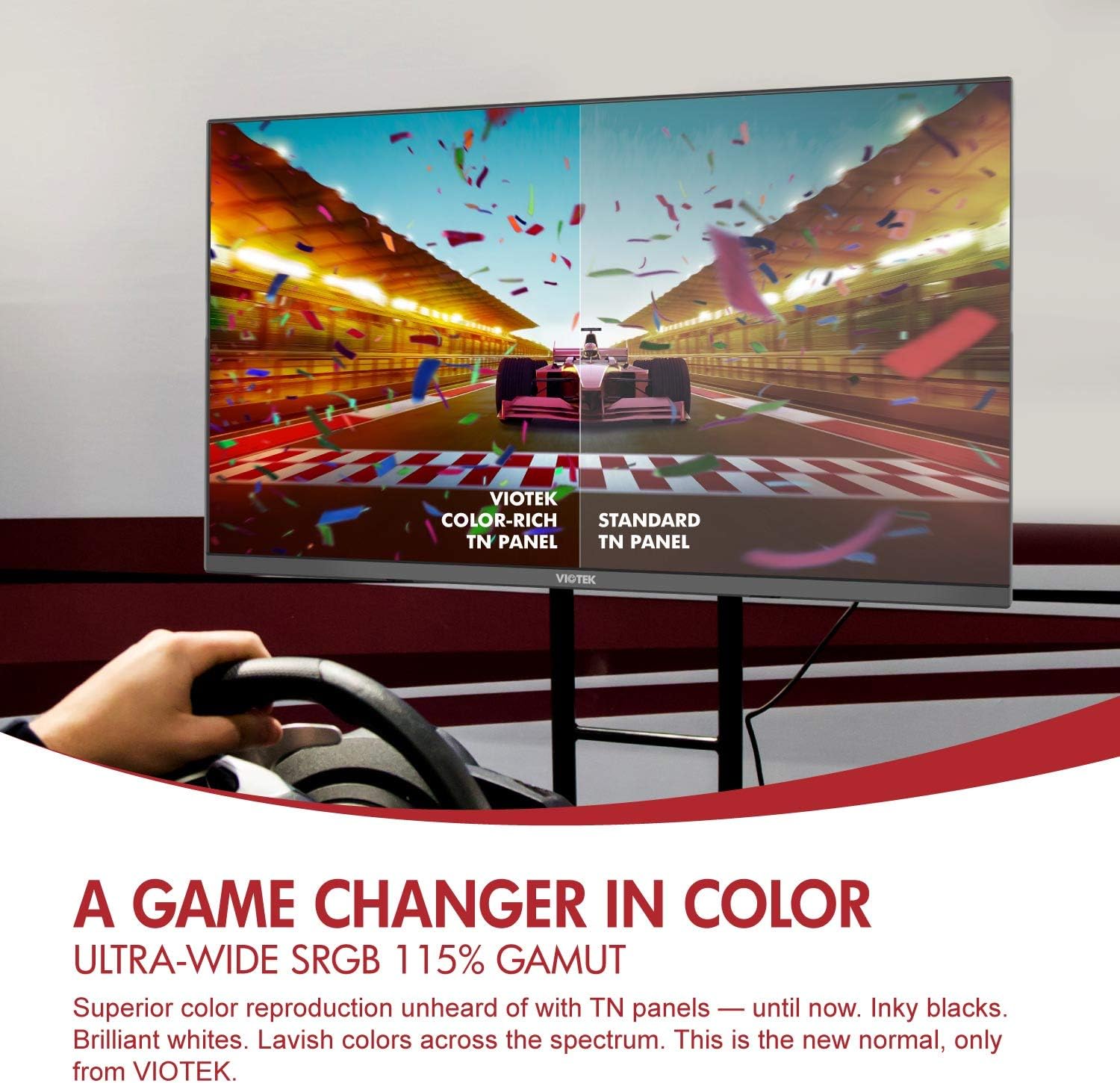
Image 6.3: Side-by-side comparison illustrating the superior color reproduction of Viotek's color-rich TN panel versus a standard TN panel.
6.4 High Refresh Rate and Response Time
Experience smooth, fluid motion with a 144Hz refresh rate and a rapid 1ms (with Overdrive) / 3ms (Standard) response time. This minimizes motion blur and ghosting, crucial for fast-paced gaming.

Image 6.4: Display highlighting the monitor's WQHD 1440p resolution, 144Hz refresh rate, and 1ms response time for high-performance gaming.
7. Maintenance
Proper maintenance ensures the longevity and optimal performance of your monitor:
- Cleaning the Screen: Gently wipe the screen with a soft, lint-free cloth. For stubborn marks, lightly dampen the cloth with water or a screen-specific cleaning solution (do not spray directly on the screen).
- Cleaning the Exterior: Use a soft, dry cloth to wipe dust and dirt from the monitor casing.
- Ventilation: Ensure the monitor's ventilation openings are clear of dust and obstructions to prevent overheating.
- Power Off: Always turn off the monitor and unplug it from the power outlet before cleaning.
8. Troubleshooting
Refer to this section for common issues and their solutions:
No Power
- Ensure the power cable is securely connected to both the monitor and a working power outlet.
- Verify the power adapter is functioning correctly.
- Press the power button on the monitor.
No Signal
- Check that the video cable (DisplayPort or HDMI) is securely connected to both the monitor and your computer.
- Ensure your computer is powered on and not in sleep mode.
- Use the OSD menu to manually select the correct input source (e.g., DP, HDMI 1).
- Try a different video cable or port.
Image Issues (Flickering, Distorted, Pale Colors)
- Adjust the monitor's resolution and refresh rate settings in your computer's display settings to match the monitor's capabilities (2560x1440 at 144Hz for DP).
- Check the video cable for damage or loose connections.
- Adjust brightness, contrast, and color settings in the OSD menu.
- If colors appear pale, ensure your graphics card drivers are up to date. Some users have reported needing to adjust RGB settings in their graphics card control panel.
OSD Menu in Wrong Language
- Refer to section 5.2 "On-Screen Display (OSD) Menu Navigation" for detailed steps on how to change the OSD language to English.
9. Specifications
| Feature | Specification |
|---|---|
| Display Type | TN Panel |
| Screen Size | 27 Inches |
| Resolution | 2560x1440 (WQHD) |
| Refresh Rate | 144Hz |
| Response Time | 1ms (with Overdrive), 3ms (Standard) |
| Aspect Ratio | 16:9 |
| Viewing Angle | H170° / V160° |
| Display Colors | 16.7 Million Colors |
| Color Gamut | 115% sRGB, 83% NTSC |
| Contrast Ratio | 1000:1 |
| Brightness | 220cd/m² |
| VESA Compatibility | 75x75mm |
| Built-in Speakers | Yes, 2x 4Ω/2W |
| Ports | 1x DP 1.2, 1x HDMI 2.0, 2x HDMI 1.4, 1x 3.5mm Audio Out |
| Tilt Adjustable | Yes (-5° ~ 15°) |
| Dimensions (with stand) | 24.3 x 7.9 x 17.5 inches |
| Weight | 9.7 pounds |
| Additional Features | GamePlus, AMD FreeSync, PIP/PBP, Overdrive, FPS/RTS Optimization, Low Blue Light, Anti-Glare Treated Screen, Cable Management |
Note: Specifications are subject to change without notice. For the most up-to-date information, please refer to the official Viotek website.
10. Warranty and Support
Your Viotek GFT27DB V2 monitor is backed by a 3-Year Limited Warranty and Viotek's industry-leading Pixel Perfect Promise, which includes a Zero-Tolerance Dead Pixel Policy.

Image 10.1: Viotek company logo, representing the brand's commitment to quality.
For warranty claims, technical support, or customer service inquiries, please contact Viotek customer support. Contact information can typically be found on the official Viotek website or on your product's packaging.
Viotek Customer Support:
- Visit Viotek Support Website
- Refer to your product packaging for phone or email contact details.
Ask a question about this manual
Ask about setup, troubleshooting, compatibility, parts, safety, or missing instructions. Manuals+ will review the question and use this page’s manual context to help answer it.