
1. Introduction
The D-Link AX1800 Mesh WiFi 6 Range Extender (DAP-LX1880A1/RE) is designed to expand the coverage of your existing Wi-Fi network, eliminating dead spots and providing seamless connectivity throughout your home or office. Utilizing Wi-Fi 6 technology, this dual-band extender offers speeds up to 1800 Mbps and supports D-Link Wi-Fi Mesh for a unified network experience. It can operate as a Wi-Fi Extender, Access Point, or Wireless Bridge, offering versatile solutions for your networking needs.

The D-Link AX1800 Mesh WiFi 6 Range Extender, shown plugged into a standard wall outlet, ready to extend your network.
2. Package Contents
Verify that your package contains the following items:
- 1x D-Link AX1800 Mesh WiFi 6 Range Extender (DAP-LX1880A1/RE)
- 1x Quick Install Card
- 1x Quick Install Guide
If any items are missing or damaged, please contact your retailer or D-Link support.
3. Product Overview
3.1. Physical Features
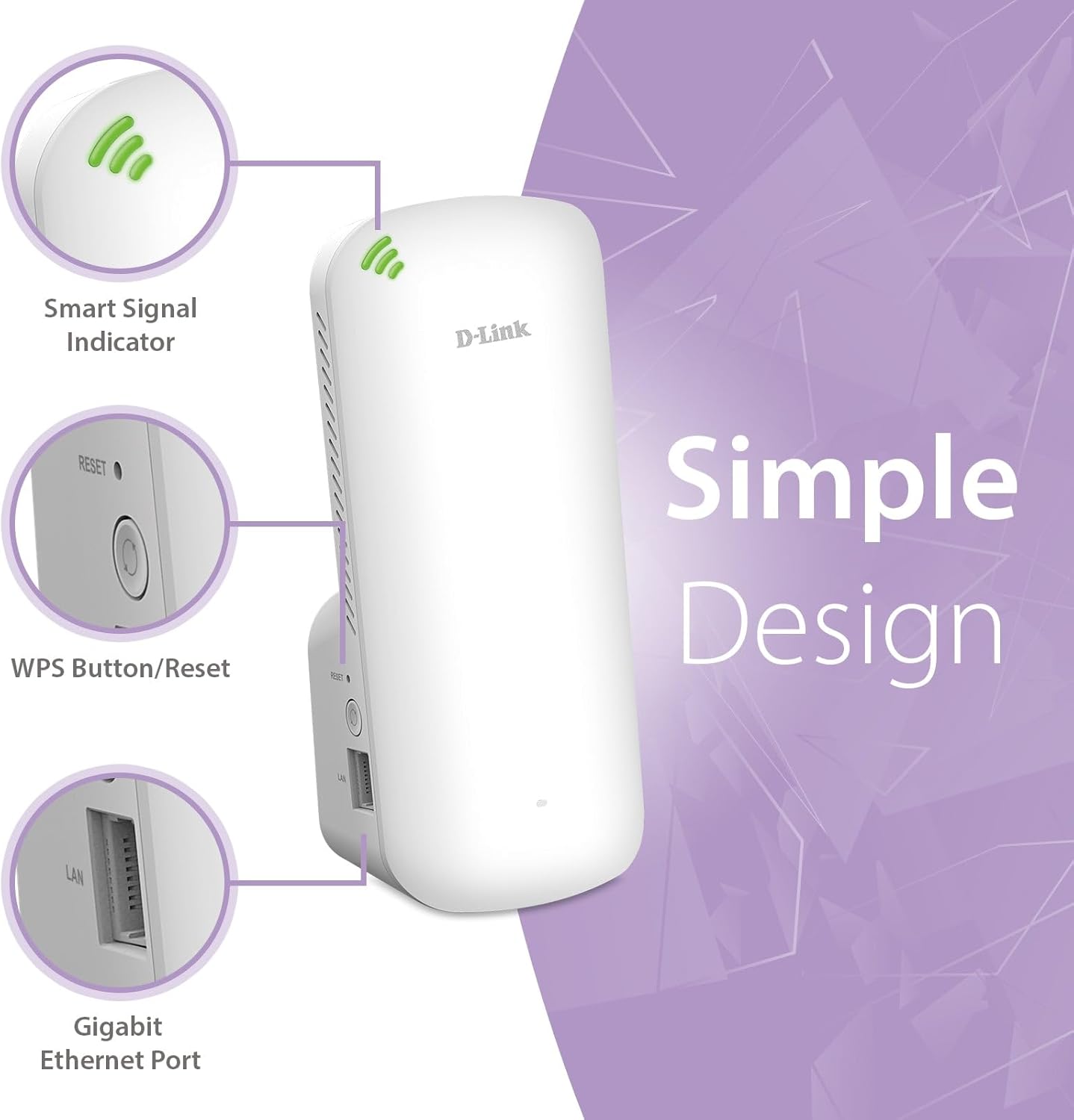
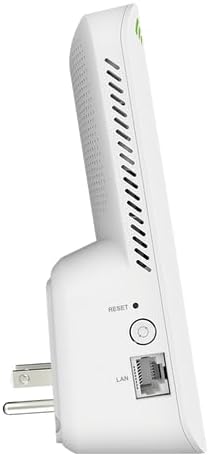
The D-Link AX1800 Mesh WiFi 6 Range Extender features a compact, wall-plug design. Key components include:
- Smart Signal Indicator: LEDs on the top indicate the strength of the Wi-Fi signal from your router, helping you find the optimal placement for the extender.
- WPS Button/Reset: Used for quick setup via Wi-Fi Protected Setup (WPS) or to perform a factory reset.
- Gigabit Ethernet Port: Allows for a wired connection to devices like gaming consoles, smart TVs, or PCs, or for configuring the extender in Access Point or Bridge mode.

A detailed view of the D-Link AX1800 Mesh WiFi 6 Range Extender, pointing out its key physical features and ports.

The product label on the back of the extender, displaying important information such as the model number (DAP-LX1880A1/RE) and serial number.
4. Setup and Installation
The D-Link AX1800 Mesh WiFi 6 Range Extender offers multiple setup methods for convenience.
4.1. Using the D-Link Wi-Fi App (Recommended)
- Download the free D-Link Wi-Fi app from the App Store (iOS) or Google Play Store (Android) on your smartphone or tablet.
- Plug the extender into a power outlet within range of your existing Wi-Fi router.
- Open the D-Link Wi-Fi app and follow the on-screen instructions to set up your extender. The app will guide you through connecting to the extender's temporary Wi-Fi network and configuring it to extend your main network.
- Use the Smart Signal Indicator LEDs on the extender to determine the best placement for optimal Wi-Fi coverage. Green indicates a strong signal, amber a fair signal, and red a weak signal.

The D-Link Wi-Fi app interface shown on two smartphones, illustrating the simplicity of setting up and managing the extender.
4.2. Using WPS (Wi-Fi Protected Setup)
- Plug the extender into a power outlet near your Wi-Fi router.
- Press the WPS button on your D-Link extender. The WPS LED on the extender will start blinking.
- Within two minutes, press the WPS button on your Wi-Fi router.
- Once the WPS LED on the extender turns solid green, the connection is established. You can then unplug the extender and move it to a more central location within your home, ensuring the Smart Signal Indicator shows a strong signal.
5. Operating Modes
The D-Link AX1800 Mesh WiFi 6 Range Extender supports multiple operating modes to suit various networking needs:
5.1. Wi-Fi Extender Mode (Default)
In this mode, the device extends the range of your existing Wi-Fi network. It connects wirelessly to your main router and rebroadcasts the signal, expanding coverage to areas with weak or no Wi-Fi.

The extender provides powerful Wi-Fi coverage both inside and around your home, eliminating dead zones.
5.2. Access Point (AP) Mode
When connected to your router via an Ethernet cable, the extender can function as a Wi-Fi Access Point, creating a new Wi-Fi network from a wired connection. This is useful for adding Wi-Fi capability to a wired-only network or creating a separate Wi-Fi network.
5.3. Wireless Bridge Mode
In Bridge Mode, the extender connects wirelessly to your existing Wi-Fi network and provides a wired connection through its Gigabit Ethernet port. This allows you to connect a wired-only device (like a desktop PC, gaming console, or smart TV) to your Wi-Fi network without needing a separate Wi-Fi adapter for that device.
Visual representation of the multi-mode design, showing how the extender can function as a Bridge, Repeater (Extender), or Access Point.

The Gigabit Ethernet port allows for a high-speed wired connection to devices such as smart TVs, gaming consoles, or PCs.
5.4. D-Link Wi-Fi Mesh Technology
The DAP-LX1880A1/RE supports D-Link Wi-Fi Mesh, allowing it to seamlessly integrate with compatible D-Link Wi-Fi 6 routers (e.g., DIR-X1870) to create a single, unified whole-home mesh network. This ensures that your mobile devices automatically connect to the strongest Wi-Fi signal as you move around your home, providing uninterrupted connectivity.

Flexible Mesh Choices for Your Home Network: Smart Mesh Roaming technology creates a seamless whole-home mesh network, allowing you to enjoy a mesh connection with any brand of router or ISP gateway.
Create a Mesh Network: Combine the extender with a compatible D-Link router to form a unified D-Link Wi-Fi Mesh Network, ensuring seamless roaming.
6. Maintenance
To ensure optimal performance and longevity of your D-Link AX1800 Mesh WiFi 6 Range Extender, consider the following maintenance tips:
- Firmware Updates: Regularly check the D-Link support website or the D-Link Wi-Fi app for available firmware updates. Keeping your firmware up-to-date ensures the best performance, security, and compatibility.
- Cleaning: Periodically clean the exterior of the device with a soft, dry cloth. Avoid using liquid cleaners or aerosols. Ensure the ventilation holes are free from dust and obstructions.
- Placement: Ensure the extender is placed in a well-ventilated area, away from direct sunlight, heat sources, and strong electromagnetic interference (e.g., microwaves, cordless phones).
7. Troubleshooting
If you encounter issues with your D-Link AX1800 Mesh WiFi 6 Range Extender, refer to the following common troubleshooting steps:
7.1. No Internet Connection or Weak Signal
- Check Placement: Relocate the extender closer to your main router. The Smart Signal Indicator LEDs should show a strong (green) signal.
- Verify Router Connection: Ensure your main Wi-Fi router is working correctly and providing an internet connection.
- Reboot Devices: Power cycle both your router and the extender by unplugging them for 10 seconds and then plugging them back in.
- Interference: Move the extender away from other electronic devices that might cause interference.
7.2. Setup Issues
- App Not Detecting Extender: Ensure your smartphone is connected to the extender's temporary Wi-Fi network during setup. Try restarting the app.
- WPS Fails: Ensure you press the WPS button on both the extender and the router within the two-minute window. If it continues to fail, try setting up using the D-Link Wi-Fi app.
- Factory Reset: If all else fails, perform a factory reset by pressing and holding the Reset button (usually a small pinhole) for about 10 seconds until the LEDs flash. This will revert the extender to its default settings, and you can attempt setup again.
7.3. Slow Speeds
- Optimal Placement: Ensure the extender is placed where it receives a strong signal from your router (green LED indicator). Placing it too far can result in slower speeds.
- Network Congestion: Too many devices on the extended network or heavy internet usage can slow down speeds.
- Router Performance: The overall speed of your extended network is limited by the speed of your main router and internet service.
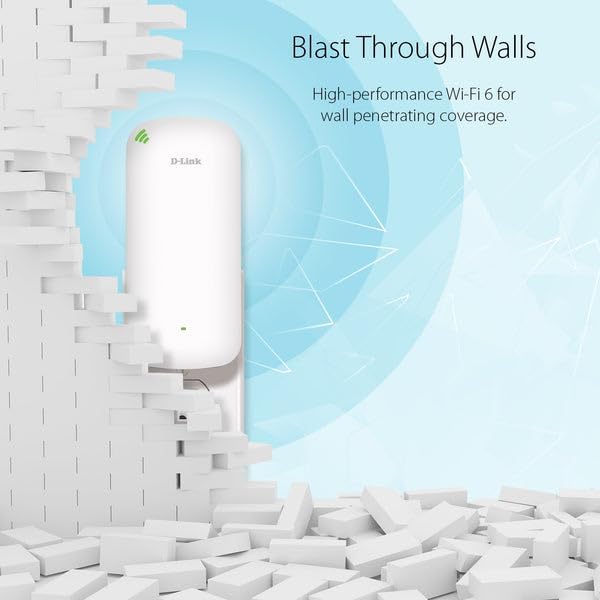
The extender's high-performance Wi-Fi 6 is designed for wall-penetrating coverage, helping to overcome physical obstacles.
8. Specifications
| Feature | Description |
|---|---|
| Model Number | DAP-LX1880A1/RE |
| Wireless Communication Standard | 802.11ac, 802.11ax (Wi-Fi 6), 802.11g, 802.11n |
| Data Transfer Rate | Up to 1800 Mbps (574 Mbps on 2.4GHz, 1201 Mbps on 5GHz) |
| Frequency Band Class | Dual-Band |
| Coverage Area | Up to 2600 sq. ft. |
| Ethernet Port | 1x Gigabit Ethernet Port |
| Special Features | 1-Tap Setup, Access Point Mode, LED Indicator, MU-MIMO, Wi-Fi Mesh, WPA3 Security |
| Product Dimensions | 3 x 3 x 6.38 inches |
| Item Weight | 6.4 ounces |
9. Warranty and Support
D-Link products are designed for reliability and performance. For warranty information, please refer to the warranty card included in your product packaging or visit the official D-Link website for details specific to your region.
For technical support, product registration, or to access the latest drivers and firmware, please visit the D-Link support portal:
- D-Link Support Website: support.dlink.com
When contacting support, please have your product model number (DAP-LX1880A1/RE) and serial number ready.


