
Introduction
Thank you for choosing the Lepulse Lescale F4 Body Fat Scale. This smart scale is designed to provide comprehensive insights into your body composition, helping you monitor your health and fitness progress. Please read this manual carefully before use to ensure proper operation and to maximize the benefits of your device.
Safety Information
- Do not use this device if you are pregnant, have a pacemaker, or other internal medical devices.
- The scale is for household use only and should not be used for medical diagnosis or treatment.
- Always place the scale on a hard, flat surface for accurate measurements. Avoid carpets or uneven floors.
- Do not step on the edge of the scale; this may cause it to tip.
- Keep the scale dry. Do not immerse it in water or use it in extremely humid environments.
- Clean the scale with a damp cloth and mild detergent. Do not use abrasive cleaners.
- The glass surface can be slippery when wet. Ensure your feet and the scale surface are dry before use.
Package Contents
- Lepulse Lescale F4 Body Fat Scale
- User Manual
- 1 Lithium-polymer battery (included)
Product Overview
The Lepulse Lescale F4 is an advanced body composition scale featuring high-precision sensors and ITO coating technology for accurate measurements. It provides 15 essential body metrics and integrates with the Fitdays app for comprehensive data tracking.

Image: The Lepulse Lescale F4 Body Fat Scale, demonstrating its ability to analyze body fat and muscle mass.
Key Features:
- 15 Essential Body Composition Metrics: Measures weight, body fat, body water, BMI, muscle mass, bone mass, BMR, heart rate, and more.
- High-Precision Measurement: Equipped with 4 gravity sensors and BIA (Bioelectrical Impedance Analysis) technology for accurate readings.
- ITO Coating Technology: Provides a larger sensor surface for consistent and precise measurements, regardless of foot placement.
- Large AV Color Display: Clearly shows 8 key readings directly on the scale.
- Multi-User Support: Supports up to 24 user profiles, automatically recognizing individuals. Includes a baby mode for tracking infant weight.
- App Synchronization: Seamlessly syncs data with the Fitdays app, compatible with Apple Health, Google Fit, and Samsung Health.

Image: An illustration detailing the 15 important measurements the scale provides, including weight, BMI, body fat, and muscle mass.
Setup
1. Battery Installation
The scale comes with a Lithium-polymer battery. Ensure it is correctly installed according to the polarity markings in the battery compartment. The scale will power on automatically when a user steps on it.
2. Download the Fitdays App
Search for "Fitdays" in the Apple App Store (for iOS 10.0+) or Google Play Store (for Android 5.0+) and download the application. Alternatively, you can scan the QR code provided in the manual or on the product packaging to download the app.

Image: The Fitdays app icon and links for downloading on iOS and Android devices.
3. Pair the Scale with Your Smartphone
- Enable Bluetooth on your smartphone.
- Open the Fitdays app and create your user profile.
- Step onto the scale barefoot to activate it. The scale will automatically connect to the app via Bluetooth.
- Ensure your profile details (gender, height, age) are accurate in the app for precise body composition analysis.

Image: Visual representation of the Bluetooth connection between the scale and the Fitdays app on a smartphone.
Operating Instructions
Taking a Measurement
- Place the scale on a hard, flat surface.
- Step onto the scale barefoot and stand still. Ensure your feet are in contact with the ITO coated surface.
- The scale will display your weight and other key metrics.
- If the app is open and connected, your data will automatically sync. If not, the scale can store up to 100 sets of data, which will sync when the app is next connected.

Image: The scale displaying essential body values directly on its screen.
Understanding the Display
The large AV color display shows up to 8 readings directly. You can change the unit of measurement (kg, lb, st) by pressing the unit button on the back of the scale or through the Fitdays app settings.

Image: A detailed view of the scale's display, highlighting the unit change function and various metrics.
Athlete Mode
For individuals with a higher muscle mass and lower body fat percentage (e.g., athletes), activate the 'Athlete Mode' in the Fitdays app profile settings. This adjusts the algorithm for more accurate body composition analysis.

Image: The Fitdays app interface demonstrating how to enable Athlete Mode in user settings.
Baby Mode
To weigh an infant or pet, first weigh yourself, then hold the baby/pet and step on the scale again. The app will calculate the baby's weight by subtracting your weight from the combined weight. This feature is managed within the Fitdays app.

Image: A visual guide to using the baby weight measurement function, showing a parent weighing themselves and then with a baby.
App Integration
The Fitdays app is your central hub for tracking and analyzing your health data. It offers detailed trend charts and allows for multi-user management.
Data Synchronization and Tracking
Once connected, the scale automatically synchronizes your measurement data to the Fitdays app. The app provides detailed trend diagrams of your body composition over days, weeks, months, or even years, allowing you to monitor your progress effectively.
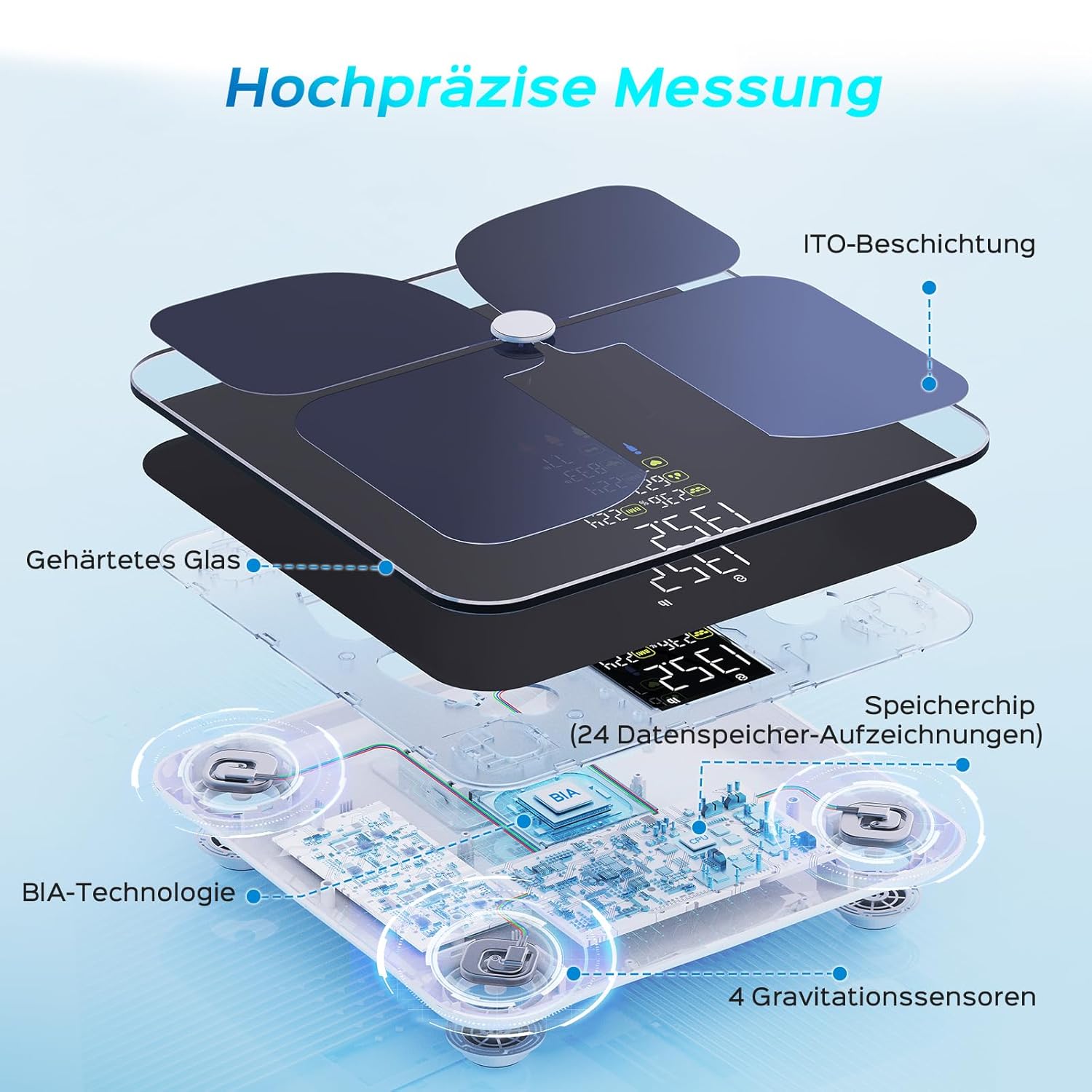
Image: The Fitdays app displaying trends in body data changes, including weight and body fat percentage over various periods.
Multi-User Management
The Fitdays app allows you to create up to 24 user profiles, making it suitable for the entire family. The scale is intelligent enough to automatically recognize who is stepping on it, and each user's data is recorded in their respective profile.

Image: A family using the scale, with the app showing individual profiles and weight readings for each member.
Compatibility and Sharing
The Fitdays app can integrate with popular fitness applications such as Apple Health, Google Fit, and Samsung Health. You can also share your progress on social media platforms directly from the app.

Image: The Fitdays app interface highlighting its synchronization capabilities with various health apps and options for sharing data.
Maintenance
- Cleaning: Wipe the scale surface with a soft, damp cloth. Do not use harsh chemicals or abrasive cleaning agents.
- Storage: Store the scale in a cool, dry place. Avoid extreme temperatures and direct sunlight.
- Battery: If the scale is not used for an extended period, remove the battery to prevent leakage.
Troubleshooting
Inaccurate Readings
- Ensure the scale is on a hard, flat surface.
- Step on the scale barefoot and stand still.
- Check if your profile information (gender, age, height) in the Fitdays app is correct.
- Calibrate the scale by stepping on it briefly, then stepping off and waiting for it to display '0.0'.
Scale Not Turning On
- Check if the battery is correctly installed.
- Replace the battery if it is depleted.
App Not Connecting/Syncing
- Ensure Bluetooth is enabled on your smartphone.
- Make sure the Fitdays app is open and running in the foreground.
- Restart your smartphone and the scale.
- Ensure the scale is within Bluetooth range of your smartphone.
- Check app permissions to ensure it has access to Bluetooth.
Specifications
| Model Number | Lescale F4 (WFDE-600-03105-00-A03) |
| Dimensions (L x W x H) | 27.8 x 27.8 x 2.7 cm |
| Weight | 1.9 kg |
| Material | Tempered Glass |
| Power Source | 1 Lithium-polymer battery (included) |
| Maximum Weight Capacity | 2 Kilograms (Note: This appears to be an error in the source data, typical scales support much higher. Please refer to product packaging for actual maximum capacity.) |
| Display Type | Digital, Color AV Display |
| Special Features | Automatic shut-off, Heart Rate measurement, Body Fat analysis, Large display, BMI calculation |
| Connectivity | Bluetooth (iOS 10.0+, Android 5.0+) |
Warranty and Support
For warranty information and customer support, please refer to the documentation included with your product or contact Lepulse customer service directly. You can also find electronic versions of the manual and support resources online.

Image: A QR code providing access to multi-language electronic manuals and instructions for app pairing.
Access electronic manuals here: http://qr.hotlnk.cn/79835148687


