
Introduction
Thank you for choosing the PHEANOO D6 Sound Bar System. This 2.1 channel soundbar with a dedicated wired subwoofer is designed to enhance your audio experience, providing clear dialogue, powerful bass, and immersive sound for your home entertainment. This manual provides detailed instructions for setup, operation, maintenance, and troubleshooting to ensure optimal performance and longevity of your device.
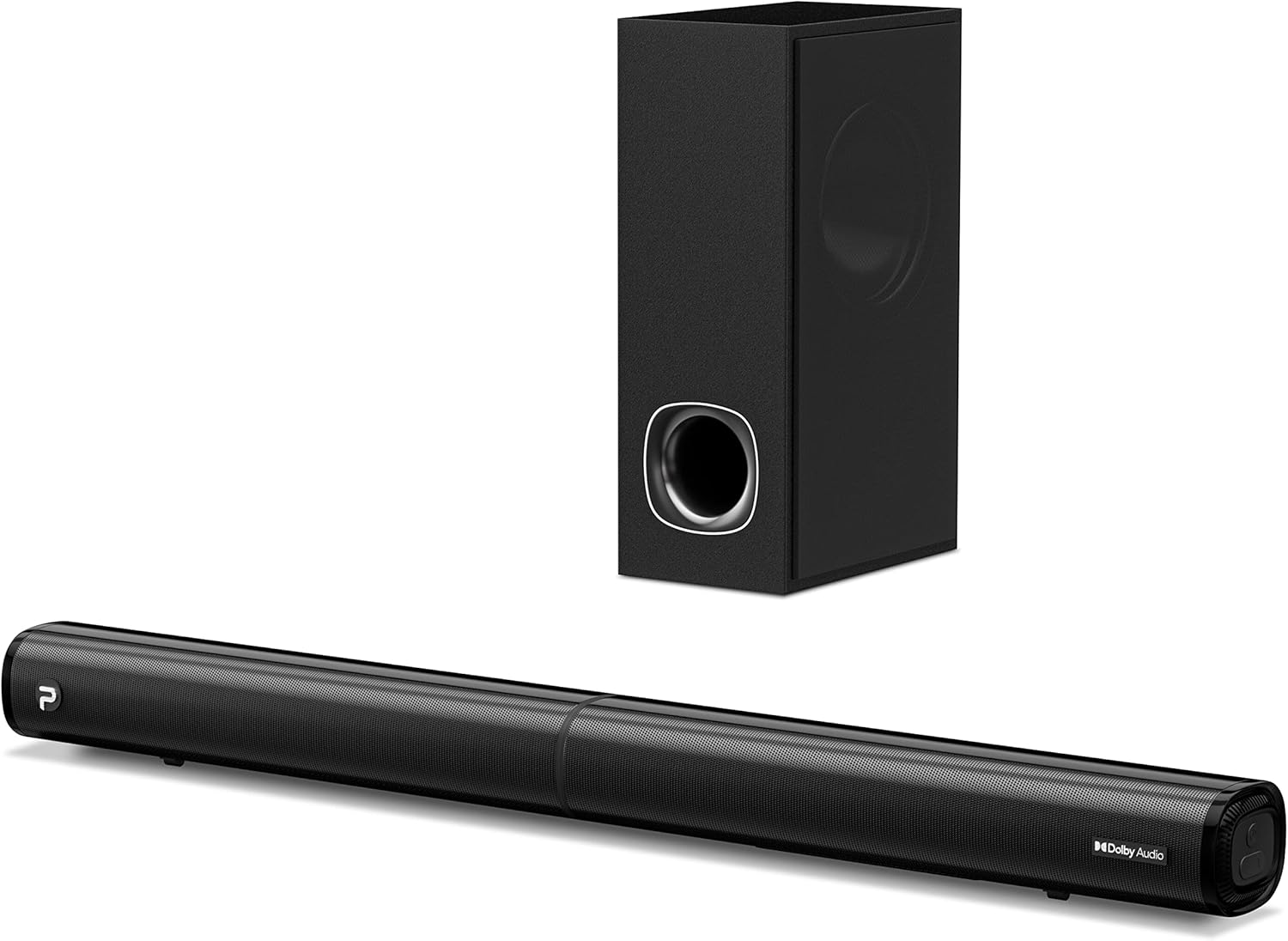
Image: The PHEANOO D6 Sound Bar and its accompanying wired subwoofer, showcasing their sleek black design.
What's in the Box
Please check the package contents carefully. If any items are missing or damaged, contact customer support.
- Soundbar and Wired Subwoofer
- HDMI cable
- RCA audio cable
- Wall Mount Kit (screws and anchors)
- Remote Control (batteries not included)
- Power Adapter

Image: All components included in the PHEANOO D6 Sound Bar package, laid out for clear identification, including the soundbar, subwoofer, cables, remote, and wall mount kit.
Setup
1. Assembling the Soundbar (Detachable Design)
The PHEANOO D6 soundbar features a unique detachable design for flexible placement. Follow these steps to assemble it:
- Align the audio connector from one half of the soundbar with the corresponding port on the other half.
- Gently push the two halves together until they click into place.
- Twist the two halves to secure the connection, ensuring the soundbar is firmly assembled.

Image: A three-step visual guide demonstrating how to connect the two halves of the detachable soundbar, ensuring proper alignment and secure locking.
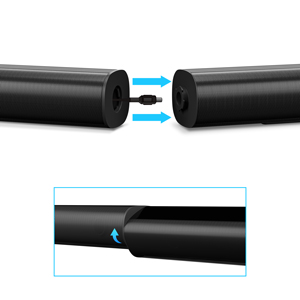
Image: A close-up view of the soundbar's detachable connection point, showing the male and female connectors.
2. Connecting the Subwoofer
Connect the wired subwoofer to the soundbar using the dedicated subwoofer cable. Ensure the connection is secure.
3. Placement Options
You can place the soundbar on a tabletop or mount it on a wall.
- Tabletop Placement: Place the soundbar directly in front of your TV, ensuring it does not obstruct the TV's remote sensor.
- Wall Mounting: Use the included wall mount kit. It is recommended to measure and mark the drilling points accurately, rather than relying solely on the paper stencil, to ensure a level installation.
4. Audio Connections
The PHEANOO D6 offers multiple connectivity options. Choose the best one for your device:
- HDMI (ARC): For the best audio quality and control, connect an HDMI cable from the soundbar's HDMI (ARC) port to your TV's HDMI (ARC) port. This allows your TV remote to control the soundbar's volume.
- Optical: Connect an optical cable from the soundbar's Optical port to your TV's Optical Digital Audio Out port.
- AUX: Use the 3.5mm AUX cable to connect to devices with a 3.5mm audio output.
- Bluetooth 5.0: For wireless connection, pair your device via Bluetooth.

Image: The rear panel of the PHEANOO D6 Sound Bar, highlighting the HDMI (ARC), Bluetooth, Optical, and AUX input ports with corresponding icons.

Image: A detailed view of the soundbar's input panel, showing the AUX, Optical, and HDMI (ARC) ports clearly labeled.
5. Power Connection
Connect the power adapter to the soundbar and then plug it into a wall outlet.
Operating Instructions
Remote Control
The included remote control allows you to manage all functions of the soundbar. Insert two AAA batteries (not included) into the remote before use.

Image: The remote control for the PHEANOO D6 Sound Bar, showing its buttons and an indicator light.
Power On/Off
Press the power button on the remote or the soundbar to turn the unit on or off.
Input Selection
Press the "Input" button on the remote to cycle through available input sources: HDMI (ARC), Optical, AUX, and Bluetooth.
Bluetooth Pairing
To pair a Bluetooth device:
- Select Bluetooth input on the soundbar. The indicator light will flash.
- Enable Bluetooth on your device (smartphone, tablet, etc.) and search for "PHEANOO D6".
- Select the soundbar from the list to pair. Once connected, the indicator light will be solid.

Image: A smartphone displaying a music app, wirelessly connected to the PHEANOO D6 Sound Bar via Bluetooth, indicated by a Wi-Fi like symbol.
Sound Modes
The soundbar offers various sound modes to optimize your listening experience:
- Dialogue Mode: Enhances vocal clarity, making speech easier to understand.
- Music Mode: Optimized for music playback, providing balanced audio.
- Movie Mode: Delivers an immersive cinematic experience with enhanced effects.
- 3D Mode: Creates a wider, more enveloping soundstage.

Image: Icons representing different sound modes: Dialogue, Music, Movie, and 3D, indicating the soundbar's versatility.
Bass Adjustment
Use the dedicated bass control buttons on the remote to increase or decrease the subwoofer's output level to your preference.

Image: A close-up of the subwoofer, with a visual effect suggesting powerful bass emanating from it.
Dolby Digital Support
The PHEANOO D6 Sound Bar supports Dolby Digital decoding, providing a rich and dynamic audio experience for compatible content.

Image: A living room setup with the soundbar and TV, overlaid with a grid pattern indicating premium 3D surround sound powered by Dolby Audio.

Image: The Dolby Audio logo accompanied by visual representations of sound waves, emphasizing the enhanced audio quality.
Roku TV Ready
This soundbar is certified to work seamlessly with your Roku TV. Enjoy smooth setup, easy access to sound settings, and compatibility with any Roku TV remote.

Image: A television screen displaying the "Roku TV Ready" setup interface, with the PHEANOO Soundbar and subwoofer positioned below it, illustrating seamless integration.
Maintenance
- Cleaning: Use a soft, dry cloth to clean the surfaces of the soundbar and subwoofer. Do not use liquid cleaners or aerosols.
- Ventilation: Ensure proper ventilation around the soundbar and subwoofer to prevent overheating. Do not block any ventilation openings.
- Storage: If storing the unit for an extended period, disconnect it from power and store it in a cool, dry place.
Troubleshooting
| Problem | Possible Cause | Solution |
|---|---|---|
| No power | Power cable not connected; Power outlet not working. | Ensure power cable is securely connected. Try a different power outlet. |
| No sound | Incorrect input selected; Volume too low; Cables not connected properly. | Select the correct input source. Increase volume. Check all audio cable connections. |
| Bluetooth pairing failed | Soundbar not in pairing mode; Device too far; Interference. | Ensure soundbar is in Bluetooth input and indicator is flashing. Move device closer. Turn off other Bluetooth devices. |
| Poor sound quality | Incorrect sound mode; Source audio quality is low. | Try different sound modes (Music, Movie, Dialogue). Ensure the audio source is high quality. |
| Remote control not working | Batteries dead or incorrectly inserted; Obstruction between remote and soundbar. | Replace batteries, ensuring correct polarity. Remove any obstructions. |
For more detailed troubleshooting, refer to the official Troubleshooting Guide PDF available on the product page or contact PHEANOO customer support.
Specifications
| Feature | Detail |
|---|---|
| Model | D6 |
| Brand | PHEANOO |
| Speaker Type | Soundbar with Wired Subwoofer |
| Channel Configuration | 2.1 CH |
| Connectivity Technology | HDMI (ARC), Bluetooth 5.0, Optical, AUX |
| Bluetooth Range | Up to 100 Meters (approx. 328 feet) |
| Speaker Maximum Output Power | 240 Watts |
| Product Dimensions (Soundbar) | 29.5"W x 2.4"H x 2.8"D |
| Item Weight | 11.57 Pounds |
| Controller Type | Remote Control |
| Special Features | Dolby Digital Decoding, Dialogue Enhancement, Bass Adjustable, Detachable Design, Roku TV Ready |
Warranty and Support
The PHEANOO D6 Sound Bar System comes with a Limited Warranty. Please refer to the warranty card included in your package for specific terms and conditions.
For technical support, warranty claims, or further assistance, please visit the official PHEANOO website or contact their customer service department. You can also find additional resources like the User Guide (PDF) and Troubleshooting Guide (PDF) online.


