
Introduction
This manual provides detailed instructions for the Google Pixel Buds A-Series wireless earbuds. These earbuds are designed to deliver high-quality audio and feature a comfortable, secure fit with multiple eartip sizes and a stabilizer arc. They are compatible with Android, iOS, and other Bluetooth 4.0+ devices.
What's in the Box
- Google Pixel Buds A-Series Earbuds
- Charging Case
- USB-C Charging Cable
- Eartips (Small, Medium, Large)
- Quick Start Guide (not included in this digital manual)

Image: Google Pixel Buds A-Series earbuds securely placed within their white charging case, which is open to reveal the earbuds.
Setup
1. Initial Pairing
For Android Devices (One-Tap Pairing):
- Ensure your Android device is unlocked and has Bluetooth enabled.
- Open the charging case of your Pixel Buds A-Series next to your Android device.
- A pairing notification will appear on your device's screen. Tap to connect.
- Follow any on-screen prompts to complete the setup, including installing the Pixel Buds app for additional features.
For iOS and Other Bluetooth 4.0+ Devices:
- With the earbuds in the charging case, open the lid.
- Press and hold the pairing button on the back of the charging case until the status light begins to pulse white.
- On your device, navigate to Bluetooth settings and select "Pixel Buds A-Series" from the list of available devices.
- Confirm the pairing on your device.
2. Achieving a Secure Fit
The Pixel Buds A-Series come with three sizes of eartips (small, medium, large) and a flexible stabilizer arc to ensure a comfortable and secure fit.
- Experiment with different eartip sizes to find the best seal for your ears. A good seal is crucial for optimal sound quality and bass response.
- Gently insert each earbud into your ear, rotating slightly until the stabilizer arc tucks comfortably into your ear's concha.

Image: A close-up view of a single Google Pixel Bud A-Series earbud, highlighting its ergonomic design, eartip, and stabilizer arc.
Operating Instructions
1. Touch Controls
The Pixel Buds A-Series feature touch controls on the outer surface of each earbud.
- Single Tap: Play/Pause audio, Answer/End call.
- Double Tap: Skip forward a track, Decline call.
- Triple Tap: Skip backward a track.
- Press and Hold: Activate Google Assistant (Android only), or hear notifications.
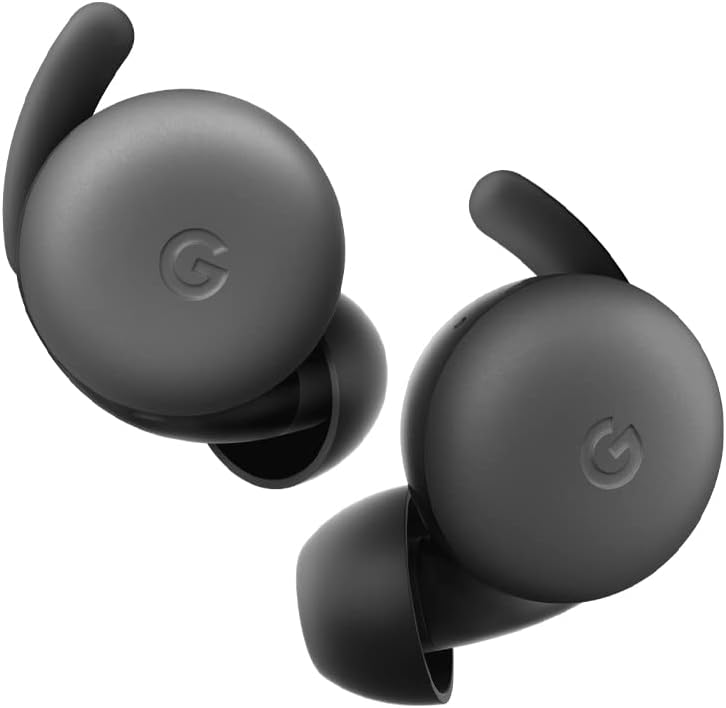
Image: A pair of Google Pixel Buds A-Series earbuds, showcasing their compact design and the 'G' logo on the touch-sensitive surface.
2. Google Assistant Integration
With a compatible Android device, you can access Google Assistant directly from your Pixel Buds A-Series.
- Say "Hey Google" or "Ok Google" to activate the Assistant hands-free.
- Alternatively, press and hold either earbud to speak to Google Assistant.
- You can ask for directions, check weather, control music, or have notifications read aloud.
3. Charging
The Pixel Buds A-Series provide up to 5 hours of listening time or 2.5 hours of talk time on a single charge. The charging case extends this to up to 24 hours of total listening time.
- To charge the earbuds, place them inside the charging case. The indicator light on the case will show their charging status.
- To charge the case, connect it to a USB-C power source using the provided cable. The case's indicator light will show its charging status.
Maintenance
1. Cleaning
- Regularly clean your earbuds and charging case to maintain performance and hygiene.
- Use a soft, dry, lint-free cloth to wipe the exterior of the earbuds and case.
- For eartips, gently remove them and clean with a mild soap solution and water, then rinse and dry thoroughly before reattaching.
- Avoid using abrasive materials or harsh chemicals.
2. Storage
- Always store the Pixel Buds A-Series in their charging case when not in use to protect them and keep them charged.
- Store in a cool, dry place away from extreme temperatures and direct sunlight.
Troubleshooting
If you encounter issues with your Pixel Buds A-Series, try the following steps:
- No Sound or Intermittent Connection:
- Ensure both earbuds are charged.
- Check that Bluetooth is enabled on your device and the earbuds are connected.
- Try placing the earbuds back in the case, closing the lid for a few seconds, then reopening to reset the connection.
- Forget the device in your phone's Bluetooth settings and re-pair.
- Ensure your device is within the Bluetooth range (up to 10 meters).
- Earbuds Not Charging:
- Ensure the charging case itself is charged.
- Verify that the earbuds are correctly seated in the charging case.
- Clean the charging contacts on both the earbuds and inside the case with a dry cotton swab.
- Try a different USB-C cable and power adapter.
- Poor Sound Quality:
- Ensure you have a secure fit with the correct eartip size.
- Clean the earbud mesh and eartips.
- Check your device's audio settings and equalizer.
Specifications
| Model Name | Pixel Buds A-Series |
| Connectivity Technology | Wireless (Bluetooth 5.0) |
| Compatible Devices | Android, iOS, and Bluetooth 4.0+ devices |
| Battery Life (Earbuds) | Up to 5 hours listening, 2.5 hours talk time |
| Battery Life (with Charging Case) | Up to 24 hours listening |
| Water Resistance Level | Water Resistant (IPx4 rating for earbuds) |
| Control Type | Touch (Media Control, Google Assistant) |
| Item Weight | 1.9 ounces (total) |
| Dimensions (Earbud) | 0.81 x 1.15 x 0.69 inches |
| Frequency Range | 20 Hz - 20,000 Hz |
| Bluetooth Range | 10 Meters |
Warranty and Support
For detailed warranty information and customer support, please refer to the official Google Pixel Buds support website. You can typically find support resources, FAQs, and contact options at g.co/pixelbuds/help.
The Pixel Buds A-Series are designed to be repairable, but any repair, disassembly, or damage may affect the water resistance rating.


