
1. Introduction
Thank you for choosing the VIOMI Smart Robot Vacuum V3 Max. This intelligent device is designed to provide a comprehensive cleaning solution for your home, combining sweeping, vacuuming, and mopping functionalities. Equipped with advanced Lidar navigation technology, it ensures efficient and thorough cleaning across various floor types. This manual provides essential information for setting up, operating, maintaining, and troubleshooting your robot vacuum to ensure optimal performance and longevity.

The VIOMI V3 Max Robot Vacuum and its smart app control interface.
2. Product Overview
The VIOMI V3 Max is a versatile 3-in-1 cleaning robot that sweeps, vacuums, and mops. Its advanced Lidar navigation system creates precise maps of your home, enabling efficient cleaning paths and smart zone management. The robot automatically adjusts suction power for different surfaces, including carpets, and operates quietly for minimal disturbance.
Key Features:
- 3-in-1 Cleaning: Sweeping, Vacuuming, and Mopping capabilities for comprehensive floor care.
- Lidar Navigation: Advanced SLAM algorithm for fast and accurate mapping, ensuring efficient cleaning paths.
- Smart Carpet Boost: Automatically increases suction power on carpets for deeper cleaning.
- Smart Clean Settings: Define custom areas, no-go zones, and virtual walls via the app.
- App & Voice Control: Compatible with Mi Home App, Amazon Alexa, and Google Assistant for convenient control.
- Slim Design: 4.1-inch sleek design allows access to hard-to-clean areas under furniture.
- Quiet Operation: Operates at noise levels below 57 dB for a peaceful environment.
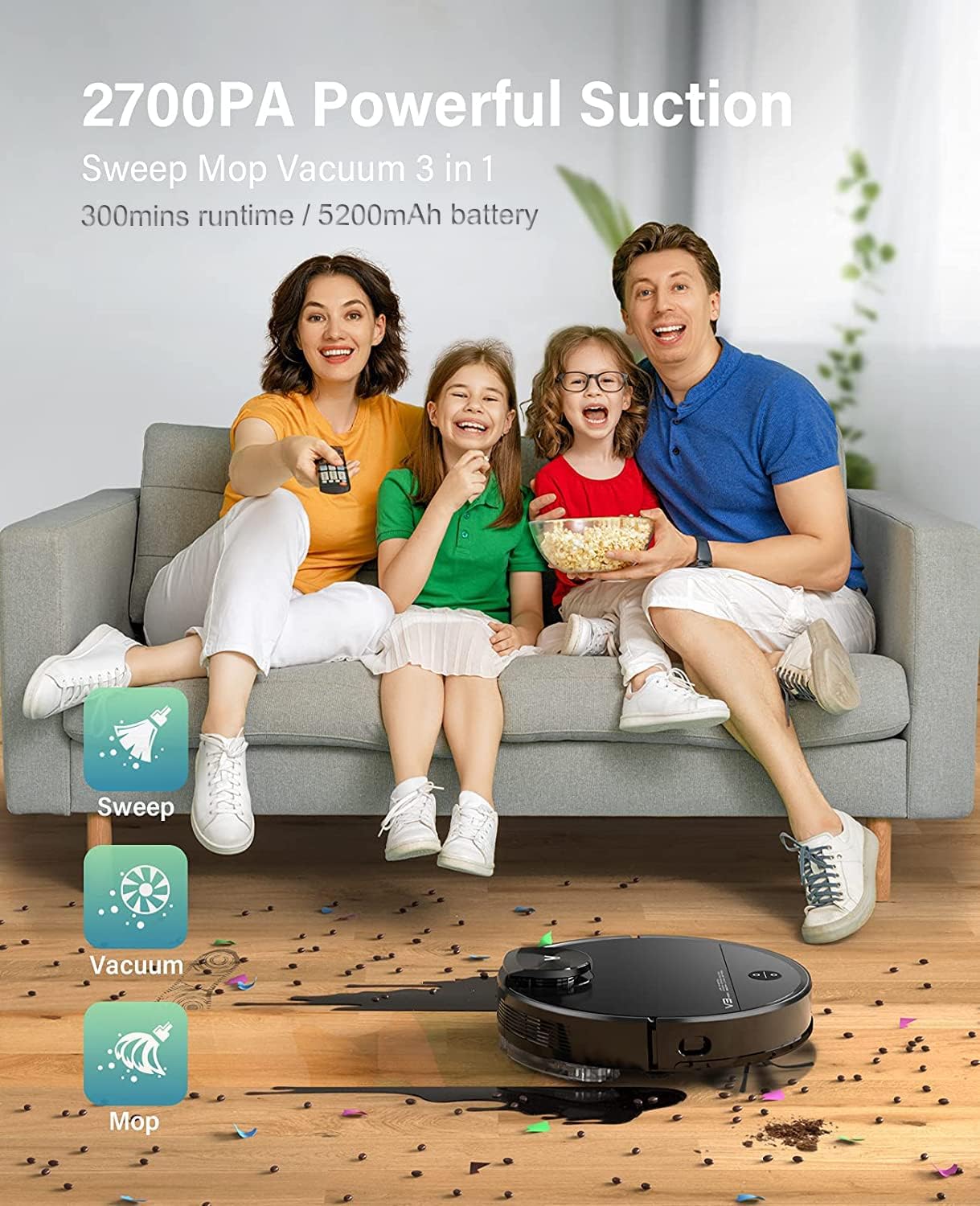
The VIOMI V3 Max offers 3-in-1 functionality for sweeping, vacuuming, and mopping.

Keenly SLAM Lidar Navigation for multi-level mapping and saving maps.

Smart Carpet Boost Mode for deep cleaning on carpets.

Quiet cleaning with noise levels below 57 dB.
3. Setup
Initial Charging:
Place the charging dock in an open area with good Wi-Fi signal. Ensure there is sufficient space around the dock for the robot to navigate. Connect the power adapter to the charging dock and plug it into a wall outlet. Place the robot vacuum on the charging dock to fully charge before first use.
Connecting to Mi Home App:
To unlock the full potential of your VIOMI V3 Max, connect it to the Mi Home App. This allows for remote control, scheduling, map management, and more.
Video: How to connect the VIOMI V3 Max Robot Vacuum to the Mi Home App. This video demonstrates the step-by-step process of pairing your robot vacuum with the Mi Home application, including pressing the power and home buttons, signing into the app, searching for the device, selecting your Wi-Fi router, and confirming the device addition.
- Prepare the Robot: Press and hold both the Power and Home buttons on the robot for 5 seconds until you hear the broadcast of "Network configured."
- Open Mi Home App: Download and open the Mi Home App on your smartphone. Sign up or log in with your Mi Home account.
- Add Device: Tap the "+" icon on the top right corner of the app. Search for "V3 Max" and select "VIOMI V3 Max."
- Confirm Operation: Confirm the operation in the app and proceed to the next step.
- Select Router: Select your Wi-Fi router (ensure it's a 2.4GHz network, not 5GHz) and tap "NEXT."
- Connect Device: Bring your phone closer to the device to complete the connection. Once connected, tap "DONE."
- Select Room & Rename: Select the room where the robot will operate and optionally rename the device for easier identification.
Initial Mapping:
For the first cleaning cycle, allow the robot to complete a full mapping of your home without interruption. This creates an accurate floor plan for future efficient cleaning.
Video: Viomi Lidar Robot Vacuum and Mop Smart Navigation. This video highlights the superior mapping speed and cleaning path planning of Lidar navigation compared to VSLAM technology, demonstrating how the robot efficiently maps and cleans your home.
4. Operating Instructions
Starting a Cleaning Cycle:
- Via Robot: Press the Power button on the robot to start a general cleaning cycle.
- Via App: Open the Mi Home App, select your VIOMI V3 Max, and tap "Start" to begin cleaning. You can choose specific modes (Vacuum, Mop, Vacuum & Mop) and suction levels.
Smart Clean Settings (App Only):
Utilize the Mi Home App to customize your cleaning experience:
- Selective Room Cleaning: Choose specific rooms on your map for targeted cleaning.
- No-Go Zones: Draw virtual boundaries on the map to prevent the robot from entering certain areas (e.g., pet bowls, delicate items).
- To-Go Zones: Define specific areas for the robot to clean intensively.
- Virtual Walls: Create invisible barriers to restrict the robot's movement.

Lidar Navigation with Multi-Floor Smart Mapping allows for selective room cleaning, no-go zones, to-go zones, and quick mess spot cleaning.
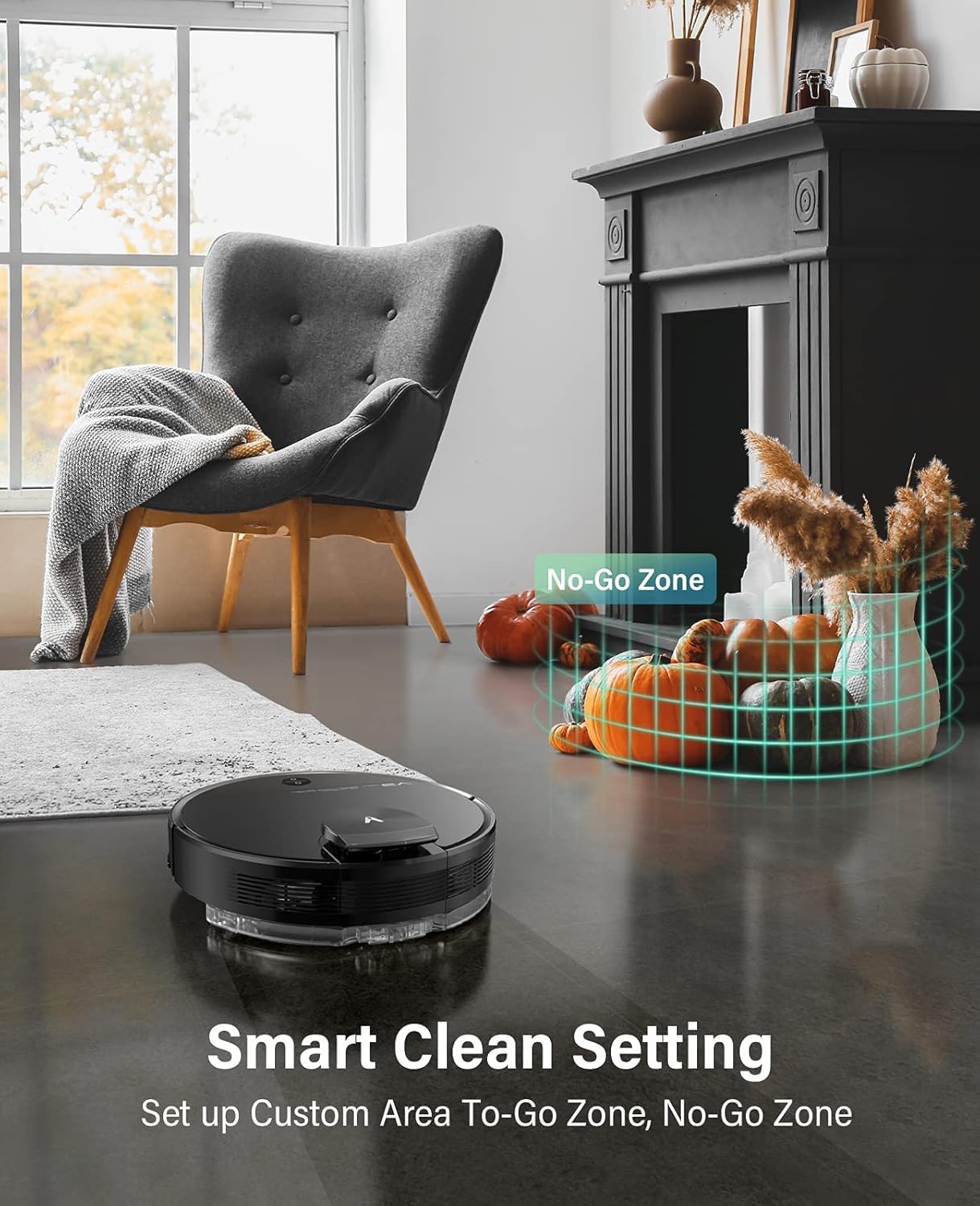
Set up custom areas and no-go zones using the Smart Clean Setting.
Voice Control:
Integrate your VIOMI V3 Max with Amazon Alexa or Google Assistant for hands-free control.
- Amazon Alexa: Enable the VIOMI skill in the Alexa app and link your Mi Home account. Then, use commands like "Alexa, ask V3 Max to start clean."
- Google Assistant: Link your Mi Home account in the Google Home app. Use commands like "Hey Google, start cleaning with V3 Max."

Start cleaning with voice commands or through the Mi Home App.
5. Maintenance
Regular maintenance ensures your VIOMI V3 Max operates efficiently and extends its lifespan. Perform these tasks regularly:
Emptying the Dust Box:
The dust box should be emptied after each cleaning cycle or when full.
- Open the top cover of the robot.
- Remove the 2-in-1 dust compartment with the water tank.
- Open the dust box compartment and empty its contents into a trash bin.
Video: VIOMI V3 Max cleaning hard floors and carpets. This video demonstrates the robot's ability to clean various surfaces and shows the process of emptying the dust box with a single click.
Cleaning Filters and Brushes:
- Filter: Tap the filter to remove loose dirt. Do not rinse the filter with water. Replace the filter every 3-6 months depending on usage.
- Main Brush: Remove the main brush cover and clean any tangled hair or debris from the brush.
- Side Brush: Check the side brush for tangled hair or debris and clean as needed. Replace if worn.
Water Tank and Mop Pad:
- After mopping, empty any remaining water from the tank.
- Remove and clean the mop pad. It is recommended to wash the mop pad after each use.
6. Troubleshooting
If you encounter issues with your VIOMI V3 Max, refer to the following common solutions:
| Problem | Possible Cause | Solution |
|---|---|---|
| Robot not turning on | Low battery; Power button not pressed correctly. | Place on charging dock; Press and hold power button for 3 seconds. |
| Robot stuck or lost | Obstacles; Complex environment. | Clear obstacles; Use no-go zones in app; Relocate robot to a clear area. |
| Poor cleaning performance | Full dust box; Clogged filter/brushes. | Empty dust box; Clean/replace filter and brushes. |
| App connection issues | Incorrect Wi-Fi; Robot not in pairing mode. | Ensure 2.4GHz Wi-Fi; Reset Wi-Fi on robot (hold Power & Home buttons); Re-pair in app. |
| Water tank removed error | Water tank not properly installed. | Ensure the 2-in-1 dust compartment with water tank is securely installed. |
7. Specifications
| Feature | Detail |
|---|---|
| Brand | VIOMI |
| Model Number | V-RVCLM27B |
| Special Feature | Bagless |
| Product Dimensions | 13.98"L x 13.98"W x 4.13"H |
| Included Components | Brush |
| Filter Type | Cartridge |
| Capacity | 0.2 Liters (Dust Box) |
| Power Source | Battery Powered |
| Control Method | Voice |
| Compatible Devices | Amazon Echo, Google Assistant |
| Form Factor | Robotic |
| Item Weight | 10 pounds |
8. Warranty and Support
For detailed warranty information, product registration, and technical support, please refer to the official VIOMI website or contact their customer service directly. Keep your purchase receipt as proof of purchase for warranty claims.
Online Resources:
- Official VIOMI Website: Visit the VIOMI Store on Amazon
- User Guide (PDF): Download User Guide
- User Manual (PDF): Download User Manual


