
1. Introduction
This manual provides essential information for the setup, operation, and maintenance of your Anderic OEM ONN Roku TV Remote Control. Designed as a direct replacement, this remote offers seamless control for compatible ONN Roku TV models without requiring complex programming.

Image 1.1: Front and side view of the Anderic OEM ONN Roku TV Remote Control, highlighting its ergonomic design and button layout.
The Anderic RCAFIR remote is engineered to provide convenient access to all essential functions of your ONN Roku TV, including dedicated buttons for popular streaming services like Netflix, Disney, Hulu, and Vudu.

Image 1.2: The Anderic remote control pointing towards an ONN Roku TV, illustrating its capability to control the TV with a single device.
2. Setup
2.1 Battery Installation
The remote control requires two (2) AAA batteries for operation. Batteries are not included.
- Locate the battery compartment cover on the back of the remote control.
- Slide the cover downwards or press the latch (if present) and lift to open.
- Insert two AAA batteries, ensuring the positive (+) and negative (-) terminals align correctly with the markings inside the compartment.
- Replace the battery compartment cover by sliding it back into place until it clicks securely.

Image 2.1: Diagram illustrating the remote control's dimensions and the required AAA batteries for operation.
2.2 Initial Use (No Programming Required)
This Anderic remote control is pre-programmed for ONN Roku TVs. No manual programming or setup is required. Once batteries are installed, the remote is ready for immediate use with compatible ONN Roku TV models.

Image 2.2: A couple comfortably using the remote control, emphasizing the 'No Programming Needed' feature for immediate enjoyment.
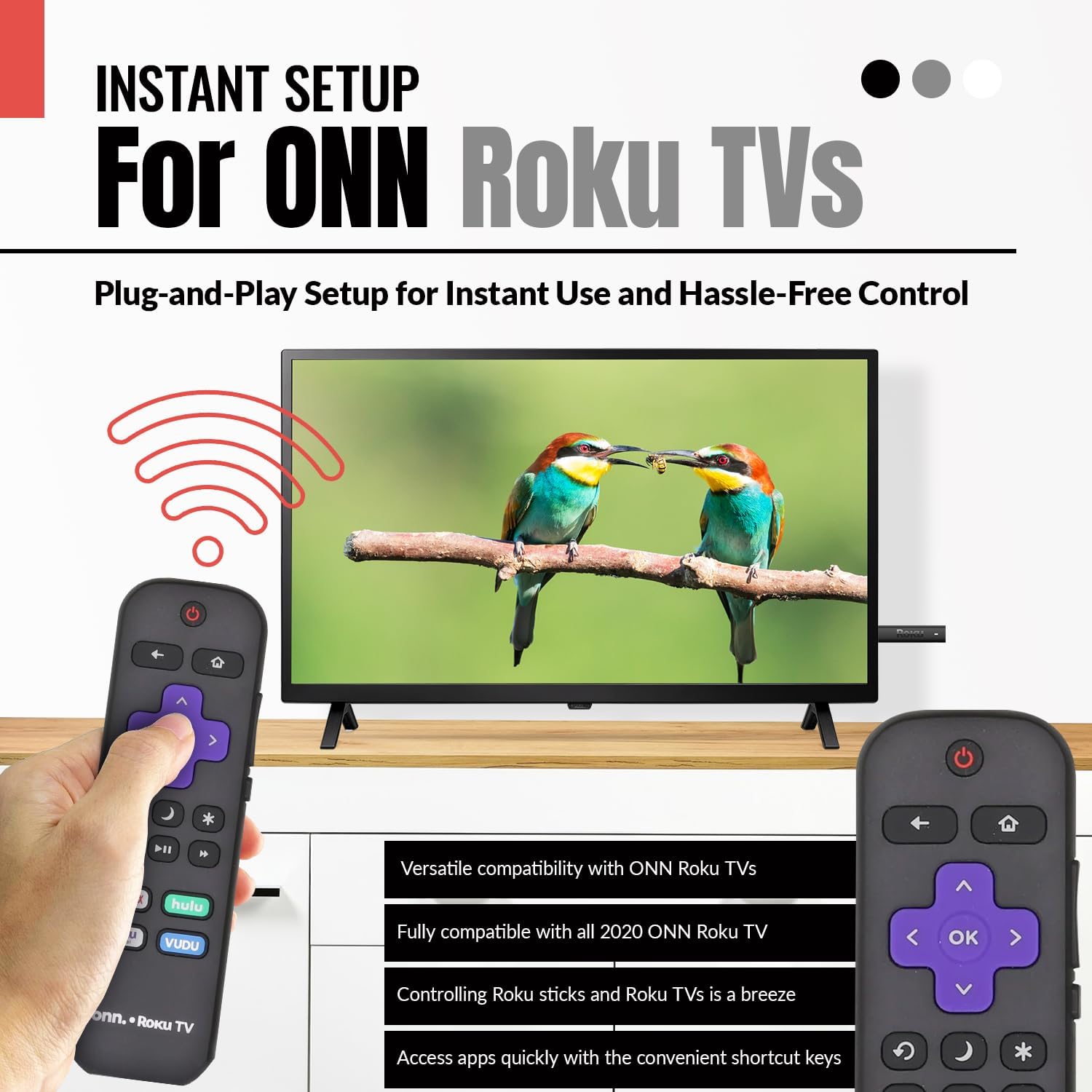
Image 2.3: A hand holding the remote control with a TV displaying content, illustrating the instant plug-and-play setup for ONN Roku TVs.
3. Operating Instructions
3.1 Button Layout and Functions
The Anderic ONN Roku TV remote control features a user-friendly layout with dedicated buttons for various functions. Ensure a clear line of sight between the remote and your TV's infrared sensor for optimal performance.

Image 3.1: A close-up view of the remote control, emphasizing dedicated TV power, volume buttons, and pre-programmed streaming shortcut buttons for accessibility.
- Power Button (Red Circle with Line): Turns the TV on or off.
- Back Button (Left Arrow): Returns to the previous screen or menu.
- Home Button (House Icon): Navigates to the Roku Home screen.
- Directional Pad (Purple Arrows): Used to navigate through menus and content.
- OK Button (Purple 'OK'): Selects an item or confirms an action.
- Volume Up/Down Buttons: Adjusts the TV's volume.
- Mute Button: Mutes or unmutes the TV's audio.
- Instant Replay Button (Curved Arrow): Jumps back a few seconds during video playback.
- Sleep Button (Moon Icon): Sets a sleep timer for the TV.
- Star Button (Asterisk): Accesses options or settings within certain apps.
- Play/Pause Button (Triangle/Two Bars): Plays or pauses media content.
- Fast Forward/Rewind Buttons: Skips forward or backward in media content.
- Streaming Service Shortcut Buttons (Netflix, Hulu, Vudu, Roku Channel): Provides direct access to these streaming applications.

Image 3.2: A user operating the remote control, highlighting its comprehensive functionality beyond just streaming.
4. Compatibility
The Anderic RCAFIR remote control is designed for broad compatibility with ONN Roku TV models. It functions as a direct replacement for several original ONN Roku remotes.
4.1 Compatible ONN Roku TV Models
This remote is fully compatible with all 2020 ONN Roku TV models and is supplied with the following specific ONN Roku TV models:
- 100005397
- 100012584
- 100012585
- 100012586
- 100012587
- 100012589
- 100012590
- 100018971
- 100021258
- 100021261
- 100024699
4.2 Replacement for Original Remotes
The RCAFIR remote serves as a direct replacement for the original ONN RCALIR Roku remote with Netflix, Disney, Hulu, and Vudu buttons, as well as other compatible models including:
- 276168
- 3226000855
- 3226000887

Image 4.1: A graphic illustrating the replacement compatibility for the ONN Roku TV RCALIR remote, highlighting preset compatibility and easy setup.

Image 4.2: A woman holding the remote control, signifying its role as a reliable replacement for entertainment mastery.
5. Troubleshooting
5.1 Remote Not Responding
- Check Batteries: Ensure batteries are inserted correctly with the correct polarity (+/-). Replace old or depleted batteries with fresh AAA batteries.
- Line of Sight: Verify there are no obstructions between the remote control and the TV's infrared sensor. The remote operates using infrared technology, requiring a direct line of sight.
- TV Power: Confirm that your ONN Roku TV is powered on and not in standby mode.
- Remote Reset: Remove the batteries from the remote, press each button a few times to discharge any residual power, then reinsert the batteries.
5.2 Specific Button Issues
- If a specific button is not working, gently clean around the button with a soft, dry cloth to remove any dust or debris that might be interfering with its function.
- Ensure the remote is pointed directly at the TV's IR sensor when pressing the button.
6. Product Specifications
| Feature | Detail |
|---|---|
| Model Number | ONN-RCAFIR |
| Product Dimensions | 5.75 x 1.75 x 1 inches |
| Item Weight | 1.76 ounces |
| Batteries Required | 2 AAA batteries (not included) |
| Connectivity Technology | Infrared (IR) |
| Compatible Devices | Television (ONN Roku TV models) |
| Special Feature | Ergonomic design, Pre-programmed |
7. Important Information
7.1 Legal Disclaimer
Anderic is a registered trademark of Dan's Electronics Etc., Inc. All Rights Reserved. We are not affiliated with Roku. Roku is a registered trademark of Roku Inc.
7.2 Manufacturer Information
Anderic, a brand of Dan's Electronics Etc., Inc., has been manufacturing replacement remote controls since 1999. The company is based in NC, USA, and focuses on providing high-quality replacement remote controls and accessories to extend the life of your equipment.


