
1. Introduction
This manual provides detailed instructions for setting up, operating, maintaining, and troubleshooting your Mercusys MR30G AC1200 Wireless Dual Band WiFi Gigabit Router. Please read this guide thoroughly to ensure proper installation and optimal performance of your device.
2. Product Overview
2.1 Key Features
- AC1200 Dual Band WiFi: Delivers combined speeds of up to 1.2 Gbps (300 Mbps on 2.4 GHz and 867 Mbps on 5 GHz) for fast, reliable connections.
- Gigabit Wired Speeds: Equipped with full gigabit ports (1 WAN, 2 LAN) for high-speed wired connections to PCs, IPTVs, and game consoles.
- MU-MIMO Technology: Communicates with multiple devices simultaneously, improving network efficiency and speed for connected devices.
- High-Gain Antennas with Beamforming: Four external 5 dBi antennas and Beamforming technology provide targeted, stable, and extended wireless coverage.
- Powerful Signal Amplifiers: Strengthens signal transmissions and accelerates signal capture for improved range and full-signal strength throughout your home.
- Multiple Operating Modes: Supports Router, Access Point, and Range Extender modes.
- WPS Functionality: Simplifies secure wireless connection setup.
2.2 Package Contents
The Mercusys MR30G package typically includes:
- Mercusys MR30G AC1200 Wireless Dual Band WiFi Gigabit Router
- Power Adapter
- Ethernet Cable
- Quick Installation Guide

Image 1: Mercusys MR30G AC1200 Wireless Dual Band WiFi Gigabit Router with its retail packaging.

Image 2: Angled front view of the Mercusys MR30G router, highlighting its four external antennas.
3. Setup Guide
Follow these steps for a simple and quick setup of your Mercusys MR30G router.
3.1 Hardware Connection
- Power Off: Disconnect the power from your modem (if applicable).
- Connect WAN Port: Connect the Ethernet cable from your modem's LAN port to the blue WAN port on your MR30G router.
- Connect LAN Ports (Optional): For wired devices, connect an Ethernet cable from your computer or other network devices to one of the yellow LAN ports on the MR30G router.
- Power On: Connect the power adapter to the router and plug it into a power outlet. Wait for the router to fully boot up (the LED indicator should turn solid green).
- Power On Modem: Reconnect power to your modem.
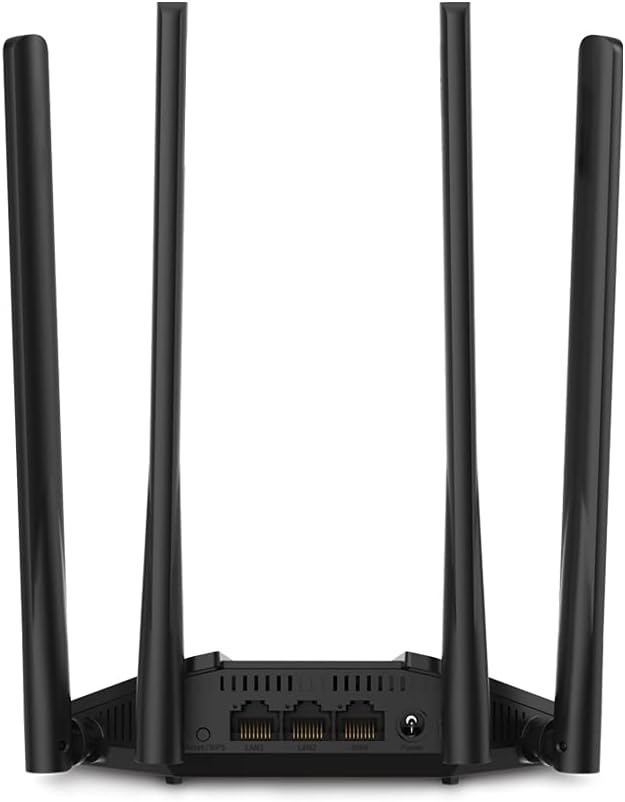
Image 3: Rear view of the Mercusys MR30G router, showing the WAN port (blue), LAN ports (yellow), power input, and reset button.
3.2 Initial Configuration
- Connect to Router: Connect your computer or mobile device to the router's default Wi-Fi network (SSID and password are usually printed on a label on the bottom of the router) or via an Ethernet cable to a LAN port.
- Access Web Interface: Open a web browser and enter the default access address (e.g.,
mwlogin.netor192.168.1.1) into the address bar. - Create Login Password: Follow the on-screen instructions to create a strong login password for the router's management interface.
- Run Quick Setup: The Quick Setup wizard will guide you through configuring your internet connection type, Wi-Fi network name (SSID), and password.
- Save Settings: Apply the settings and restart the router if prompted.
4. Operating Instructions
4.1 Dual Band Operation
The MR30G operates on two frequency bands:
- 2.4 GHz Band: Provides wider coverage and better wall penetration, suitable for general internet browsing, email, and devices further from the router.
- 5 GHz Band: Offers faster speeds and lower interference, ideal for bandwidth-intensive tasks like HD video streaming, online gaming, and large file transfers.
You can connect your devices to either band based on your needs. The router may also offer a Smart Connect feature to automatically assign devices to the optimal band.
4.2 Advanced Features
Access the router's web management interface to configure advanced settings:
- Guest Network: Create a separate Wi-Fi network for guests to ensure the security of your main network.
- Access Point Mode: Convert your router into an access point to extend your existing wired network with Wi-Fi capabilities.
- IPv6 Support: Utilize the latest internet protocol for enhanced network efficiency and future compatibility.
- WPS (Wi-Fi Protected Setup): Press the WPS button on the router and your WPS-enabled device to quickly establish a secure wireless connection without entering a password.
- Parental Controls: Manage and restrict internet access for specific devices.
- QoS (Quality of Service): Prioritize network traffic for certain applications or devices to ensure smooth performance.
5. Maintenance
Regular maintenance helps ensure the longevity and optimal performance of your router.
- Firmware Updates: Periodically check the Mercusys official website for firmware updates. Updating the firmware can improve performance, add new features, and fix security vulnerabilities.
- Regular Reboot: Rebooting your router every few weeks can help clear its memory and resolve minor network issues. Simply unplug the power adapter, wait 10 seconds, and plug it back in.
- Optimal Placement: Place the router in a central location, away from obstructions, large metal objects, and devices that emit electromagnetic interference (e.g., microwaves, cordless phones).
- Cleaning: Keep the router clean and free from dust. Use a soft, dry cloth to wipe the exterior. Do not use liquid cleaners.
- Security: Regularly change your Wi-Fi password and router login password to strong, unique combinations.
6. Troubleshooting
If you encounter issues with your router, refer to the following common solutions.
6.1 No Internet Access
- Check Connections: Ensure all Ethernet cables are securely connected to the correct ports (WAN to modem, LAN to devices).
- Reboot Devices: Power cycle your modem, then your router, and then your connected devices.
- Check WAN LED: Verify that the WAN LED on the router is lit, indicating an active internet connection.
- ISP Status: Contact your Internet Service Provider (ISP) to confirm there are no service outages in your area.
- Router Settings: Log into the router's web interface and check your internet connection settings (e.g., WAN connection type, IP address).
6.2 Slow Wi-Fi Speed or Frequent Disconnections
- Router Placement: Move the router to a more central location, away from obstacles and interference sources.
- Channel Interference: In the router's web interface, try changing the Wi-Fi channel for both 2.4 GHz and 5 GHz bands to a less congested one.
- Band Selection: For speed-critical devices, ensure they are connected to the 5 GHz band.
- Firmware Update: Ensure your router's firmware is up to date.
- Too Many Devices: Reduce the number of active devices or bandwidth-intensive activities on your network.
6.3 Cannot Access Router's Web Interface
- Verify IP Address: Ensure you are using the correct access address (e.g.,
mwlogin.netor192.168.1.1). - Check Connection: Make sure your device is connected to the router's network (either via Wi-Fi or Ethernet).
- Clear Browser Cache: Clear your web browser's cache and cookies, or try a different browser.
- Reset Router: If all else fails, perform a factory reset by pressing and holding the reset button on the back of the router for about 5-10 seconds until the LEDs flash. Note: A factory reset will erase all your custom settings, and you will need to reconfigure the router.
7. Specifications
| Feature | Description |
|---|---|
| Model | MR30G |
| Brand | MERCUSYS |
| Wireless Standards | IEEE 802.11a/b/g/n/ac |
| Data Transfer Rate | AC1200 (300 Mbps on 2.4 GHz, 867 Mbps on 5 GHz) |
| Frequency | 2.4 GHz & 5 GHz (Dual Band) |
| Antennas | 4x Fixed Omni-Directional Antennas |
| Ethernet Ports | 1x Gigabit WAN Port, 2x Gigabit LAN Ports |
| Dimensions (W x D x H) | 2.79 x 24.64 x 16.51 cm |
| Weight | 173 g |
| Power Input | 220 Volts |
| Special Features | MU-MIMO, Beamforming, WPS |
| Compatible Devices | Computers, smartphones, tablets, game consoles, streaming devices, printers, security cameras, smart thermostats, smart TVs |
8. Warranty and Support
For warranty information and technical support, please refer to the official Mercusys website or contact your local Mercusys support team. Keep your purchase receipt for warranty claims.
Mercusys Official Website: www.mercusys.com


