
1. Introduction
The AquaVault ChargeCard is an ultra-slim, credit card-sized emergency power bank designed for convenient, on-the-go charging. With a 2300mAh capacity and durable stainless steel body, it ensures you have emergency power for your devices whenever and wherever you need it. Its integrated USB-C and Micro-USB connectors make it compatible with a wide range of smartphones and other portable electronics, including iPhones (with their standard adapter).
2. Product Overview & Features
- Ultra-Slim Design: At only 3.3" x 2.2" x 0.18" (2.1oz), it fits easily into any wallet or cardholder, providing emergency power without bulk.
- Durable Construction: Engineered with a stainless steel frame for enhanced durability, resisting bending or cracking during daily carry.
- Integrated Cables: Features built-in USB-C and Micro-USB connectors, eliminating the need for extra cables. Compatible with Android, tablets, and iPhones (using their standard adapter).
- 2300mAh Capacity: Provides a crucial power boost for your smartphone in emergency situations.
- LED Indicator Lights: Four LED lights clearly display the remaining power level of the ChargeCard.
- Flight-Safe: Meets airline safety guidelines, allowing it to be carried in your pocket or carry-on without restrictions.



3. Setup & Initial Charge
Before first use, ensure your AquaVault ChargeCard is fully charged. Use the provided power cable to connect the ChargeCard to a USB power source (e.g., wall adapter, computer USB port). The LED indicator lights will illuminate to show the charging progress. Once all four lights are solid, the ChargeCard is fully charged and ready for use.
The ChargeCard features integrated cables for convenience. Simply pull out the appropriate connector (USB-C or Micro-USB) from its slot on the card. For iPhones, use your standard Lightning adapter connected to the ChargeCard's USB-C or Micro-USB cable.
Video 3.1: Official AquaVault demonstration of the ChargeCard's features and ease of use, including connecting to devices and checking battery status.
4. Operating Instructions
To charge your device using the AquaVault ChargeCard:
- Identify the correct integrated cable for your device (USB-C or Micro-USB). If using an iPhone, attach your Lightning adapter to one of the ChargeCard's integrated cables.
- Gently pull out the chosen cable from its secure slot on the ChargeCard.
- Plug the cable into your smartphone or other compatible device.
- The ChargeCard will automatically begin charging your device. The LED indicator lights on the ChargeCard will show its remaining power.
- Once your device has received the necessary charge, unplug the cable from your device and carefully re-insert the cable back into its slot on the ChargeCard until it clicks securely into place.
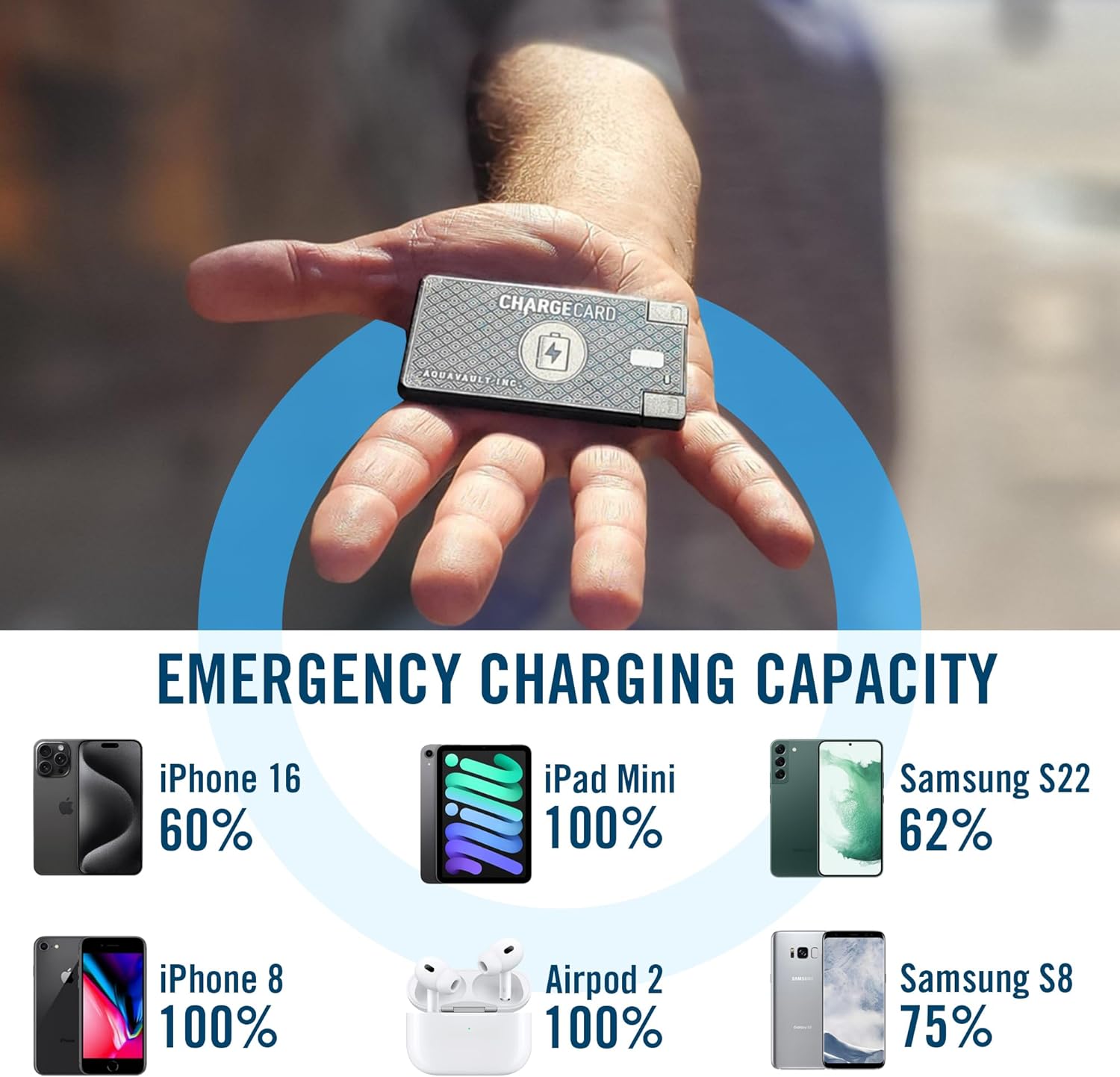
The ChargeCard is designed for emergency power. While it provides a fast charge, it may not fully charge all devices, especially those with larger battery capacities. It is ideal for getting your phone to a usable percentage when no other power source is available.
5. Maintenance
To ensure the longevity and optimal performance of your AquaVault ChargeCard:
- Storage: Store the ChargeCard in a cool, dry place away from direct sunlight and extreme temperatures.
- Cleaning: Wipe the surface with a soft, dry cloth. Avoid using harsh chemicals or abrasive materials.
- Charging: Recharge the ChargeCard regularly, even if not in frequent use, to maintain battery health. Avoid completely draining the battery for extended periods.
- Handling: While durable, avoid dropping the ChargeCard or subjecting it to excessive force, which could damage internal components.
6. Troubleshooting
| Problem | Possible Cause | Solution |
|---|---|---|
| ChargeCard not charging device. | Low ChargeCard battery; incorrect cable connection; device not compatible. | Recharge ChargeCard fully. Ensure cable is securely connected to both ChargeCard and device. Verify device compatibility. |
| ChargeCard gets hot during use. | Normal operation during charging; excessive load. | Some warmth is normal. If excessively hot, disconnect immediately and allow to cool. Avoid charging in confined spaces. |
| ChargeCard not holding charge. | Battery degradation over time; improper storage. | Ensure regular recharging and proper storage. If issue persists, battery may be at end of life. |
| LED indicators not working. | Internal malfunction. | Contact AquaVault customer support for assistance. |
7. Specifications
| Feature | Detail |
|---|---|
| Product Dimensions | 3.3 x 2.2 x 0.18 inches |
| Item Weight | 3.84 ounces |
| Battery Capacity | 2300 Milliamp Hours (mAh) |
| Model Number | AV10-ChargeCard |
| Connector Type | USB Type C, Micro USB (Lightning via user's adapter) |
| Special Features | LED Indicator Lights |
| Manufacturer | AquaVault Inc. |
| Country of Origin | China |
8. Warranty & Support
For warranty information and customer support, please refer to the official AquaVault website or contact their customer service directly. Keep your proof of purchase for any warranty claims.
AquaVault Official Store: Visit the AquaVault Store on Amazon