
1. Introduction
This manual provides essential information for setting up, operating, maintaining, and troubleshooting your MSI Cyborg 15 B2RWFKG gaming laptop. Please read this manual thoroughly before using your device to ensure proper function and longevity.
The MSI Cyborg 15 B2RWFKG is a high-performance gaming laptop featuring a 2nd Generation Intel Core 7 240H processor, NVIDIA GeForce RTX 5060 graphics, a 40cm FHD 144Hz display, 16GB DDR5 RAM, and a 1TB NVMe SSD, running on Windows 11 Home.
2. Safety Information
Observe the following safety guidelines to prevent damage to your laptop and ensure personal safety:
- Use only the power adapter supplied with your laptop.
- Do not expose the laptop to extreme temperatures, direct sunlight, or high humidity.
- Keep the laptop away from liquids. In case of accidental spills, disconnect power immediately and contact service.
- Do not attempt to disassemble or repair the laptop yourself. Refer all servicing to qualified personnel.
- Ensure proper ventilation to prevent overheating. Do not block the ventilation openings.
3. Setup
3.1 Unboxing and Initial Inspection
Carefully remove the laptop and its accessories from the packaging. The box contents include the laptop, power adapter, and user guide. Inspect all items for any signs of damage.
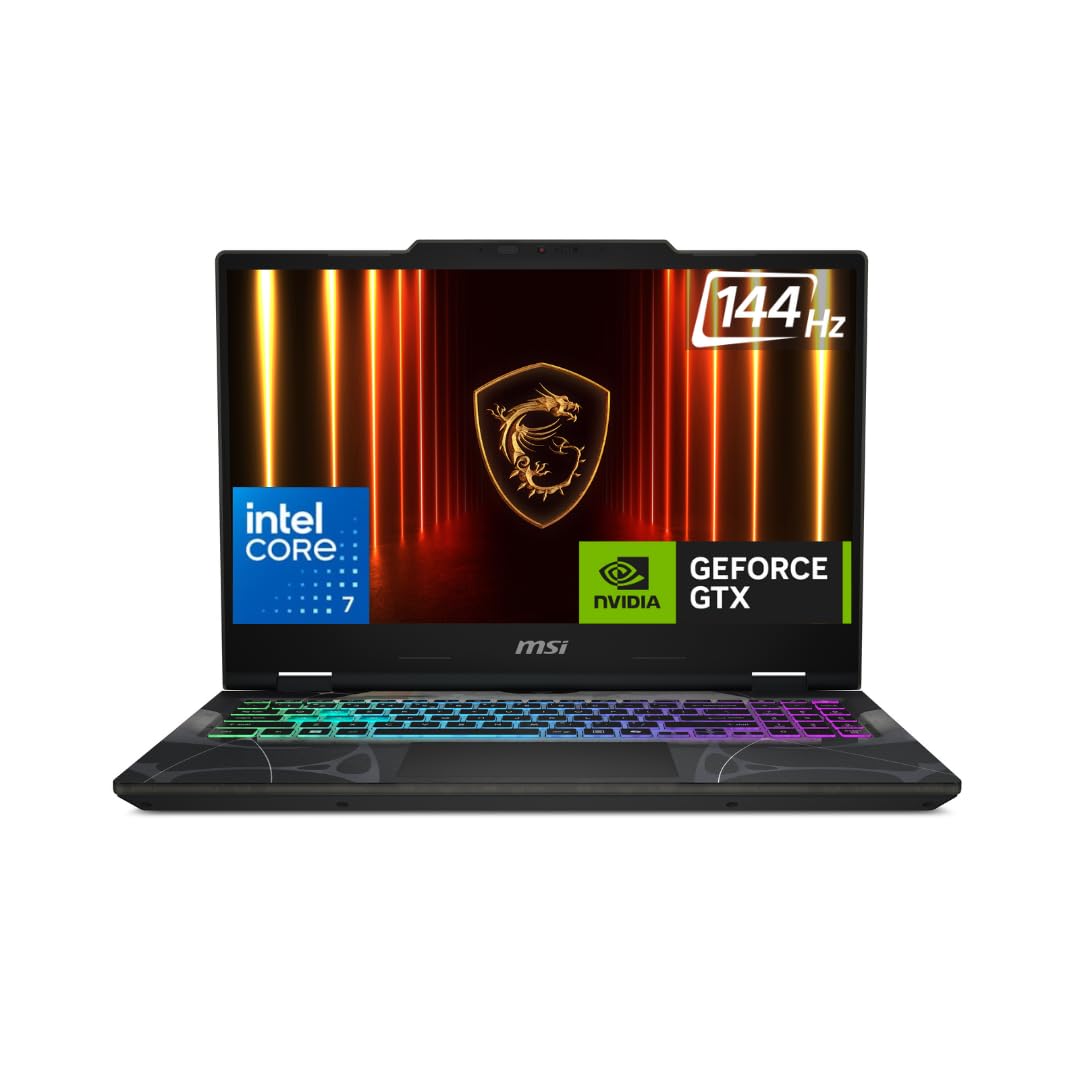
Image: The MSI Cyborg 15 gaming laptop, ready for setup.
3.2 Connecting Power
- Connect the power adapter to the laptop's power input port.
- Plug the power cable into a wall outlet.
- It is recommended to fully charge the battery before initial use.
3.3 Initial Boot-up and Windows Setup
Press the power button to turn on the laptop. Follow the on-screen instructions to complete the Windows 11 Home setup, including language selection, network connection, and user account creation.

Image: Side view of the MSI Cyborg 15 laptop highlighting various connectivity ports including USB and HDMI.
4. Operating Instructions
4.1 Power On/Off
- Power On: Press the power button located on the keyboard deck.
- Power Off: Click the Start button in Windows, then select Power > Shut down.
- Sleep Mode: Close the lid or select Power > Sleep from the Start menu.
4.2 Keyboard and Touchpad
The laptop features a gaming keyboard with customizable backlighting. The touchpad supports multi-touch gestures for navigation.

Image: Top-down view of the MSI Cyborg 15 keyboard with RGB backlighting and touchpad.
4.3 Display Settings
Your laptop is equipped with a 40cm FHD (1920x1080) IPS-Level display with a 144Hz refresh rate. You can adjust display settings, including brightness and refresh rate, through Windows Display Settings.

Image: The MSI Cyborg 15 gaming laptop screen highlighting its 144Hz refresh rate capability.
4.4 Connectivity
The laptop supports various connectivity options:
- Wi-Fi: Connect to wireless networks for internet access.
- Bluetooth v5.3: Pair with Bluetooth devices such as headphones, mice, or game controllers.
- USB Ports: Connect external devices like storage drives, keyboards, and mice.
- HDMI Port: Connect to external displays or projectors.
4.5 MSI Center Software
The pre-installed MSI Center software allows you to monitor system performance, customize RGB lighting, optimize game settings, and manage various laptop features.

Image: Diagram illustrating the Cooler Boost technology, a feature managed by MSI Center, for efficient heat dissipation within the laptop.
5. Maintenance
5.1 Cleaning the Laptop
- Use a soft, lint-free cloth to clean the screen and exterior surfaces.
- For stubborn smudges, dampen the cloth slightly with water or a screen cleaner.
- Use compressed air to clear dust from keyboard keys and ventilation openings.
5.2 Battery Care
- Avoid completely discharging the battery frequently.
- Store the laptop in a cool, dry place if not used for extended periods.
- For optimal battery health, avoid continuous charging at 100% for long durations.
5.3 Software Updates
Regularly update your Windows operating system, drivers (especially graphics drivers), and MSI Center software to ensure optimal performance and security.
5.4 Storage Management
Periodically clean up unnecessary files and applications to maintain sufficient free space on your 1TB NVMe PCIe Gen4 SSD for optimal system responsiveness.
6. Troubleshooting
This section addresses common issues you might encounter with your laptop.
6.1 Power Issues
- Laptop does not turn on: Ensure the power adapter is securely connected to both the laptop and a working power outlet. Check if the power adapter's indicator light is on.
- Battery not charging: Verify the power adapter connection. Try a different power outlet. If the issue persists, contact support.
6.2 Display Issues
- No display on screen: Connect an external monitor via HDMI to check if the issue is with the laptop's internal display. Press Fn + F2 (or the appropriate function key) to toggle display output.
- Flickering or distorted display: Update your graphics drivers. Reduce the display refresh rate in Windows settings to see if the issue resolves.
6.3 Performance Issues
- Laptop is slow: Close unnecessary applications. Check Task Manager for high CPU/RAM usage. Ensure sufficient free storage space.
- Overheating: Ensure ventilation openings are clear. Use MSI Center to monitor temperatures and adjust fan speeds. Avoid using the laptop on soft surfaces that can block airflow.
6.4 Other Issues
For issues not covered here, refer to the MSI support website or contact customer service.
7. Specifications
| Feature | Detail |
|---|---|
| Brand | MSI |
| Model Name | Cyborg 15 B2RWFKG |
| Processor | 2nd Generation Intel Core 7 240H (up to 5.2 GHz) |
| Operating System | Windows 11 Home |
| Display | 40cm (15.6-inch) FHD (1920x1080), 144Hz Refresh Rate, IPS-Level |
| Memory (RAM) | 16GB DDR5 (5600 MHz), Max 64GB, 2 Slots |
| Storage | 1TB NVMe PCIe Gen4 SSD |
| Graphics Card | NVIDIA GeForce RTX 5060, GDDR7 8GB |
| Network Connectivity | Intel Wi-Fi, Bluetooth v5.3 |
| Ports | USB, HDMI (Total 1) |
| Audio Output | Headphones, Speakers |
| Keyboard | Gaming Keyboard |
| Battery | Lithium Polymer, 55.2 Watt Hours |
| Item Weight | 1.95 Kilograms |
| Dimensions (L x W x T) | 24.5L x 35.9W x 2.3Th Centimeters |
8. Warranty Information
Your MSI Cyborg 15 B2RWFKG laptop comes with a 2 Years On-Site warranty. This warranty covers manufacturing defects and does not cover physical, burn, or liquid damage. On-Site Service eligibility may vary by region.
For more details and to validate your warranty, please visit the official MSI India Website. The unit comes with a two-year base domestic warranty from the unit shipped date and can be corrected by contacting MSI.

Image: MSI Warranty and Support Information, including contact details and warranty validation link.
9. Support
For technical assistance, warranty claims, or any other support inquiries, please use the following contact information:
9.1 Manufacturer Contact Information
MICRO-STAR INTERNATIONAL CO., LTD
No.88, East Qianjin Road Kunshan City Jiangsu China
9.2 Importer Contact Information (India)
You may contact one of the following authorized importers:
- Acro Engineering Company C-87 DDA Sheds, Okhla Industrial Area, Phase-1, New Delhi 110020, India
- Redington (India) Limited “Redington House” Centre Point, Plot Nos. 8 & 11 (SP) Thiru. Vi. Ka, Industrial Estate, Chennai 600032, India
- Ingram Micro India Private Limited 5th Floor, Empire Plaza, Building A, LBS Marg, Vikhroli West, Mumbai 400083, India
- World Peace International (India) Private Limited Building No. 26, 2nd Floor, Okhla Phase III, New Delhi 110020, India.
9.3 Direct Support Channels
- Warranty Validation: Visit https://in.msi.com/support/nb
- Phone Support: 011 4748 4000 (9 AM to 5 PM)
- Email Support: indiaservicenb@msi.com
- Service Centers: More than 170 centers available across India.


