
1. Introduction
This manual provides essential information for the safe and efficient use of your Philips 8500 Series 50PUS8506/12 4K UHD Smart TV. Please read these instructions carefully before operating the device and retain them for future reference.
The Philips 50PUS8506/12 is a 50-inch (127 cm) 4K Ultra HD Smart TV featuring Ambilight technology, Android TV operating system, and support for Dolby Vision and Dolby Atmos. It is designed to deliver a high-quality viewing and audio experience.
2. Safety Information
Always follow these basic safety precautions when using your television:
- Power Source: Ensure the TV is connected to a power supply within the specified voltage range.
- Ventilation: Do not block ventilation openings. Allow adequate space around the TV for proper airflow.
- Water and Moisture: Do not expose the TV to rain or moisture. Do not place objects filled with liquids, such as vases, on the TV.
- Cleaning: Unplug the TV before cleaning. Use a soft, dry cloth. Do not use liquid or aerosol cleaners.
- Placement: Place the TV on a stable, level surface. Avoid placing it in direct sunlight or near heat sources.
- Children: Supervise children to ensure they do not climb on the TV or furniture it is placed on.
- Servicing: Do not attempt to service the TV yourself. Refer all servicing to qualified service personnel.
3. Package Contents
Verify that all items are present in the package:
- Philips 50PUS8506/12 TV
- Desktop Stand
- AC Power Cable
- Remote Control
- Quick Start Guide (may be separate or integrated)
- Batteries for Remote Control (if included)
4. Setup
4.1. Attaching the Desktop Stand
Carefully place the TV screen-down on a soft, flat surface to prevent damage. Attach the desktop stand to the TV using the provided screws, following the instructions in the quick start guide. Ensure the stand is securely fastened before placing the TV upright.

Image: Philips 50PUS8506/12 TV with its desktop stand attached, ready for placement.
4.2. Connecting Peripherals
Your Philips TV offers various connection options:
- HDMI: Connect external devices like Blu-ray players, game consoles, or set-top boxes using HDMI cables. This TV supports HDMI 2.1 for enhanced features like VRR (Variable Refresh Rate) and ARC (Audio Return Channel).
- USB: Two USB ports are available for connecting USB storage devices to play media or for service purposes.
- Bluetooth: Connect wireless headphones or other Bluetooth-enabled audio devices.
- Network: Connect to your home network via Wi-Fi or an Ethernet cable for Smart TV functions.
4.3. Initial Power On and Setup
After connecting the power cable and any desired peripherals, press the power button on the remote control or the TV. The TV will guide you through the initial setup process, which includes:
- Language selection
- Network connection (Wi-Fi or Ethernet)
- Google Account sign-in (for Android TV features)
- Channel scanning
- Ambilight settings
5. Operating Your TV
5.1. Remote Control Overview
The remote control provides access to all TV functions. Familiarize yourself with the button layout for easy navigation.
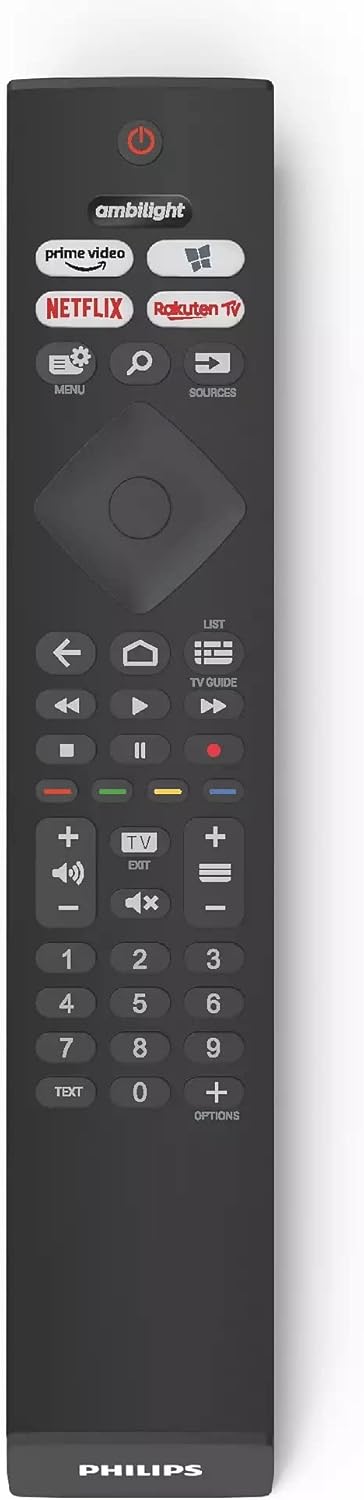
Image: The Philips TV remote control, featuring dedicated buttons for streaming services and a microphone button for Google Assistant.
- Power Button: Turns the TV on or off.
- Navigation Pad: Used to navigate menus and select options.
- Volume +/-: Adjusts the volume level.
- Channel +/-: Changes TV channels.
- Home Button: Accesses the Android TV home screen.
- Google Assistant Button: Activates voice control for commands and searches.
- App Buttons: Direct access to popular streaming services like Netflix, Prime Video, and Rakuten TV.
5.2. Android TV Features
Your Philips TV runs on Android TV, offering a smart and customizable user experience. You can:
- Customize Home Screen: Arrange your favorite apps and content for quick access.
- Stream Content: Access a wide range of streaming services and apps from the Google Play Store.
- Google Assistant: Use voice commands to control the TV, search for content, or manage smart home devices.
- Chromecast Built-in: Cast content from your smartphone or tablet directly to the TV.

Image: The Android TV home screen displaying various streaming applications and content recommendations.
5.3. Ambilight Technology
Philips Ambilight projects colors from the screen onto the surrounding wall, creating an immersive viewing experience. You can customize Ambilight settings in the TV menu to match your preferences, including different modes like Follow Video, Follow Audio, or a static color.

Image: Philips TV with Ambilight active, illuminating the wall behind it with dynamic colors that match the on-screen content.
5.4. Picture and Sound Enhancements
- Philips P5 Engine: This processing engine optimizes picture quality, enhancing details, colors, contrast, and motion for a brilliant viewing experience.
- 4K UHD and HDR: The TV supports 4K Ultra HD resolution and major HDR formats, including Dolby Vision and HDR10+, delivering deeper shadows, brighter highlights, and truer colors.
- Dolby Atmos: Experience immersive, multi-dimensional audio that flows around you.
- DTS Play-Fi: Connect to compatible wireless speakers in other rooms for multi-room audio, allowing you to extend your TV's sound throughout your home.
5.5. Gaming Features
For gamers, the TV offers:
- Low Latency: Automatic low latency setting when a game is detected on a connected console.
- VRR Support: Variable Refresh Rate for smoother fast-action gameplay.
- Ambilight Gaming Mode: Extends the gaming experience beyond the screen.
6. Maintenance
- Screen Cleaning: Gently wipe the screen with a soft, lint-free cloth. For stubborn marks, slightly dampen the cloth with water or a specialized screen cleaner (do not spray directly onto the screen).
- Cabinet Cleaning: Use a soft, dry cloth to clean the TV cabinet.
- Dust Removal: Regularly dust the ventilation openings to prevent overheating.
- Software Updates: Ensure your TV's software is up to date for optimal performance and new features. The TV may update automatically or prompt you for manual updates.
7. Troubleshooting
If you encounter issues with your TV, refer to the following common solutions:
| Problem | Possible Solution |
|---|---|
| No power | Check if the power cable is securely connected to the TV and the wall outlet. Ensure the outlet is functional. |
| No picture, but sound is present | Verify the correct input source is selected. Check cable connections (HDMI, antenna). Try restarting the TV. |
| No sound, but picture is present | Check the volume level and mute status. Ensure external audio systems are correctly connected and selected. For Dolby Atmos issues, a software update or TV restart might be necessary (as noted in user reviews). |
| Remote control not working | Replace the batteries. Ensure there are no obstructions between the remote and the TV's IR sensor. |
| Smart TV apps not loading or slow | Check your internet connection. Restart the TV and your router. Clear app cache or reinstall problematic apps. |
| Ambilight not functioning | Check Ambilight settings in the TV menu. Ensure no physical obstructions are blocking the LEDs. |
If the problem persists, consult the Philips support website or contact customer service.
8. Specifications
Key technical specifications for the Philips 50PUS8506/12 TV:
| Feature | Detail |
|---|---|
| Model Number | 50PUS8506/12 |
| Brand | PHILIPS |
| Screen Size | 50 Inches (127 cm) |
| Display Technology | LED |
| Resolution | 4K (3840 x 2160 pixels) |
| Refresh Rate | 60 Hz |
| Connectivity | Bluetooth, Wi-Fi, HDMI 2.1 (with ARC, VRR), 2x USB ports |
| Smart TV Platform | Android TV (with Google Assistant, Chromecast built-in) |
| HDR Support | HDR10+, Dolby Vision |
| Audio Technology | Dolby Atmos, DTS Play-Fi |
| Dimensions (WxHxD) | 111.6 x 64.5 x 8.1 cm (without stand, approximate) |
| Energy Efficiency Class (SDR) | G (81 kWh/1000h) |
| Energy Efficiency Class (HDR) | G (83 kWh/1000h) |
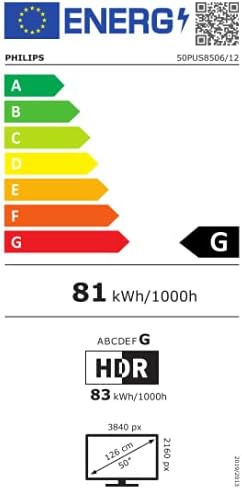
Image: Energy label for the Philips 50PUS8506/12 television, showing energy efficiency class and consumption.
9. Warranty and Support
Your Philips 50PUS8506/12 TV comes with a manufacturer's warranty. Please refer to the warranty card included in your package or visit the official Philips support website for detailed terms and conditions.
- General Warranty: A general warranty of 3 years is typically offered.
- Spare Parts Availability: Philips guarantees the availability of spare parts for a minimum of 7 years from the date the product was placed on the market.
- Product Support: Philips guarantees product support for a minimum of 7 years from the date the product was placed on the market.
- Software Updates: Information on guaranteed software updates is not available, but it is recommended to keep the TV's software updated.
For technical assistance, product registration, or to find service centers, please visit the official Philips support website or contact their customer service helpline.
Manufacturer: Philips


