
1. Introduction
Thank you for choosing the TOKVIA T111 Senior Mobile Phone. This phone is designed with ease of use in mind, featuring a large display, big buttons, and essential functions for clear communication. It includes a dedicated SOS button for emergencies, making it an ideal choice for elderly users or anyone seeking a straightforward mobile experience. This manual provides detailed instructions to help you get started and make the most of your device.
2. Getting Started: Setup
Before using your TOKVIA T111 phone, please follow these steps to set it up.
2.1 Package Contents
Ensure all items are present in your package:
- TOKVIA T111 Mobile Phone
- Rechargeable Lithium-Ion Battery
- Charging Dock
- USB Charging Cable
- Power Adapter (UK Plug)
- User Manual / Quick Start Guide
- SIM Tray Ejector / SIM Adapters (if included)

Image: All components included in the TOKVIA T111 package.
2.2 Inserting the SIM Card and Battery
- Remove the Back Cover: Gently pry open the back cover of the phone using the notch provided, usually at the bottom or side.
- Insert SIM Card: Locate the SIM card slot(s). Insert your 2G compatible SIM card into the designated slot with the gold contacts facing down, ensuring it clicks into place. This phone supports 2G networks only.
- Insert Battery: Align the battery contacts with the terminals inside the phone's battery compartment. Press down gently until the battery is securely seated.
- Replace Back Cover: Carefully place the back cover back onto the phone and press along the edges until it snaps securely into place.
2.3 Charging the Phone
For first-time use, fully charge the phone for at least 4 hours.
- Using the Charging Dock: Connect the USB charging cable to the power adapter, then plug the adapter into a wall outlet. Connect the other end of the USB cable to the charging dock. Place the phone into the charging dock, ensuring it sits correctly and the charging indicator appears on the screen.
- Direct Charging: Alternatively, you can connect the USB charging cable directly to the phone's charging port (usually at the bottom) and then to the power adapter and wall outlet.

Image: The TOKVIA T111 phone charging in its convenient dock.
3. Operating Instructions
This section details the basic functions and features of your TOKVIA T111 phone.
3.1 Power On/Off
- To Power On: Press and hold the red End Call/Power button (⏏) until the screen lights up.
- To Power Off: Press and hold the red End Call/Power button (⏏) until the power off options appear, then select 'Power off'.
3.2 Making and Receiving Calls
- To Make a Call: Dial the phone number using the large keypad buttons. Press the green Call button (✆) to initiate the call.
- To Answer a Call: When the phone rings, press the green Call button (✆).
- To End a Call: Press the red End Call button (⏏).

Image: The phone's display showing photo contacts for simplified dialing.
3.3 Sending and Receiving Messages (SMS)
- To Send a Message: Navigate to the 'Messages' menu. Select 'New Message' and enter the recipient's number and your message using the keypad. Press 'Send'.
- To Read a Message: When a new message arrives, an icon will appear on the screen. Navigate to the 'Messages' menu to view your inbox.

Image: The phone's screen displaying the 'Messages' menu.
3.4 SOS Emergency Button
The SOS button is a critical safety feature. In an emergency, pressing this button will automatically send SMS messages and make calls to pre-set emergency contacts.
- Setting Up SOS Contacts: Go to 'Settings' > 'SOS Settings'. Add up to 5 emergency contact numbers. These contacts will receive an emergency SMS and be called in sequence until one answers.
- Using the SOS Button: Press and hold the SOS button (located on the back of the phone) for a few seconds. The phone will activate the emergency sequence.
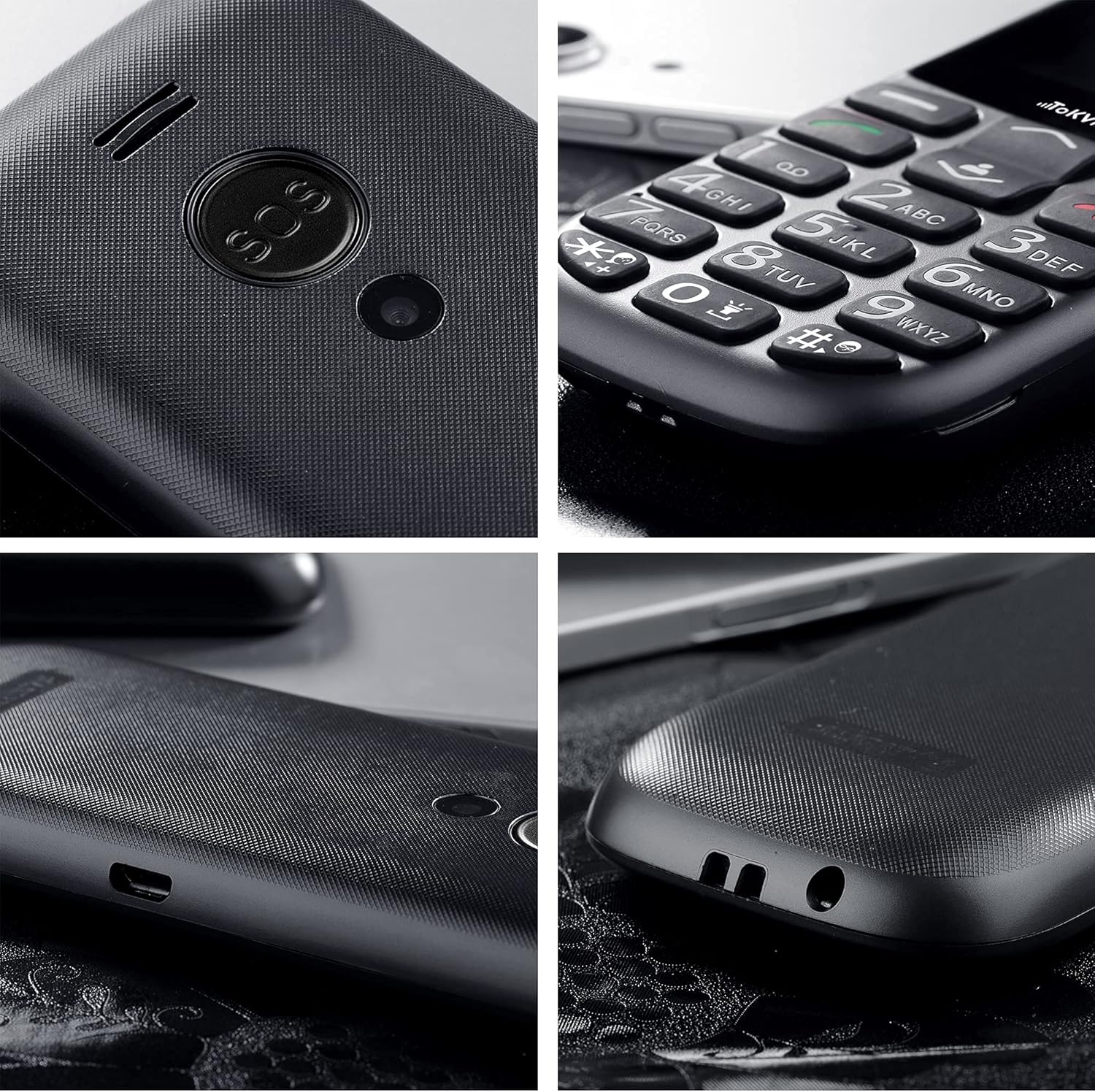
Image: Detailed view of the SOS button on the back of the phone.
3.5 Additional Features
- FM Radio: The phone includes a built-in FM radio that operates without requiring headphones or an external antenna. Access it via the main menu.
- Bluetooth: For connecting to compatible Bluetooth devices like headsets. Enable Bluetooth in the 'Settings' menu.
- Alarm Clock, Calculator, Calendar, Music Player: These standard features are accessible through the phone's main menu, providing basic utility functions.
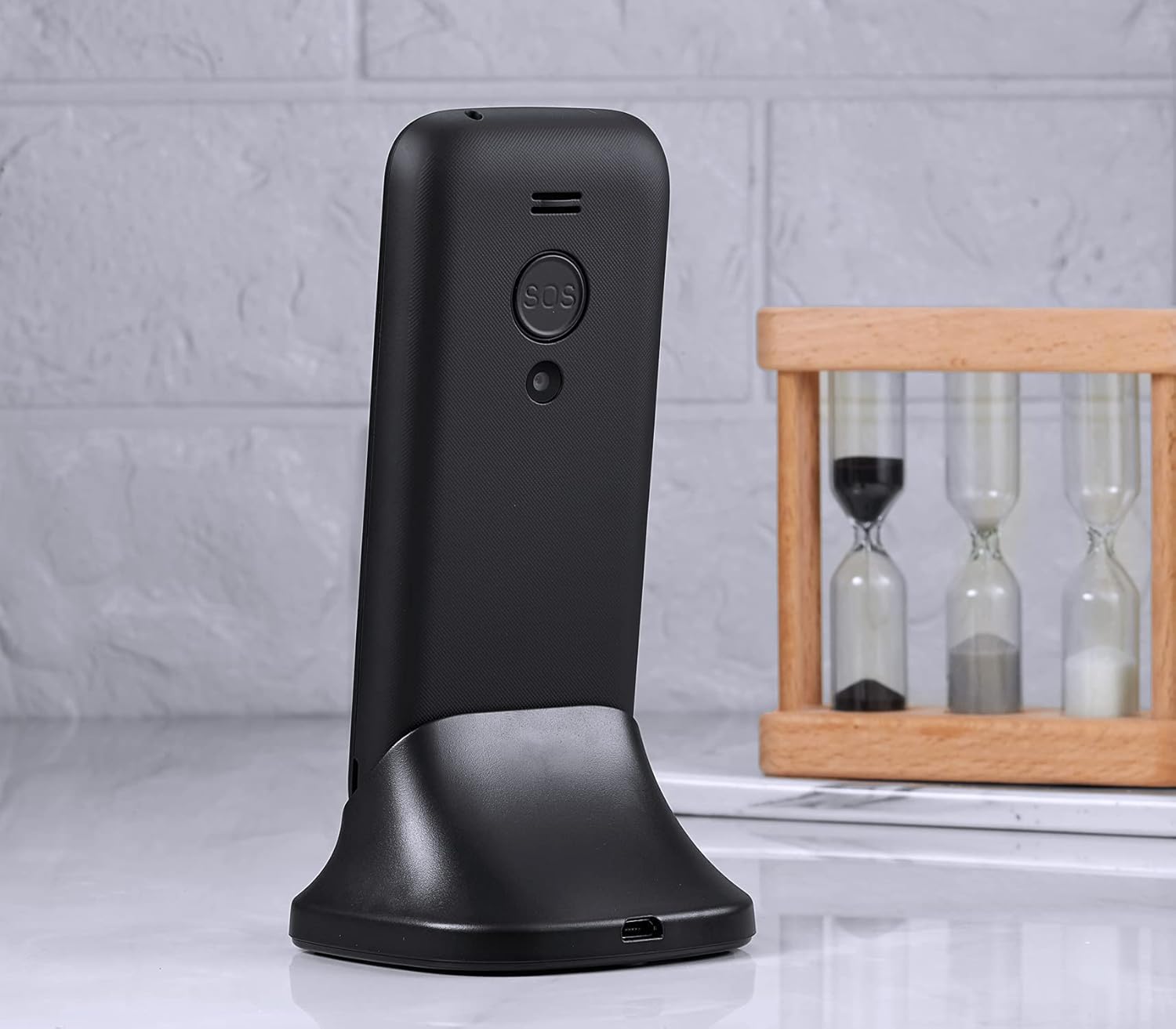
Image: The phone's display showing the time and date.
4. Maintenance and Care
To ensure the longevity and optimal performance of your TOKVIA T111 phone, please follow these maintenance guidelines:
- Cleaning: Use a soft, dry cloth to clean the phone's screen and body. Avoid using liquid cleaners or abrasive materials.
- Avoid Extreme Temperatures: Do not expose the phone to very high or low temperatures, as this can affect battery life and internal components.
- Protect from Moisture: Keep the phone dry. Moisture can damage the internal circuitry.
- Handle with Care: While designed to be robust, avoid dropping the phone or subjecting it to strong impacts.
- Battery Care: For best battery life, avoid frequently draining the battery completely. Charge it regularly.
5. Troubleshooting
If you encounter issues with your TOKVIA T111 phone, refer to the following common problems and solutions:
| Problem | Possible Solution |
|---|---|
| Phone does not power on | Ensure the battery is correctly inserted and fully charged. Try charging the phone for at least 30 minutes. |
| No network signal | Check if the SIM card is properly inserted. Ensure you are in an area with 2G network coverage. Contact your network provider if issues persist. |
| Cannot make or receive calls | Verify network signal. Check if the SIM card is active and has sufficient credit/plan. Restart the phone. |
| Low call volume | Increase the call volume using the side volume buttons during a call. Note that for individuals with severe hearing loss, the phone's maximum volume may still be insufficient. |
| Battery drains quickly | Ensure background applications are closed. Reduce screen brightness. Limit usage of features like FM radio or Bluetooth when not needed. |
| Keypad unresponsive | Restart the phone. Ensure the keypad lock is not activated. |
6. Specifications
Detailed technical specifications for the TOKVIA T111 Mobile Phone:
| Feature | Detail |
|---|---|
| Model Name | T111 |
| Brand | TOKVIA |
| Screen Size | 2.4 Inches |
| Resolution | 240 x 320 pixels |
| Operating System | Nucleus OS |
| RAM Memory Installed Size | 32 MB |
| Memory Storage Capacity | 32 GB (likely refers to expandable storage via microSD, not internal) |
| Wireless Carrier | Unlocked for All Carriers |
| Cellular Technology | 2G |
| Connectivity Technology | Bluetooth |
| Battery | 1 Lithium Ion battery (included) |
| Product Dimensions | 12.9 x 5.4 x 1.3 cm; 81 g |
| Manufacturer | TOKVIA |

Image: Visual comparison of screen sizes on the TOKVIA T111.
7. Warranty and Support
Your TOKVIA T111 phone comes with a standard manufacturer's warranty. Please refer to the warranty card included in your package for specific terms and conditions. For technical support, troubleshooting assistance beyond this manual, or warranty claims, please contact TOKVIA customer service through the contact information provided on the product packaging or official website.
Please retain your proof of purchase for any warranty-related inquiries.