
Beats MJ4Y3LL/A
Beats Studio Buds User Manual
True Wireless Noise Cancelling Earbuds
Introduction
Welcome to your Beats Studio Buds user manual. These true wireless noise cancelling earbuds are designed to deliver powerful, balanced sound with the flexibility of Active Noise Cancelling (ANC) and Transparency mode. They offer seamless compatibility with both Apple and Android devices, ensuring a versatile listening experience.
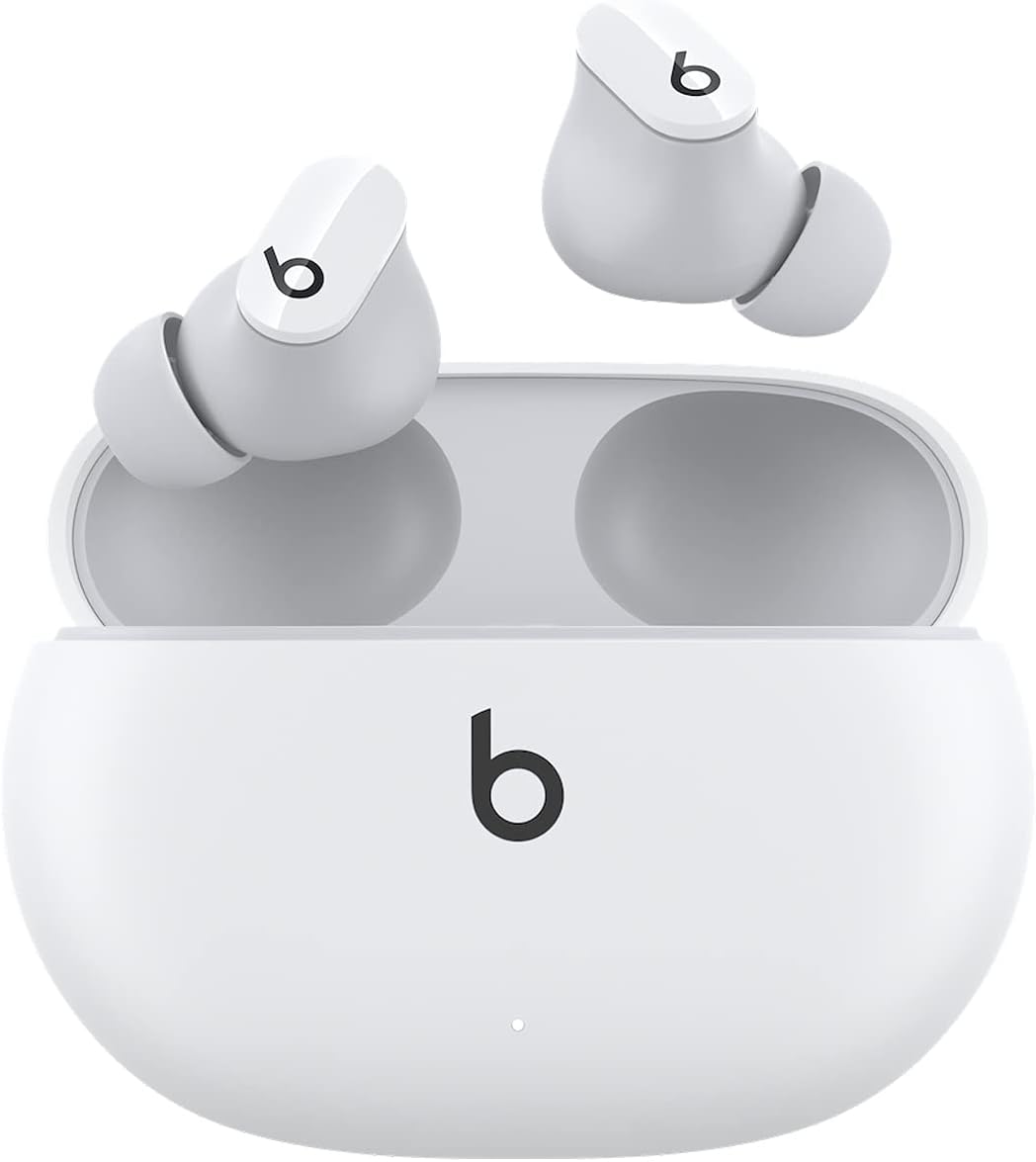
Image: Beats Studio Buds in their open charging case, showcasing the white earbuds and case design.
What's in the Box
Your Beats Studio Buds package includes the following components:
- Beats Studio Buds true wireless noise cancelling earphones
- Charging case
- Ear tips with three size options (small, medium, large)
- USB-C to USB-C charging cable
- Quick Start Guide
- Warranty card
Note: A USB-C power adapter is sold separately and is not included in the box.

Image: A visual representation of the Beats Studio Buds, charging case, USB-C cable, and three sizes of ear tips, illustrating the package contents.
Setup
1. Charging Your Earbuds
Before first use, ensure your Beats Studio Buds and charging case are fully charged. Connect the provided USB-C to USB-C charging cable to the charging case and a compatible USB-C power adapter (not included). The LED indicator on the front of the case will show charging status.
- A full charge provides up to 8 hours of listening time for the earbuds.
- The charging case provides up to 24 hours of combined listening time.
- Fast Fuel: A 5-minute charge provides up to 1 hour of playback.

Image: Graphic illustrating the battery life of Beats Studio Buds, showing 8 hours for earbuds and 24 hours combined with the charging case.
2. Pairing Your Earbuds
Beats Studio Buds offer simple one-touch pairing for both Apple and Android devices.
For Apple Devices:
- With the earbuds in the charging case, open the lid and hold your Beats Studio Buds near your unlocked iPhone or iPad.
- A setup animation will appear on your device. Follow the on-screen instructions.
For Android Devices:
- Download the Beats app from the Google Play Store.
- With the earbuds in the charging case, open the lid and hold your Beats Studio Buds near your Android device.
- Follow the instructions within the Beats app to complete pairing.
For other Bluetooth devices, open the charging case lid, press and hold the system button on the case until the LED blinks white, then select "Beats Studio Buds" from your device's Bluetooth menu.

Image: An iPhone screen displaying the Beats Studio Buds pairing prompt, demonstrating the simple one-touch pairing process for compatible devices.
3. Ear Tip Fit
Selecting the correct ear tip size is crucial for optimal sound quality and noise cancellation. Experiment with the three included ear tip sizes (small, medium, large) to find the most stable and comfortable fit that also provides an optimum acoustic seal.
Operating Your Beats Studio Buds
1. Controls
Each earbud features a multi-function 'b' button for controlling audio, calls, and voice assistant interaction.
- Single Press: Play/Pause audio, Answer/End call.
- Double Press: Skip forward.
- Triple Press: Skip backward.
- Press and Hold: Toggle between Active Noise Cancelling (ANC) and Transparency mode. This action can also activate your voice assistant (Siri, Google Assistant, etc.) depending on your settings.

Image: Diagram showing the on-device controls for Beats Studio Buds, including single, double, triple press actions for media and calls, and press-and-hold for noise control or voice assistant.
2. Active Noise Cancelling (ANC) and Transparency Mode
Your Beats Studio Buds offer two distinct listening modes:
- Active Noise Cancelling (ANC): Blocks external noise for immersive sound. Ideal for travel or noisy environments.
- Transparency Mode: Allows you to hear your surroundings while still enjoying your audio. Useful for awareness in urban environments or when interacting with others.
Toggle between these modes by pressing and holding the 'b' button on either earbud.
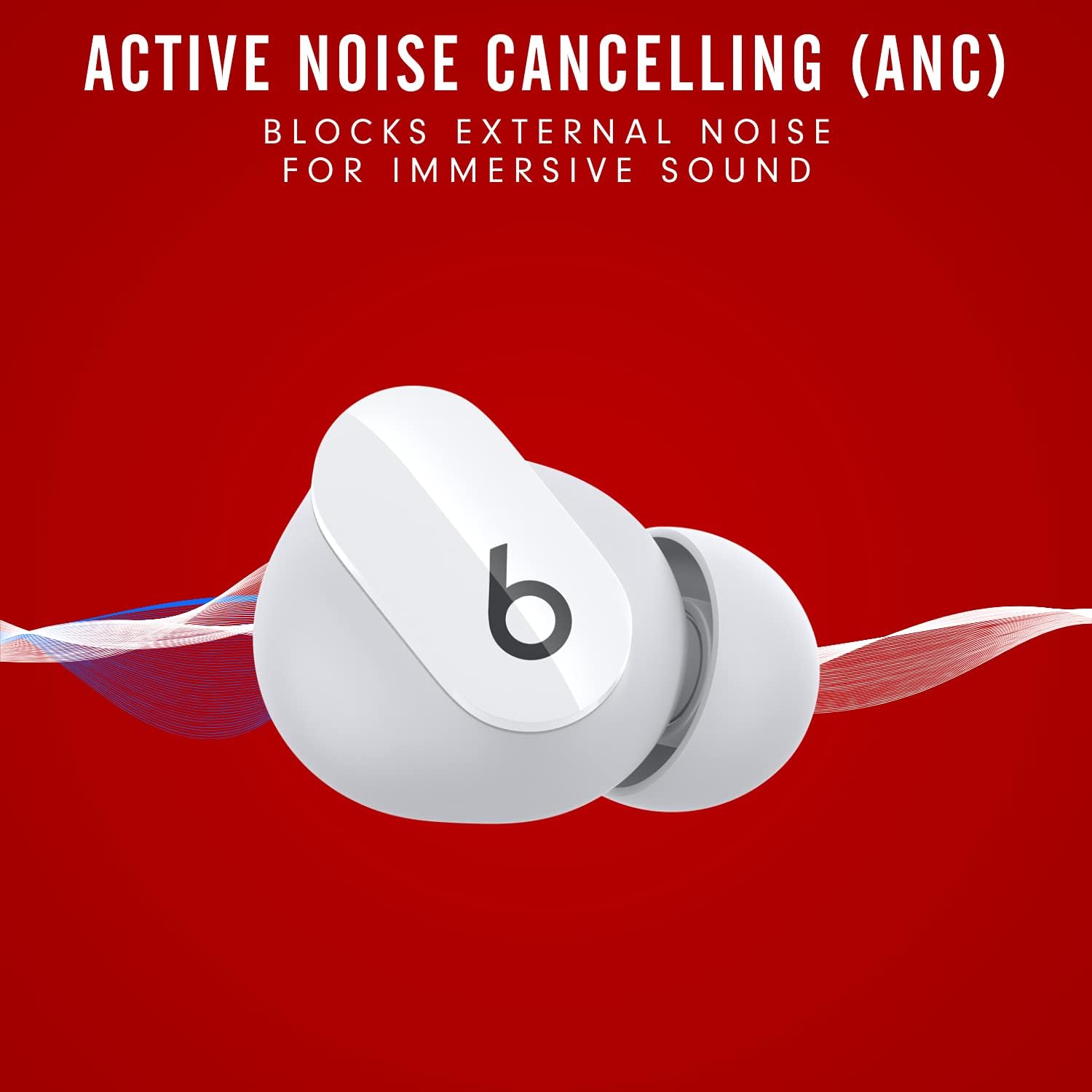
Image: Illustration of Beats Studio Buds with text indicating 'Active Noise Cancelling (ANC) - Blocks external noise for immersive sound'.

Image: Illustration of Beats Studio Buds with text indicating 'Transparency Mode - Stay aware of your surroundings'.
Maintenance
Cleaning Your Earbuds
To maintain optimal performance and hygiene, regularly clean your Beats Studio Buds and charging case. Use a soft, dry, lint-free cloth. Do not use abrasive materials or harsh chemicals. For ear tips, you can gently wipe them with a damp cloth and mild soap, then rinse and dry thoroughly before reattaching.
Water Resistance
The Beats Studio Buds are IPX4-rated, meaning they are sweat- and water-resistant. This makes them suitable for workouts and light rain. However, they are not waterproof and should not be submerged in water. Avoid exposing them to pressurized water or high-velocity water, such as showering or swimming.
Troubleshooting
If you encounter issues with your Beats Studio Buds, try the following common troubleshooting steps:
- No Sound/Poor Sound Quality: Ensure earbuds are properly seated in your ears and that the correct ear tip size is used for a good seal. Check device volume and Bluetooth connection.
- Pairing Issues: Ensure earbuds are charged. Turn off and on Bluetooth on your device. Try resetting the earbuds by placing them in the case, closing the lid for 10 seconds, then opening and holding the system button until the LED blinks red and white.
- Charging Issues: Ensure the USB-C cable is securely connected to both the case and power source. Try a different cable or power adapter. Clean the charging contacts on the earbuds and inside the case.
- Controls Not Responding: Ensure earbuds are charged. Restart your connected device.
For more detailed troubleshooting or persistent issues, refer to the official Beats support website or contact customer service.
Specifications
| Feature | Specification |
|---|---|
| Model Name | Beats Studio Buds |
| Model Number | MJ4Y3LL/A |
| Connectivity Technology | Wireless (Bluetooth Class 1) |
| Noise Control | Active Noise Cancellation, Transparency Mode |
| Battery Life (Earbuds) | Up to 8 hours |
| Battery Life (with Case) | Up to 24 hours |
| Fast Fuel Charging | 5-minute charge for 1 hour playback |
| Water Resistance | IPX4 (Sweat and Water Resistant) |
| Earbud Weight (each) | 5g |
| Case Weight | 48g |
| Total Weight | 58g |
| Dimensions (Case) | 7.2cm (L) x 5.1cm (W) x 2.55cm (H) |
| Dimensions (Bud) | 2.05cm (L) x 1.85cm (W) x 1.5cm (H) |
| Control Type | Media Control, Volume Control, Voice Control, Call Control, Noise Control |
| Compatible Devices | Cellphones, Desktops, Gaming Consoles, Laptops, Tablets (Apple & Android) |
Warranty and Support
Your Beats Studio Buds come with a limited warranty. Please refer to the included warranty card for specific terms and conditions, including coverage duration and claim procedures.
For additional support, frequently asked questions, or to download the full Instructions for Use (IFU) PDF, please visit the official Beats support resources:
- Official Beats Store: Visit the Beats Store on Amazon
- Instructions for Use (IFU) PDF: Download PDF Manual
Related documentsMJ4Y3LL/A


Ask a question about this manual
Ask about setup, troubleshooting, compatibility, parts, safety, or missing instructions. Manuals+ will review the question and use this page’s manual context to help answer it.